;}.cls-2{fill:url(%23Unbenannter_Verlauf_5-2);}.cls-3{fill:url(%23Unbenannter_Verlauf_5-5);}.cls-4{fill:url(%23Unbenannter_Verlauf_5-6);}.cls-5{fill:url(%23Unbenannter_Verlauf_5-3);}.cls-6{fill:url(%23Unbenannter_Verlauf_5-4);}%3c/style%3e%3clinearGradient%20id='Unbenannter_Verlauf_5'%20x1='1075.02'%20y1='943.06'%20x2='1201.78'%20y2='943.06'%20gradientUnits='userSpaceOnUse'%3e%3cstop%20offset='0'%20stop-color='%2322b88a'/%3e%3cstop%20offset='1'%20stop-color='%231a9e78'/%3e%3c/linearGradient%3e%3clinearGradient%20id='Unbenannter_Verlauf_5-2'%20x1='234.11'%20y1='663.43'%20x2='1058.29'%20y2='663.43'%20xlink:href='%23Unbenannter_Verlauf_5'/%3e%3clinearGradient%20id='Unbenannter_Verlauf_5-3'%20x1='843.79'%20y1='1064.84'%20x2='1096.04'%20y2='1064.84'%20xlink:href='%23Unbenannter_Verlauf_5'/%3e%3clinearGradient%20id='Unbenannter_Verlauf_5-4'%20x1='1120.37'%20y1='662.1'%20x2='1253'%20y2='662.1'%20xlink:href='%23Unbenannter_Verlauf_5'/%3e%3clinearGradient%20id='Unbenannter_Verlauf_5-5'%20x1='97.45'%20y1='265.53'%20x2='385.89'%20y2='265.53'%20xlink:href='%23Unbenannter_Verlauf_5'/%3e%3clinearGradient%20id='Unbenannter_Verlauf_5-6'%20x1='295.45'%20y1='255.64'%20x2='1213.95'%20y2='255.64'%20xlink:href='%23Unbenannter_Verlauf_5'/%3e%3c/defs%3e%3cpath%20class='cls-1'%20d='M1201.78,871c-.61,1.55-1.23,3.1-1.86,4.66-20.33,50.18-47.14,96.85-80.02,139.45-7.56-13.82-21.78-22.31-37.69-22.31h-7.19c29.82-37.26,54.46-78.02,73.61-121.8h53.15Z'/%3e%3cpath%20class='cls-2'%20d='M665.24,264.59l69.02,186.52c21.3,57.57,66.69,102.96,124.26,124.26l186.52,69.02c17.67,6.54,17.67,31.54,0,38.08l-186.52,69.02c-57.57,21.3-102.96,66.69-124.26,124.26l-69.02,186.52c-6.54,17.67-31.54,17.67-38.08,0l-69.02-186.52c-21.3-57.57-66.69-102.96-124.26-124.26l-186.52-69.02c-17.67-6.54-17.67-31.54,0-38.08l186.52-69.02c57.57-21.3,102.96-66.69,124.26-124.26l69.02-186.52c6.54-17.67,31.54-17.67,38.08,0Z'/%3e%3cpath%20class='cls-5'%20d='M1082.21,1021.98h-79.13c-1.7,0-2.97-1.56-2.62-3.23l22.72-109.35c2.94-14.16-15.11-22.74-24.23-11.51l-152.04,187.31c-7.32,9.02-.9,22.5,10.72,22.5h79.13c1.7,0,2.97,1.56,2.62,3.23l-22.72,109.35c-2.94,14.16,15.11,22.74,24.23,11.51l152.04-187.31c7.32-9.02.9-22.5-10.72-22.5Z'/%3e%3crect%20class='cls-6'%20x='1120.37'%20y='486.36'%20width='132.63'%20height='351.48'%20rx='19.58'%20ry='19.58'/%3e%3cpath%20class='cls-3'%20d='M250.58,128.27l13.88,55.81c7.19,28.91,29.76,51.47,58.66,58.66l55.81,13.88c9.29,2.31,9.29,15.51,0,17.82l-55.81,13.88c-28.91,7.19-51.47,29.76-58.66,58.66l-13.88,55.81c-2.31,9.29-15.51,9.29-17.82,0l-13.88-55.81c-7.19-28.91-29.76-51.47-58.66-58.66l-55.81-13.88c-9.29-2.31-9.29-15.51,0-17.82l55.81-13.88c28.91-7.19,51.47-29.76,58.66-58.66l13.88-55.81c2.31-9.29,15.51-9.29,17.82,0Z'/%3e%3cpath%20class='cls-4'%20d='M1213.95,453.21h-67.62c-1.23,0-2.47.04-3.67.12-27.03-63.89-65.84-121.36-115.42-170.94-51.54-51.54-111.61-91.44-178.55-118.59-64.67-26.22-133.03-39.52-203.16-39.52s-138.48,13.3-203.16,39.52c-33.73,13.67-65.72,30.61-95.75,50.63l-.19-.05c-23.62-5.88-42.51-22.85-51-45.24,37.87-26.86,78.65-49.21,122.01-66.79,72.63-29.44,149.37-44.38,228.08-44.38s155.45,14.93,228.08,44.38c75.2,30.51,142.67,75.31,200.53,133.15,57.84,57.85,102.65,125.33,133.15,200.53,2.31,5.7,4.54,11.43,6.66,17.19Z'/%3e%3c/svg%3e)
Office Sign-In Not Working? The Most Common Causes
Excel, Word or Outlook won't sign you in, with “Something went wrong” or an error number? The most common causes and what to check.


The error message is gone, the screenshot is missing, the ticket says “doesn't work.”
“Error message when signing in to Excel with the Office account.” That was all the ticket said that a law firm sent to its IT service provider. Typical: the message disappears after you click it away, the screenshot is missing, and “it just doesn't work.” Office sign-in problems are among the most common support requests of all, and usually have one of a few causes.
Here is how to rule them out one by one.
First: note down the error message
The exact message is half the way to the solution. Typical wording:
- “Something went wrong” with an error number (such as 1001, CAA…, 80090016, AADSTS…).
- “We couldn't sign you in.”
- “No valid product found” or “Unlicensed Product.”
- “Your account has been locked” or “Access blocked by your organization.”
Take a screenshot (Windows+Shift+S), including the error number. That saves IT a lot of time.
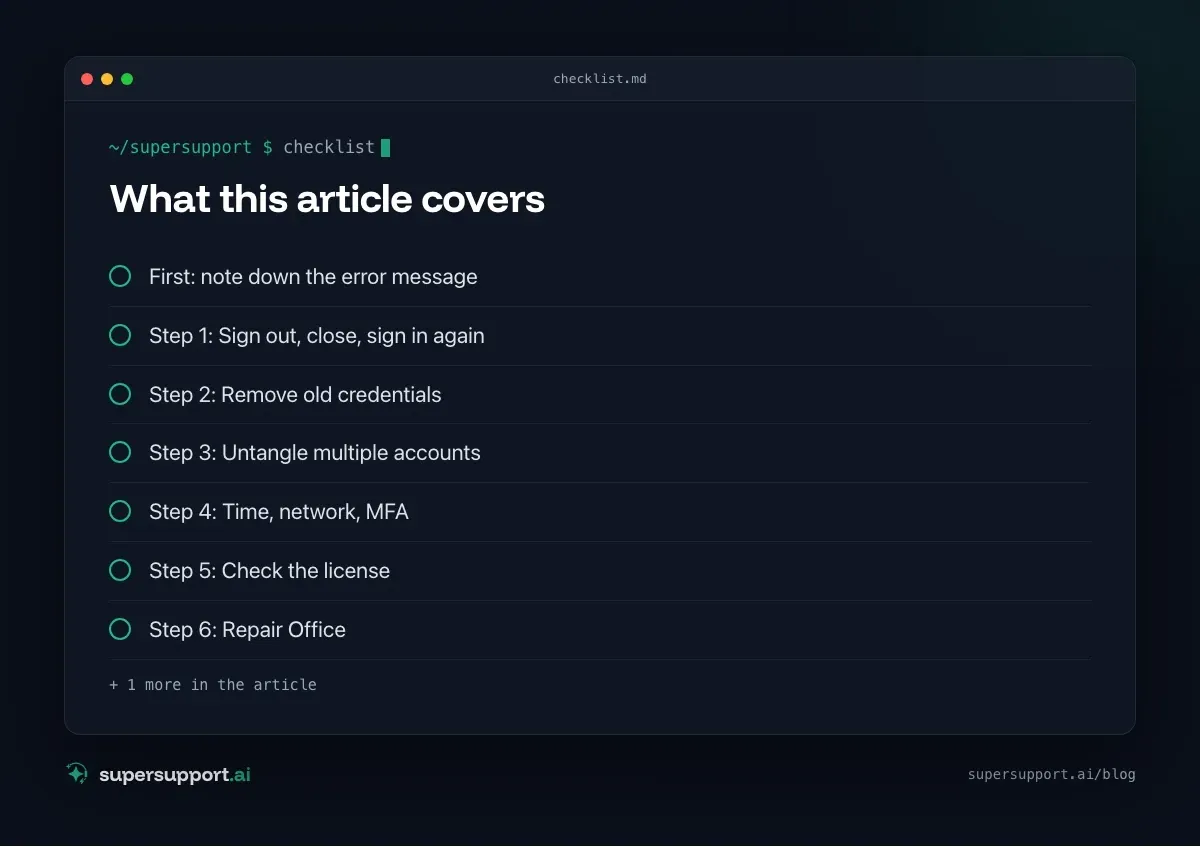
Step 1: Sign out, close, sign in again
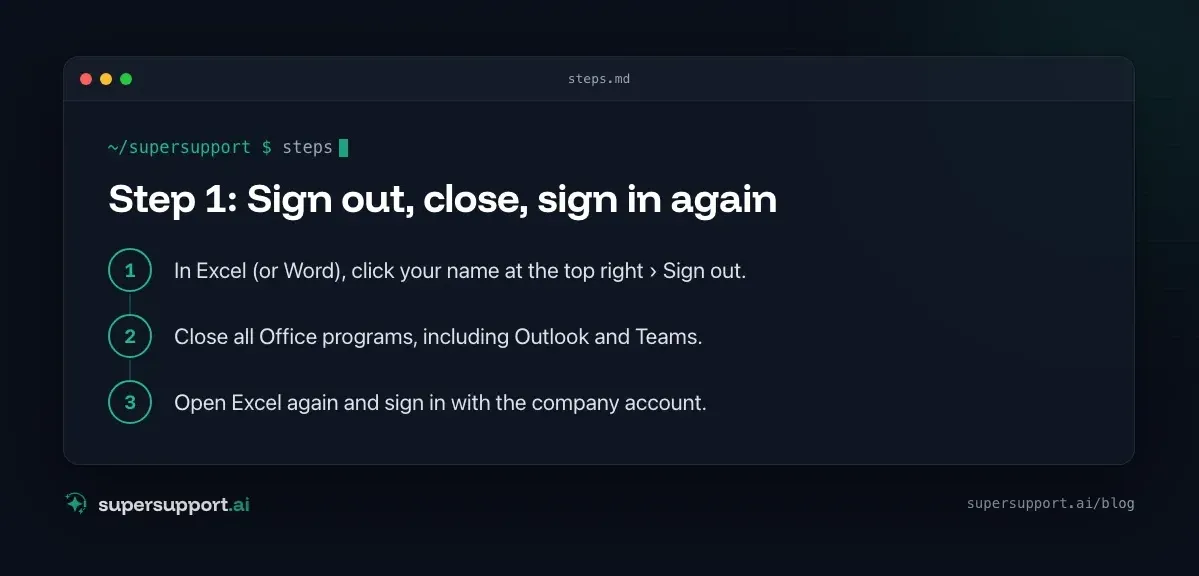
- In Excel (or Word), click your name at the top right › Sign out.
- Close all Office programs, including Outlook and Teams.
- Open Excel again and sign in with the company account.
If that works, the session had just gotten stuck.
Step 2: Remove old credentials
Cached old passwords are the most common cause, for example after a password change.
- Control Panel › Credential Manager › Windows Credentials.
- Remove entries with MicrosoftOffice or Office in the name.
- Restart and sign in to Office.
Step 3: Untangle multiple accounts
A personal Microsoft account and a company account at the same time often lead to mix-ups.
- In Office, check under File › Account which account is signed in.
- Under Settings › Accounts › Email & accounts, remove unnecessary accounts.
- Under Settings › Accounts › Access work or school, check whether the company account is connected correctly.
Step 4: Time, network, MFA
- Time: If the PC's clock is far off, sign-in fails. Settings › Time & language › Date & time › set automatically, Sync now.
- Network: On hotel or guest Wi-Fi, sign-in can be blocked. Try your phone's hotspot as a test. See Unstable internet connection.
- Multifactor authentication: No confirmation arriving on your phone? Open the Authenticator app, check the time on your phone, and try again. See Microsoft is turning off SMS MFA.
Step 5: Check the license

14 days free
IT support that fixes itself.
SuperSupport fixes IT problems right on the device, before they turn into tickets. Try it free for 14 days.
Start free trialIf Office reports “No valid product” or runs in restricted mode, the license is usually missing:
- Under File › Account you can see which product is activated.
- IT checks in the Microsoft 365 admin center whether the user has been assigned a license that includes the Office apps, and whether the subscription is still running. What happens with expired licenses: Outlook hangs on “Loading Profile”.
Step 6: Repair Office
Settings › Apps › Installed apps › Microsoft 365 › Modify › Online Repair. This takes a bit longer but also fixes damaged sign-in components. In addition, the Windows Get Help app (“Get Help”) offers troubleshooters for Office and sign-in.
When IT has to step in
- Account locked, after too many failed attempts or for security reasons.
- Conditional Access blocks it, for example because of a non-compliant device or an unusual location.
- Device not correctly joined to Entra ID: IT checks this with
dsregcmd /status. - License missing or the subscription has expired.
- Password expired or reset, and the new sign-in doesn't work.
One possible background when suddenly many people are affected: a phishing wave and locked accounts. See Spotting a phishing email “from Microsoft”.
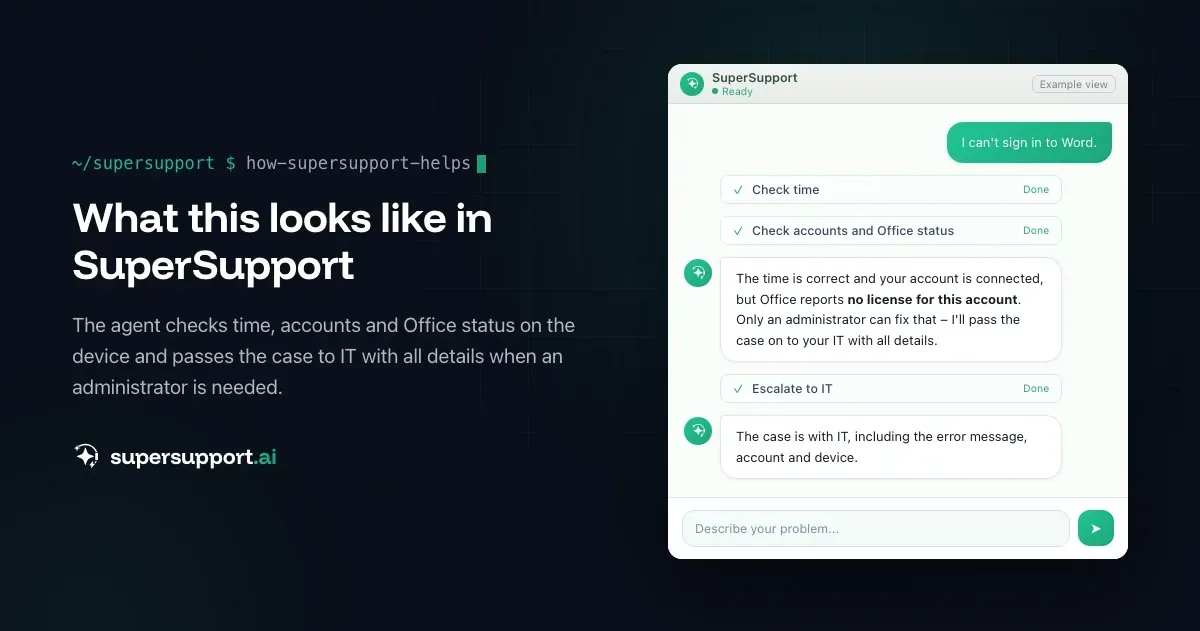
How does SuperSupport help with sign-in problems?
With “sign-in doesn't work,” IT is often missing exactly the details: which message, which account, which device. The SuperSupport agent checks the time, connected accounts, saved credentials and the Office status on the PC, walks you through signing out and signing in again, and passes on cases that an administrator has to solve (lock, license, Conditional Access) with all the details. What this looks like for internal IT teams and MSPs is described on their respective pages.
Frequently asked questions
Why can't I sign in to Office?
Common causes are cached old credentials, several accounts at the same time, an expired or missing license, a changed password, problems with multifactor authentication, the wrong time, network or proxy restrictions, and damaged credentials in Windows Credential Manager.
What should I do about “Something went wrong” in Office?
Sign out in the Office app, close all Office programs, remove the Office or MicrosoftOffice entries in Windows Credential Manager and sign in again. If that doesn't help, check under Settings › Accounts › Access work or school whether the account is connected correctly.
Do I have to sign in to each Office app separately?
No. Office uses a shared sign-in. If you sign in to Excel, you are also signed in to Word and Outlook. If it doesn't work in one app, it usually doesn't work in any, and then the cause is the account or Windows, not the individual app.
Can an expired license prevent sign-in?
Sign-in itself usually works, but Office then reports that no valid product was found and switches to a restricted mode. Check in the Microsoft 365 admin center whether the user has been assigned a license that includes the Office apps.
When does IT have to step in?
When the account is locked, the license is missing, Conditional Access blocks the sign-in or the device is not correctly joined to Entra ID. Only an administrator can change these settings.
14 days free
IT support that fixes itself.
SuperSupport fixes IT problems right on the device, before they turn into tickets. Try it free for 14 days.
Start free trialNico Haslberger is Co-Founder & CEO of SuperSupport.ai. With years of experience as an IT technician, he knows the problems in IT support first-hand: from overloaded help desks to recurring tickets that slow teams down. That knowledge is built into every feature of the platform today. He makes sure SuperSupport.ai solves exactly the problems he experienced himself for years.
This article was created with AI assistance and editorially reviewed.
Related Articles

Recover a Deleted File: All the Ways at Work
File deleted, overwritten or unsaved? Recover it via Recycle Bin, OneDrive and SharePoint, version history, AutoRecover, Previous Versions or Time Machine.


Find Your BitLocker Recovery Key: All the Ways
Windows asks for the BitLocker recovery key? Where to find the 48-digit key (Microsoft account, Entra ID, Intune, AD) and why it is requested.

Windows Server Shuts Down Every Hour? Check the License
Server shuts itself down after about an hour – taking VMs and printers with it? Usually the evaluation license has expired. How to spot and fix it.