;}.cls-2{fill:url(%23Unbenannter_Verlauf_5-2);}.cls-3{fill:url(%23Unbenannter_Verlauf_5-5);}.cls-4{fill:url(%23Unbenannter_Verlauf_5-6);}.cls-5{fill:url(%23Unbenannter_Verlauf_5-3);}.cls-6{fill:url(%23Unbenannter_Verlauf_5-4);}%3c/style%3e%3clinearGradient%20id='Unbenannter_Verlauf_5'%20x1='1075.02'%20y1='943.06'%20x2='1201.78'%20y2='943.06'%20gradientUnits='userSpaceOnUse'%3e%3cstop%20offset='0'%20stop-color='%2322b88a'/%3e%3cstop%20offset='1'%20stop-color='%231a9e78'/%3e%3c/linearGradient%3e%3clinearGradient%20id='Unbenannter_Verlauf_5-2'%20x1='234.11'%20y1='663.43'%20x2='1058.29'%20y2='663.43'%20xlink:href='%23Unbenannter_Verlauf_5'/%3e%3clinearGradient%20id='Unbenannter_Verlauf_5-3'%20x1='843.79'%20y1='1064.84'%20x2='1096.04'%20y2='1064.84'%20xlink:href='%23Unbenannter_Verlauf_5'/%3e%3clinearGradient%20id='Unbenannter_Verlauf_5-4'%20x1='1120.37'%20y1='662.1'%20x2='1253'%20y2='662.1'%20xlink:href='%23Unbenannter_Verlauf_5'/%3e%3clinearGradient%20id='Unbenannter_Verlauf_5-5'%20x1='97.45'%20y1='265.53'%20x2='385.89'%20y2='265.53'%20xlink:href='%23Unbenannter_Verlauf_5'/%3e%3clinearGradient%20id='Unbenannter_Verlauf_5-6'%20x1='295.45'%20y1='255.64'%20x2='1213.95'%20y2='255.64'%20xlink:href='%23Unbenannter_Verlauf_5'/%3e%3c/defs%3e%3cpath%20class='cls-1'%20d='M1201.78,871c-.61,1.55-1.23,3.1-1.86,4.66-20.33,50.18-47.14,96.85-80.02,139.45-7.56-13.82-21.78-22.31-37.69-22.31h-7.19c29.82-37.26,54.46-78.02,73.61-121.8h53.15Z'/%3e%3cpath%20class='cls-2'%20d='M665.24,264.59l69.02,186.52c21.3,57.57,66.69,102.96,124.26,124.26l186.52,69.02c17.67,6.54,17.67,31.54,0,38.08l-186.52,69.02c-57.57,21.3-102.96,66.69-124.26,124.26l-69.02,186.52c-6.54,17.67-31.54,17.67-38.08,0l-69.02-186.52c-21.3-57.57-66.69-102.96-124.26-124.26l-186.52-69.02c-17.67-6.54-17.67-31.54,0-38.08l186.52-69.02c57.57-21.3,102.96-66.69,124.26-124.26l69.02-186.52c6.54-17.67,31.54-17.67,38.08,0Z'/%3e%3cpath%20class='cls-5'%20d='M1082.21,1021.98h-79.13c-1.7,0-2.97-1.56-2.62-3.23l22.72-109.35c2.94-14.16-15.11-22.74-24.23-11.51l-152.04,187.31c-7.32,9.02-.9,22.5,10.72,22.5h79.13c1.7,0,2.97,1.56,2.62,3.23l-22.72,109.35c-2.94,14.16,15.11,22.74,24.23,11.51l152.04-187.31c7.32-9.02.9-22.5-10.72-22.5Z'/%3e%3crect%20class='cls-6'%20x='1120.37'%20y='486.36'%20width='132.63'%20height='351.48'%20rx='19.58'%20ry='19.58'/%3e%3cpath%20class='cls-3'%20d='M250.58,128.27l13.88,55.81c7.19,28.91,29.76,51.47,58.66,58.66l55.81,13.88c9.29,2.31,9.29,15.51,0,17.82l-55.81,13.88c-28.91,7.19-51.47,29.76-58.66,58.66l-13.88,55.81c-2.31,9.29-15.51,9.29-17.82,0l-13.88-55.81c-7.19-28.91-29.76-51.47-58.66-58.66l-55.81-13.88c-9.29-2.31-9.29-15.51,0-17.82l55.81-13.88c28.91-7.19,51.47-29.76,58.66-58.66l13.88-55.81c2.31-9.29,15.51-9.29,17.82,0Z'/%3e%3cpath%20class='cls-4'%20d='M1213.95,453.21h-67.62c-1.23,0-2.47.04-3.67.12-27.03-63.89-65.84-121.36-115.42-170.94-51.54-51.54-111.61-91.44-178.55-118.59-64.67-26.22-133.03-39.52-203.16-39.52s-138.48,13.3-203.16,39.52c-33.73,13.67-65.72,30.61-95.75,50.63l-.19-.05c-23.62-5.88-42.51-22.85-51-45.24,37.87-26.86,78.65-49.21,122.01-66.79,72.63-29.44,149.37-44.38,228.08-44.38s155.45,14.93,228.08,44.38c75.2,30.51,142.67,75.31,200.53,133.15,57.84,57.85,102.65,125.33,133.15,200.53,2.31,5.7,4.54,11.43,6.66,17.19Z'/%3e%3c/svg%3e)
Unstable Internet Connection on Windows: Find the Cause
Ping looks clean, yet connections drop? Why several network adapters with their own gateway are often the reason, and how to check and fix it.


Ping is clean, the speed test is green, and yet Teams drops every ten minutes. The problem is then often in the computer.
“My internet connection is unstable.” A short sentence that can hide a lot: Wi-Fi, router, provider, VPN – or the computer itself. It gets especially confusing when all the tests look clean: ping works, DNS resolves, web pages load. And yet Teams calls drop and remote sessions freeze.
That was exactly the situation at a technical workstation in a mid-sized company: a powerful computer with several network ports and Hyper-V for virtual machines. The cause was not in the line but in the computer's network configuration. Here is how you find it.
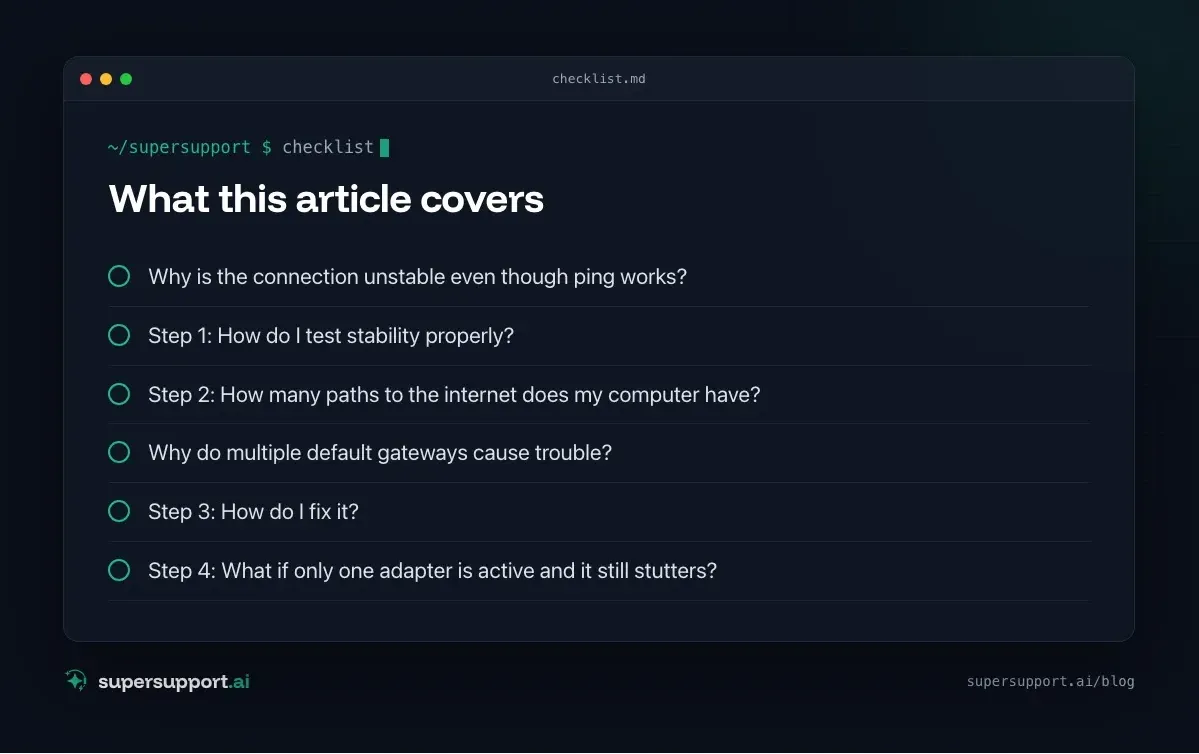
Why is the connection unstable even though ping works?
A single ping measures only the moment – but dropouts occur sporadically. In the real-world case, the ping was 2 ms with no packet loss. The instability was real anyway; it just did not show up in the few seconds of the test.
So the rule is: measure over a longer period first, then check the configuration.
Step 1: How do I test stability properly?
Let a continuous ping run for several minutes while the problem is occurring.
ping -t 1.1.1.1End it with Ctrl+C; the statistics show the packet loss. In PowerShell:
Test-Connection 1.1.1.1 -Count 300 | Measure-Object -Property ResponseTime -Average -MaximumWhat to look for:
- Timeouts – even a few percent of loss disrupts calls and remote sessions.
- Widely varying response times – 2 ms, then 400 ms, then 2 ms again point to overload or changing paths.
- Comparison with the router: ping your gateway in parallel. If everything is stable there, the problem is behind the router; if even the router ping drops, it is in the local network or on the computer.
Step 2: How many paths to the internet does my computer have?
Check how many network adapters have their own default gateway – more than one is almost always a problem.
Get-NetRoute -DestinationPrefix 0.0.0.0/0 |
  Select-Object InterfaceAlias, NextHop, RouteMetric, @{n='IfMetric';e={(Get-NetIPInterface -InterfaceIndex $_.InterfaceIndex -AddressFamily IPv4).InterfaceMetric}}
Each row is a default route to the internet. In the real-world case, five adapters were listed at the same time: four physical ports and one virtual Hyper-V switch, all with their own address and their own gateway.
The classic alternative is route print – the default routes are listed there under “0.0.0.0”.
Why do multiple default gateways cause trouble?
Windows chooses the path based on the metric. If several paths are equal, traffic can jump between them – and existing connections drop.
By default, Windows assigns the metric automatically based on link speed. If several adapters have the same speed, they get the same metric. Then this applies:
- New connections go out through one adapter, then through the other.
- If one of the paths does not reliably lead to the internet – for example because it points into a server or management network – exactly the connections that happen to land there fail.
- Long-lived connections such as VPN, Teams, Remote Desktop or file shares notice first.
Typical triggers: computers with several onboard ports, docking stations plus Wi-Fi plus LAN, virtual switches from Hyper-V, VPN clients that create their own adapters.
Step 3: How do I fix it?
Either disable unused adapters or give the main adapter a clearly better metric.

Beta
IT support that fixes itself.
supersupport.ai handles your 1st-level support fully automatically. Secure your spot on the waitlist now.
Join the WaitlistOption A – disable unused adapters (the simplest solution):
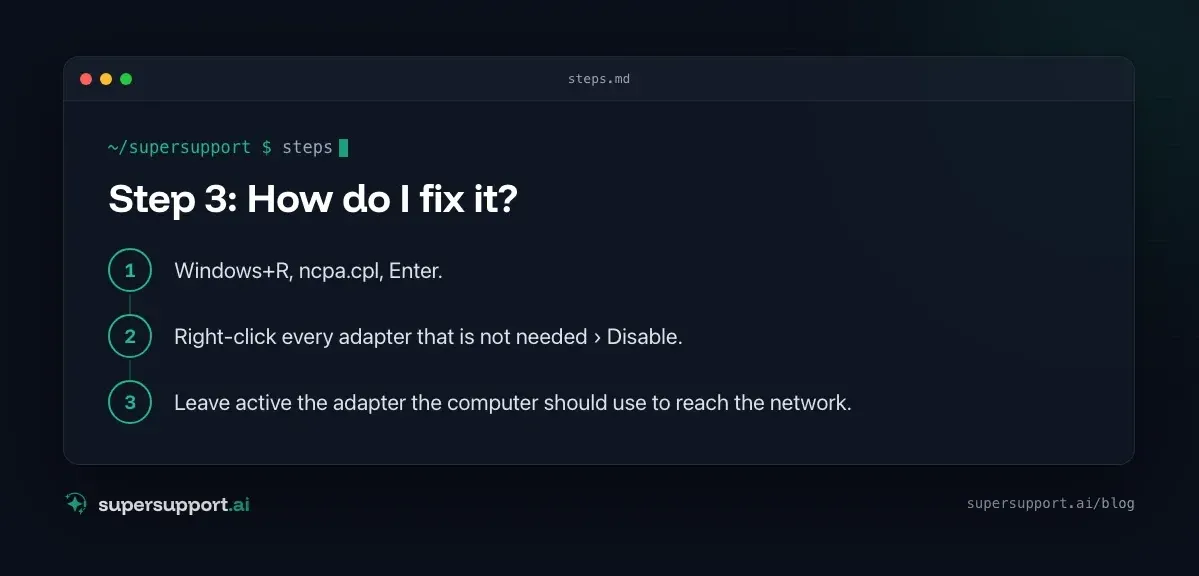
- Windows+R,
ncpa.cpl, Enter. - Right-click every adapter that is not needed › Disable.
- Leave active the adapter the computer should use to reach the network.
The IP address shows which one that is: it is the adapter in the normal office network, not the one in the server or management range.
Option B – set the metric, if several adapters have to stay active:
Set-NetIPInterface -InterfaceAlias "Ethernet" -InterfaceMetric 10
Set-NetIPInterface -InterfaceAlias "Ethernet 2" -InterfaceMetric 50
The adapter with the lower metric is preferred. For adapters that should not reach the internet at all, it is cleaner to remove the default gateway there entirely.
Be careful with virtual adapters: the Hyper-V switch is needed by running virtual machines, and VPN adapters by the VPN client. Do not simply switch these off – if in doubt, ask IT.
Step 4: What if only one adapter is active and it still stutters?
Then the cause is usually in the Wi-Fi, at the router, or in name resolution. Check in this order:
- Wi-Fi instead of cable? Try connecting with a LAN cable. If it is stable then, the problem is the wireless link – channel, distance, sources of interference.
- Power saving on the adapter: Device Manager › Network adapters › Properties › Power Management › clear “Allow the computer to turn off this device to save power”.
- Network reset: Settings › Network & internet › Advanced network settings › Network reset (then restart and re-enter Wi-Fi passwords).
- DNS: If a DNS filter is running (for example from a parental control or security service), the note “Non-authoritative answer” from
nslookupis normal. Dropouts in name resolution show up more as pages that “load forever” and then come through after all. - Drivers: Update the network driver from the computer's manufacturer.
For internal IT teams, “the internet is slow” is one of the tickets with the highest puzzle factor – much like high CPU and RAM usage or Outlook crashes, where the cause is rarely where you look first.
How does SuperSupport help with network problems?
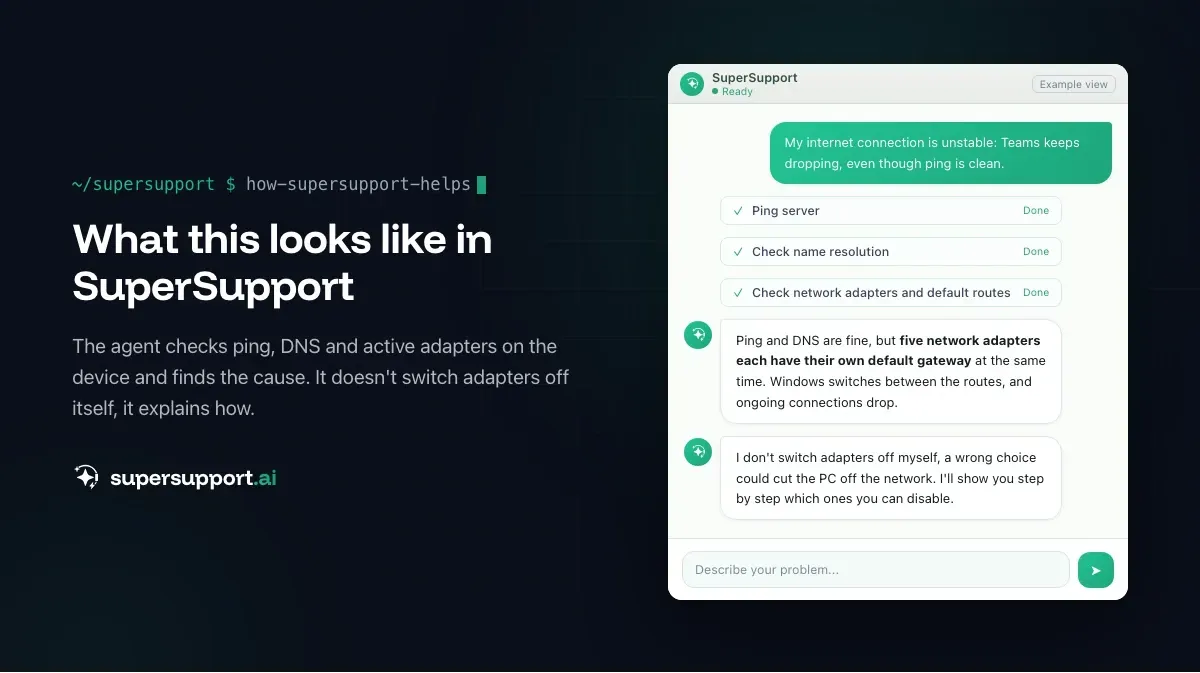
In the case described, the SuperSupport agent checked ping, DNS, the active adapters, the default routes and the proxy settings directly on the device and found the five competing gateways as the cause. The security check deliberately did not allow switching off network adapters automatically – a wrong decision could disconnect the computer from the network. Instead, the user received exact instructions, and the problem was solved. What this looks like for internal IT teams and IT service providers is described on the respective pages.
Frequently asked questions
Why is my internet connection unstable even though ping works?
A quick ping only shows a single moment. Dropouts often happen sporadically – for example when several network adapters each have their own default gateway and Windows switches between them, with Wi-Fi interference, or with overloaded lines.
What happens when several network adapters have a default gateway?
Windows uses the interface metric to decide which path to use. If the metrics are equal or keep changing, connections can run over different paths and drop – especially with VPN, Teams calls and Remote Desktop.
How do I see which adapters have a default gateway?
In PowerShell with Get-NetRoute -DestinationPrefix 0.0.0.0/0. Each row is a default route to the internet, including the adapter and metric.
Can I simply disable unused network adapters?
Yes, via Windows+R, ncpa.cpl, right-click, Disable. Be careful with virtual adapters from Hyper-V or VPN clients: they are often needed. If in doubt, ask IT.
How do I test whether my connection is really stable?
With a continuous ping over several minutes, for example ping -t 1.1.1.1 or Test-Connection 1.1.1.1 -Count 300. Watch for timeouts and widely varying response times.
Beta
IT support that fixes itself.
supersupport.ai handles your 1st-level support fully automatically. Secure your spot on the waitlist now.
Join the WaitlistNico Haslberger is Co-Founder & CEO of SuperSupport.ai. With years of experience as an IT technician, he knows the problems in IT support first-hand: from overloaded help desks to recurring tickets that slow teams down. That knowledge is built into every feature of the platform today. He makes sure SuperSupport.ai solves exactly the problems he experienced himself for years.
This article was created with AI assistance and editorially reviewed.
Related Articles

Program Not Responding: How to Close It Properly
“Not responding” and nothing works? Here's how to close frozen programs cleanly on Windows – even if the process has another name or runs several times.


Outlook Keeps Crashing: Find the Cause and Fix It for Good
Outlook keeps crashing, but the event log shows nothing? Here's how to find the trigger – from add-ins and the cache to a corrupted profile.

Printer Not Printing: Fix the Print Spooler
No printers visible anymore or jobs stuck? Often the Windows Print Spooler is stopped or disabled. Here is how to check and repair it.