;}.cls-2{fill:url(%23Unbenannter_Verlauf_5-2);}.cls-3{fill:url(%23Unbenannter_Verlauf_5-5);}.cls-4{fill:url(%23Unbenannter_Verlauf_5-6);}.cls-5{fill:url(%23Unbenannter_Verlauf_5-3);}.cls-6{fill:url(%23Unbenannter_Verlauf_5-4);}%3c/style%3e%3clinearGradient%20id='Unbenannter_Verlauf_5'%20x1='1075.02'%20y1='943.06'%20x2='1201.78'%20y2='943.06'%20gradientUnits='userSpaceOnUse'%3e%3cstop%20offset='0'%20stop-color='%2322b88a'/%3e%3cstop%20offset='1'%20stop-color='%231a9e78'/%3e%3c/linearGradient%3e%3clinearGradient%20id='Unbenannter_Verlauf_5-2'%20x1='234.11'%20y1='663.43'%20x2='1058.29'%20y2='663.43'%20xlink:href='%23Unbenannter_Verlauf_5'/%3e%3clinearGradient%20id='Unbenannter_Verlauf_5-3'%20x1='843.79'%20y1='1064.84'%20x2='1096.04'%20y2='1064.84'%20xlink:href='%23Unbenannter_Verlauf_5'/%3e%3clinearGradient%20id='Unbenannter_Verlauf_5-4'%20x1='1120.37'%20y1='662.1'%20x2='1253'%20y2='662.1'%20xlink:href='%23Unbenannter_Verlauf_5'/%3e%3clinearGradient%20id='Unbenannter_Verlauf_5-5'%20x1='97.45'%20y1='265.53'%20x2='385.89'%20y2='265.53'%20xlink:href='%23Unbenannter_Verlauf_5'/%3e%3clinearGradient%20id='Unbenannter_Verlauf_5-6'%20x1='295.45'%20y1='255.64'%20x2='1213.95'%20y2='255.64'%20xlink:href='%23Unbenannter_Verlauf_5'/%3e%3c/defs%3e%3cpath%20class='cls-1'%20d='M1201.78,871c-.61,1.55-1.23,3.1-1.86,4.66-20.33,50.18-47.14,96.85-80.02,139.45-7.56-13.82-21.78-22.31-37.69-22.31h-7.19c29.82-37.26,54.46-78.02,73.61-121.8h53.15Z'/%3e%3cpath%20class='cls-2'%20d='M665.24,264.59l69.02,186.52c21.3,57.57,66.69,102.96,124.26,124.26l186.52,69.02c17.67,6.54,17.67,31.54,0,38.08l-186.52,69.02c-57.57,21.3-102.96,66.69-124.26,124.26l-69.02,186.52c-6.54,17.67-31.54,17.67-38.08,0l-69.02-186.52c-21.3-57.57-66.69-102.96-124.26-124.26l-186.52-69.02c-17.67-6.54-17.67-31.54,0-38.08l186.52-69.02c57.57-21.3,102.96-66.69,124.26-124.26l69.02-186.52c6.54-17.67,31.54-17.67,38.08,0Z'/%3e%3cpath%20class='cls-5'%20d='M1082.21,1021.98h-79.13c-1.7,0-2.97-1.56-2.62-3.23l22.72-109.35c2.94-14.16-15.11-22.74-24.23-11.51l-152.04,187.31c-7.32,9.02-.9,22.5,10.72,22.5h79.13c1.7,0,2.97,1.56,2.62,3.23l-22.72,109.35c-2.94,14.16,15.11,22.74,24.23,11.51l152.04-187.31c7.32-9.02.9-22.5-10.72-22.5Z'/%3e%3crect%20class='cls-6'%20x='1120.37'%20y='486.36'%20width='132.63'%20height='351.48'%20rx='19.58'%20ry='19.58'/%3e%3cpath%20class='cls-3'%20d='M250.58,128.27l13.88,55.81c7.19,28.91,29.76,51.47,58.66,58.66l55.81,13.88c9.29,2.31,9.29,15.51,0,17.82l-55.81,13.88c-28.91,7.19-51.47,29.76-58.66,58.66l-13.88,55.81c-2.31,9.29-15.51,9.29-17.82,0l-13.88-55.81c-7.19-28.91-29.76-51.47-58.66-58.66l-55.81-13.88c-9.29-2.31-9.29-15.51,0-17.82l55.81-13.88c28.91-7.19,51.47-29.76,58.66-58.66l13.88-55.81c2.31-9.29,15.51-9.29,17.82,0Z'/%3e%3cpath%20class='cls-4'%20d='M1213.95,453.21h-67.62c-1.23,0-2.47.04-3.67.12-27.03-63.89-65.84-121.36-115.42-170.94-51.54-51.54-111.61-91.44-178.55-118.59-64.67-26.22-133.03-39.52-203.16-39.52s-138.48,13.3-203.16,39.52c-33.73,13.67-65.72,30.61-95.75,50.63l-.19-.05c-23.62-5.88-42.51-22.85-51-45.24,37.87-26.86,78.65-49.21,122.01-66.79,72.63-29.44,149.37-44.38,228.08-44.38s155.45,14.93,228.08,44.38c75.2,30.51,142.67,75.31,200.53,133.15,57.84,57.85,102.65,125.33,133.15,200.53,2.31,5.7,4.54,11.43,6.66,17.19Z'/%3e%3c/svg%3e)
Program Not Responding: How to Close It Properly
“Not responding” and nothing works? Here's how to close frozen programs cleanly on Windows – even if the process has another name or runs several times.


“Not responding” doesn't mean the program is dead. Usually it is just waiting for something that never arrives.
“An app isn't responding.” The window is gray, the title bar says “Not Responding”, clicks go nowhere. The close button only brings up the question of whether you want to wait or close the program – and afterward often nothing happens again.
Two cases from support show the typical variants: a softphone app was running with nine processes at once and froze – it could be closed cleanly and then restarted. A cloud sync client, on the other hand, was stuck at extreme processor load and could neither be restarted nor found under its name – in the end only restarting the computer helped. Here is how to proceed so that you avoid the second case as far as possible.
What does “Not Responding” mean?
Windows reports “Not Responding” when a program has not responded to input for a few seconds. That doesn't necessarily mean it has crashed. Often it is working in the background – saving a large file, syncing, waiting for the network.
First rule: wait 30 to 60 seconds before you intervene forcefully. Especially with Office programs, sync clients and programs that access network drives, the freeze often resolves itself – and without data loss.
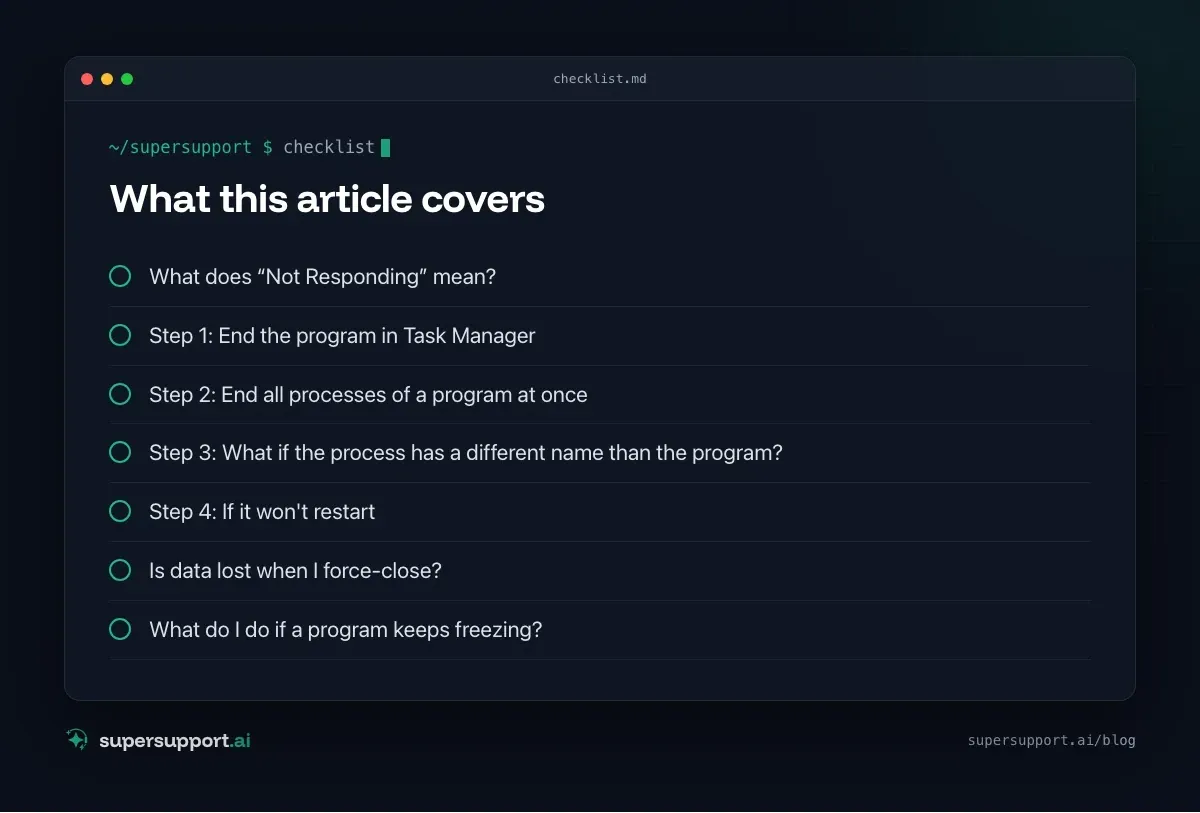
Step 1: End the program in Task Manager
Open Task Manager with Ctrl+Shift+Esc, select the program under “Processes” and choose “End task”. Windows first tries to close the program in an orderly way.
If that doesn't work, go to the Details tab. There you see every individual process. Many modern programs – chat and telephony apps, browsers, editors – consist of several processes with the same name. In the real-world case of the softphone app, there were nine. If only one is ended, the others stay stuck.
Step 2: End all processes of a program at once
With taskkill you end all instances of a program, including child processes, in one step.
In the Command Prompt:
taskkill /f /im Programm.exe /t/fforces the termination,/imspecifies the name of the executable,/talso ends all child processes.
Caution: unsaved work in this program is lost.
Step 3: What if the process has a different name than the program?
The name in Task Manager is not always the name of the file. In the real-world case, the sync client was still running according to the scan, but taskkill found nothing under the obvious name. Programs often use helper processes with their own names, such as …Updater.exe, …Helper.exe or generic names.
Here is how to find the right process:
- Task Manager › Details › right-click the column header › Select columns › show Description and Command line. They show the vendor name and the path.
- In Task Manager under Processes, expand the program, right-click › Go to details – it highlights the right process directly.
With PowerShell, searching for part of the name or path:
Get-Process | Where-Object { $_.Path -match 'Hersteller|Programm' -or $_.MainWindowTitle -match 'Programm' } |
  Select-Object Id, ProcessName, Path, CPU
Then end it by ID:
Stop-Process -Id 1234 -Force
Beta
IT support that fixes itself.
supersupport.ai handles your 1st-level support fully automatically. Secure your spot on the waitlist now.
Join the WaitlistStep 4: If it won't restart
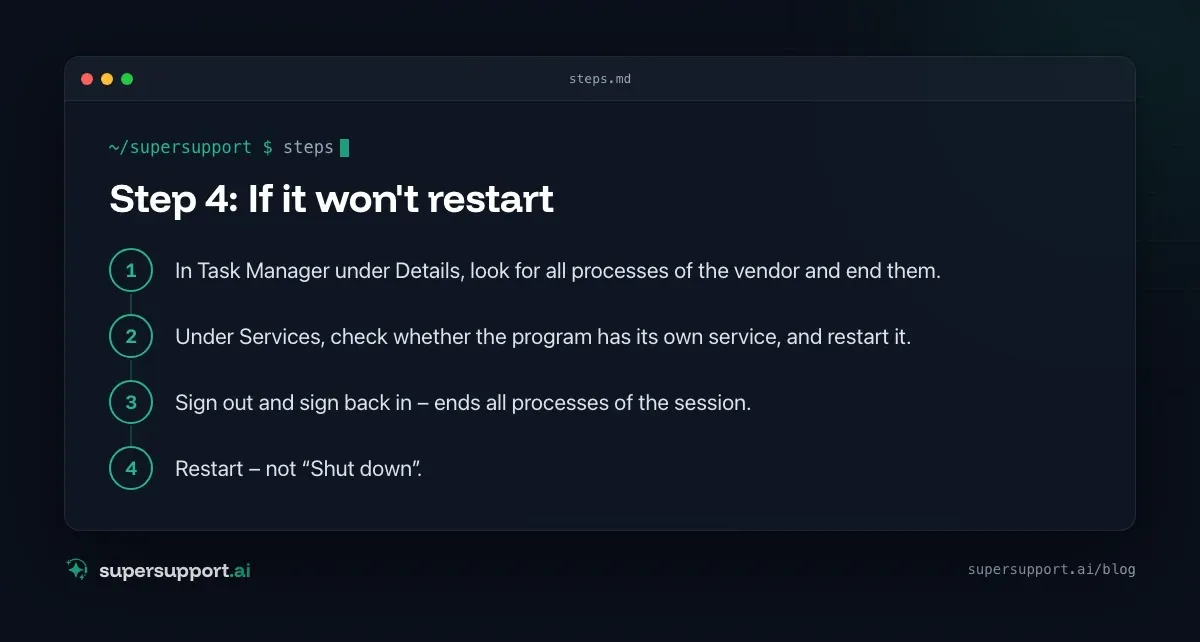
If a program no longer starts after being ended, leftovers in the background are usually blocking it. Typical with sync clients: a background service holds a lock on its database, and the new start aborts.
In this order:
- In Task Manager under Details, look for all processes of the vendor and end them.
- Under Services, check whether the program has its own service, and restart it.
- Sign out and sign back in – ends all processes of the session.
- Restart – not “Shut down”. With Fast Startup enabled, only a restart resets everything (background in High CPU and RAM usage).
In the real-world case of the sync client, that was exactly the recommended path: after two failed start attempts, restarting the device remained the cleanest solution.
Is data lost when I force-close?
Unsaved changes yes – saved files no.
- Office programs usually offer the autosaved version at the next start.
- Sync clients (OneDrive, Nextcloud, Dropbox and the like) usually resume interrupted transfers at the next start. Still, avoid ending them in the middle of a large upload if you can.
- Telephony and chat apps only lose the current state, not data.
What do I do if a program keeps freezing?
- Update: many freezes are known bugs that an update has fixed.
- Reset the cache or settings: notes on this – using the Mac as an example – in Mac app crashes on launch; on Windows the files are usually under
%APPDATA%and%LOCALAPPDATA%. - Check the event log: under Windows Logs › Application, Windows reports frozen programs as event 1002 (“Application Hang”). How to read such entries is shown in Outlook crashes.
- Antivirus exclusions: sync clients that monitor large folders sometimes collide with real-time scanning – only adjust after consulting IT.
How does SuperSupport help when a program is not responding?
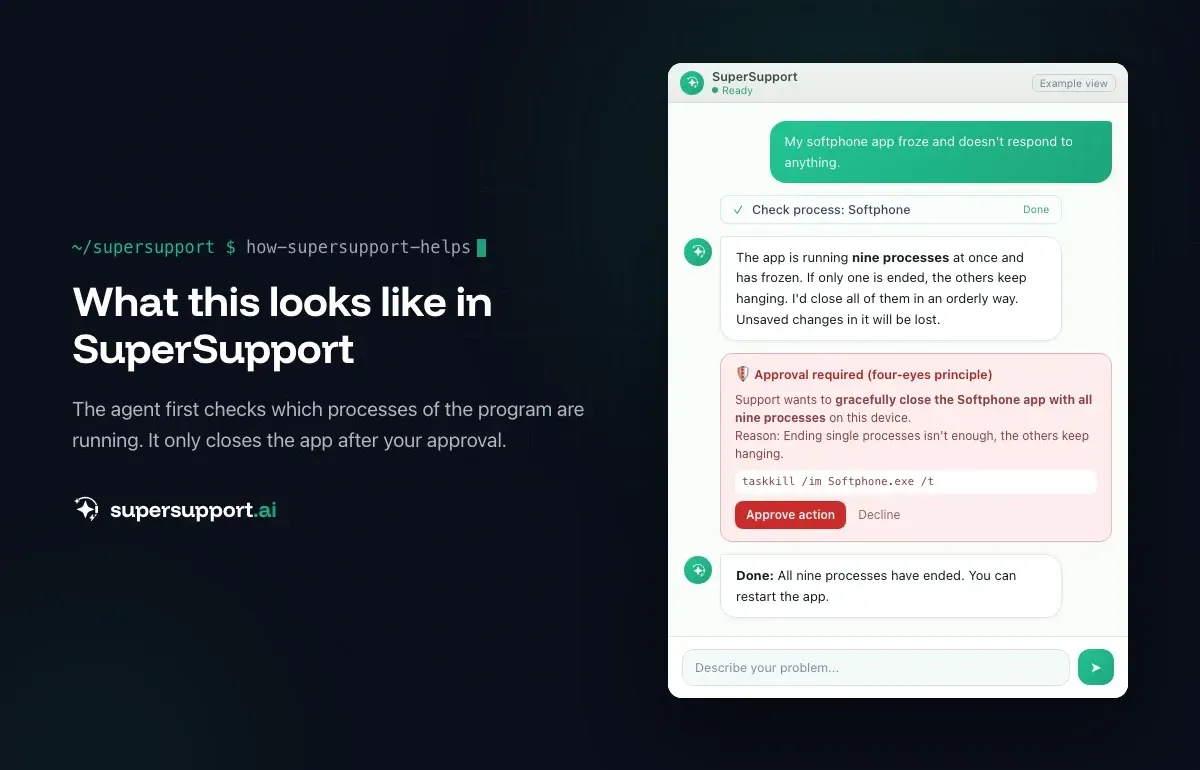
In both cases, the SuperSupport agent first checked which processes of the program were running. After approval, it closed the softphone app in an orderly way and confirmed that all nine processes had ended. With the sync client, it tried a restart, searched for the process and – when the program could no longer be started – offered restarting the device as an option instead of blindly ending more processes. What this looks like for internal IT teams and MSPs is described on the respective pages.
Frequently asked questions
What does “Not Responding” mean for a program?
Windows shows this when a program has not responded to input for a few seconds. Often it is still working in the background – saving or syncing, for example – sometimes it really is stuck.
How do I close a program that is not responding?
Open Task Manager with Ctrl+Shift+Esc, select the program and choose “End task”. If that doesn't help, end all related processes under “Details” or use taskkill /f /im Program.exe /t in the Command Prompt.
Why can't I find the process under the app's name?
The process name often differs from the display name. Under “Details” in Task Manager, the “Description” column helps; in PowerShell, the window title or the path of the executable.
Do I lose data if I force-close a program?
Unsaved changes in the program are lost. With sync clients, a transfer that is currently running can be interrupted – it usually resumes at the next start.
What do I do if a program keeps freezing?
Update the program, reset its cache or settings, restart the PC instead of just shutting it down, and check whether another program – an antivirus scanner, for example – is slowing it down.
Beta
IT support that fixes itself.
supersupport.ai handles your 1st-level support fully automatically. Secure your spot on the waitlist now.
Join the WaitlistNico Haslberger is Co-Founder & CEO of SuperSupport.ai. With years of experience as an IT technician, he knows the problems in IT support first-hand: from overloaded help desks to recurring tickets that slow teams down. That knowledge is built into every feature of the platform today. He makes sure SuperSupport.ai solves exactly the problems he experienced himself for years.
This article was created with AI assistance and editorially reviewed.
Related Articles

Outlook Keeps Crashing: Find the Cause and Fix It for Good
Outlook keeps crashing, but the event log shows nothing? Here's how to find the trigger – from add-ins and the cache to a corrupted profile.


Printer Not Printing: Fix the Print Spooler
No printers visible anymore or jobs stuck? Often the Windows Print Spooler is stopped or disabled. Here is how to check and repair it.

VPN Authentication Failed With a 2FA Code
VPN will not connect even though the password is right? Usually the password and 2FA code combination is the problem. Common causes and what to check.