;}.cls-2{fill:url(%23Unbenannter_Verlauf_5-2);}.cls-3{fill:url(%23Unbenannter_Verlauf_5-5);}.cls-4{fill:url(%23Unbenannter_Verlauf_5-6);}.cls-5{fill:url(%23Unbenannter_Verlauf_5-3);}.cls-6{fill:url(%23Unbenannter_Verlauf_5-4);}%3c/style%3e%3clinearGradient%20id='Unbenannter_Verlauf_5'%20x1='1075.02'%20y1='943.06'%20x2='1201.78'%20y2='943.06'%20gradientUnits='userSpaceOnUse'%3e%3cstop%20offset='0'%20stop-color='%2322b88a'/%3e%3cstop%20offset='1'%20stop-color='%231a9e78'/%3e%3c/linearGradient%3e%3clinearGradient%20id='Unbenannter_Verlauf_5-2'%20x1='234.11'%20y1='663.43'%20x2='1058.29'%20y2='663.43'%20xlink:href='%23Unbenannter_Verlauf_5'/%3e%3clinearGradient%20id='Unbenannter_Verlauf_5-3'%20x1='843.79'%20y1='1064.84'%20x2='1096.04'%20y2='1064.84'%20xlink:href='%23Unbenannter_Verlauf_5'/%3e%3clinearGradient%20id='Unbenannter_Verlauf_5-4'%20x1='1120.37'%20y1='662.1'%20x2='1253'%20y2='662.1'%20xlink:href='%23Unbenannter_Verlauf_5'/%3e%3clinearGradient%20id='Unbenannter_Verlauf_5-5'%20x1='97.45'%20y1='265.53'%20x2='385.89'%20y2='265.53'%20xlink:href='%23Unbenannter_Verlauf_5'/%3e%3clinearGradient%20id='Unbenannter_Verlauf_5-6'%20x1='295.45'%20y1='255.64'%20x2='1213.95'%20y2='255.64'%20xlink:href='%23Unbenannter_Verlauf_5'/%3e%3c/defs%3e%3cpath%20class='cls-1'%20d='M1201.78,871c-.61,1.55-1.23,3.1-1.86,4.66-20.33,50.18-47.14,96.85-80.02,139.45-7.56-13.82-21.78-22.31-37.69-22.31h-7.19c29.82-37.26,54.46-78.02,73.61-121.8h53.15Z'/%3e%3cpath%20class='cls-2'%20d='M665.24,264.59l69.02,186.52c21.3,57.57,66.69,102.96,124.26,124.26l186.52,69.02c17.67,6.54,17.67,31.54,0,38.08l-186.52,69.02c-57.57,21.3-102.96,66.69-124.26,124.26l-69.02,186.52c-6.54,17.67-31.54,17.67-38.08,0l-69.02-186.52c-21.3-57.57-66.69-102.96-124.26-124.26l-186.52-69.02c-17.67-6.54-17.67-31.54,0-38.08l186.52-69.02c57.57-21.3,102.96-66.69,124.26-124.26l69.02-186.52c6.54-17.67,31.54-17.67,38.08,0Z'/%3e%3cpath%20class='cls-5'%20d='M1082.21,1021.98h-79.13c-1.7,0-2.97-1.56-2.62-3.23l22.72-109.35c2.94-14.16-15.11-22.74-24.23-11.51l-152.04,187.31c-7.32,9.02-.9,22.5,10.72,22.5h79.13c1.7,0,2.97,1.56,2.62,3.23l-22.72,109.35c-2.94,14.16,15.11,22.74,24.23,11.51l152.04-187.31c7.32-9.02.9-22.5-10.72-22.5Z'/%3e%3crect%20class='cls-6'%20x='1120.37'%20y='486.36'%20width='132.63'%20height='351.48'%20rx='19.58'%20ry='19.58'/%3e%3cpath%20class='cls-3'%20d='M250.58,128.27l13.88,55.81c7.19,28.91,29.76,51.47,58.66,58.66l55.81,13.88c9.29,2.31,9.29,15.51,0,17.82l-55.81,13.88c-28.91,7.19-51.47,29.76-58.66,58.66l-13.88,55.81c-2.31,9.29-15.51,9.29-17.82,0l-13.88-55.81c-7.19-28.91-29.76-51.47-58.66-58.66l-55.81-13.88c-9.29-2.31-9.29-15.51,0-17.82l55.81-13.88c28.91-7.19,51.47-29.76,58.66-58.66l13.88-55.81c2.31-9.29,15.51-9.29,17.82,0Z'/%3e%3cpath%20class='cls-4'%20d='M1213.95,453.21h-67.62c-1.23,0-2.47.04-3.67.12-27.03-63.89-65.84-121.36-115.42-170.94-51.54-51.54-111.61-91.44-178.55-118.59-64.67-26.22-133.03-39.52-203.16-39.52s-138.48,13.3-203.16,39.52c-33.73,13.67-65.72,30.61-95.75,50.63l-.19-.05c-23.62-5.88-42.51-22.85-51-45.24,37.87-26.86,78.65-49.21,122.01-66.79,72.63-29.44,149.37-44.38,228.08-44.38s155.45,14.93,228.08,44.38c75.2,30.51,142.67,75.31,200.53,133.15,57.84,57.85,102.65,125.33,133.15,200.53,2.31,5.7,4.54,11.43,6.66,17.19Z'/%3e%3c/svg%3e)
VPN Authentication Failed With a 2FA Code
VPN will not connect even though the password is right? Usually the password and 2FA code combination is the problem. Common causes and what to check.

“The VPN is not working again” usually means: the 2FA code had already expired before it was typed in.
“The VPN is not working again.” A message every IT team knows, often from the same people, often on the road, often under time pressure. In the specific case, with the managing director of a small trades business, IT first looked in the firewall's VPN logs. The result: the connection arrived, but the authentication failed. The combination of password and two-factor code had been entered incorrectly.
Shortly after, the firewall showed an active connection, because the user had gotten in with a new attempt. The problem was not the technology but the sign-in. Here is what you can check before you call IT.
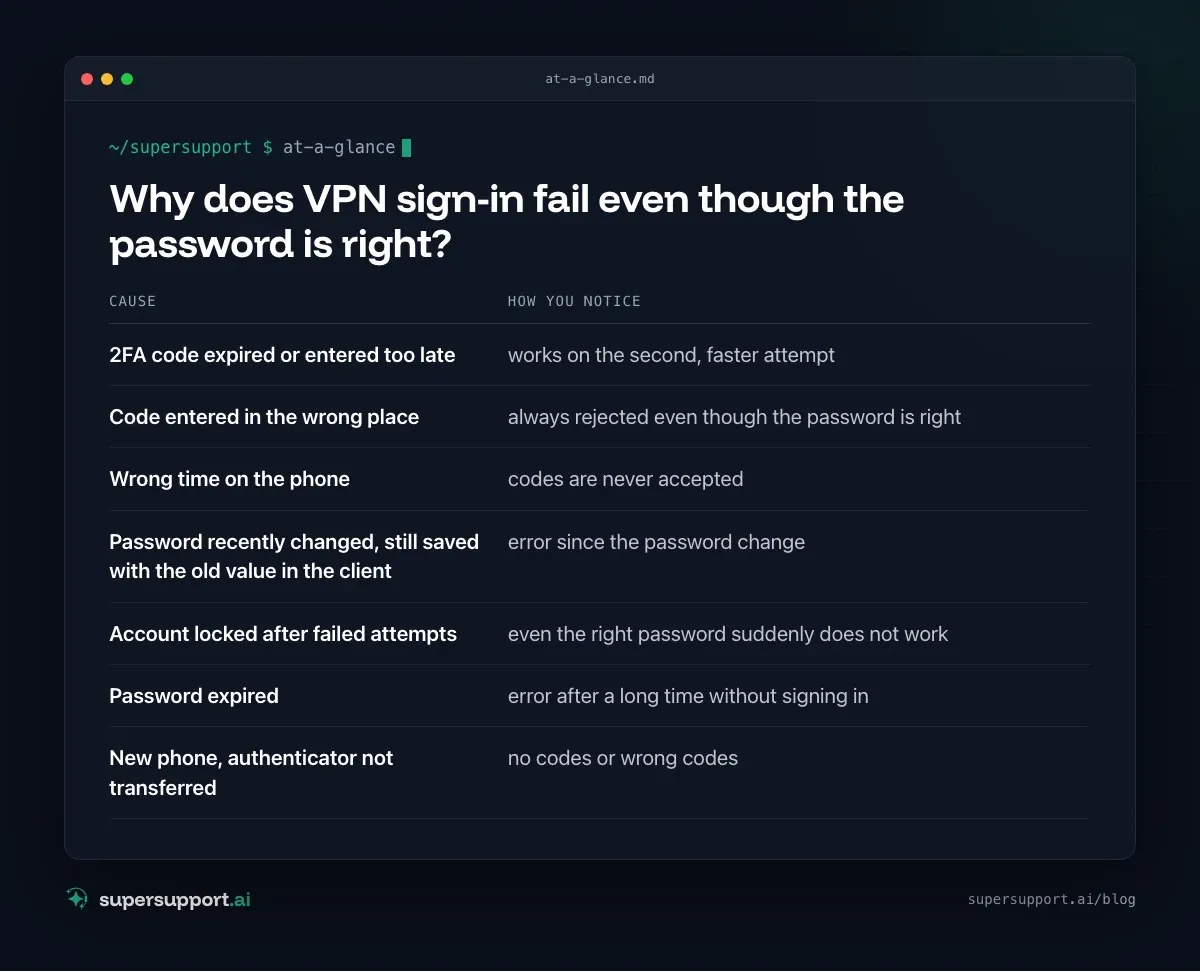
Why does VPN sign-in fail even though the password is right?
Because with two-factor sign-in both have to be right, password and code, at the right moment and in the right place. The most common causes:
- 2FA code expired or entered too late – works on the second, faster attempt
- Code entered in the wrong place – always rejected even though the password is right
- Wrong time on the phone – codes are never accepted
- Password recently changed, still saved with the old value in the client – error since the password change
- Account locked after failed attempts – even the right password suddenly does not work
- Password expired – error after a long time without signing in
- New phone, authenticator not transferred – no codes or wrong codes
Step 1: Enter the 2FA code correctly
Codes from authenticator apps are only valid for about 30 seconds. So:
- Use a fresh code, not one whose timer bar is about to run out.
- Pick the right entry in the app: if you have several accounts, it is easy to grab the wrong one.
- Where does the code go? That depends on the VPN: – Either the client asks for the password and then asks for the code in a separate window, – or it expects password and code one right after the other in the password field, with no space, for example
MyPassword123456.
If you do not know which variant applies: ask IT briefly and write it down. That saves every future call.
Step 2: Check the time on your phone
The codes are calculated from the current time. If the clock on your phone is off by even one minute, they will not match.
- iPhone: Settings › General › Date & Time › Set Automatically.
- Android: Settings › System › Date & time › Set time automatically.
- Google Authenticator also has a time correction in its settings.
Step 3: Check the saved password in the VPN client
After a password change, many VPN clients still store the old password. Delete the saved credentials in the client or enter the password again. If you sign in to Windows with the same account: if the password was just changed, it is best to sign out and back in once.
Step 4: Do not keep trying endlessly
After several failed attempts, many firewalls and sign-in services lock the account temporarily. If you keep trying, you often extend the lock. After three or four failed attempts:
- wait a few minutes, then try once carefully with a fresh code,
- if that does not work, call IT.
Step 5: Rule out other causes
If password and code are definitely right:

Beta
IT support that fixes itself.
supersupport.ai handles your 1st-level support fully automatically. Secure your spot on the waitlist now.
Join the Waitlist- Try a different network: Hotel Wi-Fi and guest networks sometimes block VPN ports. As a test, use your phone's hotspot.
- Restart the VPN client or restart the device.
- Client version: After firewall updates, a newer client version is sometimes needed.
What does IT see in the logs?
The firewall logs every sign-in attempt and why it was rejected. That makes it quick to tell the cases apart:
- Connection does not arrive at all → network, port or client problem.
- Connection arrives, authentication fails → password, code or account.
- Account locked → lift the lock, clarify the cause.
- Sign-in successful, but no access → routes, permissions or DNS in the VPN.
In the real case, it was the second variant. IT informed the user, and a few minutes later he was connected.
Tip for IT teams: If the same person has problems often, a short joint appointment is worthwhile: sign in once step by step, show the right place to enter the code and write it down in a short guide. Or switch to a push confirmation in the app if the VPN supports it, which is much easier for users than typing in codes.
More help with connection problems: Internet connection unstable and Only one website won't load?.
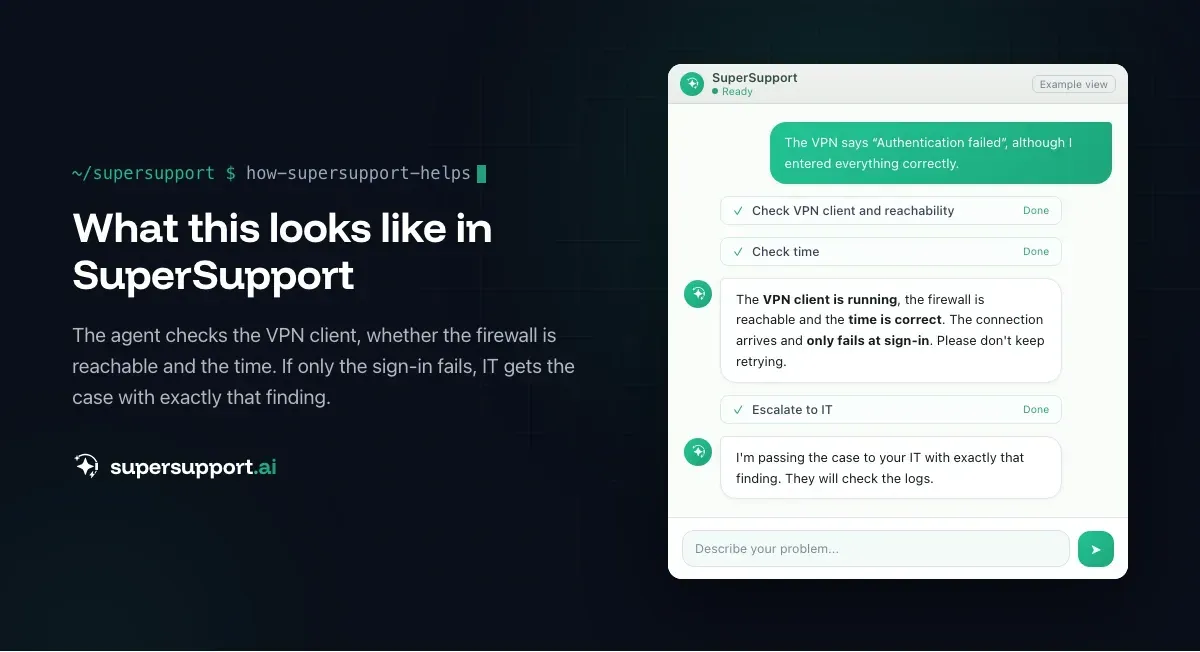
How does SuperSupport help with VPN problems?
On the device, the SuperSupport agent can check whether the VPN client is running, whether the firewall is reachable at all and whether the time on the computer is right, and explain to the user step by step how to enter password and code. If the connection arrives but fails at sign-in, IT gets a case with exactly that note. How this looks for internal IT teams and MSPs is described on the respective pages.
Frequently asked questions
Why does VPN sign-in fail even though my password is right?
With VPNs that use two-factor sign-in, the combination of password and code counts. Common mistakes: expired code, code entered in the wrong place, wrong time on the phone, an account locked after several failed attempts, or a recently changed password that is still saved with the old value in the VPN client.
Where do I enter the 2FA code for the VPN?
That depends on the VPN. Some clients ask for the password and then for the code in a separate window. Others expect password and code one right after the other in the password field, with no space. IT knows which variant is set up.
Why is my 2FA code not accepted?
The codes are only valid for about 30 seconds and depend on the time. If the clock on your phone is wrong, the codes will not match. Set the time to automatic and use a fresh code, not one that is about to expire.
My account is locked after several attempts. What now?
Many firewalls and sign-in services lock an account for a while after several failed attempts. Wait or ask IT to lift the lock, and do not keep trying, otherwise the lock gets longer.
How does IT see what the cause is?
The firewall's VPN logs show whether the connection arrives and why the sign-in is rejected, for example wrong password, wrong code or locked account. That makes it quick to tell whether the cause is the user, the account or the technology.
Beta
IT support that fixes itself.
supersupport.ai handles your 1st-level support fully automatically. Secure your spot on the waitlist now.
Join the WaitlistNico Haslberger is Co-Founder & CEO of SuperSupport.ai. With years of experience as an IT technician, he knows the problems in IT support first-hand: from overloaded help desks to recurring tickets that slow teams down. That knowledge is built into every feature of the platform today. He makes sure SuperSupport.ai solves exactly the problems he experienced himself for years.
This article was created with AI assistance and editorially reviewed.
Related Articles
Program Not Responding: How to Close It Properly
“Not responding” and nothing works? Here's how to close frozen programs cleanly on Windows – even if the process has another name or runs several times.


Outlook Keeps Crashing: Find the Cause and Fix It for Good
Outlook keeps crashing, but the event log shows nothing? Here's how to find the trigger – from add-ins and the cache to a corrupted profile.
Printer Not Printing: Fix the Print Spooler
No printers visible anymore or jobs stuck? Often the Windows Print Spooler is stopped or disabled. Here is how to check and repair it.