;}.cls-2{fill:url(%23Unbenannter_Verlauf_5-2);}.cls-3{fill:url(%23Unbenannter_Verlauf_5-5);}.cls-4{fill:url(%23Unbenannter_Verlauf_5-6);}.cls-5{fill:url(%23Unbenannter_Verlauf_5-3);}.cls-6{fill:url(%23Unbenannter_Verlauf_5-4);}%3c/style%3e%3clinearGradient%20id='Unbenannter_Verlauf_5'%20x1='1075.02'%20y1='943.06'%20x2='1201.78'%20y2='943.06'%20gradientUnits='userSpaceOnUse'%3e%3cstop%20offset='0'%20stop-color='%2322b88a'/%3e%3cstop%20offset='1'%20stop-color='%231a9e78'/%3e%3c/linearGradient%3e%3clinearGradient%20id='Unbenannter_Verlauf_5-2'%20x1='234.11'%20y1='663.43'%20x2='1058.29'%20y2='663.43'%20xlink:href='%23Unbenannter_Verlauf_5'/%3e%3clinearGradient%20id='Unbenannter_Verlauf_5-3'%20x1='843.79'%20y1='1064.84'%20x2='1096.04'%20y2='1064.84'%20xlink:href='%23Unbenannter_Verlauf_5'/%3e%3clinearGradient%20id='Unbenannter_Verlauf_5-4'%20x1='1120.37'%20y1='662.1'%20x2='1253'%20y2='662.1'%20xlink:href='%23Unbenannter_Verlauf_5'/%3e%3clinearGradient%20id='Unbenannter_Verlauf_5-5'%20x1='97.45'%20y1='265.53'%20x2='385.89'%20y2='265.53'%20xlink:href='%23Unbenannter_Verlauf_5'/%3e%3clinearGradient%20id='Unbenannter_Verlauf_5-6'%20x1='295.45'%20y1='255.64'%20x2='1213.95'%20y2='255.64'%20xlink:href='%23Unbenannter_Verlauf_5'/%3e%3c/defs%3e%3cpath%20class='cls-1'%20d='M1201.78,871c-.61,1.55-1.23,3.1-1.86,4.66-20.33,50.18-47.14,96.85-80.02,139.45-7.56-13.82-21.78-22.31-37.69-22.31h-7.19c29.82-37.26,54.46-78.02,73.61-121.8h53.15Z'/%3e%3cpath%20class='cls-2'%20d='M665.24,264.59l69.02,186.52c21.3,57.57,66.69,102.96,124.26,124.26l186.52,69.02c17.67,6.54,17.67,31.54,0,38.08l-186.52,69.02c-57.57,21.3-102.96,66.69-124.26,124.26l-69.02,186.52c-6.54,17.67-31.54,17.67-38.08,0l-69.02-186.52c-21.3-57.57-66.69-102.96-124.26-124.26l-186.52-69.02c-17.67-6.54-17.67-31.54,0-38.08l186.52-69.02c57.57-21.3,102.96-66.69,124.26-124.26l69.02-186.52c6.54-17.67,31.54-17.67,38.08,0Z'/%3e%3cpath%20class='cls-5'%20d='M1082.21,1021.98h-79.13c-1.7,0-2.97-1.56-2.62-3.23l22.72-109.35c2.94-14.16-15.11-22.74-24.23-11.51l-152.04,187.31c-7.32,9.02-.9,22.5,10.72,22.5h79.13c1.7,0,2.97,1.56,2.62,3.23l-22.72,109.35c-2.94,14.16,15.11,22.74,24.23,11.51l152.04-187.31c7.32-9.02.9-22.5-10.72-22.5Z'/%3e%3crect%20class='cls-6'%20x='1120.37'%20y='486.36'%20width='132.63'%20height='351.48'%20rx='19.58'%20ry='19.58'/%3e%3cpath%20class='cls-3'%20d='M250.58,128.27l13.88,55.81c7.19,28.91,29.76,51.47,58.66,58.66l55.81,13.88c9.29,2.31,9.29,15.51,0,17.82l-55.81,13.88c-28.91,7.19-51.47,29.76-58.66,58.66l-13.88,55.81c-2.31,9.29-15.51,9.29-17.82,0l-13.88-55.81c-7.19-28.91-29.76-51.47-58.66-58.66l-55.81-13.88c-9.29-2.31-9.29-15.51,0-17.82l55.81-13.88c28.91-7.19,51.47-29.76,58.66-58.66l13.88-55.81c2.31-9.29,15.51-9.29,17.82,0Z'/%3e%3cpath%20class='cls-4'%20d='M1213.95,453.21h-67.62c-1.23,0-2.47.04-3.67.12-27.03-63.89-65.84-121.36-115.42-170.94-51.54-51.54-111.61-91.44-178.55-118.59-64.67-26.22-133.03-39.52-203.16-39.52s-138.48,13.3-203.16,39.52c-33.73,13.67-65.72,30.61-95.75,50.63l-.19-.05c-23.62-5.88-42.51-22.85-51-45.24,37.87-26.86,78.65-49.21,122.01-66.79,72.63-29.44,149.37-44.38,228.08-44.38s155.45,14.93,228.08,44.38c75.2,30.51,142.67,75.31,200.53,133.15,57.84,57.85,102.65,125.33,133.15,200.53,2.31,5.7,4.54,11.43,6.66,17.19Z'/%3e%3c/svg%3e)
Printer Not Printing: Fix the Print Spooler
No printers visible anymore or jobs stuck? Often the Windows Print Spooler is stopped or disabled. Here is how to check and repair it.


The printer list is empty. The printer is not gone, the service that displays it is.
“No pages can be printed on the device anymore.” No matter which program, Word, PDF, browser, nothing comes out. Then you look at the printer list and get a surprise: it is empty. No network printer, no “Microsoft Print to PDF”, nothing.
That is exactly how it was at a Windows 11 workstation in a property management company with about 20 employees. The cause was not the printer, not the network, and not the driver, but a single Windows service. Here is how to recognize and fix that, and what else can be behind “won't print”.
Why are no printers visible all of a sudden?
If the printer list is completely empty, it is almost always because the “Print Spooler” service is stopped or disabled. This service, technically “Spooler”, manages all printers and print jobs on Windows. If it is not running, Windows shows no printers at all, even if they are installed.
This is clearly different from the case “one particular printer is offline”: then only that one printer is missing or shows as “Offline”. But if even “Microsoft Print to PDF” is gone, the service is the cause.
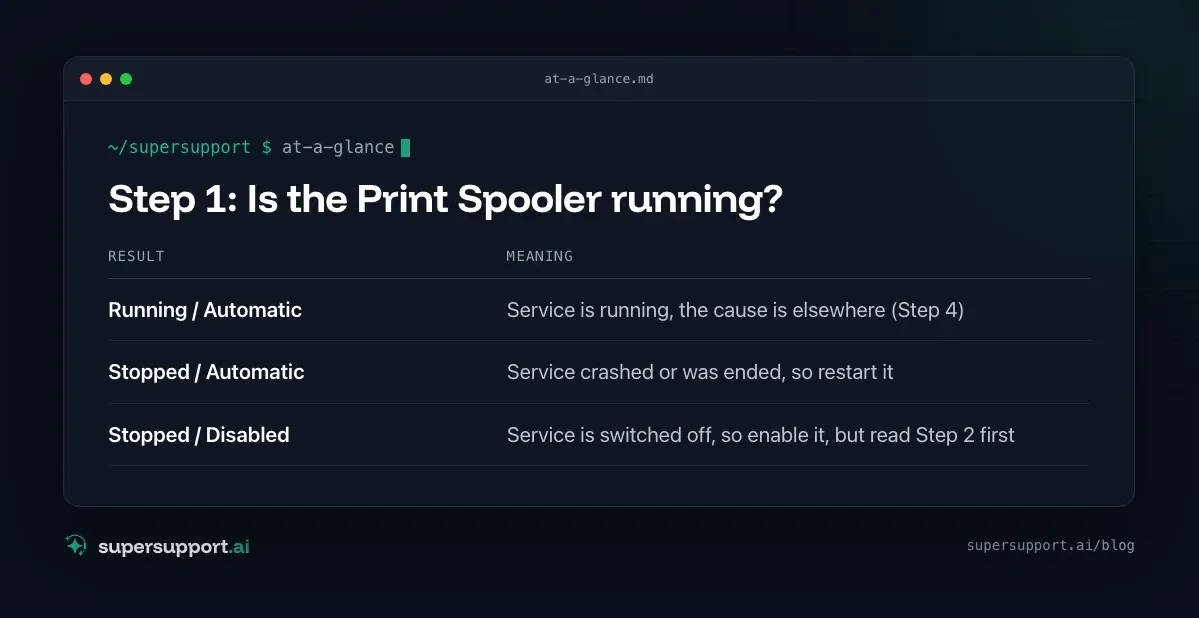
Step 1: Is the Print Spooler running?
Check the service status in Services or with a command.
Graphically: Windows+R, services.msc, Enter, scroll to the Print Spooler entry. There you see the status and startup type.
With PowerShell:
Get-Service Spooler | Select-Object Name, Status, StartTypeRunning/Automatic– Service is running, the cause is elsewhere (Step 4)Stopped/Automatic– Service crashed or was ended, so restart itStopped/Disabled– Service is switched off, so enable it, but read Step 2 first
In the real case, it said Stopped / Disabled: the service was not just stopped but completely disabled.
Step 2: Why is the Print Spooler disabled?
Often IT switched the service off on purpose, for security reasons. After the “PrintNightmare” vulnerability in 2021, Microsoft recommended disabling the Print Spooler on machines that do not need to print, especially on servers and domain controllers. Some environments generously applied that to workstations as well.
Other causes:
- Optimization or “tuning” programs that turn off “unnecessary services”
- Security software or hardening scripts
- Group Policy that dictates the startup type
Important: If the service is disabled by policy, your change gets reverted at the next policy update. Then the question belongs to IT, not at the machine.
Step 3: How do I enable and start the Print Spooler?
Set the startup type to “Automatic” and start the service. You need administrator rights for this.
Graphically: In services.msc, double-click Print Spooler › Startup type Automatic › Apply › Start.
With PowerShell (as administrator):
Set-Service -Name Spooler -StartupType Automatic
Start-Service -Name Spooler
Then open the printer list again: Settings › Bluetooth & devices › Printers & scanners. In the real case, all eight printers showed up again right away, including the default printer, and a test page went through without problems.

Beta
IT support that fixes itself.
supersupport.ai handles your 1st-level support fully automatically. Secure your spot on the waitlist now.
Join the WaitlistStep 4: What if the Print Spooler is running but nothing prints?
Then jobs are usually stuck in the print queue. A single faulty job can block all the ones after it.
Here is how to clear the print queue completely (as administrator):
Stop-Service Spooler -Force
Remove-Item "$env:SystemRoot\System32\spool\PRINTERS\*" -Force
Start-Service Spooler
This deletes all waiting print jobs. The documents themselves are of course kept, you just have to print them again.
If the Print Spooler keeps crashing, it is usually caused by a defective printer driver. Then remove the driver of the affected printer (Print Management › Drivers) and install the current driver from the manufacturer.
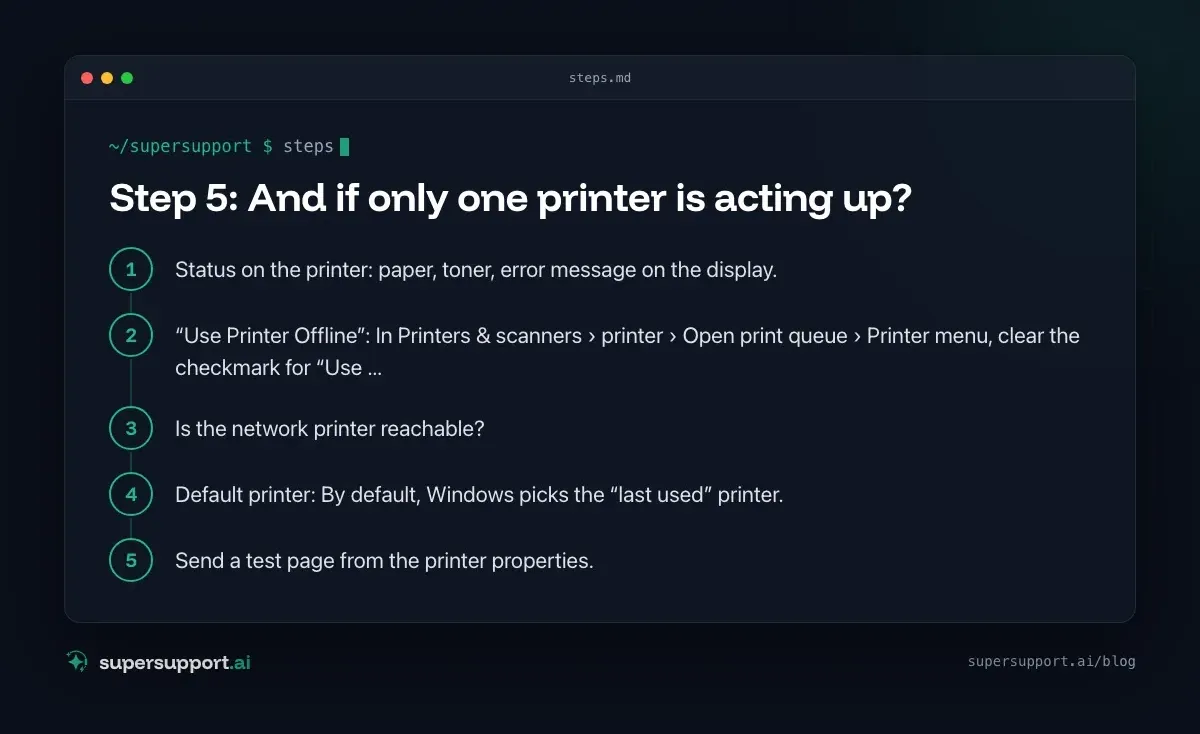
Step 5: And if only one printer is acting up?
Then the problem is the printer itself or the connection, not Windows. Check in this order:
- Status on the printer: paper, toner, error message on the display.
- “Use Printer Offline”: In Printers & scanners › printer › Open print queue › Printer menu, clear the checkmark for “Use Printer Offline”.
- Is the network printer reachable? Open the printer's IP address in the browser or ping it. If the printer got a new address after a router restart, the port in Windows no longer matches.
- Default printer: By default, Windows picks the “last used” printer. Under Printers & scanners, turn off “Let Windows manage my default printer” and set the right printer as the default.
- Send a test page from the printer properties. If it comes out, the problem is the program, not the printer.
Along with Outlook, printer problems are among the most common tickets of all, see also Outlook keeps crashing and 5 IT tickets that can be solved in 60 seconds.
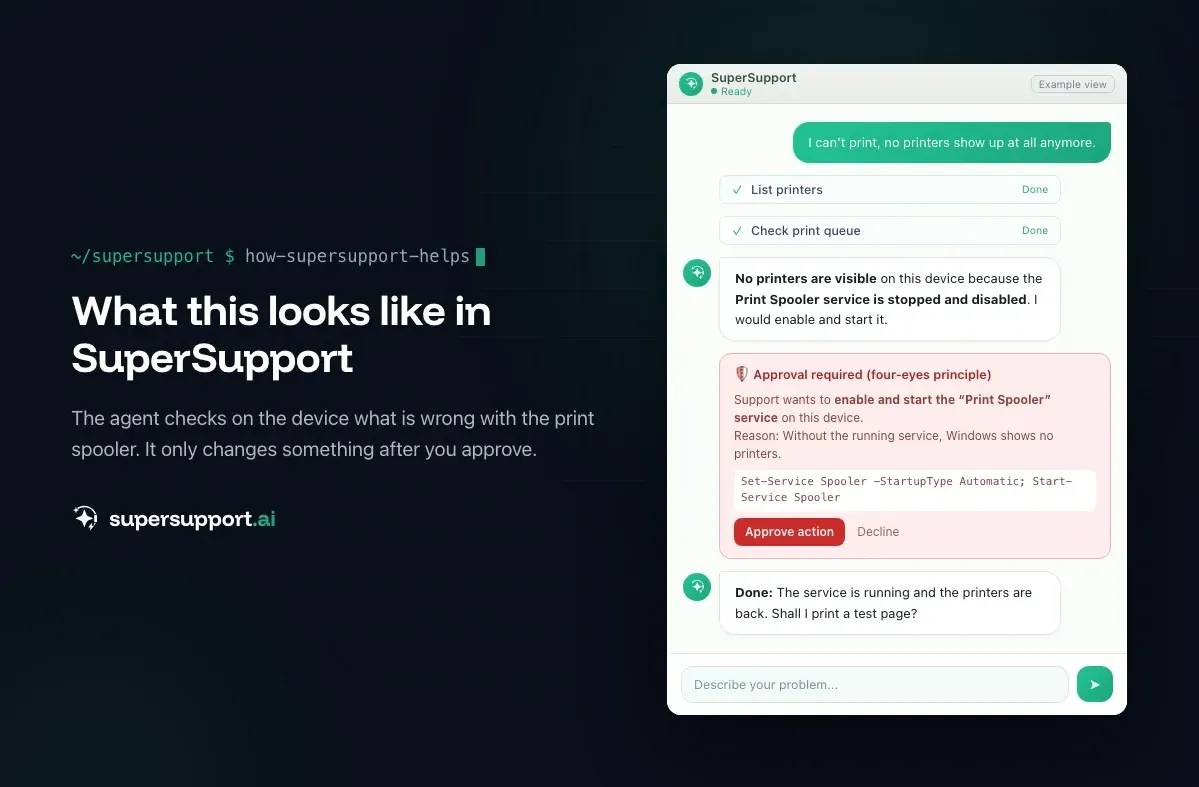
How does SuperSupport help when the printer is not printing?
In the case described, the SuperSupport agent first determined that there were no printers at all, then read out the status of the Print Spooler, enabled and started the disabled service after the plan was approved, checked the printers that had reappeared, and printed a test page. What that looks like for internal IT teams and MSPs is described on the respective pages.
Frequently asked questions
Why are no printers suddenly shown on Windows anymore?
Very often the “Print Spooler” service is stopped or disabled. Without this service, Windows shows no printers, even if they are installed.
How do I restart the Print Spooler?
Windows+R, services.msc, Enter, find the “Print Spooler” service, right-click › Restart. Or in PowerShell with administrator rights: Restart-Service Spooler.
Why is the Print Spooler disabled?
Often IT turned it off on purpose, for example after the “PrintNightmare” vulnerability on machines that are not supposed to print. Sometimes optimization or security tools also disable the service.
How do I delete stuck print jobs?
Stop the Print Spooler, delete the contents of C:\Windows\System32\spool\PRINTERS, and start the service again. Administrator rights are required for this.
Can I just enable the Print Spooler permanently?
Technically yes, via the startup type “Automatic”. But if it was turned off by policy, that should only happen after talking to IT, otherwise it gets reverted at the next policy update.
Beta
IT support that fixes itself.
supersupport.ai handles your 1st-level support fully automatically. Secure your spot on the waitlist now.
Join the WaitlistNico Haslberger is Co-Founder & CEO of SuperSupport.ai. With years of experience as an IT technician, he knows the problems in IT support first-hand: from overloaded help desks to recurring tickets that slow teams down. That knowledge is built into every feature of the platform today. He makes sure SuperSupport.ai solves exactly the problems he experienced himself for years.
This article was created with AI assistance and editorially reviewed.
Related Articles

Program Not Responding: How to Close It Properly
“Not responding” and nothing works? Here's how to close frozen programs cleanly on Windows – even if the process has another name or runs several times.


Outlook Keeps Crashing: Find the Cause and Fix It for Good
Outlook keeps crashing, but the event log shows nothing? Here's how to find the trigger – from add-ins and the cache to a corrupted profile.

VPN Authentication Failed With a 2FA Code
VPN will not connect even though the password is right? Usually the password and 2FA code combination is the problem. Common causes and what to check.