;}.cls-2{fill:url(%23Unbenannter_Verlauf_5-2);}.cls-3{fill:url(%23Unbenannter_Verlauf_5-5);}.cls-4{fill:url(%23Unbenannter_Verlauf_5-6);}.cls-5{fill:url(%23Unbenannter_Verlauf_5-3);}.cls-6{fill:url(%23Unbenannter_Verlauf_5-4);}%3c/style%3e%3clinearGradient%20id='Unbenannter_Verlauf_5'%20x1='1075.02'%20y1='943.06'%20x2='1201.78'%20y2='943.06'%20gradientUnits='userSpaceOnUse'%3e%3cstop%20offset='0'%20stop-color='%2322b88a'/%3e%3cstop%20offset='1'%20stop-color='%231a9e78'/%3e%3c/linearGradient%3e%3clinearGradient%20id='Unbenannter_Verlauf_5-2'%20x1='234.11'%20y1='663.43'%20x2='1058.29'%20y2='663.43'%20xlink:href='%23Unbenannter_Verlauf_5'/%3e%3clinearGradient%20id='Unbenannter_Verlauf_5-3'%20x1='843.79'%20y1='1064.84'%20x2='1096.04'%20y2='1064.84'%20xlink:href='%23Unbenannter_Verlauf_5'/%3e%3clinearGradient%20id='Unbenannter_Verlauf_5-4'%20x1='1120.37'%20y1='662.1'%20x2='1253'%20y2='662.1'%20xlink:href='%23Unbenannter_Verlauf_5'/%3e%3clinearGradient%20id='Unbenannter_Verlauf_5-5'%20x1='97.45'%20y1='265.53'%20x2='385.89'%20y2='265.53'%20xlink:href='%23Unbenannter_Verlauf_5'/%3e%3clinearGradient%20id='Unbenannter_Verlauf_5-6'%20x1='295.45'%20y1='255.64'%20x2='1213.95'%20y2='255.64'%20xlink:href='%23Unbenannter_Verlauf_5'/%3e%3c/defs%3e%3cpath%20class='cls-1'%20d='M1201.78,871c-.61,1.55-1.23,3.1-1.86,4.66-20.33,50.18-47.14,96.85-80.02,139.45-7.56-13.82-21.78-22.31-37.69-22.31h-7.19c29.82-37.26,54.46-78.02,73.61-121.8h53.15Z'/%3e%3cpath%20class='cls-2'%20d='M665.24,264.59l69.02,186.52c21.3,57.57,66.69,102.96,124.26,124.26l186.52,69.02c17.67,6.54,17.67,31.54,0,38.08l-186.52,69.02c-57.57,21.3-102.96,66.69-124.26,124.26l-69.02,186.52c-6.54,17.67-31.54,17.67-38.08,0l-69.02-186.52c-21.3-57.57-66.69-102.96-124.26-124.26l-186.52-69.02c-17.67-6.54-17.67-31.54,0-38.08l186.52-69.02c57.57-21.3,102.96-66.69,124.26-124.26l69.02-186.52c6.54-17.67,31.54-17.67,38.08,0Z'/%3e%3cpath%20class='cls-5'%20d='M1082.21,1021.98h-79.13c-1.7,0-2.97-1.56-2.62-3.23l22.72-109.35c2.94-14.16-15.11-22.74-24.23-11.51l-152.04,187.31c-7.32,9.02-.9,22.5,10.72,22.5h79.13c1.7,0,2.97,1.56,2.62,3.23l-22.72,109.35c-2.94,14.16,15.11,22.74,24.23,11.51l152.04-187.31c7.32-9.02.9-22.5-10.72-22.5Z'/%3e%3crect%20class='cls-6'%20x='1120.37'%20y='486.36'%20width='132.63'%20height='351.48'%20rx='19.58'%20ry='19.58'/%3e%3cpath%20class='cls-3'%20d='M250.58,128.27l13.88,55.81c7.19,28.91,29.76,51.47,58.66,58.66l55.81,13.88c9.29,2.31,9.29,15.51,0,17.82l-55.81,13.88c-28.91,7.19-51.47,29.76-58.66,58.66l-13.88,55.81c-2.31,9.29-15.51,9.29-17.82,0l-13.88-55.81c-7.19-28.91-29.76-51.47-58.66-58.66l-55.81-13.88c-9.29-2.31-9.29-15.51,0-17.82l55.81-13.88c28.91-7.19,51.47-29.76,58.66-58.66l13.88-55.81c2.31-9.29,15.51-9.29,17.82,0Z'/%3e%3cpath%20class='cls-4'%20d='M1213.95,453.21h-67.62c-1.23,0-2.47.04-3.67.12-27.03-63.89-65.84-121.36-115.42-170.94-51.54-51.54-111.61-91.44-178.55-118.59-64.67-26.22-133.03-39.52-203.16-39.52s-138.48,13.3-203.16,39.52c-33.73,13.67-65.72,30.61-95.75,50.63l-.19-.05c-23.62-5.88-42.51-22.85-51-45.24,37.87-26.86,78.65-49.21,122.01-66.79,72.63-29.44,149.37-44.38,228.08-44.38s155.45,14.93,228.08,44.38c75.2,30.51,142.67,75.31,200.53,133.15,57.84,57.85,102.65,125.33,133.15,200.53,2.31,5.7,4.54,11.43,6.66,17.19Z'/%3e%3c/svg%3e)
Outlook Keeps Crashing: Find the Cause and Fix It for Good
Outlook keeps crashing, but the event log shows nothing? Here's how to find the trigger – from add-ins and the cache to a corrupted profile.


Outlook doesn't crash “just like that”. Something got to it, and that is on the machine, not in the knowledge base.
“My Outlook crashed a few times, please take a look.” Hardly any sentence comes up more often in IT support. Sometimes Outlook closes when opening an email, sometimes when sending, sometimes just out of nowhere – and the next time you start it, it runs again until it happens once more.
In the concrete case, a law firm with around 15 workstations, a typical hurdle came on top: The event log said nothing at all about Outlook. What it did show were crashes of a helper program for mouse and keyboard and hints of driver problems. Here is the way to narrow down the cause systematically.
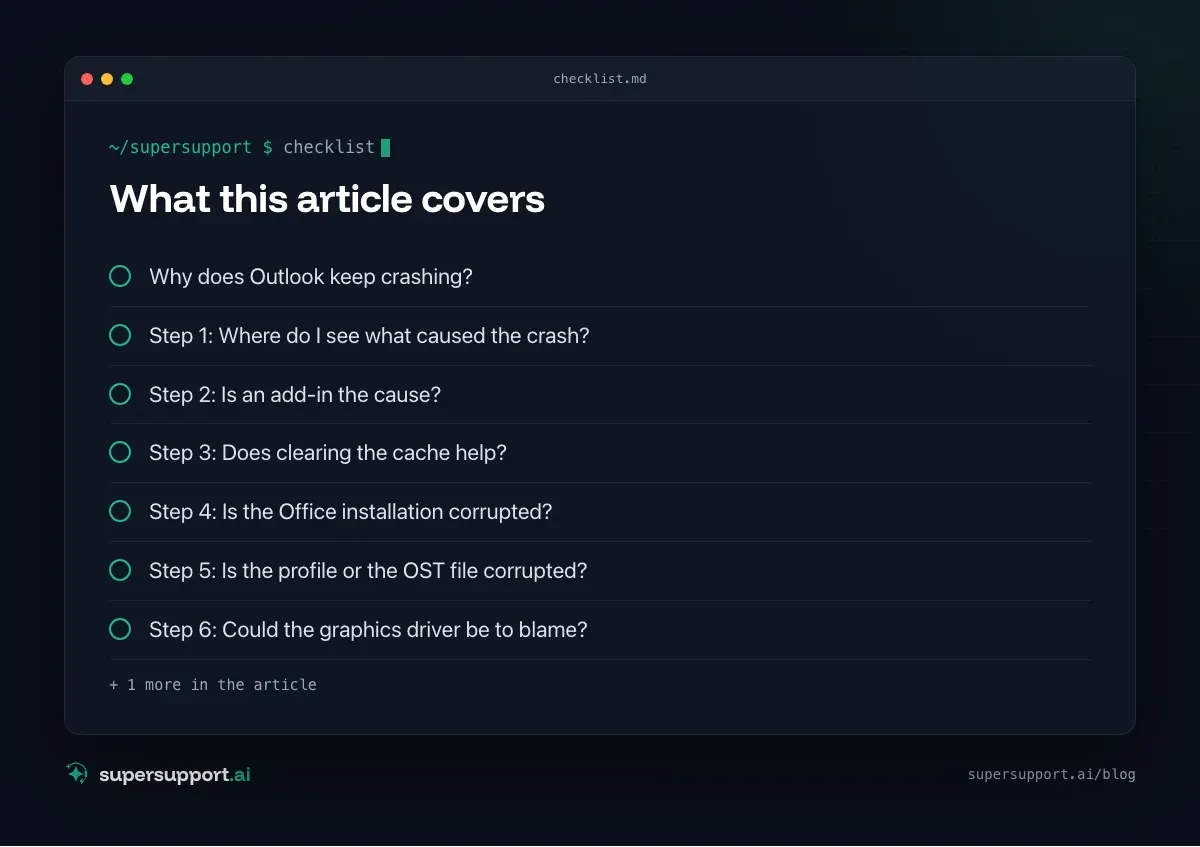
Why does Outlook keep crashing?
In most cases an add-in is to blame, followed by corrupted cache or data files, a broken profile and problems with the Office installation. Less often it is down to graphics drivers or software that hooks into Outlook without being visible as an add-in.
Outlook loads many extensions at startup: PDF tools, Teams and telephony add-ins, archiving solutions, industry-specific software. In the real case there were nine add-ins – each of them a possible trigger.
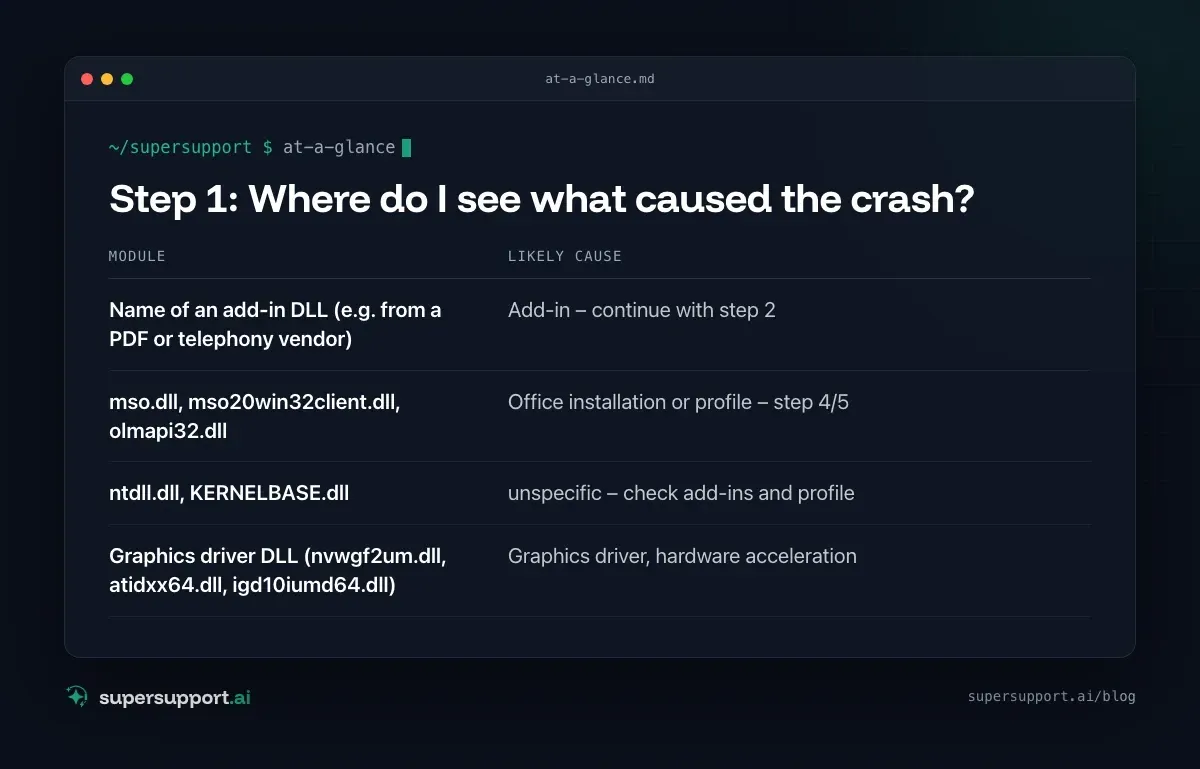
Step 1: Where do I see what caused the crash?
Open Reliability Monitor: Windows+R, perfmon /rel, Enter. Crashes show up there as red crosses per day. Clicking “View technical details” shows the faulting module – and that is the most important clue of all.
You'll find the same information in Event Viewer under Windows Logs › Application, source “Application Error”, event ID 1000. Via PowerShell:
Get-WinEvent -FilterHashtable @{LogName='Application'; Id=1000; StartTime=(Get-Date).AddDays(-7)} |
  Where-Object { $_.Message -match 'OUTLOOK.EXE' } |
  Select-Object TimeCreated, @{n='Details';e={($_.Message -split "`n")[0..4] -join ' | '}}
Here is how to read the faulting module:
- Name of an add-in DLL (e.g. from a PDF or telephony vendor) – Add-in – continue with step 2
mso.dll,mso20win32client.dll,olmapi32.dll– Office installation or profile – step 4/5ntdll.dll,KERNELBASE.dll– unspecific – check add-ins and profile- Graphics driver DLL (
nvwgf2um.dll,atidxx64.dll,igd10iumd64.dll) – Graphics driver, hardware acceleration
If the log says nothing about Outlook, as in the real case, it's worth looking at other crashes in the same period. Repeated crashes of helper programs (mouse/keyboard software, driver tools) and “LiveKernelEvent” entries point to driver problems that can drag Outlook down with them. In that case, update those drivers and helper programs first.
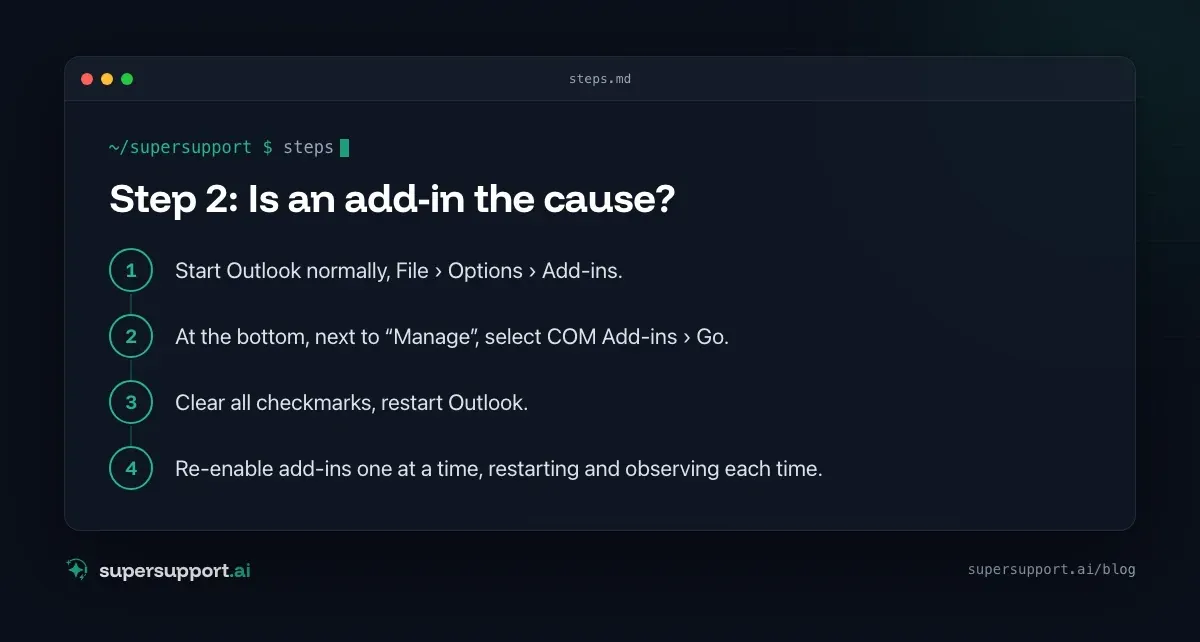
Step 2: Is an add-in the cause?
Start Outlook in safe mode: Windows+R, outlook.exe /safe. If it runs stably there, an add-in is very likely the trigger.
Then narrow it down:
- Start Outlook normally, File › Options › Add-ins.
- At the bottom, next to “Manage”, select COM Add-ins › Go.
- Clear all checkmarks, restart Outlook.
- Re-enable add-ins one at a time, restarting and observing each time.
The add-in after whose activation the crashes come back is the culprit. Often an update from the respective vendor helps; if it isn't needed, leave it disabled.
Tip for IT administrators: Under File › Office Account › Info, Outlook shows under “Slow and disabled add-ins” which extensions it has already recognized as a problem itself.
Step 3: Does clearing the cache help?
Yes, often – but selectively, not across the board. With Outlook closed, you can safely rename these folders; Outlook recreates them:
%LOCALAPPDATA%\Microsoft\Outlook\RoamCache– autocomplete, settings cache%LOCALAPPDATA%\Microsoft\Office\16.0\OfficeFileCache– Office document cache
You should not rename or delete:
%APPDATA%\Microsoft\Signatures– your email signatures%APPDATA%\Microsoft\Templates– your own templates- PST files, wherever they are
If Windows reports “Access denied”, an Outlook process is still running in the background – end OUTLOOK.EXE in Task Manager under Details, then try again. In the real case, that was exactly the reason part of the cleanup didn't work on the first attempt.

Beta
IT support that fixes itself.
supersupport.ai handles your 1st-level support fully automatically. Secure your spot on the waitlist now.
Join the WaitlistStep 4: Is the Office installation corrupted?
A repair fixes corrupted program files and costs no data.
- Settings › Apps › Installed apps.
- Next to Microsoft 365 or Microsoft Office, click the three dots › Modify.
- Quick Repair first, then Online Repair if needed.
Online Repair reinstalls Office and takes longer, but leaves your mailbox and settings alone.
Step 5: Is the profile or the OST file corrupted?
If nothing else helps, a new Outlook profile does.
- Close Outlook.
- Control Panel › Mail (Microsoft Outlook) › Show Profiles › Add.
- Set up the mailbox again, and at the bottom set “Always use this profile” to the new profile.
For Exchange and Microsoft 365 mailboxes, the OST file under %LOCALAPPDATA%\Microsoft\Outlook is only a local copy and is synced again. A PST file, on the other hand, holds the only data – it is checked with scanpst.exe from the Office program folder, but never deleted.
Step 6: Could the graphics driver be to blame?
If the faulting module is a graphics driver, or Outlook crashes when scrolling and opening emails, a driver update is worth it. Older Office versions offered a switch “Disable hardware graphics acceleration” under File › Options › Advanced; in current versions, usually only an up-to-date graphics driver helps.
In what order should I proceed?
- Open Reliability Monitor, note the faulting module.
- Safe mode – does Outlook run stably there? Then narrow down the add-ins.
- Reset the cache selectively.
- Repair Office.
- Create a new profile.
- Update drivers, especially graphics and peripheral software.
For internal IT teams and MSPs, “Outlook keeps crashing” is one of the cases that keep recurring – related problems are described in Outlook no longer runs macros and High CPU and RAM usage.

How does SuperSupport help with Outlook crashes?
In the case described, the SuperSupport agent searched the event logs of the past few days, recognized the crashes of other programs as a clue, and – after approval of the plan – backed up and renamed the cache folders, disabled the add-ins with a registry backup and restarted Outlook. How this works for internal IT teams and MSPs is described on their respective pages.
Frequently asked questions
Why does Outlook keep crashing?
The most common causes are faulty add-ins, a corrupted cache or OST file, a broken Outlook profile, an incomplete Office installation, and graphics driver problems.
How do I start Outlook in safe mode?
Press Windows+R, enter outlook.exe /safe and press Enter. Alternatively, hold Ctrl while starting Outlook. In safe mode, no add-ins are loaded.
Do I lose data when I disable add-ins?
No. Disabled add-ins can be re-enabled at any time under File › Options › Add-ins › COM Add-ins. Email, calendar and contacts are untouched.
Can I just delete the OST file?
For an Exchange or Microsoft 365 mailbox, yes – the OST is only a local copy and is synced again. Close Outlook first. A PST file, on the other hand, holds the only copy of the data and must never be deleted.
Where can I see why Outlook crashed?
In Reliability Monitor (Windows+R, perfmon /rel) and in Event Viewer under Windows Logs › Application, event ID 1000. It shows which module caused the crash.
Beta
IT support that fixes itself.
supersupport.ai handles your 1st-level support fully automatically. Secure your spot on the waitlist now.
Join the WaitlistNico Haslberger is Co-Founder & CEO of SuperSupport.ai. With years of experience as an IT technician, he knows the problems in IT support first-hand: from overloaded help desks to recurring tickets that slow teams down. That knowledge is built into every feature of the platform today. He makes sure SuperSupport.ai solves exactly the problems he experienced himself for years.
This article was created with AI assistance and editorially reviewed.
Related Articles

Program Not Responding: How to Close It Properly
“Not responding” and nothing works? Here's how to close frozen programs cleanly on Windows – even if the process has another name or runs several times.


Printer Not Printing: Fix the Print Spooler
No printers visible anymore or jobs stuck? Often the Windows Print Spooler is stopped or disabled. Here is how to check and repair it.

VPN Authentication Failed With a 2FA Code
VPN will not connect even though the password is right? Usually the password and 2FA code combination is the problem. Common causes and what to check.