;}.cls-2{fill:url(%23Unbenannter_Verlauf_5-2);}.cls-3{fill:url(%23Unbenannter_Verlauf_5-5);}.cls-4{fill:url(%23Unbenannter_Verlauf_5-6);}.cls-5{fill:url(%23Unbenannter_Verlauf_5-3);}.cls-6{fill:url(%23Unbenannter_Verlauf_5-4);}%3c/style%3e%3clinearGradient%20id='Unbenannter_Verlauf_5'%20x1='1075.02'%20y1='943.06'%20x2='1201.78'%20y2='943.06'%20gradientUnits='userSpaceOnUse'%3e%3cstop%20offset='0'%20stop-color='%2322b88a'/%3e%3cstop%20offset='1'%20stop-color='%231a9e78'/%3e%3c/linearGradient%3e%3clinearGradient%20id='Unbenannter_Verlauf_5-2'%20x1='234.11'%20y1='663.43'%20x2='1058.29'%20y2='663.43'%20xlink:href='%23Unbenannter_Verlauf_5'/%3e%3clinearGradient%20id='Unbenannter_Verlauf_5-3'%20x1='843.79'%20y1='1064.84'%20x2='1096.04'%20y2='1064.84'%20xlink:href='%23Unbenannter_Verlauf_5'/%3e%3clinearGradient%20id='Unbenannter_Verlauf_5-4'%20x1='1120.37'%20y1='662.1'%20x2='1253'%20y2='662.1'%20xlink:href='%23Unbenannter_Verlauf_5'/%3e%3clinearGradient%20id='Unbenannter_Verlauf_5-5'%20x1='97.45'%20y1='265.53'%20x2='385.89'%20y2='265.53'%20xlink:href='%23Unbenannter_Verlauf_5'/%3e%3clinearGradient%20id='Unbenannter_Verlauf_5-6'%20x1='295.45'%20y1='255.64'%20x2='1213.95'%20y2='255.64'%20xlink:href='%23Unbenannter_Verlauf_5'/%3e%3c/defs%3e%3cpath%20class='cls-1'%20d='M1201.78,871c-.61,1.55-1.23,3.1-1.86,4.66-20.33,50.18-47.14,96.85-80.02,139.45-7.56-13.82-21.78-22.31-37.69-22.31h-7.19c29.82-37.26,54.46-78.02,73.61-121.8h53.15Z'/%3e%3cpath%20class='cls-2'%20d='M665.24,264.59l69.02,186.52c21.3,57.57,66.69,102.96,124.26,124.26l186.52,69.02c17.67,6.54,17.67,31.54,0,38.08l-186.52,69.02c-57.57,21.3-102.96,66.69-124.26,124.26l-69.02,186.52c-6.54,17.67-31.54,17.67-38.08,0l-69.02-186.52c-21.3-57.57-66.69-102.96-124.26-124.26l-186.52-69.02c-17.67-6.54-17.67-31.54,0-38.08l186.52-69.02c57.57-21.3,102.96-66.69,124.26-124.26l69.02-186.52c6.54-17.67,31.54-17.67,38.08,0Z'/%3e%3cpath%20class='cls-5'%20d='M1082.21,1021.98h-79.13c-1.7,0-2.97-1.56-2.62-3.23l22.72-109.35c2.94-14.16-15.11-22.74-24.23-11.51l-152.04,187.31c-7.32,9.02-.9,22.5,10.72,22.5h79.13c1.7,0,2.97,1.56,2.62,3.23l-22.72,109.35c-2.94,14.16,15.11,22.74,24.23,11.51l152.04-187.31c7.32-9.02.9-22.5-10.72-22.5Z'/%3e%3crect%20class='cls-6'%20x='1120.37'%20y='486.36'%20width='132.63'%20height='351.48'%20rx='19.58'%20ry='19.58'/%3e%3cpath%20class='cls-3'%20d='M250.58,128.27l13.88,55.81c7.19,28.91,29.76,51.47,58.66,58.66l55.81,13.88c9.29,2.31,9.29,15.51,0,17.82l-55.81,13.88c-28.91,7.19-51.47,29.76-58.66,58.66l-13.88,55.81c-2.31,9.29-15.51,9.29-17.82,0l-13.88-55.81c-7.19-28.91-29.76-51.47-58.66-58.66l-55.81-13.88c-9.29-2.31-9.29-15.51,0-17.82l55.81-13.88c28.91-7.19,51.47-29.76,58.66-58.66l13.88-55.81c2.31-9.29,15.51-9.29,17.82,0Z'/%3e%3cpath%20class='cls-4'%20d='M1213.95,453.21h-67.62c-1.23,0-2.47.04-3.67.12-27.03-63.89-65.84-121.36-115.42-170.94-51.54-51.54-111.61-91.44-178.55-118.59-64.67-26.22-133.03-39.52-203.16-39.52s-138.48,13.3-203.16,39.52c-33.73,13.67-65.72,30.61-95.75,50.63l-.19-.05c-23.62-5.88-42.51-22.85-51-45.24,37.87-26.86,78.65-49.21,122.01-66.79,72.63-29.44,149.37-44.38,228.08-44.38s155.45,14.93,228.08,44.38c75.2,30.51,142.67,75.31,200.53,133.15,57.84,57.85,102.65,125.33,133.15,200.53,2.31,5.7,4.54,11.43,6.66,17.19Z'/%3e%3c/svg%3e)
High CPU and RAM Usage: Find the Cause in 5 Steps
PC constantly at 80% CPU and RAM with hardly anything open? How to find the culprit, and why Shut down often isn't enough.


80% CPU with three open windows is not a hardware problem. It is a process nobody has ended.
“Why is my PC constantly running at 80% CPU and 80% RAM?” That is how one of the most common support cases of all begins. The fan spins up, windows respond sluggishly, and at first glance not much is open.
The actual case was a developer workstation at an agency: 64 GB RAM, a modern CPU, plenty of power in theory. The cause turned out to be mundane, but it was not where you look first. Here is the way to find the culprit systematically.
Why is usage high even though hardly anything is open?
Usually leftovers of programs you closed long ago keep running. Modern applications such as code editors, browsers, and chat and meeting apps consist of many individual processes. If one of them hangs, the window disappears, but the processes keep working in the background.
In the actual case, the editor window was closed. Even so, 28 background processes of that editor were still running, together taking up a large share of the processing power and several gigabytes of memory.
The second factor: the computer had been running for 23 days without a restart. The longer a system runs, the more such leftovers accumulate.
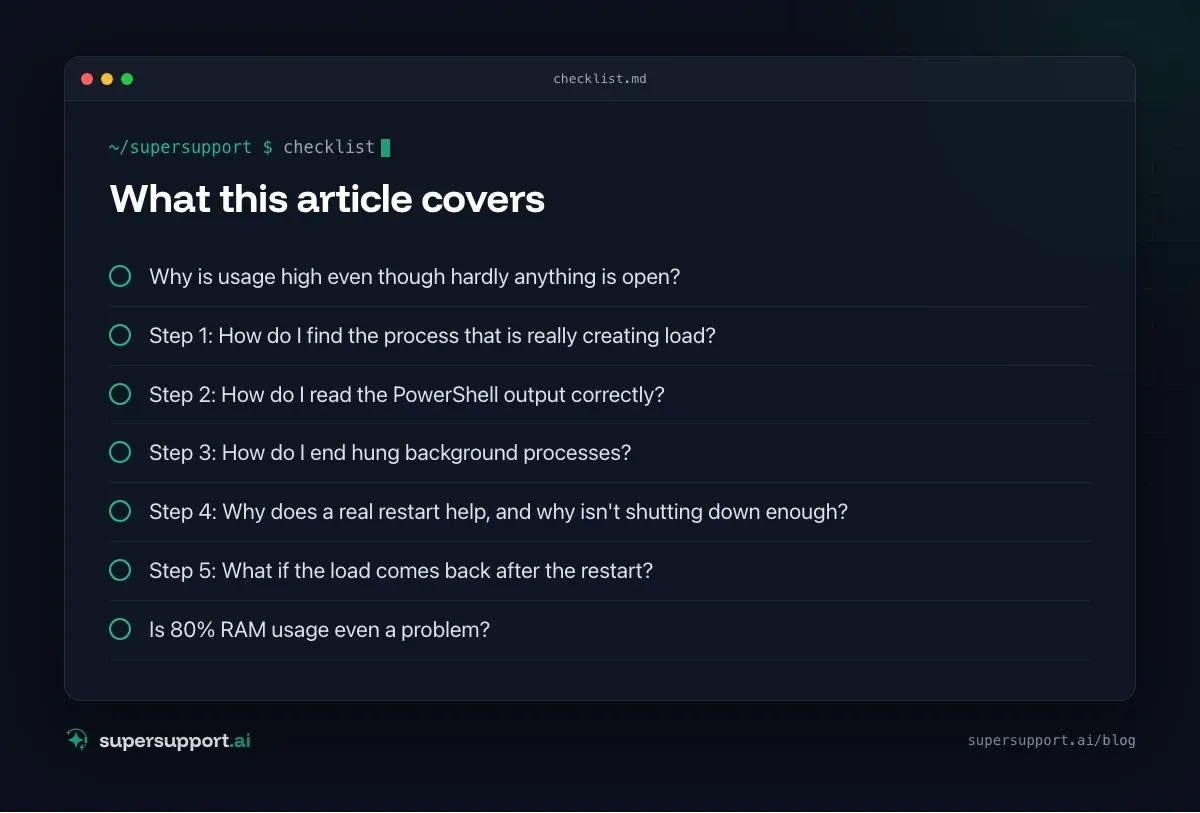
Step 1: How do I find the process that is really creating load?
Open Task Manager with Ctrl+Shift+Esc and sort under “Processes” by CPU, then by Memory. Important: expand the groups, because behind one program name there are often dozens of individual processes.
The Details tab is even more precise: there you see each process individually. Sort by “Name”, and it is immediately obvious when a program appears twenty or thirty times in the list.
Step 2: How do I read the PowerShell output correctly?
The CPU column in Get-Process is not a percentage but the total processor time in seconds since the process started. This is the most common misreading in diagnosis.
Get-Process | Sort-Object CPU -Descending | Select-Object -First 10 Name, Id, CPU, WSA value of 60,000 for explorer only means that Explorer has used a total of about 17 hours of processor time over 23 days of uptime. That is normal. The current load is shown by this command:
Get-Counter '\Process(*)\% Processor Time' |
  Select-Object -ExpandProperty CounterSamples |
  Where-Object { $_.InstanceName -notin '_total','idle' } |
  Sort-Object CookedValue -Descending |
  Select-Object -First 10 InstanceName, @{n='CPU %';e={[math]::Round($_.CookedValue / $env:NUMBER_OF_PROCESSORS, 1)}}
And this is how you count how many instances of a program are running:
Get-Process | Group-Object Name | Sort-Object Count -Descending | Select-Object -First 10 Count, NameIf a program with 28 entries shows up there that you no longer have open, you have found the culprit.
Step 3: How do I end hung background processes?
First close normally, then end all remaining instances at once. In Task Manager under Details, select the process and click End task, or use a command to end all instances at the same time:
taskkill /f /im Code.exeReplace Code.exe with the name from step 2. Caution: unsaved work in that program is lost.
In the actual case, CPU load dropped by about a third right away. The program could then be opened again as normal, without the leftovers.
Step 4: Why does a real restart help, and why isn't shutting down enough?

Beta
IT support that fixes itself.
supersupport.ai handles your 1st-level support fully automatically. Secure your spot on the waitlist now.
Join the WaitlistWith fast startup enabled, “Shut down” does not reset Windows. Only “Restart” does. When you shut down, Windows saves the kernel state and loads it again the next time you switch on. That is why Task Manager often shows uptimes of weeks even though the computer was “off” every evening.
You can see the actual uptime in Task Manager under Performance › CPU › “Up time”, or like this:
(Get-Date) - (Get-CimInstance Win32_OperatingSystem).LastBootUpTimeIf it shows double-digit days: Start › Power › Restart. If you want to turn off fast startup, you will find it under Control Panel › Power Options › Choose what the power buttons do › Turn on fast startup.
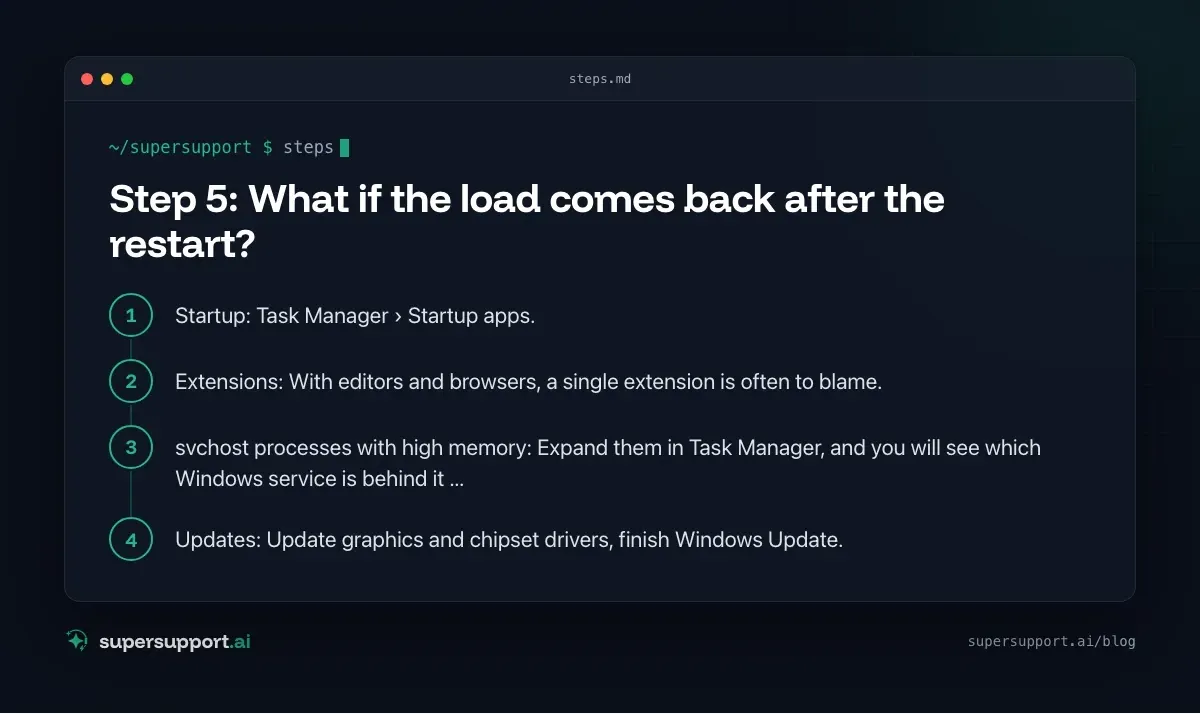
Step 5: What if the load comes back after the restart?
Then the cause is a program that loads at startup, or an extension. Check in this order:
- Startup: Task Manager › Startup apps. Disable everything that is not needed right away. In the actual case, a remote desktop management tool and a game platform were also running permanently.
- Extensions: With editors and browsers, a single extension is often to blame. Many editors have their own process explorer (e.g. “Help › Process Explorer”) that shows which extension is doing the computing.
svchostprocesses with high memory: Expand them in Task Manager, and you will see which Windows service is behind it, often Windows Update, search indexing, or a driver service.- Updates: Update graphics and chipset drivers, finish Windows Update.
Is 80% RAM usage even a problem?
Not necessarily. Windows deliberately uses free memory as a cache so that programs start faster. It only becomes a problem when the computer becomes noticeably slow, the disk keeps working, or usage stays near 100%. High CPU load at idle, on the other hand, is almost always a sign that something is hung.
For internal IT teams, "the PC is slow" is one of the classics that eat up a lot of time and can almost always be solved with the same steps. See also 5 IT tickets you can solve in 60 seconds and 7 signs your IT support is overwhelmed.

How does SuperSupport help with slow PCs?
In the case described, the SuperSupport agent read the running processes, the current load, and the uptime directly on the device, found the hung background processes, and ended them after approval of the fix plan. Afterwards it measured the load again and recommended the overdue restart. What this looks like for internal IT and MSPs is shown on AI relief for IT teams and AI support for MSPs.
Frequently asked questions
Why is my CPU usage constantly high even though hardly any programs are open?
Often background processes of programs that are already closed keep running, for example helper processes of editors, browsers, or chat apps. On top of that come long uptimes without a real restart, during which such leftovers accumulate.
Is shutting down enough instead of restarting?
No, not with fast startup enabled. When you shut down, Windows saves the system state and loads it again the next time you switch on. Only “Restart” really resets the system.
What does the CPU column in Get-Process mean?
It shows the total processor time in seconds since the process started, not a percentage. A high value only means that the process has worked for a long time or a lot, not that it is creating load right now.
Is 80 percent RAM usage dangerous?
Not automatically. Windows uses free memory as a cache. It only becomes critical when the computer becomes noticeably slow, swaps a lot to the disk, or usage stays near 100 percent.
How do I safely end hung background processes?
First close the program normally. If processes remain, choose “End task” in Task Manager or end all instances with taskkill /f /im Program.exe. Unsaved work in that program is lost in the process.
Beta
IT support that fixes itself.
supersupport.ai handles your 1st-level support fully automatically. Secure your spot on the waitlist now.
Join the WaitlistNico Haslberger is Co-Founder & CEO of SuperSupport.ai. With years of experience as an IT technician, he knows the problems in IT support first-hand: from overloaded help desks to recurring tickets that slow teams down. That knowledge is built into every feature of the platform today. He makes sure SuperSupport.ai solves exactly the problems he experienced himself for years.
This article was created with AI assistance and editorially reviewed.
Related Articles

Program Not Responding: How to Close It Properly
“Not responding” and nothing works? Here's how to close frozen programs cleanly on Windows – even if the process has another name or runs several times.


Outlook Keeps Crashing: Find the Cause and Fix It for Good
Outlook keeps crashing, but the event log shows nothing? Here's how to find the trigger – from add-ins and the cache to a corrupted profile.

Printer Not Printing: Fix the Print Spooler
No printers visible anymore or jobs stuck? Often the Windows Print Spooler is stopped or disabled. Here is how to check and repair it.