;}.cls-2{fill:url(%23Unbenannter_Verlauf_5-2);}.cls-3{fill:url(%23Unbenannter_Verlauf_5-5);}.cls-4{fill:url(%23Unbenannter_Verlauf_5-6);}.cls-5{fill:url(%23Unbenannter_Verlauf_5-3);}.cls-6{fill:url(%23Unbenannter_Verlauf_5-4);}%3c/style%3e%3clinearGradient%20id='Unbenannter_Verlauf_5'%20x1='1075.02'%20y1='943.06'%20x2='1201.78'%20y2='943.06'%20gradientUnits='userSpaceOnUse'%3e%3cstop%20offset='0'%20stop-color='%2322b88a'/%3e%3cstop%20offset='1'%20stop-color='%231a9e78'/%3e%3c/linearGradient%3e%3clinearGradient%20id='Unbenannter_Verlauf_5-2'%20x1='234.11'%20y1='663.43'%20x2='1058.29'%20y2='663.43'%20xlink:href='%23Unbenannter_Verlauf_5'/%3e%3clinearGradient%20id='Unbenannter_Verlauf_5-3'%20x1='843.79'%20y1='1064.84'%20x2='1096.04'%20y2='1064.84'%20xlink:href='%23Unbenannter_Verlauf_5'/%3e%3clinearGradient%20id='Unbenannter_Verlauf_5-4'%20x1='1120.37'%20y1='662.1'%20x2='1253'%20y2='662.1'%20xlink:href='%23Unbenannter_Verlauf_5'/%3e%3clinearGradient%20id='Unbenannter_Verlauf_5-5'%20x1='97.45'%20y1='265.53'%20x2='385.89'%20y2='265.53'%20xlink:href='%23Unbenannter_Verlauf_5'/%3e%3clinearGradient%20id='Unbenannter_Verlauf_5-6'%20x1='295.45'%20y1='255.64'%20x2='1213.95'%20y2='255.64'%20xlink:href='%23Unbenannter_Verlauf_5'/%3e%3c/defs%3e%3cpath%20class='cls-1'%20d='M1201.78,871c-.61,1.55-1.23,3.1-1.86,4.66-20.33,50.18-47.14,96.85-80.02,139.45-7.56-13.82-21.78-22.31-37.69-22.31h-7.19c29.82-37.26,54.46-78.02,73.61-121.8h53.15Z'/%3e%3cpath%20class='cls-2'%20d='M665.24,264.59l69.02,186.52c21.3,57.57,66.69,102.96,124.26,124.26l186.52,69.02c17.67,6.54,17.67,31.54,0,38.08l-186.52,69.02c-57.57,21.3-102.96,66.69-124.26,124.26l-69.02,186.52c-6.54,17.67-31.54,17.67-38.08,0l-69.02-186.52c-21.3-57.57-66.69-102.96-124.26-124.26l-186.52-69.02c-17.67-6.54-17.67-31.54,0-38.08l186.52-69.02c57.57-21.3,102.96-66.69,124.26-124.26l69.02-186.52c6.54-17.67,31.54-17.67,38.08,0Z'/%3e%3cpath%20class='cls-5'%20d='M1082.21,1021.98h-79.13c-1.7,0-2.97-1.56-2.62-3.23l22.72-109.35c2.94-14.16-15.11-22.74-24.23-11.51l-152.04,187.31c-7.32,9.02-.9,22.5,10.72,22.5h79.13c1.7,0,2.97,1.56,2.62,3.23l-22.72,109.35c-2.94,14.16,15.11,22.74,24.23,11.51l152.04-187.31c7.32-9.02.9-22.5-10.72-22.5Z'/%3e%3crect%20class='cls-6'%20x='1120.37'%20y='486.36'%20width='132.63'%20height='351.48'%20rx='19.58'%20ry='19.58'/%3e%3cpath%20class='cls-3'%20d='M250.58,128.27l13.88,55.81c7.19,28.91,29.76,51.47,58.66,58.66l55.81,13.88c9.29,2.31,9.29,15.51,0,17.82l-55.81,13.88c-28.91,7.19-51.47,29.76-58.66,58.66l-13.88,55.81c-2.31,9.29-15.51,9.29-17.82,0l-13.88-55.81c-7.19-28.91-29.76-51.47-58.66-58.66l-55.81-13.88c-9.29-2.31-9.29-15.51,0-17.82l55.81-13.88c28.91-7.19,51.47-29.76,58.66-58.66l13.88-55.81c2.31-9.29,15.51-9.29,17.82,0Z'/%3e%3cpath%20class='cls-4'%20d='M1213.95,453.21h-67.62c-1.23,0-2.47.04-3.67.12-27.03-63.89-65.84-121.36-115.42-170.94-51.54-51.54-111.61-91.44-178.55-118.59-64.67-26.22-133.03-39.52-203.16-39.52s-138.48,13.3-203.16,39.52c-33.73,13.67-65.72,30.61-95.75,50.63l-.19-.05c-23.62-5.88-42.51-22.85-51-45.24,37.87-26.86,78.65-49.21,122.01-66.79,72.63-29.44,149.37-44.38,228.08-44.38s155.45,14.93,228.08,44.38c75.2,30.51,142.67,75.31,200.53,133.15,57.84,57.85,102.65,125.33,133.15,200.53,2.31,5.7,4.54,11.43,6.66,17.19Z'/%3e%3c/svg%3e)
Recover a Deleted File: All the Ways at Work
File deleted, overwritten or unsaved? Recover it via Recycle Bin, OneDrive and SharePoint, version history, AutoRecover, Previous Versions or Time Machine.


Deleted rarely means gone. If you're quick, you can get the file back.
“I accidentally deleted the folder.” – “My colleague overwrote my Excel file.” – “Word crashed and I hadn't saved.” Messages like these come up regularly in our support cases, usually with a good dose of panic. The good news: in the vast majority of cases, the file isn't gone.
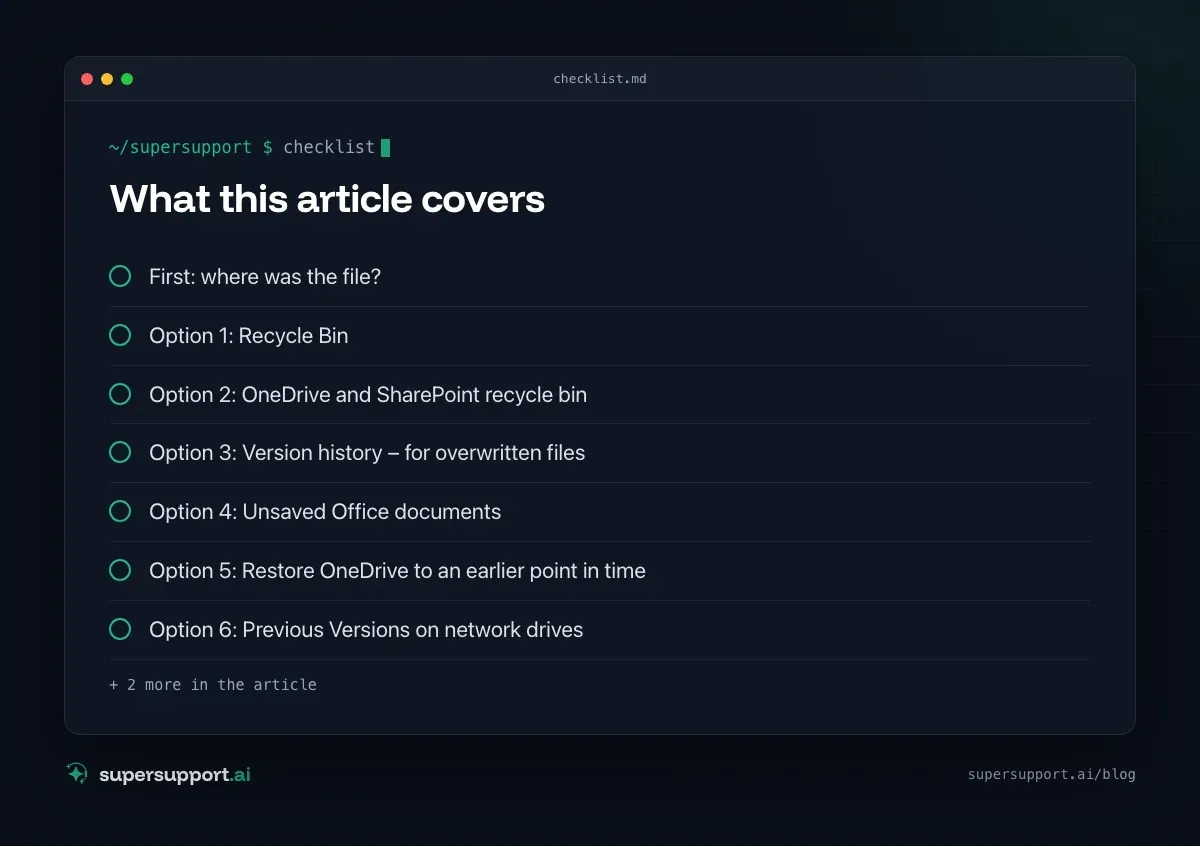
Here are all the options, in order – from the simplest to the most involved.
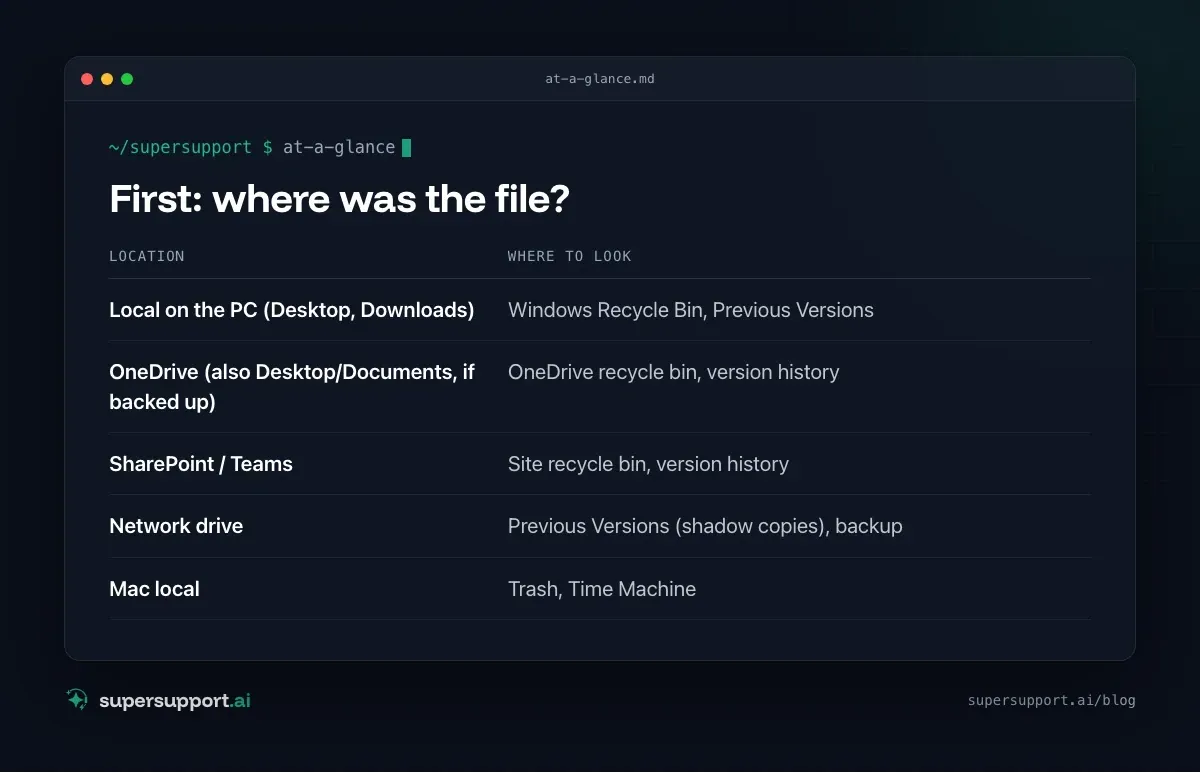
First: where was the file?
The location decides where you look.
- Local on the PC (Desktop, Downloads) – Windows Recycle Bin, Previous Versions
- OneDrive (also Desktop/Documents, if backed up) – OneDrive recycle bin, version history
- SharePoint / Teams – Site recycle bin, version history
- Network drive – Previous Versions (shadow copies), backup
- Mac local – Trash, Time Machine
Where a file was often shows in the recent list in Word or Excel (File › Open › Recent).
Option 1: Recycle Bin
- Windows: open the Recycle Bin on the desktop, find the file, right-click › Restore.
- Mac: Trash in the Dock, drag the file out or right-click › Put Back.
Note: files deleted with Shift+Delete do not end up in the Recycle Bin.
Option 2: OneDrive and SharePoint recycle bin
Deleted cloud files are in the cloud's recycle bin – not in the Windows Recycle Bin.
- Open OneDrive in the browser (via the OneDrive icon › View online).
- Recycle bin on the left.
- Select the file › Restore.
For SharePoint and Teams: open the SharePoint site of the library (in Teams under Files › Open in SharePoint) › Recycle bin.
For work or school accounts, files stay recoverable for 93 days by default, according to Microsoft. If the user's recycle bin has been emptied, IT can often still restore them from the second-stage recycle bin.

Option 3: Version history – for overwritten files
If the file wasn't deleted but overwritten, version history is the right way.
- In File Explorer (synced OneDrive/SharePoint file): right-click › OneDrive › Version history.
- In the browser: right-click the file › Version history.
- In Word/Excel: File › Info › Version History.
Open the older version, check it, then Restore. See also Excel file locked by another user.
Option 4: Unsaved Office documents
After a crash, Office often offers recovery the next time it starts. If not:
- Word/Excel/PowerPoint: File › Info › Manage Document › Recover Unsaved Documents (in Excel: Recover Unsaved Workbooks).
- Prevention: save files in OneDrive or SharePoint – then AutoSave is active.

14 days free
IT support that fixes itself.
SuperSupport fixes IT problems right on the device, before they turn into tickets. Try it free for 14 days.
Start free trialOption 5: Restore OneDrive to an earlier point in time
If many files were deleted or changed at once – for example by a sync error or malware – you can restore your entire OneDrive. In the browser: Settings (gear icon) › Restore your OneDrive, choose a point in time. According to Microsoft, this works for the last 30 days.
Option 6: Previous Versions on network drives
On Windows servers with shadow copies enabled: right-click the folder › Properties › Previous Versions. Open a state there and copy the file out.
No Previous Versions? Then the backup remains – IT restores the file from it. See Microsoft 365 backup and Logging network drive access.
Option 7: Time Machine (Mac)
In Finder, open the folder the file was in, then in the menu bar choose Time Machine › Browse Time Machine Backups. Go back to the right point in time, select the file, Restore.
What you shouldn't do
- Don't install recovery tools from the internet on company devices.
- Don't keep working on the drive if a local file was deleted without going to the Recycle Bin – every new file can overwrite it. Inform IT.

How does SuperSupport help?
“My file is gone” is a classic case for the chat: the SuperSupport agent clarifies where the file was, searches the Recycle Bin, the recently used files and similar file names on the Windows or Mac device, and walks you through the version history or the cloud recycle bin. If it involves backups or the second-stage recycle bin, the case lands with IT with all the details. What that looks like for internal IT teams and IT service providers is explained on the respective pages.
Frequently asked questions
How do I restore a deleted file in OneDrive?
Open OneDrive in the browser, click Recycle bin on the left, select the file and choose Restore. For work or school accounts, deleted files stay in the recycle bin for 93 days by default, according to Microsoft – first in the user's recycle bin, then in the second-stage recycle bin, from which IT can restore them.
How do I get back an older version of a file?
In OneDrive or SharePoint, right-click the file › Version history. Earlier versions are listed there with their dates and can be opened or restored. For synced files, you can also do this in File Explorer via right-click › OneDrive › Version history.
Can I recover an unsaved Word or Excel document?
Often, yes. In Word or Excel, go to File › Info › Manage Document › Recover Unsaved Documents. Office automatically stores interim versions there. For files in OneDrive, AutoSave saves continuously anyway.
What if the file was deleted on a network drive?
Network drives have no recycle bin in File Explorer. If shadow copies are enabled on the server, you can open an earlier state via right-click on the folder › Properties › Previous Versions. Otherwise the only option is restoring from backup by IT.
How long can deleted files be recovered?
That depends on the location: in the Windows Recycle Bin until it is emptied; in OneDrive and SharePoint for work or school accounts 93 days by default; on network drives as far back as shadow copies or backups go. The sooner you notice, the better.
14 days free
IT support that fixes itself.
SuperSupport fixes IT problems right on the device, before they turn into tickets. Try it free for 14 days.
Start free trialNico Haslberger is Co-Founder & CEO of SuperSupport.ai. With years of experience as an IT technician, he knows the problems in IT support first-hand: from overloaded help desks to recurring tickets that slow teams down. That knowledge is built into every feature of the platform today. He makes sure SuperSupport.ai solves exactly the problems he experienced himself for years.
This article was created with AI assistance and editorially reviewed.
Related Articles

Find Your BitLocker Recovery Key: All the Ways
Windows asks for the BitLocker recovery key? Where to find the 48-digit key (Microsoft account, Entra ID, Intune, AD) and why it is requested.


Windows Server Shuts Down Every Hour? Check the License
Server shuts itself down after about an hour – taking VMs and printers with it? Usually the evaluation license has expired. How to spot and fix it.

Keyboard or Mouse Not Responding: Quick Fixes
Keyboard not typing, mouse not moving, or Y and Z swapped? The most common causes for USB, wireless and Bluetooth devices on Windows and Mac.