;}.cls-2{fill:url(%23Unbenannter_Verlauf_5-2);}.cls-3{fill:url(%23Unbenannter_Verlauf_5-5);}.cls-4{fill:url(%23Unbenannter_Verlauf_5-6);}.cls-5{fill:url(%23Unbenannter_Verlauf_5-3);}.cls-6{fill:url(%23Unbenannter_Verlauf_5-4);}%3c/style%3e%3clinearGradient%20id='Unbenannter_Verlauf_5'%20x1='1075.02'%20y1='943.06'%20x2='1201.78'%20y2='943.06'%20gradientUnits='userSpaceOnUse'%3e%3cstop%20offset='0'%20stop-color='%2322b88a'/%3e%3cstop%20offset='1'%20stop-color='%231a9e78'/%3e%3c/linearGradient%3e%3clinearGradient%20id='Unbenannter_Verlauf_5-2'%20x1='234.11'%20y1='663.43'%20x2='1058.29'%20y2='663.43'%20xlink:href='%23Unbenannter_Verlauf_5'/%3e%3clinearGradient%20id='Unbenannter_Verlauf_5-3'%20x1='843.79'%20y1='1064.84'%20x2='1096.04'%20y2='1064.84'%20xlink:href='%23Unbenannter_Verlauf_5'/%3e%3clinearGradient%20id='Unbenannter_Verlauf_5-4'%20x1='1120.37'%20y1='662.1'%20x2='1253'%20y2='662.1'%20xlink:href='%23Unbenannter_Verlauf_5'/%3e%3clinearGradient%20id='Unbenannter_Verlauf_5-5'%20x1='97.45'%20y1='265.53'%20x2='385.89'%20y2='265.53'%20xlink:href='%23Unbenannter_Verlauf_5'/%3e%3clinearGradient%20id='Unbenannter_Verlauf_5-6'%20x1='295.45'%20y1='255.64'%20x2='1213.95'%20y2='255.64'%20xlink:href='%23Unbenannter_Verlauf_5'/%3e%3c/defs%3e%3cpath%20class='cls-1'%20d='M1201.78,871c-.61,1.55-1.23,3.1-1.86,4.66-20.33,50.18-47.14,96.85-80.02,139.45-7.56-13.82-21.78-22.31-37.69-22.31h-7.19c29.82-37.26,54.46-78.02,73.61-121.8h53.15Z'/%3e%3cpath%20class='cls-2'%20d='M665.24,264.59l69.02,186.52c21.3,57.57,66.69,102.96,124.26,124.26l186.52,69.02c17.67,6.54,17.67,31.54,0,38.08l-186.52,69.02c-57.57,21.3-102.96,66.69-124.26,124.26l-69.02,186.52c-6.54,17.67-31.54,17.67-38.08,0l-69.02-186.52c-21.3-57.57-66.69-102.96-124.26-124.26l-186.52-69.02c-17.67-6.54-17.67-31.54,0-38.08l186.52-69.02c57.57-21.3,102.96-66.69,124.26-124.26l69.02-186.52c6.54-17.67,31.54-17.67,38.08,0Z'/%3e%3cpath%20class='cls-5'%20d='M1082.21,1021.98h-79.13c-1.7,0-2.97-1.56-2.62-3.23l22.72-109.35c2.94-14.16-15.11-22.74-24.23-11.51l-152.04,187.31c-7.32,9.02-.9,22.5,10.72,22.5h79.13c1.7,0,2.97,1.56,2.62,3.23l-22.72,109.35c-2.94,14.16,15.11,22.74,24.23,11.51l152.04-187.31c7.32-9.02.9-22.5-10.72-22.5Z'/%3e%3crect%20class='cls-6'%20x='1120.37'%20y='486.36'%20width='132.63'%20height='351.48'%20rx='19.58'%20ry='19.58'/%3e%3cpath%20class='cls-3'%20d='M250.58,128.27l13.88,55.81c7.19,28.91,29.76,51.47,58.66,58.66l55.81,13.88c9.29,2.31,9.29,15.51,0,17.82l-55.81,13.88c-28.91,7.19-51.47,29.76-58.66,58.66l-13.88,55.81c-2.31,9.29-15.51,9.29-17.82,0l-13.88-55.81c-7.19-28.91-29.76-51.47-58.66-58.66l-55.81-13.88c-9.29-2.31-9.29-15.51,0-17.82l55.81-13.88c28.91-7.19,51.47-29.76,58.66-58.66l13.88-55.81c2.31-9.29,15.51-9.29,17.82,0Z'/%3e%3cpath%20class='cls-4'%20d='M1213.95,453.21h-67.62c-1.23,0-2.47.04-3.67.12-27.03-63.89-65.84-121.36-115.42-170.94-51.54-51.54-111.61-91.44-178.55-118.59-64.67-26.22-133.03-39.52-203.16-39.52s-138.48,13.3-203.16,39.52c-33.73,13.67-65.72,30.61-95.75,50.63l-.19-.05c-23.62-5.88-42.51-22.85-51-45.24,37.87-26.86,78.65-49.21,122.01-66.79,72.63-29.44,149.37-44.38,228.08-44.38s155.45,14.93,228.08,44.38c75.2,30.51,142.67,75.31,200.53,133.15,57.84,57.85,102.65,125.33,133.15,200.53,2.31,5.7,4.54,11.43,6.66,17.19Z'/%3e%3c/svg%3e)
Find Your BitLocker Recovery Key: All the Ways
Windows asks for the BitLocker recovery key? Where to find the 48-digit key (Microsoft account, Entra ID, Intune, AD) and why it is requested.

You need the BitLocker key exactly when nobody knows where it is.
A blue screen that says: “Enter the recovery key for this drive.” With a key ID and a field for 48 digits. In our support cases, this is one of the situations in which users are most nervous, often in the morning after an overnight update. See also External monitor: no signal after BIOS update.
The good news: on company devices the key is almost always stored somewhere. Here are all the ways to find it.
First: note the key ID
The recovery screen shows a key ID (a long string of characters, often with hyphens). Write down at least the first eight characters or take a photo of the screen. That lets you find the right key if several are stored.
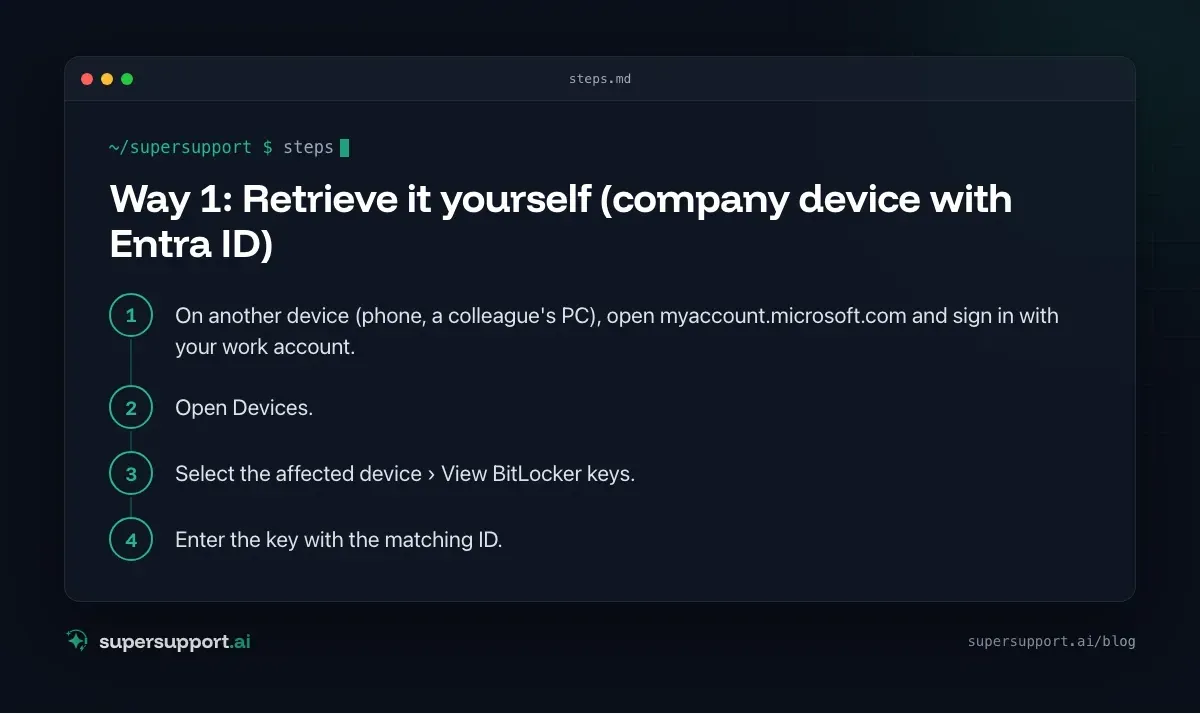
Way 1: Retrieve it yourself (company device with Entra ID)
Many companies allow users to retrieve the key for their own devices themselves.
- On another device (phone, a colleague's PC), open myaccount.microsoft.com and sign in with your work account.
- Open Devices.
- Select the affected device › View BitLocker keys.
- Enter the key with the matching ID.
If the option is not visible, the organization has disabled self-service retrieval, and IT can help.
Way 2: IT retrieves the key
- Entra admin center: Devices › All devices › select the device › BitLocker keys.
- Intune admin center: Devices › select the device › Recovery keys.
- Active Directory (domain without cloud): In Active Directory Users and Computers, on the computer object, the BitLocker Recovery tab, provided the keys are backed up to AD through policy.
IT should verify the caller's identity before handing out the key, since the key unlocks all the data on the device.
Way 3: Microsoft account (devices set up privately)
If the device was set up with a personal Microsoft account, the key is often stored there: open aka.ms/myrecoverykey and sign in with that account.
Way 4: Printout, file, USB stick
With manual activation, Windows offers to print the key, save it as a file or store it on a USB stick. In a company that should be the exception, but in small offices the printout is sometimes found in the “IT” folder.
Why does Windows ask for the key at all?
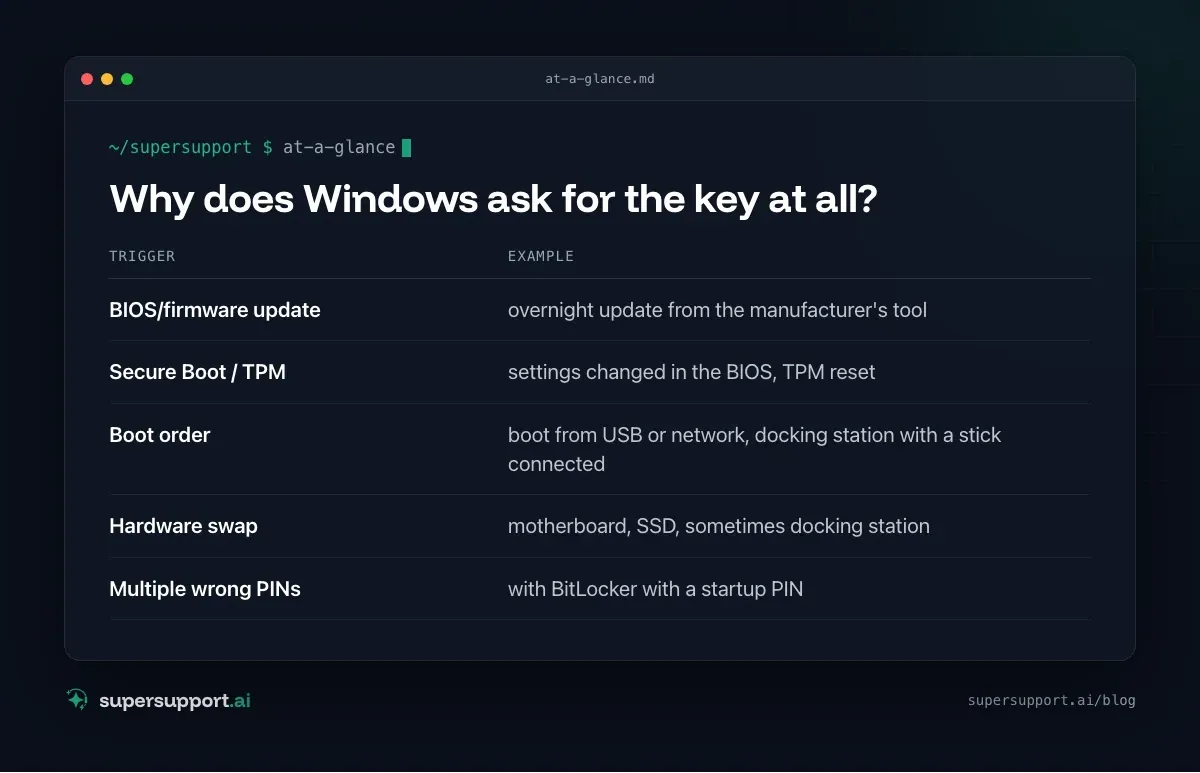
BitLocker detected a change at startup that an attacker could exploit. Common triggers:
- BIOS/firmware update – overnight update from the manufacturer's tool
- Secure Boot / TPM – settings changed in the BIOS, TPM reset
- Boot order – boot from USB or network, docking station with a stick connected
- Hardware swap – motherboard, SSD, sometimes docking station
- Multiple wrong PINs – with BitLocker with a startup PIN

14 days free
IT support that fixes itself.
SuperSupport fixes IT problems right on the device, before they turn into tickets. Try it free for 14 days.
Start free trialPrevention: so it doesn't happen again
- Back up keys centrally: through Intune policy or Group Policy to Entra ID or Active Directory, and check that a key exists for every device.
- Suspend BitLocker before BIOS updates (PowerShell as administrator):
Suspend-BitLocker -MountPoint "C:" -RebootCount 1- Control updates centrally instead of through manufacturer tools on each device. See Patch management for small businesses.
- Check the status:
Get-BitLockerVolume | Select-Object MountPoint, VolumeStatus, ProtectionStatus, KeyProtectorAnd if the key is really gone?
Then the data on the drive is lost. That is the point of encryption. All that remains is to reinstall Windows. Data in OneDrive, SharePoint or a backup is not affected. That is why important files don't belong only on the local drive. See Microsoft 365 backup and Company laptop lost or stolen.
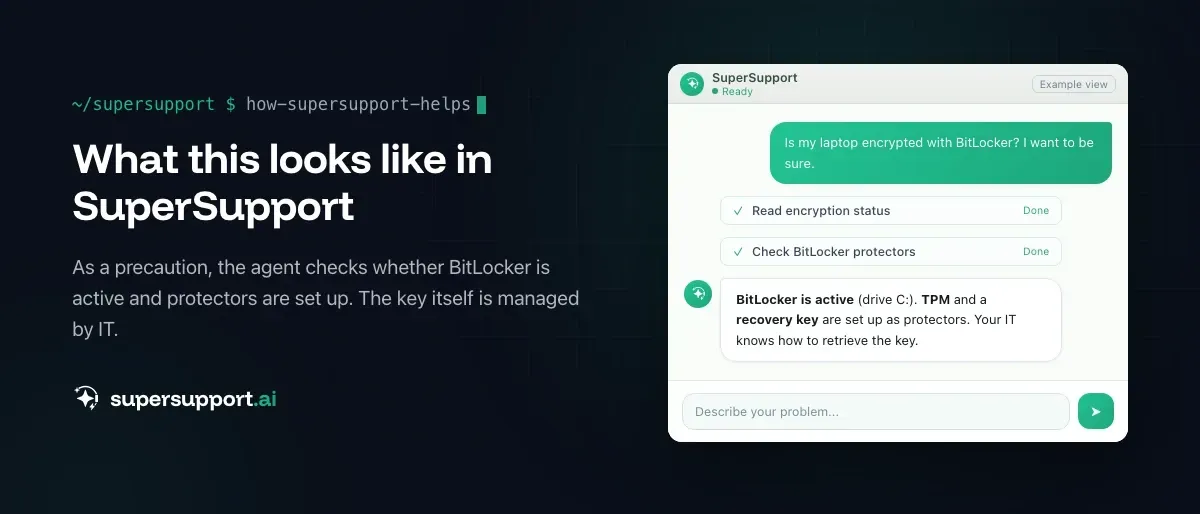
How does SuperSupport help with BitLocker?
No agent can help on the locked device itself, because the computer doesn't start. But the user can report from another company device in the chat that the recovery key is being requested, and the case goes to IT with the device and key ID. As a preventive measure, the SuperSupport agent checks on Windows devices whether BitLocker is active and protectors are set up. What this looks like for internal IT teams and MSPs is explained on the respective pages.
Frequently asked questions
Where do I find my BitLocker recovery key?
On company devices, usually in Entra ID or Intune. Users can often retrieve it themselves for their devices at myaccount.microsoft.com; otherwise IT can help. On devices set up privately, it is in the Microsoft account at aka.ms/myrecoverykey. In domains without cloud, often in Active Directory. It may also have been printed, saved as a file or stored on a USB stick.
Why does Windows ask for the BitLocker recovery key?
Because BitLocker detected a change at startup that could indicate a tampering attempt, for example a BIOS or firmware update, changed Secure Boot or TPM settings, a new boot order, a docking station at startup or a hardware swap.
How do I tell which key is the right one?
The recovery screen shows a key ID. It must match the ID of the stored key; comparing the first eight characters is usually enough. The key itself consists of 48 digits in eight blocks.
What happens if the recovery key can't be found?
Then the data on the drive is no longer accessible, which is exactly what the encryption is for. All that remains is to reinstall Windows. Data stored in OneDrive, SharePoint or a backup is not affected.
How do I prevent the prompt during a BIOS update?
Suspend BitLocker for one restart before the update, for example with Suspend-BitLocker -MountPoint C: -RebootCount 1 in an elevated PowerShell. Many manufacturer update tools do this automatically, but not all of them.
14 days free
IT support that fixes itself.
SuperSupport fixes IT problems right on the device, before they turn into tickets. Try it free for 14 days.
Start free trialNico Haslberger is Co-Founder & CEO of SuperSupport.ai. With years of experience as an IT technician, he knows the problems in IT support first-hand: from overloaded help desks to recurring tickets that slow teams down. That knowledge is built into every feature of the platform today. He makes sure SuperSupport.ai solves exactly the problems he experienced himself for years.
This article was created with AI assistance and editorially reviewed.
Related Articles
Recover a Deleted File: All the Ways at Work
File deleted, overwritten or unsaved? Recover it via Recycle Bin, OneDrive and SharePoint, version history, AutoRecover, Previous Versions or Time Machine.

Windows Server Shuts Down Every Hour? Check the License
Server shuts itself down after about an hour – taking VMs and printers with it? Usually the evaluation license has expired. How to spot and fix it.

Keyboard or Mouse Not Responding: Quick Fixes
Keyboard not typing, mouse not moving, or Y and Z swapped? The most common causes for USB, wireless and Bluetooth devices on Windows and Mac.