;}.cls-2{fill:url(%23Unbenannter_Verlauf_5-2);}.cls-3{fill:url(%23Unbenannter_Verlauf_5-5);}.cls-4{fill:url(%23Unbenannter_Verlauf_5-6);}.cls-5{fill:url(%23Unbenannter_Verlauf_5-3);}.cls-6{fill:url(%23Unbenannter_Verlauf_5-4);}%3c/style%3e%3clinearGradient%20id='Unbenannter_Verlauf_5'%20x1='1075.02'%20y1='943.06'%20x2='1201.78'%20y2='943.06'%20gradientUnits='userSpaceOnUse'%3e%3cstop%20offset='0'%20stop-color='%2322b88a'/%3e%3cstop%20offset='1'%20stop-color='%231a9e78'/%3e%3c/linearGradient%3e%3clinearGradient%20id='Unbenannter_Verlauf_5-2'%20x1='234.11'%20y1='663.43'%20x2='1058.29'%20y2='663.43'%20xlink:href='%23Unbenannter_Verlauf_5'/%3e%3clinearGradient%20id='Unbenannter_Verlauf_5-3'%20x1='843.79'%20y1='1064.84'%20x2='1096.04'%20y2='1064.84'%20xlink:href='%23Unbenannter_Verlauf_5'/%3e%3clinearGradient%20id='Unbenannter_Verlauf_5-4'%20x1='1120.37'%20y1='662.1'%20x2='1253'%20y2='662.1'%20xlink:href='%23Unbenannter_Verlauf_5'/%3e%3clinearGradient%20id='Unbenannter_Verlauf_5-5'%20x1='97.45'%20y1='265.53'%20x2='385.89'%20y2='265.53'%20xlink:href='%23Unbenannter_Verlauf_5'/%3e%3clinearGradient%20id='Unbenannter_Verlauf_5-6'%20x1='295.45'%20y1='255.64'%20x2='1213.95'%20y2='255.64'%20xlink:href='%23Unbenannter_Verlauf_5'/%3e%3c/defs%3e%3cpath%20class='cls-1'%20d='M1201.78,871c-.61,1.55-1.23,3.1-1.86,4.66-20.33,50.18-47.14,96.85-80.02,139.45-7.56-13.82-21.78-22.31-37.69-22.31h-7.19c29.82-37.26,54.46-78.02,73.61-121.8h53.15Z'/%3e%3cpath%20class='cls-2'%20d='M665.24,264.59l69.02,186.52c21.3,57.57,66.69,102.96,124.26,124.26l186.52,69.02c17.67,6.54,17.67,31.54,0,38.08l-186.52,69.02c-57.57,21.3-102.96,66.69-124.26,124.26l-69.02,186.52c-6.54,17.67-31.54,17.67-38.08,0l-69.02-186.52c-21.3-57.57-66.69-102.96-124.26-124.26l-186.52-69.02c-17.67-6.54-17.67-31.54,0-38.08l186.52-69.02c57.57-21.3,102.96-66.69,124.26-124.26l69.02-186.52c6.54-17.67,31.54-17.67,38.08,0Z'/%3e%3cpath%20class='cls-5'%20d='M1082.21,1021.98h-79.13c-1.7,0-2.97-1.56-2.62-3.23l22.72-109.35c2.94-14.16-15.11-22.74-24.23-11.51l-152.04,187.31c-7.32,9.02-.9,22.5,10.72,22.5h79.13c1.7,0,2.97,1.56,2.62,3.23l-22.72,109.35c-2.94,14.16,15.11,22.74,24.23,11.51l152.04-187.31c7.32-9.02.9-22.5-10.72-22.5Z'/%3e%3crect%20class='cls-6'%20x='1120.37'%20y='486.36'%20width='132.63'%20height='351.48'%20rx='19.58'%20ry='19.58'/%3e%3cpath%20class='cls-3'%20d='M250.58,128.27l13.88,55.81c7.19,28.91,29.76,51.47,58.66,58.66l55.81,13.88c9.29,2.31,9.29,15.51,0,17.82l-55.81,13.88c-28.91,7.19-51.47,29.76-58.66,58.66l-13.88,55.81c-2.31,9.29-15.51,9.29-17.82,0l-13.88-55.81c-7.19-28.91-29.76-51.47-58.66-58.66l-55.81-13.88c-9.29-2.31-9.29-15.51,0-17.82l55.81-13.88c28.91-7.19,51.47-29.76,58.66-58.66l13.88-55.81c2.31-9.29,15.51-9.29,17.82,0Z'/%3e%3cpath%20class='cls-4'%20d='M1213.95,453.21h-67.62c-1.23,0-2.47.04-3.67.12-27.03-63.89-65.84-121.36-115.42-170.94-51.54-51.54-111.61-91.44-178.55-118.59-64.67-26.22-133.03-39.52-203.16-39.52s-138.48,13.3-203.16,39.52c-33.73,13.67-65.72,30.61-95.75,50.63l-.19-.05c-23.62-5.88-42.51-22.85-51-45.24,37.87-26.86,78.65-49.21,122.01-66.79,72.63-29.44,149.37-44.38,228.08-44.38s155.45,14.93,228.08,44.38c75.2,30.51,142.67,75.31,200.53,133.15,57.84,57.85,102.65,125.33,133.15,200.53,2.31,5.7,4.54,11.43,6.66,17.19Z'/%3e%3c/svg%3e)
Windows Server Shuts Down Every Hour? Check the License
Server shuts itself down after about an hour – taking VMs and printers with it? Usually the evaluation license has expired. How to spot and fix it.

The server isn't shutting down every hour because of a bug. It does exactly what its license tells it to.
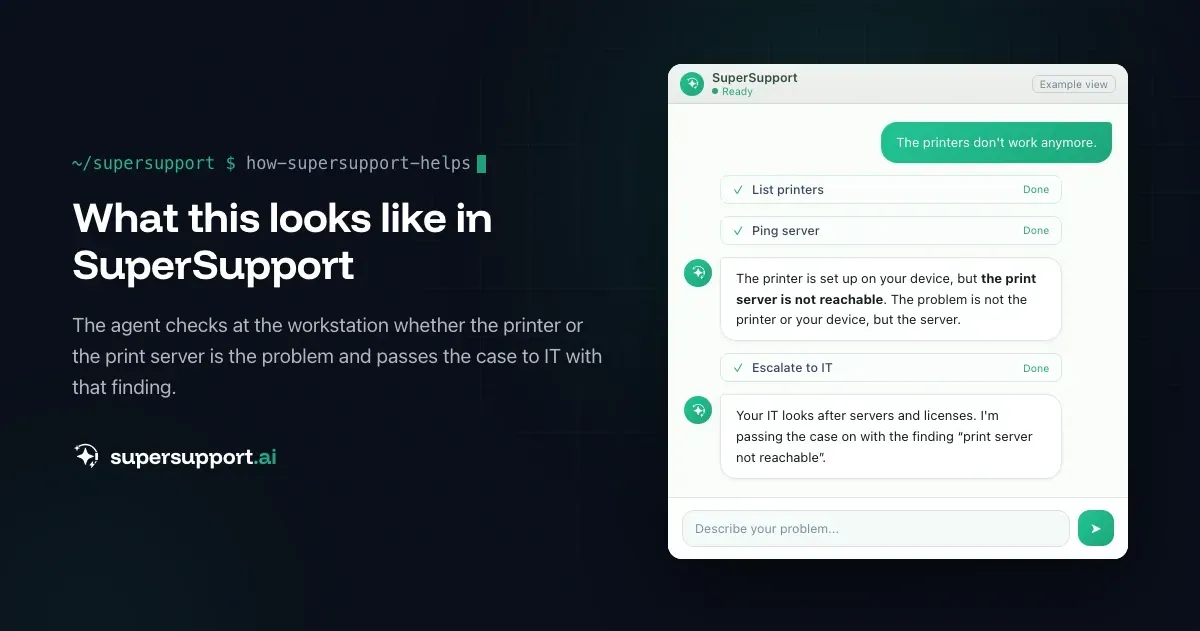
“The printers no longer work.” That is how the report began at a small industrial company. The SuperSupport agent at the workstation determined that the printer was not the problem, but that the print server was unreachable. The server was restarted – and after about an hour it shut itself down again.
The cause: The Hyper-V host was not licensed and therefore shut down automatically – and with it all virtual machines, including the print server. The print server itself also had no valid license. Once both servers were licensed, everything ran again.
Here is how to recognize the pattern and fix it.
Why does a Windows Server shut down every hour?
Usually because an evaluation version has expired. Windows Server can be tested for 180 days as an evaluation version. If it is not converted to a full version afterward, the Windows License Monitoring Service (wlms.exe) shuts the server down automatically about every hour.
This often happens like this:
- A server was installed “for testing” with an evaluation ISO – and then stayed in production.
- A template for new VMs is based on an evaluation version.
- When moving to new hardware, the license was not taken along.
A server that is not activated but has a normal version, on the other hand, does not shut down hourly – it shows notices and restricts personalization. The hourly shutdown is typical of the evaluation.
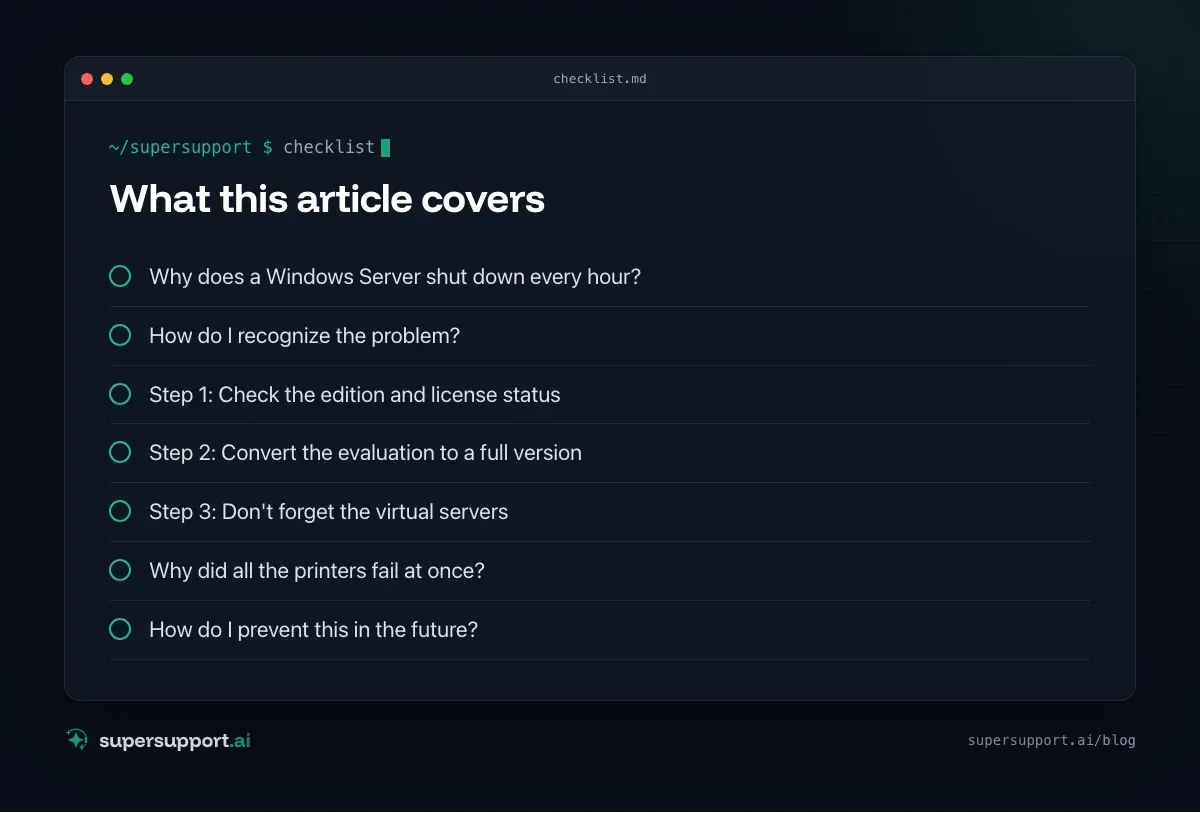
How do I recognize the problem?
By the pattern and in the event log.
- Pattern: After starting, the server runs for about an hour, then shuts down without warning.
- Event Viewer › Windows Logs › System: Event 1074, source
User32, triggered byC:\Windows\system32\wlms\wlms.exe, with a note about the expired license. - On the desktop, the notice “Windows license is expired” appears at sign-in.
With PowerShell:
Get-WinEvent -FilterHashtable @{LogName='System'; Id=1074} -MaxEvents 10 |
  Select-Object TimeCreated, Message | Format-List
Step 1: Check the edition and license status
In a Command Prompt as administrator:
DISM /online /Get-CurrentEdition
slmgr /dlv- If Current Edition says something like
ServerStandardEvalorServerDatacenterEval, it is an evaluation version. slmgr /dlvshows the license status and, for an evaluation, the remaining time.
Which editions are suitable as a target is shown by:
DISM /online /Get-TargetEditionsStep 2: Convert the evaluation to a full version
Without reinstalling – with a valid product key:
DISM /online /Set-Edition:ServerStandard /ProductKey:XXXXX-XXXXX-XXXXX-XXXXX-XXXXX /AcceptEulaA restart is needed afterward, possibly twice. Then use slmgr /dlv to check whether the server is shown as licensed.
Important:

14 days free
IT support that fixes itself.
SuperSupport fixes IT problems right on the device, before they turn into tickets. Try it free for 14 days.
Start free trial- This takes a while – best run it right after a restart so that the server doesn't shut down in the middle of the conversion.
- On domain controllers, the conversion does not work directly. A different route is needed there, such as setting up a new DC with a full version.
- For volume licenses, the matching key can be found in the Microsoft 365 admin center or the licensing portal.
Step 3: Don't forget the virtual servers
Every Windows Server VM needs its own valid license. In the real-world case, not only the host but also the print server was unlicensed – after fixing the host, that would have been the next problem.
- Windows Server Standard licenses two Windows Server VMs per fully licensed host.
- Windows Server Datacenter licenses an unlimited number of VMs on the host.
- The VMs can be activated through AVMA (Automatic Virtual Machine Activation) via the host if the host uses Datacenter, or with their own key.
Go through all VMs once:
Get-VM | Where-Object State -eq 'Running' | Select-Object Name
# in each VM:
cscript C:\Windows\System32\slmgr.vbs /dli
Why did all the printers fail at once?
Because the print server was a VM on the host that shut down. When the Hyper-V host shuts down, all virtual machines are ended too. For users, it looks as if printers, drives and programs all have a problem at the same time – yet the cause is in one place.
That is why, whenever “nothing works”, it is always worth asking: What do the affected services have in common? Often it is the same host, the same switch or the same power supply.
If only individual printers are affected, the cause is more likely on the client: see Printer not printing: fix the print queue.
How do I prevent this in the future?
- Don't use evaluation ISOs for production servers – or plan the conversion right after installation.
- Check the license status of all servers regularly, for example with a script or the RMM.
- Keep a license overview: which host, which edition, how many VMs, which key.
- Set up monitoring for unexpected restarts (events 1074 and 6008) – then the pattern is noticed before users call.
How does SuperSupport help with outages like this?
In the case described, the SuperSupport agent at the workstation determined that it was not the printer but the print server that was unreachable – and the report went to IT with the right lead from the start. Servers and licenses are still handled by IT or the MSP. What this looks like for internal IT teams and MSPs is described on the respective pages.
Frequently asked questions
Why does my Windows Server shut down every hour?
The most common reason is an expired evaluation version of Windows Server. After the trial period ends, the license monitoring service shuts the server down automatically about every hour. The event log shows an entry with ID 1074, triggered by wlms.exe.
How do I check whether my server is an evaluation version?
In a Command Prompt as administrator, run DISM /online /Get-CurrentEdition. If it says something like “ServerStandardEval” or “ServerDatacenterEval”, it is an evaluation version. slmgr /dlv additionally shows the license status and the remaining time.
Can I activate an evaluation version without reinstalling?
Yes. With DISM /online /Set-Edition and a valid product key, the evaluation can be converted to a full version. A restart is needed afterward. On domain controllers, this does not work directly.
Why are all the VMs gone along with the host?
When the Hyper-V host shuts down, all virtual machines on it are ended too – print server, file server, applications. That is why many services seem to fail at the same time even though there is only one license problem.
Do the virtual servers need a license too?
Yes. Every Windows Server VM needs a valid license. Windows Server Standard covers two VMs per fully licensed host, Datacenter an unlimited number. The VMs are then activated through AVMA or with their own key.
14 days free
IT support that fixes itself.
SuperSupport fixes IT problems right on the device, before they turn into tickets. Try it free for 14 days.
Start free trialNico Haslberger is Co-Founder & CEO of SuperSupport.ai. With years of experience as an IT technician, he knows the problems in IT support first-hand: from overloaded help desks to recurring tickets that slow teams down. That knowledge is built into every feature of the platform today. He makes sure SuperSupport.ai solves exactly the problems he experienced himself for years.
This article was created with AI assistance and editorially reviewed.
Related Articles
Recover a Deleted File: All the Ways at Work
File deleted, overwritten or unsaved? Recover it via Recycle Bin, OneDrive and SharePoint, version history, AutoRecover, Previous Versions or Time Machine.

Find Your BitLocker Recovery Key: All the Ways
Windows asks for the BitLocker recovery key? Where to find the 48-digit key (Microsoft account, Entra ID, Intune, AD) and why it is requested.
Keyboard or Mouse Not Responding: Quick Fixes
Keyboard not typing, mouse not moving, or Y and Z swapped? The most common causes for USB, wireless and Bluetooth devices on Windows and Mac.