;}.cls-2{fill:url(%23Unbenannter_Verlauf_5-2);}.cls-3{fill:url(%23Unbenannter_Verlauf_5-5);}.cls-4{fill:url(%23Unbenannter_Verlauf_5-6);}.cls-5{fill:url(%23Unbenannter_Verlauf_5-3);}.cls-6{fill:url(%23Unbenannter_Verlauf_5-4);}%3c/style%3e%3clinearGradient%20id='Unbenannter_Verlauf_5'%20x1='1075.02'%20y1='943.06'%20x2='1201.78'%20y2='943.06'%20gradientUnits='userSpaceOnUse'%3e%3cstop%20offset='0'%20stop-color='%2322b88a'/%3e%3cstop%20offset='1'%20stop-color='%231a9e78'/%3e%3c/linearGradient%3e%3clinearGradient%20id='Unbenannter_Verlauf_5-2'%20x1='234.11'%20y1='663.43'%20x2='1058.29'%20y2='663.43'%20xlink:href='%23Unbenannter_Verlauf_5'/%3e%3clinearGradient%20id='Unbenannter_Verlauf_5-3'%20x1='843.79'%20y1='1064.84'%20x2='1096.04'%20y2='1064.84'%20xlink:href='%23Unbenannter_Verlauf_5'/%3e%3clinearGradient%20id='Unbenannter_Verlauf_5-4'%20x1='1120.37'%20y1='662.1'%20x2='1253'%20y2='662.1'%20xlink:href='%23Unbenannter_Verlauf_5'/%3e%3clinearGradient%20id='Unbenannter_Verlauf_5-5'%20x1='97.45'%20y1='265.53'%20x2='385.89'%20y2='265.53'%20xlink:href='%23Unbenannter_Verlauf_5'/%3e%3clinearGradient%20id='Unbenannter_Verlauf_5-6'%20x1='295.45'%20y1='255.64'%20x2='1213.95'%20y2='255.64'%20xlink:href='%23Unbenannter_Verlauf_5'/%3e%3c/defs%3e%3cpath%20class='cls-1'%20d='M1201.78,871c-.61,1.55-1.23,3.1-1.86,4.66-20.33,50.18-47.14,96.85-80.02,139.45-7.56-13.82-21.78-22.31-37.69-22.31h-7.19c29.82-37.26,54.46-78.02,73.61-121.8h53.15Z'/%3e%3cpath%20class='cls-2'%20d='M665.24,264.59l69.02,186.52c21.3,57.57,66.69,102.96,124.26,124.26l186.52,69.02c17.67,6.54,17.67,31.54,0,38.08l-186.52,69.02c-57.57,21.3-102.96,66.69-124.26,124.26l-69.02,186.52c-6.54,17.67-31.54,17.67-38.08,0l-69.02-186.52c-21.3-57.57-66.69-102.96-124.26-124.26l-186.52-69.02c-17.67-6.54-17.67-31.54,0-38.08l186.52-69.02c57.57-21.3,102.96-66.69,124.26-124.26l69.02-186.52c6.54-17.67,31.54-17.67,38.08,0Z'/%3e%3cpath%20class='cls-5'%20d='M1082.21,1021.98h-79.13c-1.7,0-2.97-1.56-2.62-3.23l22.72-109.35c2.94-14.16-15.11-22.74-24.23-11.51l-152.04,187.31c-7.32,9.02-.9,22.5,10.72,22.5h79.13c1.7,0,2.97,1.56,2.62,3.23l-22.72,109.35c-2.94,14.16,15.11,22.74,24.23,11.51l152.04-187.31c7.32-9.02.9-22.5-10.72-22.5Z'/%3e%3crect%20class='cls-6'%20x='1120.37'%20y='486.36'%20width='132.63'%20height='351.48'%20rx='19.58'%20ry='19.58'/%3e%3cpath%20class='cls-3'%20d='M250.58,128.27l13.88,55.81c7.19,28.91,29.76,51.47,58.66,58.66l55.81,13.88c9.29,2.31,9.29,15.51,0,17.82l-55.81,13.88c-28.91,7.19-51.47,29.76-58.66,58.66l-13.88,55.81c-2.31,9.29-15.51,9.29-17.82,0l-13.88-55.81c-7.19-28.91-29.76-51.47-58.66-58.66l-55.81-13.88c-9.29-2.31-9.29-15.51,0-17.82l55.81-13.88c28.91-7.19,51.47-29.76,58.66-58.66l13.88-55.81c2.31-9.29,15.51-9.29,17.82,0Z'/%3e%3cpath%20class='cls-4'%20d='M1213.95,453.21h-67.62c-1.23,0-2.47.04-3.67.12-27.03-63.89-65.84-121.36-115.42-170.94-51.54-51.54-111.61-91.44-178.55-118.59-64.67-26.22-133.03-39.52-203.16-39.52s-138.48,13.3-203.16,39.52c-33.73,13.67-65.72,30.61-95.75,50.63l-.19-.05c-23.62-5.88-42.51-22.85-51-45.24,37.87-26.86,78.65-49.21,122.01-66.79,72.63-29.44,149.37-44.38,228.08-44.38s155.45,14.93,228.08,44.38c75.2,30.51,142.67,75.31,200.53,133.15,57.84,57.85,102.65,125.33,133.15,200.53,2.31,5.7,4.54,11.43,6.66,17.19Z'/%3e%3c/svg%3e)
Excel File Locked by Another User: The Fix
Excel says “locked by” a colleague who doesn't have the file open or left the company long ago? The two most common causes and how to fix them.


The colleague who supposedly has the file open has been on vacation for three days. Excel believes him anyway.
“The file is locked. It is being edited by …” – and then there is the name of a colleague who doesn't have the file open at all. Or, even stranger: a colleague who stopped working at the company long ago.
That is exactly what the technical department of an industrial company reported: On the shared network drive, planning files were repeatedly “locked by” former employees. The question was whether this can be switched off. The answer: You can eliminate the cause. Here are the two most common ones and how to fix them.
Why is an Excel file locked even though nobody has it open?
In most cases, a leftover lock file or a hanging server connection is behind it.
When Excel, Word or PowerPoint open a file on a network drive, they create a small, hidden lock file in the same folder: ~$filename.xlsx. It records who is currently editing the file. On normal closing, it is deleted again.
If Excel crashes, the network connection drops or the laptop is simply closed, the lock file stays behind – and anyone who opens the file afterward gets the message that it is locked.
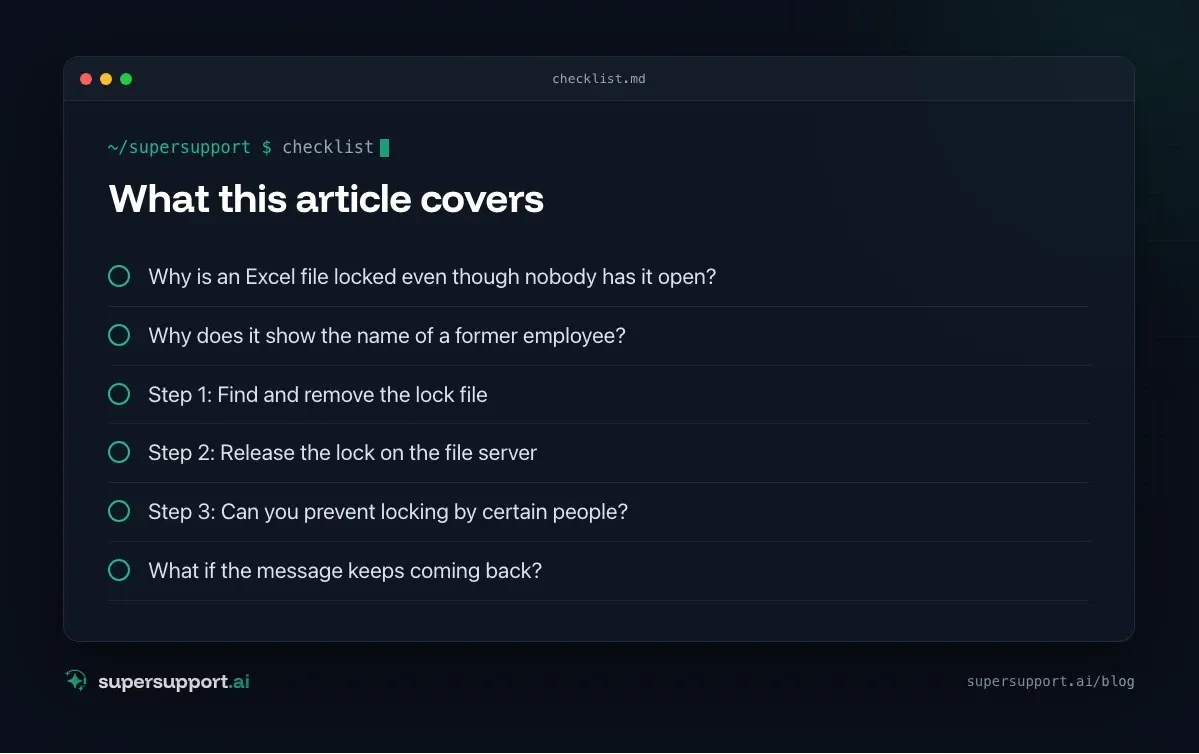
Why does it show the name of a former employee?
The name does not come from the Windows account but from the Office settings of the computer.
Office stores its own user name. If a PC or a user profile is taken over from a former colleague and not set up anew, their name is often still there. Then every lock file that this computer creates carries the name of the former employee – even though someone else is actually working.
Here is how to check: In Excel, File › Options › General › Personalize your copy of Microsoft Office › User name. If the wrong name is there, correct it – on every affected computer.
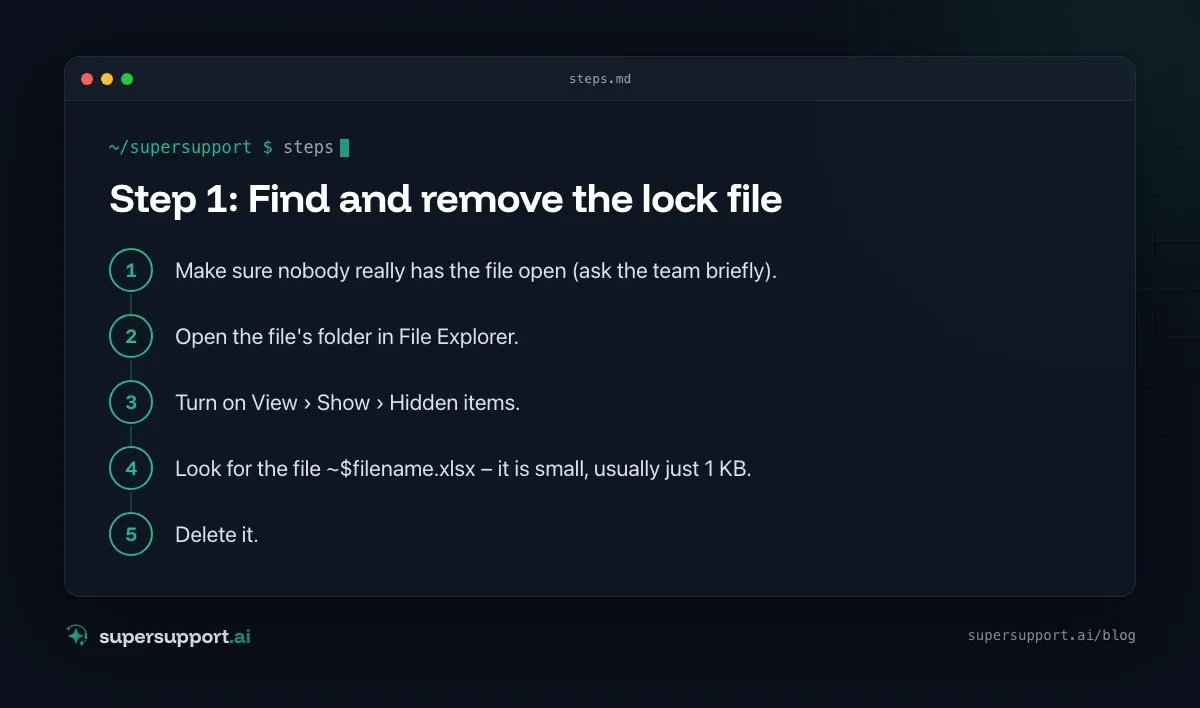
Step 1: Find and remove the lock file
- Make sure nobody really has the file open (ask the team briefly).
- Open the file's folder in File Explorer.
- Turn on View › Show › Hidden items.
- Look for the file
~$filename.xlsx– it is small, usually just 1 KB. - Delete it.
After that, the file can be opened normally again.
To find all old lock files in a folder with PowerShell (older than one day):
Get-ChildItem "K:\Abteilung\Planung" -Filter '~$*' -Force -Recurse |
  Where-Object { $_.LastWriteTime -lt (Get-Date).AddDays(-1) } |
  Select-Object FullName, LastWriteTime
Adjust the path. Look first, then remove with | Remove-Item -Force.
Step 2: Release the lock on the file server
If no lock file can be found, the server usually still holds the file as “open” – for example because a computer did not end the connection cleanly.
On the file server (or via remote access with administrator rights):
- Computer Management › System Tools › Shared Folders › Open Files.
- Find the affected file – it also shows which user holds it.
- Right-click › Close Open File.

14 days free
IT support that fixes itself.
SuperSupport fixes IT problems right on the device, before they turn into tickets. Try it free for 14 days.
Start free trialWith PowerShell on the server:
Get-SmbOpenFile | Where-Object Path -like '*Planung*' | Select-Object FileId, ClientUserName, Path
Get-SmbOpenFile | Where-Object Path -like '*Planung*' | Close-SmbOpenFile -Force
Caution: If someone is actually working in the file, their unsaved changes are lost.
Step 3: Can you prevent locking by certain people?
Not directly – but you can eliminate the cause. Locking is a protective feature: It prevents two people from overwriting the same file at the same time. You shouldn't turn it off. Instead:
- Correct the Office user names on all computers that were taken over from former colleagues.
- Deactivate the accounts of former employees – then no new locks can arise from there.
- Handover process at departure: When taking over a device, set up the Office profile anew.
- Edit together instead of locking: If files are in SharePoint, Teams or OneDrive, several people can work on them at the same time. Then there is no lock file anymore.
What if the message keeps coming back?
- Antivirus scanner: Some scanners briefly hold files on network drives open. Exceptions only after consulting IT.
- Offline files / synchronization: If the network drive is additionally made available offline or the folder is monitored by a sync client, that can cause locking.
- Excel crashes frequently: Then lock files keep being left behind – the cause lies in the crashes. How to find them is shown in Outlook crashes; the approach applies to all Office programs.
Similar puzzles with “program hangs although it's closed” are described in Program not responding.

How does SuperSupport help with locked files?
On the user's device, the SuperSupport agent can check which Office user name is entered, search the affected folder for leftover lock files and remove them after approval. Closing sessions on the file server is deliberately left to IT. How this looks for internal IT teams and MSPs is explained on the respective pages.
Frequently asked questions
Why is an Excel file locked even though nobody has it open?
Usually an invisible lock file (~$filename.xlsx) was left behind because Excel was not closed cleanly. Or the file is still registered as open on the server because a connection dropped.
Why does the message show the name of a former employee?
The name comes from the Office settings of the computer that opens the file. If a PC or a user profile was taken over from a former colleague, their name is often still there – under File › Options › General › User name.
How do I find the lock file?
In the same folder as the Excel file. It begins with ~$ and is hidden. In File Explorer, it becomes visible under View › Show › Hidden items.
How do I release the lock on the server?
On the file server, find the file under Computer Management › Shared Folders › Open Files and choose “Close Open File”. In PowerShell, it works with Get-SmbOpenFile and Close-SmbOpenFile.
How do I prevent this permanently?
Correct the Office user names on taken-over PCs, deactivate old user accounts and – where possible – edit files together via SharePoint, Teams or OneDrive. There, several people can work at the same time.
14 days free
IT support that fixes itself.
SuperSupport fixes IT problems right on the device, before they turn into tickets. Try it free for 14 days.
Start free trialNico Haslberger is Co-Founder & CEO of SuperSupport.ai. With years of experience as an IT technician, he knows the problems in IT support first-hand: from overloaded help desks to recurring tickets that slow teams down. That knowledge is built into every feature of the platform today. He makes sure SuperSupport.ai solves exactly the problems he experienced himself for years.
This article was created with AI assistance and editorially reviewed.
Related Articles

Recover a Deleted File: All the Ways at Work
File deleted, overwritten or unsaved? Recover it via Recycle Bin, OneDrive and SharePoint, version history, AutoRecover, Previous Versions or Time Machine.


Find Your BitLocker Recovery Key: All the Ways
Windows asks for the BitLocker recovery key? Where to find the 48-digit key (Microsoft account, Entra ID, Intune, AD) and why it is requested.

Windows Server Shuts Down Every Hour? Check the License
Server shuts itself down after about an hour – taking VMs and printers with it? Usually the evaluation license has expired. How to spot and fix it.