;}.cls-2{fill:url(%23Unbenannter_Verlauf_5-2);}.cls-3{fill:url(%23Unbenannter_Verlauf_5-5);}.cls-4{fill:url(%23Unbenannter_Verlauf_5-6);}.cls-5{fill:url(%23Unbenannter_Verlauf_5-3);}.cls-6{fill:url(%23Unbenannter_Verlauf_5-4);}%3c/style%3e%3clinearGradient%20id='Unbenannter_Verlauf_5'%20x1='1075.02'%20y1='943.06'%20x2='1201.78'%20y2='943.06'%20gradientUnits='userSpaceOnUse'%3e%3cstop%20offset='0'%20stop-color='%2322b88a'/%3e%3cstop%20offset='1'%20stop-color='%231a9e78'/%3e%3c/linearGradient%3e%3clinearGradient%20id='Unbenannter_Verlauf_5-2'%20x1='234.11'%20y1='663.43'%20x2='1058.29'%20y2='663.43'%20xlink:href='%23Unbenannter_Verlauf_5'/%3e%3clinearGradient%20id='Unbenannter_Verlauf_5-3'%20x1='843.79'%20y1='1064.84'%20x2='1096.04'%20y2='1064.84'%20xlink:href='%23Unbenannter_Verlauf_5'/%3e%3clinearGradient%20id='Unbenannter_Verlauf_5-4'%20x1='1120.37'%20y1='662.1'%20x2='1253'%20y2='662.1'%20xlink:href='%23Unbenannter_Verlauf_5'/%3e%3clinearGradient%20id='Unbenannter_Verlauf_5-5'%20x1='97.45'%20y1='265.53'%20x2='385.89'%20y2='265.53'%20xlink:href='%23Unbenannter_Verlauf_5'/%3e%3clinearGradient%20id='Unbenannter_Verlauf_5-6'%20x1='295.45'%20y1='255.64'%20x2='1213.95'%20y2='255.64'%20xlink:href='%23Unbenannter_Verlauf_5'/%3e%3c/defs%3e%3cpath%20class='cls-1'%20d='M1201.78,871c-.61,1.55-1.23,3.1-1.86,4.66-20.33,50.18-47.14,96.85-80.02,139.45-7.56-13.82-21.78-22.31-37.69-22.31h-7.19c29.82-37.26,54.46-78.02,73.61-121.8h53.15Z'/%3e%3cpath%20class='cls-2'%20d='M665.24,264.59l69.02,186.52c21.3,57.57,66.69,102.96,124.26,124.26l186.52,69.02c17.67,6.54,17.67,31.54,0,38.08l-186.52,69.02c-57.57,21.3-102.96,66.69-124.26,124.26l-69.02,186.52c-6.54,17.67-31.54,17.67-38.08,0l-69.02-186.52c-21.3-57.57-66.69-102.96-124.26-124.26l-186.52-69.02c-17.67-6.54-17.67-31.54,0-38.08l186.52-69.02c57.57-21.3,102.96-66.69,124.26-124.26l69.02-186.52c6.54-17.67,31.54-17.67,38.08,0Z'/%3e%3cpath%20class='cls-5'%20d='M1082.21,1021.98h-79.13c-1.7,0-2.97-1.56-2.62-3.23l22.72-109.35c2.94-14.16-15.11-22.74-24.23-11.51l-152.04,187.31c-7.32,9.02-.9,22.5,10.72,22.5h79.13c1.7,0,2.97,1.56,2.62,3.23l-22.72,109.35c-2.94,14.16,15.11,22.74,24.23,11.51l152.04-187.31c7.32-9.02.9-22.5-10.72-22.5Z'/%3e%3crect%20class='cls-6'%20x='1120.37'%20y='486.36'%20width='132.63'%20height='351.48'%20rx='19.58'%20ry='19.58'/%3e%3cpath%20class='cls-3'%20d='M250.58,128.27l13.88,55.81c7.19,28.91,29.76,51.47,58.66,58.66l55.81,13.88c9.29,2.31,9.29,15.51,0,17.82l-55.81,13.88c-28.91,7.19-51.47,29.76-58.66,58.66l-13.88,55.81c-2.31,9.29-15.51,9.29-17.82,0l-13.88-55.81c-7.19-28.91-29.76-51.47-58.66-58.66l-55.81-13.88c-9.29-2.31-9.29-15.51,0-17.82l55.81-13.88c28.91-7.19,51.47-29.76,58.66-58.66l13.88-55.81c2.31-9.29,15.51-9.29,17.82,0Z'/%3e%3cpath%20class='cls-4'%20d='M1213.95,453.21h-67.62c-1.23,0-2.47.04-3.67.12-27.03-63.89-65.84-121.36-115.42-170.94-51.54-51.54-111.61-91.44-178.55-118.59-64.67-26.22-133.03-39.52-203.16-39.52s-138.48,13.3-203.16,39.52c-33.73,13.67-65.72,30.61-95.75,50.63l-.19-.05c-23.62-5.88-42.51-22.85-51-45.24,37.87-26.86,78.65-49.21,122.01-66.79,72.63-29.44,149.37-44.38,228.08-44.38s155.45,14.93,228.08,44.38c75.2,30.51,142.67,75.31,200.53,133.15,57.84,57.85,102.65,125.33,133.15,200.53,2.31,5.7,4.54,11.43,6.66,17.19Z'/%3e%3c/svg%3e)
Spot a Phishing Email “From Microsoft” and Report It
An email from “Microsoft Helpdesk” warns your sign-in is expiring? Spot the fake, forward it to IT the right way and guard against the next attempt.

The email looks like it's from Microsoft, sounds like it's from Microsoft and still isn't from Microsoft.
"I'm a bit skeptical about this email. What could it be, or can we block something like this?" With that question, the head of sales at an industrial company forwarded an email to his IT service provider. Subject: "Microsoft Identity Authentication Expiry Notice". Sender: "Microsoft helpdesk", followed by a few random characters, sent from a Gmail address. Content: practically empty, with a PDF attachment.
The skepticism was exactly right. The first attempt to send the email to IT, however, was only a screenshot, and there is little you can check with that. Here is how to recognize emails like this, how to report them properly and what IT can then do.
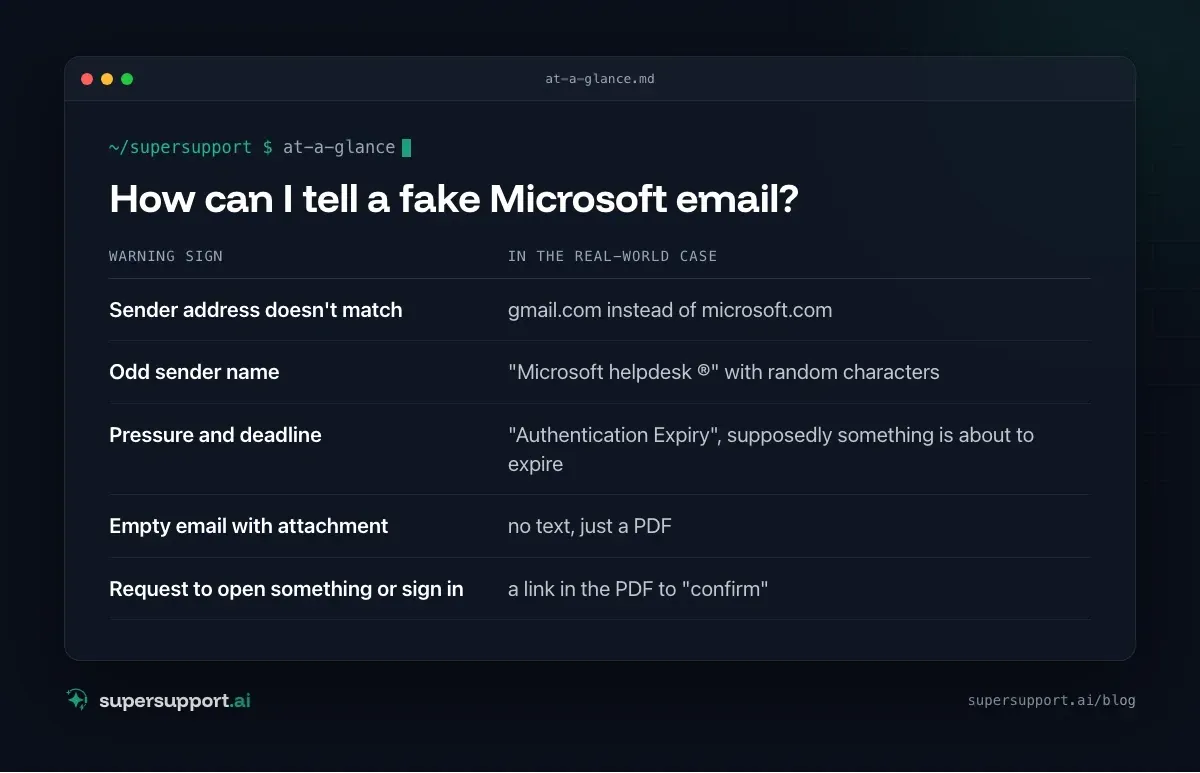
How can I tell a fake Microsoft email?
Usually by three things: sender, pressure and request. In the real-world case, there were several warning signs at once:
- Sender address doesn't match – gmail.com instead of microsoft.com
- Odd sender name – "Microsoft helpdesk ®" with random characters
- Pressure and deadline – "Authentication Expiry", supposedly something is about to expire
- Empty email with attachment – no text, just a PDF
- Request to open something or sign in – a link in the PDF to "confirm"
Other typical signs: a greeting without a name ("Dear User"), spelling mistakes, links whose target (when you hover over them with the mouse) doesn't belong to Microsoft, and attachments as ZIP, HTML or PDF with a link.
Rule of thumb: Microsoft doesn't ask you by email to "confirm" your password through an attachment or link. You see notices about your account when you sign in yourself through the known address (portal.office.com).
Why is a PDF attachment dangerous?
The PDF itself is often harmless, but the link inside it is not. Attackers use PDFs because mail filters check links in attachments less well than links in the email body. The link leads to a convincing fake Microsoft sign-in page that captures credentials and often the MFA code too.
Step 1: Don't click, don't reply
- Don't open any links, don't open any attachments.
- Don't reply. That only confirms that the address is active.
- Don't delete it before IT has it. Otherwise nobody can check whether other colleagues received the same email.
Step 2: Forward the email to IT correctly
As an attachment, not as a screenshot and not as a normal forward. Only the original email contains the headers. From them, IT can see which servers the email came through, whether SPF, DKIM and DMARC check out and whether other mailboxes are affected.
Classic Outlook:
- Select the email › Ctrl+Alt+F, or
- Home › More (reply actions) › Forward as Attachment.
- Alternatively: open a new email to IT and drag and drop the suspicious email into the window.
New Outlook / Outlook on the web:
- Select the email › three-dot menu › Forward › Forward as attachment.
Even better, if it is set up: the “Report” or “Report phishing” button in Outlook. It sends the email to Microsoft and, depending on the configuration, to your own IT, and removes it from the inbox.
Step 3: What IT checks
In the real-world case, the result of the check was sobering but typical: Technically, it is an entirely normal Gmail message with a PDF attachment. Nothing a filter reliably identifies as malicious. What makes it suspicious are the circumstances: sender, name, empty content.

14 days free
IT support that fixes itself.
SuperSupport fixes IT problems right on the device, before they turn into tickets. Try it free for 14 days.
Start free trialIT can then:
- Check in mail flow (Exchange admin center or Defender) who received the same email, and remove it from all mailboxes.
- Block the sender, in the Tenant Allow/Block List.
- Report the link or attachment to Microsoft as phishing.
- Check sign-ins, in case someone clicked.
Can't you just block something like this?
Individual senders, yes; the pattern, unfortunately hardly. Attackers constantly change sender addresses, mostly through free email providers. Blocking Gmail entirely is not an option for most companies, because customers and suppliers write from there too. What helps:
- Turn on the “External sender” notice in Outlook so that emails from outside are visibly marked.
- Impersonation protection in the Microsoft Defender anti-phishing policies, so that sender names like "Microsoft" or your own management stand out.
- Safe Links and Safe Attachments (Defender for Office 365), which check links when they are clicked.
- Phishing-resistant sign-in with passkeys. Then stolen passwords are of little use. See Microsoft is turning off SMS MFA.
- Regular short training sessions. The employee's skepticism in the real-world case was the best protection.
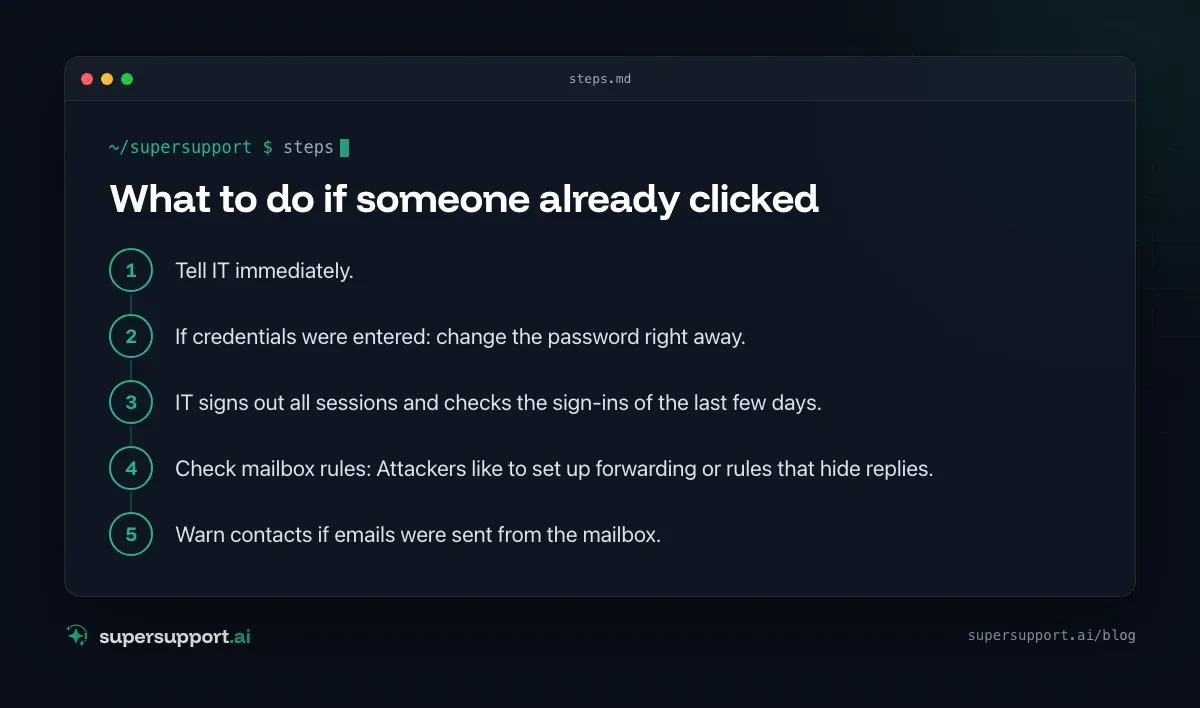
What to do if someone already clicked
- Tell IT immediately. Don't wait out of embarrassment.
- If credentials were entered: change the password right away.
- IT signs out all sessions and checks the sign-ins of the last few days.
- Check mailbox rules: Attackers like to set up forwarding or rules that hide replies.
- Warn contacts if emails were sent from the mailbox.
Related topics: Admin consent request in Microsoft 365 (attacks through fake apps) and Microsoft 365 quarantine.
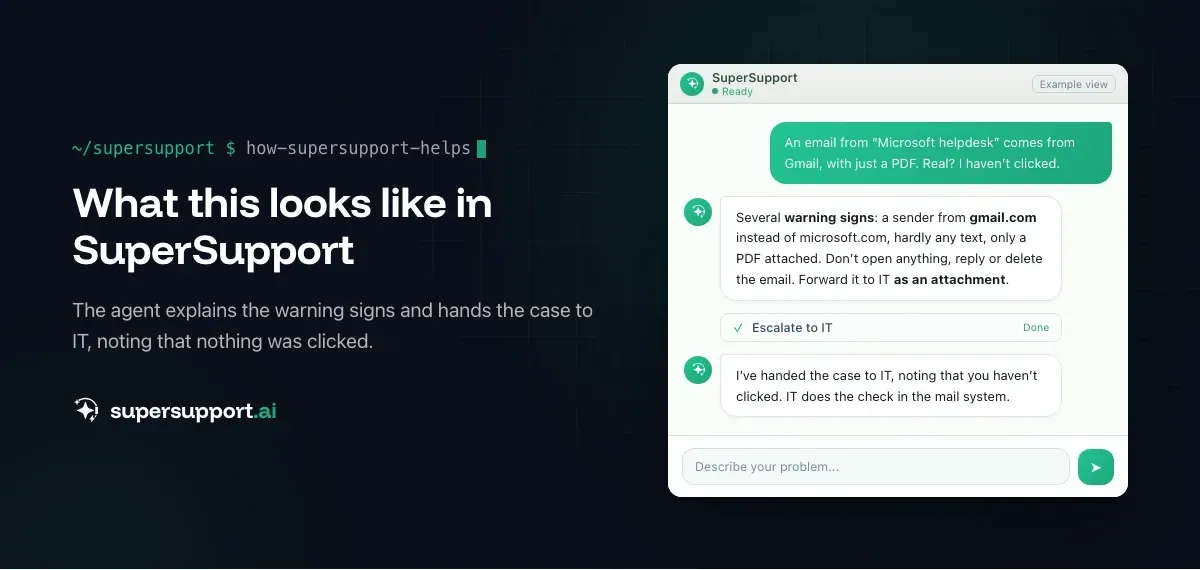
How does SuperSupport help with suspicious emails?
"Is this email real?" is a question employees should ask too often rather than too rarely. The SuperSupport agent takes it in the chat, explains the warning signs, shows how to forward the email to IT as an attachment, and reports the case, including the question of whether anyone has already clicked. The check in the mail system stays with IT. What this looks like for internal IT teams and MSPs is explained on the respective pages.
Frequently asked questions
How can I tell a fake Microsoft email?
By the sender address (such as gmail.com instead of microsoft.com), by odd strings of characters in the sender name, by pressure (“expires today”), by empty emails with an attachment or link, and by requests to sign in through a link. Microsoft doesn't send emails in which you have to confirm your password through an attachment.
Why should I forward the email as an attachment and not as a screenshot?
Because only the original email contains the headers, which show where it really came from, which servers it passed through and whether SPF, DKIM and DMARC check out. A screenshot only shows what the attacker wants to show.
How do I forward an email as an attachment in Outlook?
Select the email, then press Ctrl+Alt+F, or choose Forward as Attachment from the More (reply actions) menu. In new Outlook: open the email › three-dot menu › Forward as attachment.
Can IT just block emails like this?
Individual senders, yes; the pattern, often not. Attackers constantly change senders and content. Technically, such an email is often unremarkable: a normal Gmail message with a PDF. That is why people remain the most important layer of protection.
What do I do if I already clicked?
Tell IT immediately. If credentials were entered: change the password right away, have all sessions signed out and check the sign-ins of the last few days. The faster, the better.
14 days free
IT support that fixes itself.
SuperSupport fixes IT problems right on the device, before they turn into tickets. Try it free for 14 days.
Start free trialNico Haslberger is Co-Founder & CEO of SuperSupport.ai. With years of experience as an IT technician, he knows the problems in IT support first-hand: from overloaded help desks to recurring tickets that slow teams down. That knowledge is built into every feature of the platform today. He makes sure SuperSupport.ai solves exactly the problems he experienced himself for years.
This article was created with AI assistance and editorially reviewed.
Related Articles
Recover a Deleted File: All the Ways at Work
File deleted, overwritten or unsaved? Recover it via Recycle Bin, OneDrive and SharePoint, version history, AutoRecover, Previous Versions or Time Machine.

Find Your BitLocker Recovery Key: All the Ways
Windows asks for the BitLocker recovery key? Where to find the 48-digit key (Microsoft account, Entra ID, Intune, AD) and why it is requested.
Windows Server Shuts Down Every Hour? Check the License
Server shuts itself down after about an hour – taking VMs and printers with it? Usually the evaluation license has expired. How to spot and fix it.