;}.cls-2{fill:url(%23Unbenannter_Verlauf_5-2);}.cls-3{fill:url(%23Unbenannter_Verlauf_5-5);}.cls-4{fill:url(%23Unbenannter_Verlauf_5-6);}.cls-5{fill:url(%23Unbenannter_Verlauf_5-3);}.cls-6{fill:url(%23Unbenannter_Verlauf_5-4);}%3c/style%3e%3clinearGradient%20id='Unbenannter_Verlauf_5'%20x1='1075.02'%20y1='943.06'%20x2='1201.78'%20y2='943.06'%20gradientUnits='userSpaceOnUse'%3e%3cstop%20offset='0'%20stop-color='%2322b88a'/%3e%3cstop%20offset='1'%20stop-color='%231a9e78'/%3e%3c/linearGradient%3e%3clinearGradient%20id='Unbenannter_Verlauf_5-2'%20x1='234.11'%20y1='663.43'%20x2='1058.29'%20y2='663.43'%20xlink:href='%23Unbenannter_Verlauf_5'/%3e%3clinearGradient%20id='Unbenannter_Verlauf_5-3'%20x1='843.79'%20y1='1064.84'%20x2='1096.04'%20y2='1064.84'%20xlink:href='%23Unbenannter_Verlauf_5'/%3e%3clinearGradient%20id='Unbenannter_Verlauf_5-4'%20x1='1120.37'%20y1='662.1'%20x2='1253'%20y2='662.1'%20xlink:href='%23Unbenannter_Verlauf_5'/%3e%3clinearGradient%20id='Unbenannter_Verlauf_5-5'%20x1='97.45'%20y1='265.53'%20x2='385.89'%20y2='265.53'%20xlink:href='%23Unbenannter_Verlauf_5'/%3e%3clinearGradient%20id='Unbenannter_Verlauf_5-6'%20x1='295.45'%20y1='255.64'%20x2='1213.95'%20y2='255.64'%20xlink:href='%23Unbenannter_Verlauf_5'/%3e%3c/defs%3e%3cpath%20class='cls-1'%20d='M1201.78,871c-.61,1.55-1.23,3.1-1.86,4.66-20.33,50.18-47.14,96.85-80.02,139.45-7.56-13.82-21.78-22.31-37.69-22.31h-7.19c29.82-37.26,54.46-78.02,73.61-121.8h53.15Z'/%3e%3cpath%20class='cls-2'%20d='M665.24,264.59l69.02,186.52c21.3,57.57,66.69,102.96,124.26,124.26l186.52,69.02c17.67,6.54,17.67,31.54,0,38.08l-186.52,69.02c-57.57,21.3-102.96,66.69-124.26,124.26l-69.02,186.52c-6.54,17.67-31.54,17.67-38.08,0l-69.02-186.52c-21.3-57.57-66.69-102.96-124.26-124.26l-186.52-69.02c-17.67-6.54-17.67-31.54,0-38.08l186.52-69.02c57.57-21.3,102.96-66.69,124.26-124.26l69.02-186.52c6.54-17.67,31.54-17.67,38.08,0Z'/%3e%3cpath%20class='cls-5'%20d='M1082.21,1021.98h-79.13c-1.7,0-2.97-1.56-2.62-3.23l22.72-109.35c2.94-14.16-15.11-22.74-24.23-11.51l-152.04,187.31c-7.32,9.02-.9,22.5,10.72,22.5h79.13c1.7,0,2.97,1.56,2.62,3.23l-22.72,109.35c-2.94,14.16,15.11,22.74,24.23,11.51l152.04-187.31c7.32-9.02.9-22.5-10.72-22.5Z'/%3e%3crect%20class='cls-6'%20x='1120.37'%20y='486.36'%20width='132.63'%20height='351.48'%20rx='19.58'%20ry='19.58'/%3e%3cpath%20class='cls-3'%20d='M250.58,128.27l13.88,55.81c7.19,28.91,29.76,51.47,58.66,58.66l55.81,13.88c9.29,2.31,9.29,15.51,0,17.82l-55.81,13.88c-28.91,7.19-51.47,29.76-58.66,58.66l-13.88,55.81c-2.31,9.29-15.51,9.29-17.82,0l-13.88-55.81c-7.19-28.91-29.76-51.47-58.66-58.66l-55.81-13.88c-9.29-2.31-9.29-15.51,0-17.82l55.81-13.88c28.91-7.19,51.47-29.76,58.66-58.66l13.88-55.81c2.31-9.29,15.51-9.29,17.82,0Z'/%3e%3cpath%20class='cls-4'%20d='M1213.95,453.21h-67.62c-1.23,0-2.47.04-3.67.12-27.03-63.89-65.84-121.36-115.42-170.94-51.54-51.54-111.61-91.44-178.55-118.59-64.67-26.22-133.03-39.52-203.16-39.52s-138.48,13.3-203.16,39.52c-33.73,13.67-65.72,30.61-95.75,50.63l-.19-.05c-23.62-5.88-42.51-22.85-51-45.24,37.87-26.86,78.65-49.21,122.01-66.79,72.63-29.44,149.37-44.38,228.08-44.38s155.45,14.93,228.08,44.38c75.2,30.51,142.67,75.31,200.53,133.15,57.84,57.85,102.65,125.33,133.15,200.53,2.31,5.7,4.54,11.43,6.66,17.19Z'/%3e%3c/svg%3e)
No Sound on Laptop: Fixes for Windows and Mac
Laptop silent, headset quiet or sound only missing in some apps? How to find the wrong output device, audio service or driver on Windows and macOS.


No sound. Often the laptop is simply playing on the wrong output.
The laptop is silent, the headset stays quiet or the sound is only missing in Teams, which is especially annoying right before a meeting. The good news: in most cases nothing is broken, but Windows or macOS is sending the sound to the wrong device. This guide goes through the causes in the order in which they most often occur.
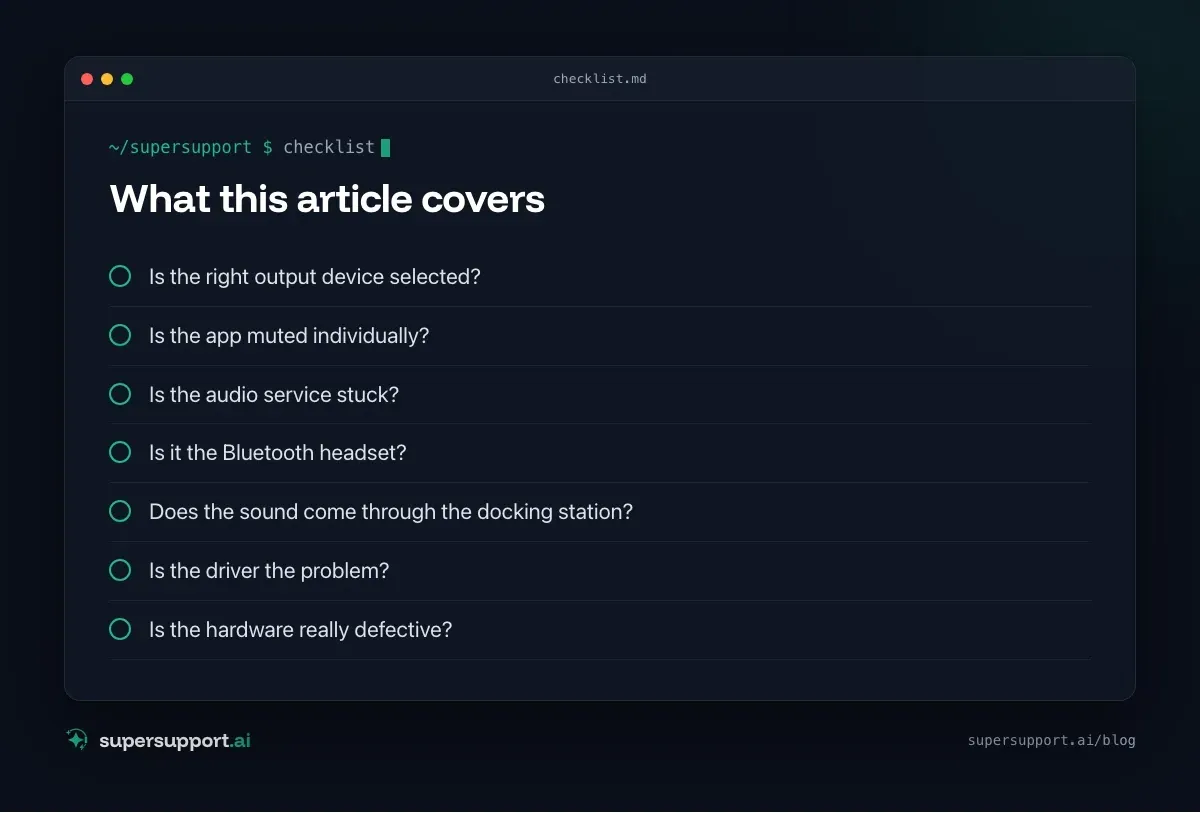
Is the right output device selected?
This is the most common cause. As soon as a monitor via HDMI, a docking station or a Bluetooth headset is connected, Windows and macOS often switch to it automatically, and stay there even if the device has no speaker at all or was disconnected long ago.
Windows 11:
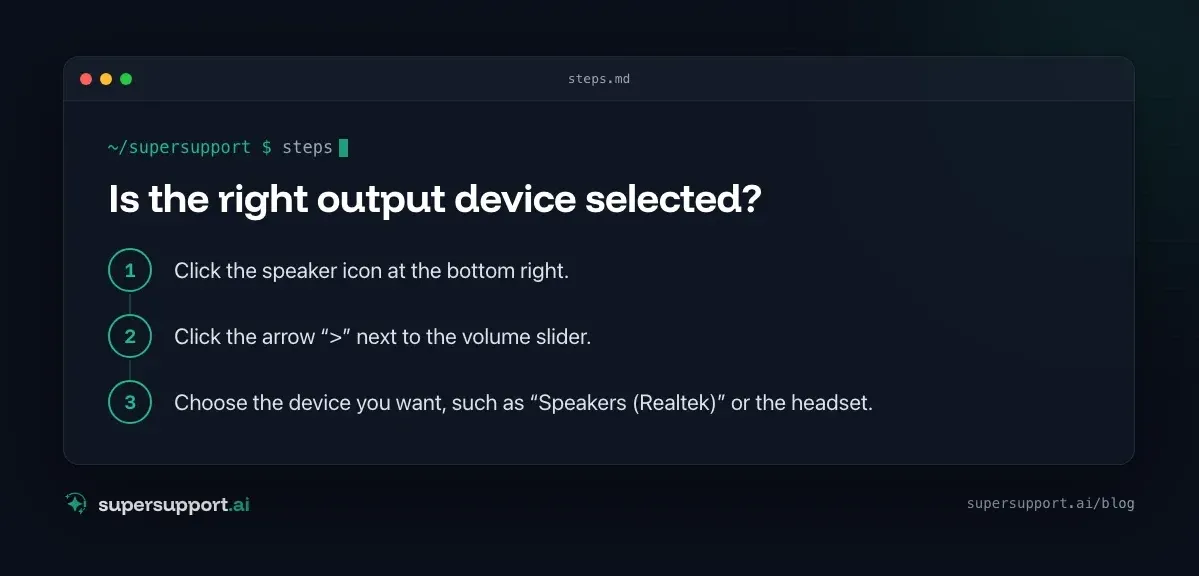
- Click the speaker icon at the bottom right.
- Click the arrow “>” next to the volume slider.
- Choose the device you want, such as “Speakers (Realtek)” or the headset.
Alternatively: Settings → System → Sound → Output.
macOS:
- System Settings → Sound → Output.
- Choose the right device, such as “MacBook Pro Speakers”.
Tip: If Windows shows the monitor (“LG HDR…”, “DELL…”) as the output, that is the reason. Many monitors have no speakers or only very quiet ones. See also Second monitor not detected.
Is the app muted individually?
Windows can turn each app down or mute it individually. If there is sound in the browser but not in Teams, that is often the reason.
- Right-click the speaker icon → Open Volume mixer.
- Check whether the affected app is muted or set to 0.
- Under Settings → System → Sound → Volume mixer, each app can even have its own output device selected. Reset that.
Teams, Zoom and other meeting apps have their own device settings. In Teams, under Settings → Devices, choose the right speaker and the right microphone. More on this in Teams camera and microphone not working.
Is the audio service stuck?
If there is no sound at all and the speaker icon shows a red X, the audio service is often stuck.
Windows:
- Win + R →
services.msc. - Find “Windows Audio” → right-click → Restart.
- If present, also restart “Windows Audio Endpoint Builder”.
Or in a PowerShell with administrator rights:
Restart-Service Audiosrv -Force
Get-Service Audiosrv, AudioEndpointBuilder
Both services should then show “Running”.
macOS: In Terminal:
sudo killall coreaudiodThe service restarts automatically. Then reopen the app that had no sound.
Is it the Bluetooth headset?
Bluetooth headsets have two modes: one for good music quality and one for calls with a microphone. Windows therefore often shows two entries, such as “Headphones” and “Headset (Hands-Free)”.

14 days free
IT support that fixes itself.
SuperSupport fixes IT problems right on the device, before they turn into tickets. Try it free for 14 days.
Start free trial- For meetings, choose “Headset” in Teams, otherwise the microphone won't work.
- If the headset is connected to the phone at the same time, the phone often “grabs” the audio. Briefly switch off Bluetooth on the phone.
- If nothing helps: remove the headset under Settings → Bluetooth & devices and pair it again.
Does the sound come through the docking station?
On docking stations, the sound is often output via USB or the monitor. When the laptop is undocked, Windows sometimes stays stuck on the old device.
- Choose the output device again after undocking or docking (see above).
- Headphones with a jack plug on the docking station only work if its USB audio device is also selected.
- Keep the docking station's firmware and drivers up to date. IT usually takes care of that.
Is the driver the problem?
Sound problems occasionally appear after a Windows update, because a new or generic driver was installed.
- Right-click Start → Device Manager.
- Expand Sound, video and game controllers.
- If you see a yellow warning icon or just “High Definition Audio Device” instead of the manufacturer's driver (such as Realtek, Intel Smart Sound), the driver is the cause.
- Right-click → Properties → Driver → Roll Back Driver, if available.
In companies, IT should reinstall drivers or download them from the manufacturer, which often requires administrator rights. See also Windows Update fails.
Is the hardware really defective?
Rarely, but possible. A quick test:
- Do you get sound with other headphones (jack or USB)? Then the built-in speakers are defective.
In that case, it is a matter for warranty or repair.
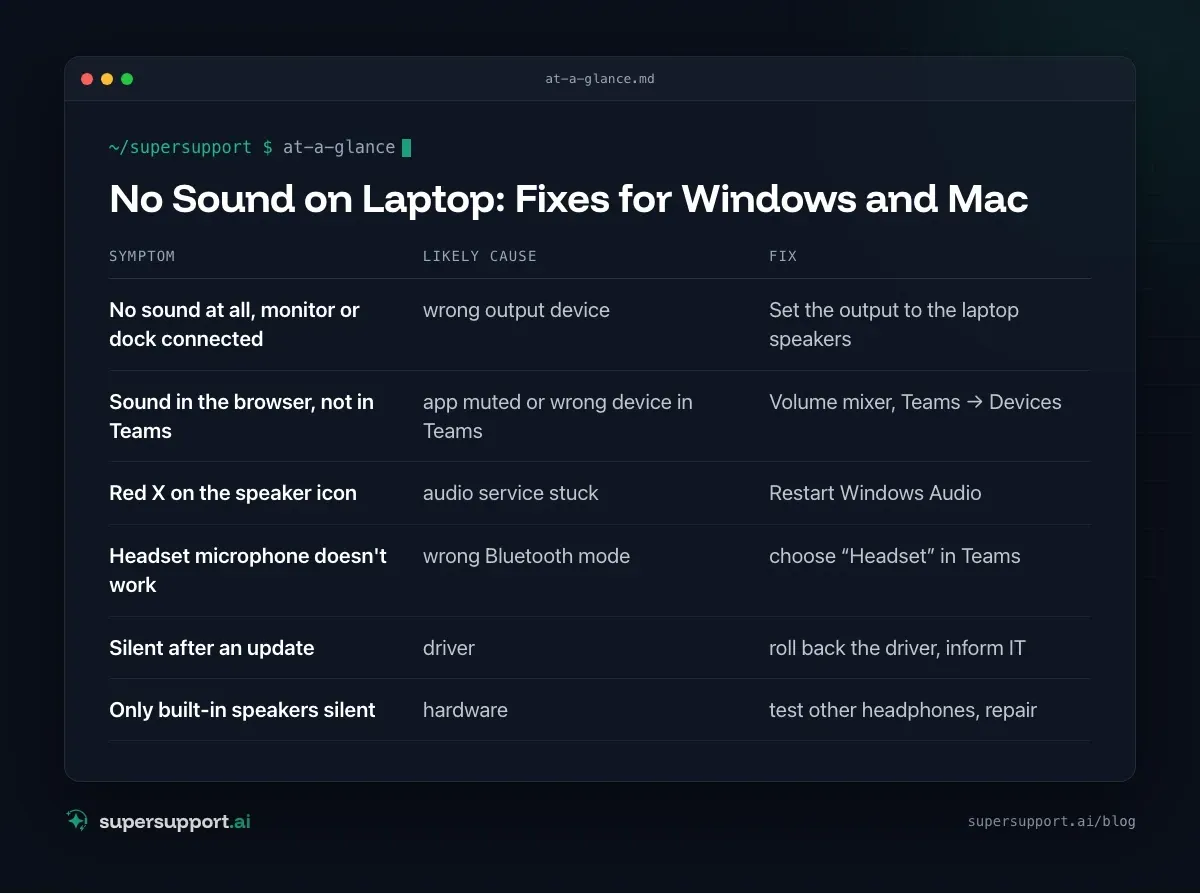
At a glance: no sound on the laptop
- Symptom: No sound at all, monitor or dock connected – Likely cause: wrong output device; Fix: Set the output to the laptop speakers
- Symptom: Sound in the browser, not in Teams – Likely cause: app muted or wrong device in Teams; Fix: Volume mixer, Teams → Devices
- Symptom: Red X on the speaker icon – Likely cause: audio service stuck; Fix: Restart Windows Audio
- Symptom: Headset microphone doesn't work – Likely cause: wrong Bluetooth mode; Fix: choose “Headset” in Teams
- Symptom: Silent after an update – Likely cause: driver; Fix: roll back the driver, inform IT
- Symptom: Only built-in speakers silent – Likely cause: hardware; Fix: test other headphones, repair
How does SuperSupport help with sound problems?
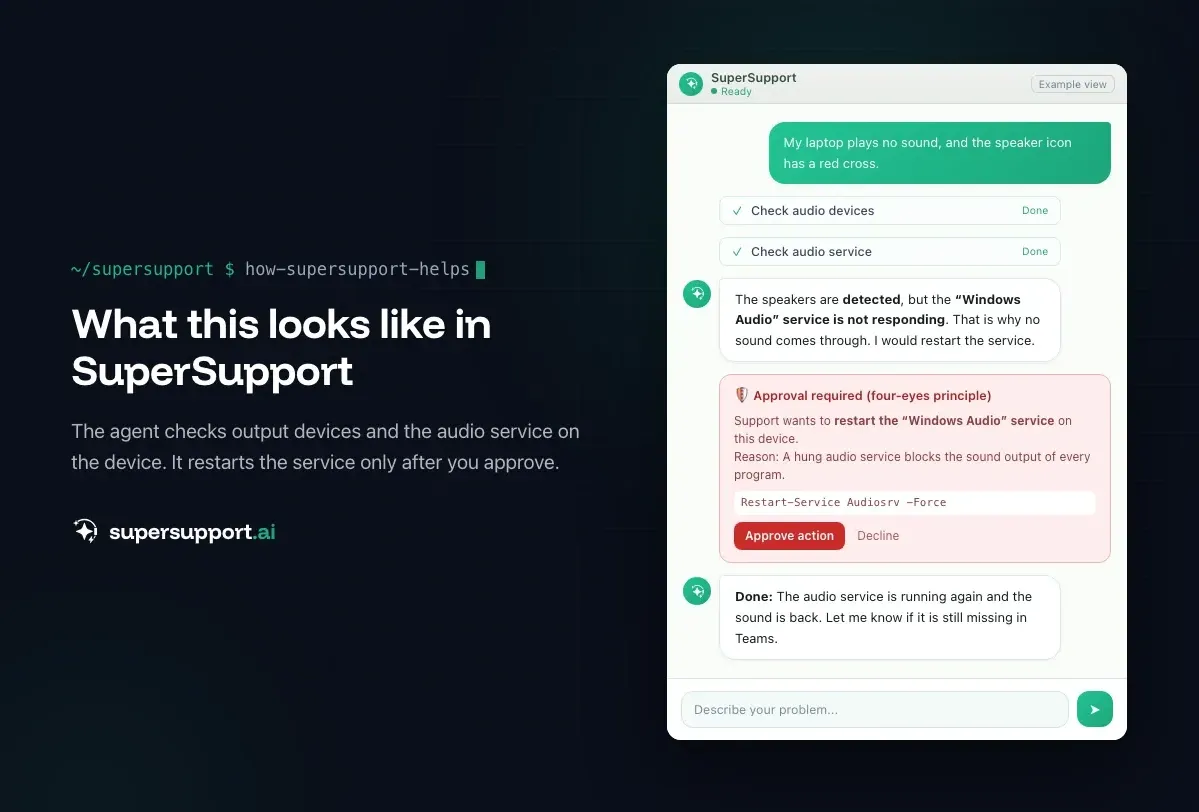
On the Windows or Mac device, the SuperSupport agent checks which output and input devices are detected, which one is currently active, whether the audio service is running and which driver is installed. It restarts the audio service itself, explains the right output device step by step in the chat and submits driver installations to IT for approval. Every step is logged. What this looks like for internal IT teams and MSPs is described on the respective pages.
Frequently asked questions
Why do I suddenly have no sound on my laptop?
Usually the wrong output device is selected, such as a monitor via HDMI, a docking station or a Bluetooth headset that isn't connected. After that come muted apps, a stuck audio service and faulty drivers after an update.
How do I restart the audio service on Windows?
Restart the “Windows Audio” service via services.msc, or in a PowerShell with administrator rights: Restart-Service Audiosrv -Force. Then reopen the app that has no sound.
Why do I have sound, but not in Teams?
Teams has its own device settings. Under Settings → Devices, the right speaker must be selected. Teams can also be muted individually in the Windows volume mixer.
What should I do if there is no sound on a Mac?
Under System Settings → Sound → Output, choose the right device. If that doesn't help, run sudo killall coreaudiod in Terminal. The audio service then restarts automatically.
Can SuperSupport solve sound problems?
Yes, many of them. On the Windows or Mac device, the agent checks which output devices are detected, which one is active, whether the audio service is running and which driver is installed. It handles safe steps such as restarting the audio service itself and submits driver installations to IT for approval.
14 days free
IT support that fixes itself.
SuperSupport fixes IT problems right on the device, before they turn into tickets. Try it free for 14 days.
Start free trialNico Haslberger is Co-Founder & CEO of SuperSupport.ai. With years of experience as an IT technician, he knows the problems in IT support first-hand: from overloaded help desks to recurring tickets that slow teams down. That knowledge is built into every feature of the platform today. He makes sure SuperSupport.ai solves exactly the problems he experienced himself for years.
This article was created with AI assistance and editorially reviewed.
Related Articles

Recover a Deleted File: All the Ways at Work
File deleted, overwritten or unsaved? Recover it via Recycle Bin, OneDrive and SharePoint, version history, AutoRecover, Previous Versions or Time Machine.


Find Your BitLocker Recovery Key: All the Ways
Windows asks for the BitLocker recovery key? Where to find the 48-digit key (Microsoft account, Entra ID, Intune, AD) and why it is requested.

Windows Server Shuts Down Every Hour? Check the License
Server shuts itself down after about an hour – taking VMs and printers with it? Usually the evaluation license has expired. How to spot and fix it.