;}.cls-2{fill:url(%23Unbenannter_Verlauf_5-2);}.cls-3{fill:url(%23Unbenannter_Verlauf_5-5);}.cls-4{fill:url(%23Unbenannter_Verlauf_5-6);}.cls-5{fill:url(%23Unbenannter_Verlauf_5-3);}.cls-6{fill:url(%23Unbenannter_Verlauf_5-4);}%3c/style%3e%3clinearGradient%20id='Unbenannter_Verlauf_5'%20x1='1075.02'%20y1='943.06'%20x2='1201.78'%20y2='943.06'%20gradientUnits='userSpaceOnUse'%3e%3cstop%20offset='0'%20stop-color='%2322b88a'/%3e%3cstop%20offset='1'%20stop-color='%231a9e78'/%3e%3c/linearGradient%3e%3clinearGradient%20id='Unbenannter_Verlauf_5-2'%20x1='234.11'%20y1='663.43'%20x2='1058.29'%20y2='663.43'%20xlink:href='%23Unbenannter_Verlauf_5'/%3e%3clinearGradient%20id='Unbenannter_Verlauf_5-3'%20x1='843.79'%20y1='1064.84'%20x2='1096.04'%20y2='1064.84'%20xlink:href='%23Unbenannter_Verlauf_5'/%3e%3clinearGradient%20id='Unbenannter_Verlauf_5-4'%20x1='1120.37'%20y1='662.1'%20x2='1253'%20y2='662.1'%20xlink:href='%23Unbenannter_Verlauf_5'/%3e%3clinearGradient%20id='Unbenannter_Verlauf_5-5'%20x1='97.45'%20y1='265.53'%20x2='385.89'%20y2='265.53'%20xlink:href='%23Unbenannter_Verlauf_5'/%3e%3clinearGradient%20id='Unbenannter_Verlauf_5-6'%20x1='295.45'%20y1='255.64'%20x2='1213.95'%20y2='255.64'%20xlink:href='%23Unbenannter_Verlauf_5'/%3e%3c/defs%3e%3cpath%20class='cls-1'%20d='M1201.78,871c-.61,1.55-1.23,3.1-1.86,4.66-20.33,50.18-47.14,96.85-80.02,139.45-7.56-13.82-21.78-22.31-37.69-22.31h-7.19c29.82-37.26,54.46-78.02,73.61-121.8h53.15Z'/%3e%3cpath%20class='cls-2'%20d='M665.24,264.59l69.02,186.52c21.3,57.57,66.69,102.96,124.26,124.26l186.52,69.02c17.67,6.54,17.67,31.54,0,38.08l-186.52,69.02c-57.57,21.3-102.96,66.69-124.26,124.26l-69.02,186.52c-6.54,17.67-31.54,17.67-38.08,0l-69.02-186.52c-21.3-57.57-66.69-102.96-124.26-124.26l-186.52-69.02c-17.67-6.54-17.67-31.54,0-38.08l186.52-69.02c57.57-21.3,102.96-66.69,124.26-124.26l69.02-186.52c6.54-17.67,31.54-17.67,38.08,0Z'/%3e%3cpath%20class='cls-5'%20d='M1082.21,1021.98h-79.13c-1.7,0-2.97-1.56-2.62-3.23l22.72-109.35c2.94-14.16-15.11-22.74-24.23-11.51l-152.04,187.31c-7.32,9.02-.9,22.5,10.72,22.5h79.13c1.7,0,2.97,1.56,2.62,3.23l-22.72,109.35c-2.94,14.16,15.11,22.74,24.23,11.51l152.04-187.31c7.32-9.02.9-22.5-10.72-22.5Z'/%3e%3crect%20class='cls-6'%20x='1120.37'%20y='486.36'%20width='132.63'%20height='351.48'%20rx='19.58'%20ry='19.58'/%3e%3cpath%20class='cls-3'%20d='M250.58,128.27l13.88,55.81c7.19,28.91,29.76,51.47,58.66,58.66l55.81,13.88c9.29,2.31,9.29,15.51,0,17.82l-55.81,13.88c-28.91,7.19-51.47,29.76-58.66,58.66l-13.88,55.81c-2.31,9.29-15.51,9.29-17.82,0l-13.88-55.81c-7.19-28.91-29.76-51.47-58.66-58.66l-55.81-13.88c-9.29-2.31-9.29-15.51,0-17.82l55.81-13.88c28.91-7.19,51.47-29.76,58.66-58.66l13.88-55.81c2.31-9.29,15.51-9.29,17.82,0Z'/%3e%3cpath%20class='cls-4'%20d='M1213.95,453.21h-67.62c-1.23,0-2.47.04-3.67.12-27.03-63.89-65.84-121.36-115.42-170.94-51.54-51.54-111.61-91.44-178.55-118.59-64.67-26.22-133.03-39.52-203.16-39.52s-138.48,13.3-203.16,39.52c-33.73,13.67-65.72,30.61-95.75,50.63l-.19-.05c-23.62-5.88-42.51-22.85-51-45.24,37.87-26.86,78.65-49.21,122.01-66.79,72.63-29.44,149.37-44.38,228.08-44.38s155.45,14.93,228.08,44.38c75.2,30.51,142.67,75.31,200.53,133.15,57.84,57.85,102.65,125.33,133.15,200.53,2.31,5.7,4.54,11.43,6.66,17.19Z'/%3e%3c/svg%3e)
Teams: Camera or Microphone Not Working – Fixes
Others can’t hear you or the camera stays black? How to find the cause in Teams: device selection, privacy settings, other apps, drivers and cache.


The camera works in every app except Teams. Then the camera is rarely the problem.
“Can you hear me?” – the sentence that seems to start every third Teams meeting. Camera black, microphone silent, the headset is not detected. In our support cases, requests like this come up regularly, often shortly before an important appointment – and the solution is usually quickly found if you work through it step by step.
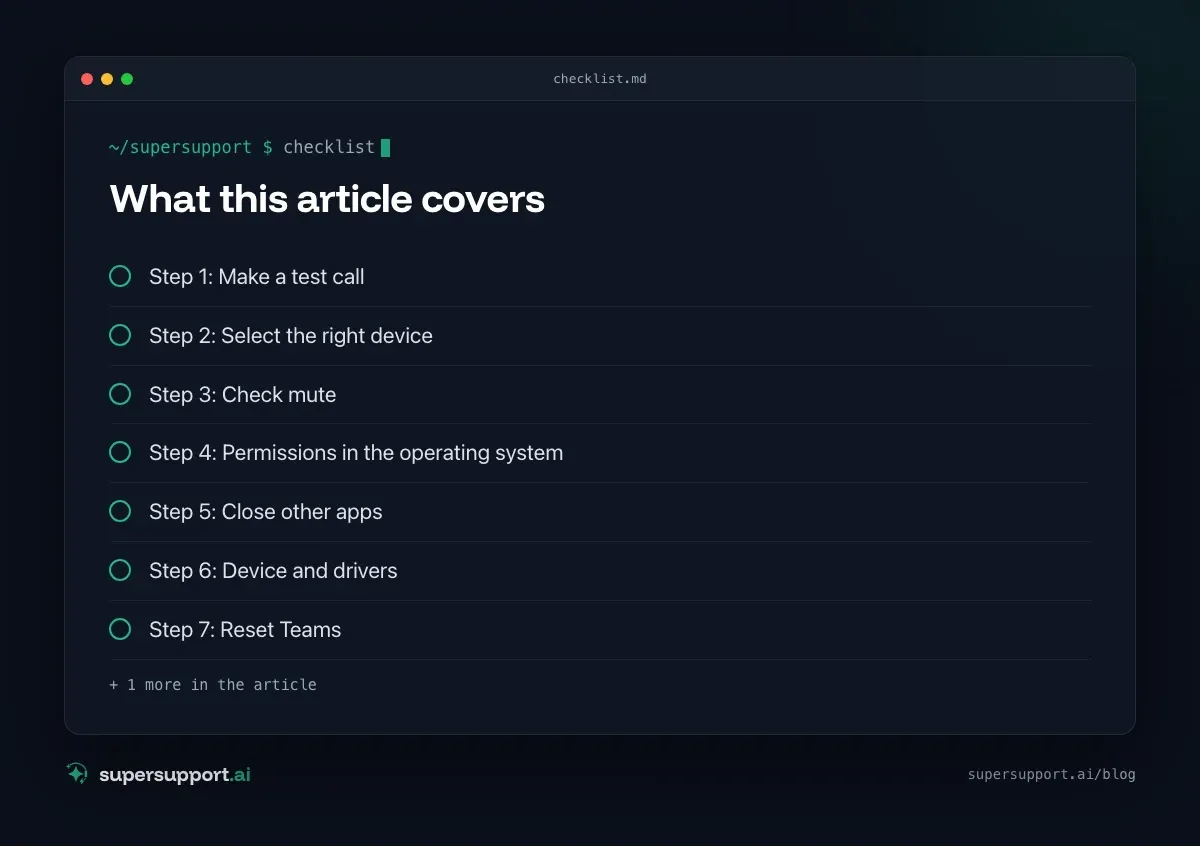
Step 1: Make a test call
First find out what exactly is not working. In Teams: Settings (three dots at the top) › Devices › Make a test call. Teams records a short message and plays it back – afterward you know whether the microphone, speakers or camera are the problem.
Step 2: Select the right device
The most common cause: Teams is using a different device than you think. Under Settings › Devices:
- Speakers and Microphone – select the headset, not “Default” or the microphone of the monitor or the docking station.
- Camera – the right camera if several are connected (laptop camera, external webcam, virtual camera).
In a meeting you can also do this via More › Settings › Device settings.
Step 3: Check mute
Mute can be in three places:
- On the headset – button or slider, often with an LED.
- In Teams – microphone icon crossed out.
- In the operating system – Windows: right-click the speaker icon › Sound settings › input device, check the level. macOS: System Settings › Sound › Input.
For the camera: cover or camera switch on the laptop – some devices have a key with a camera icon.
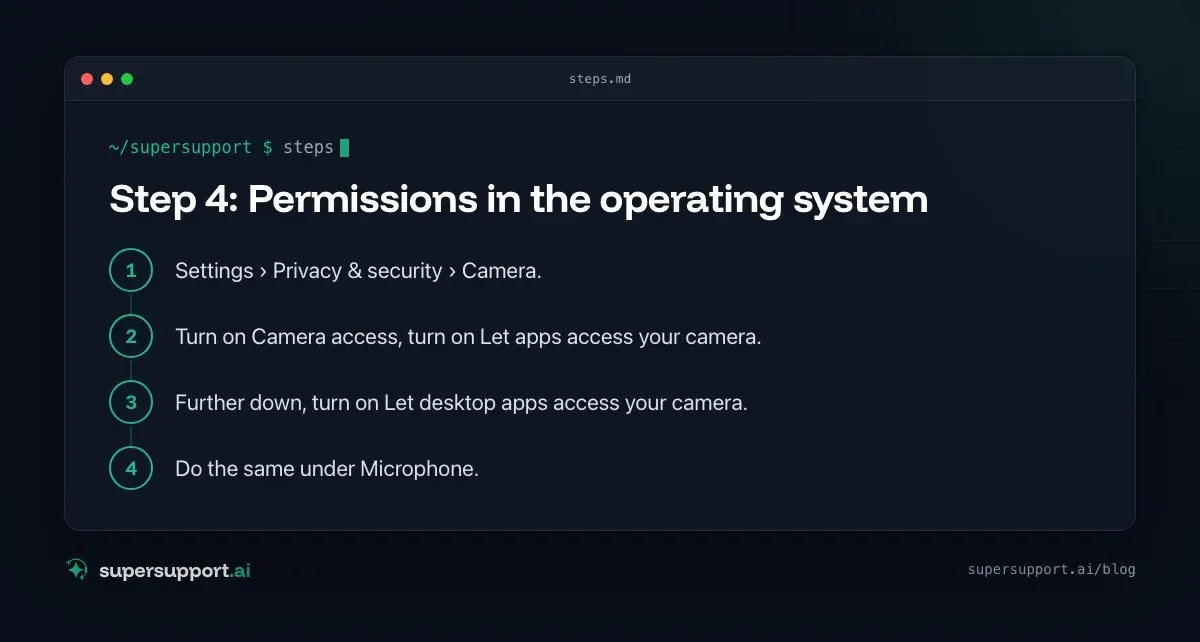
Step 4: Permissions in the operating system
Windows:
- Settings › Privacy & security › Camera.
- Turn on Camera access, turn on Let apps access your camera.
- Further down, turn on Let desktop apps access your camera.
- Do the same under Microphone.
macOS:
- System Settings › Privacy & Security › Camera.
- Turn on the switch for Microsoft Teams.
- Do the same under Microphone.
- Quit Teams completely and restart it.
On company devices these settings can be locked by policy – then IT has to step in.
Step 5: Close other apps
Some programs use the camera or microphone exclusively. Typical ones:
- Zoom, Webex or another conferencing program in the background.
- The Windows Camera app.
- Manufacturer software for webcams or headsets.
- A second Teams instance (classic and new Teams at the same time).

14 days free
IT support that fixes itself.
SuperSupport fixes IT problems right on the device, before they turn into tickets. Try it free for 14 days.
Start free trialClose everything, then restart Teams. See also App won’t start: file in use by another process.
Step 6: Device and drivers
- Different USB port – especially on docking stations. Test directly on the laptop.
- Windows: Device Manager › Cameras or Audio inputs and outputs – warning icon? Right-click › Update driver, or uninstall the device and restart.
- Bluetooth headsets: Disconnect and pair again; pay attention to the profile with microphone.
- After a Windows update or a firmware update of the docking station, such problems occur more often – see External monitor: no signal after BIOS update.
Step 7: Reset Teams
If only Teams is affected and other apps can use the camera and microphone:
- Windows (new Teams): Settings › Apps › Installed apps › Microsoft Teams › Advanced options › Reset.
- macOS: Quit Teams, then remove the Teams cache in the user Library folder, or reinstall Teams.
Chats, channels and files are kept – they are stored in the cloud.
When IT needs to step in
- Privacy settings locked – via Intune or Group Policy.
- Driver cannot be installed – without admin rights. See Remove local admin rights.
- Docking station or headset defective – replacement.
- Teams policy prohibits video in certain meetings.
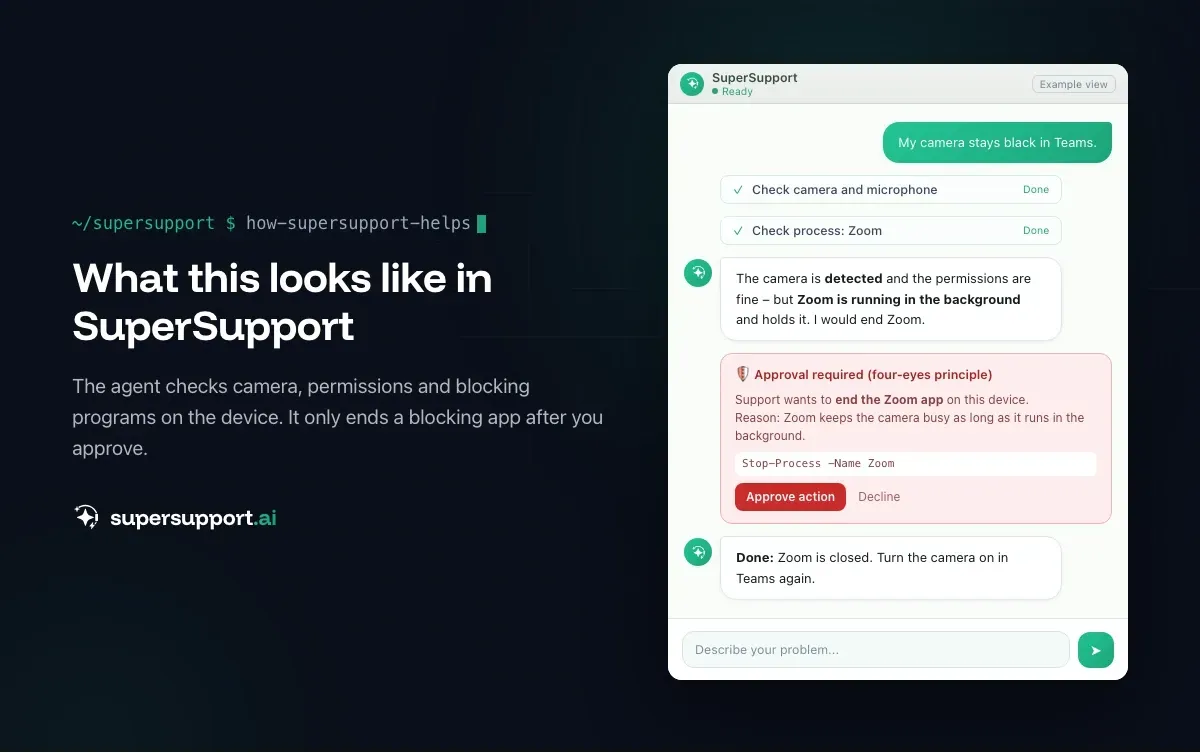
How does SuperSupport help with Teams problems?
The SuperSupport agent checks on the Windows or Mac device which cameras and microphones are detected, whether the permissions are right, which programs are using the device and whether drivers report errors. It handles harmless things – such as closing a blocking app – directly, and submits driver installations to IT for approval. How this looks for internal IT teams and MSPs is described on the respective pages.
Frequently asked questions
Why is my camera not working in Teams?
Common causes are the wrong device selected in Teams, missing permission in the privacy settings of Windows or macOS, another app that is using the camera, a physical cover or a camera switch on the laptop, a driver problem, or a damaged Teams cache.
Why can’t others hear me in Teams?
Often the wrong microphone is selected in Teams – for example the monitor’s instead of the headset’s – or the microphone is muted, on the headset itself, in Teams or in Windows. Missing microphone permission or another app that uses the microphone exclusively are also common.
How do I make a test call in Teams?
In Teams, under Settings › Devices, choose Make a test call. The test call records a short message and plays it back – that way you check the microphone, speakers and camera without a real conversation partner.
How do I give Teams access to the camera and microphone?
On Windows, under Settings › Privacy & security › Camera or Microphone, allow access for apps and desktop apps. On macOS, under System Settings › Privacy & Security › Camera or Microphone, turn on the switch for Microsoft Teams and restart Teams.
How do I reset Teams?
On Windows, for the new Teams, go to Settings › Apps › Installed apps › Microsoft Teams › Advanced options and click Reset. Then restart Teams and sign in. Chats and files are kept because they are stored in the cloud.
14 days free
IT support that fixes itself.
SuperSupport fixes IT problems right on the device, before they turn into tickets. Try it free for 14 days.
Start free trialNico Haslberger is Co-Founder & CEO of SuperSupport.ai. With years of experience as an IT technician, he knows the problems in IT support first-hand: from overloaded help desks to recurring tickets that slow teams down. That knowledge is built into every feature of the platform today. He makes sure SuperSupport.ai solves exactly the problems he experienced himself for years.
This article was created with AI assistance and editorially reviewed.
Related Articles

Recover a Deleted File: All the Ways at Work
File deleted, overwritten or unsaved? Recover it via Recycle Bin, OneDrive and SharePoint, version history, AutoRecover, Previous Versions or Time Machine.


Find Your BitLocker Recovery Key: All the Ways
Windows asks for the BitLocker recovery key? Where to find the 48-digit key (Microsoft account, Entra ID, Intune, AD) and why it is requested.

Windows Server Shuts Down Every Hour? Check the License
Server shuts itself down after about an hour – taking VMs and printers with it? Usually the evaluation license has expired. How to spot and fix it.