;}.cls-2{fill:url(%23Unbenannter_Verlauf_5-2);}.cls-3{fill:url(%23Unbenannter_Verlauf_5-5);}.cls-4{fill:url(%23Unbenannter_Verlauf_5-6);}.cls-5{fill:url(%23Unbenannter_Verlauf_5-3);}.cls-6{fill:url(%23Unbenannter_Verlauf_5-4);}%3c/style%3e%3clinearGradient%20id='Unbenannter_Verlauf_5'%20x1='1075.02'%20y1='943.06'%20x2='1201.78'%20y2='943.06'%20gradientUnits='userSpaceOnUse'%3e%3cstop%20offset='0'%20stop-color='%2322b88a'/%3e%3cstop%20offset='1'%20stop-color='%231a9e78'/%3e%3c/linearGradient%3e%3clinearGradient%20id='Unbenannter_Verlauf_5-2'%20x1='234.11'%20y1='663.43'%20x2='1058.29'%20y2='663.43'%20xlink:href='%23Unbenannter_Verlauf_5'/%3e%3clinearGradient%20id='Unbenannter_Verlauf_5-3'%20x1='843.79'%20y1='1064.84'%20x2='1096.04'%20y2='1064.84'%20xlink:href='%23Unbenannter_Verlauf_5'/%3e%3clinearGradient%20id='Unbenannter_Verlauf_5-4'%20x1='1120.37'%20y1='662.1'%20x2='1253'%20y2='662.1'%20xlink:href='%23Unbenannter_Verlauf_5'/%3e%3clinearGradient%20id='Unbenannter_Verlauf_5-5'%20x1='97.45'%20y1='265.53'%20x2='385.89'%20y2='265.53'%20xlink:href='%23Unbenannter_Verlauf_5'/%3e%3clinearGradient%20id='Unbenannter_Verlauf_5-6'%20x1='295.45'%20y1='255.64'%20x2='1213.95'%20y2='255.64'%20xlink:href='%23Unbenannter_Verlauf_5'/%3e%3c/defs%3e%3cpath%20class='cls-1'%20d='M1201.78,871c-.61,1.55-1.23,3.1-1.86,4.66-20.33,50.18-47.14,96.85-80.02,139.45-7.56-13.82-21.78-22.31-37.69-22.31h-7.19c29.82-37.26,54.46-78.02,73.61-121.8h53.15Z'/%3e%3cpath%20class='cls-2'%20d='M665.24,264.59l69.02,186.52c21.3,57.57,66.69,102.96,124.26,124.26l186.52,69.02c17.67,6.54,17.67,31.54,0,38.08l-186.52,69.02c-57.57,21.3-102.96,66.69-124.26,124.26l-69.02,186.52c-6.54,17.67-31.54,17.67-38.08,0l-69.02-186.52c-21.3-57.57-66.69-102.96-124.26-124.26l-186.52-69.02c-17.67-6.54-17.67-31.54,0-38.08l186.52-69.02c57.57-21.3,102.96-66.69,124.26-124.26l69.02-186.52c6.54-17.67,31.54-17.67,38.08,0Z'/%3e%3cpath%20class='cls-5'%20d='M1082.21,1021.98h-79.13c-1.7,0-2.97-1.56-2.62-3.23l22.72-109.35c2.94-14.16-15.11-22.74-24.23-11.51l-152.04,187.31c-7.32,9.02-.9,22.5,10.72,22.5h79.13c1.7,0,2.97,1.56,2.62,3.23l-22.72,109.35c-2.94,14.16,15.11,22.74,24.23,11.51l152.04-187.31c7.32-9.02.9-22.5-10.72-22.5Z'/%3e%3crect%20class='cls-6'%20x='1120.37'%20y='486.36'%20width='132.63'%20height='351.48'%20rx='19.58'%20ry='19.58'/%3e%3cpath%20class='cls-3'%20d='M250.58,128.27l13.88,55.81c7.19,28.91,29.76,51.47,58.66,58.66l55.81,13.88c9.29,2.31,9.29,15.51,0,17.82l-55.81,13.88c-28.91,7.19-51.47,29.76-58.66,58.66l-13.88,55.81c-2.31,9.29-15.51,9.29-17.82,0l-13.88-55.81c-7.19-28.91-29.76-51.47-58.66-58.66l-55.81-13.88c-9.29-2.31-9.29-15.51,0-17.82l55.81-13.88c28.91-7.19,51.47-29.76,58.66-58.66l13.88-55.81c2.31-9.29,15.51-9.29,17.82,0Z'/%3e%3cpath%20class='cls-4'%20d='M1213.95,453.21h-67.62c-1.23,0-2.47.04-3.67.12-27.03-63.89-65.84-121.36-115.42-170.94-51.54-51.54-111.61-91.44-178.55-118.59-64.67-26.22-133.03-39.52-203.16-39.52s-138.48,13.3-203.16,39.52c-33.73,13.67-65.72,30.61-95.75,50.63l-.19-.05c-23.62-5.88-42.51-22.85-51-45.24,37.87-26.86,78.65-49.21,122.01-66.79,72.63-29.44,149.37-44.38,228.08-44.38s155.45,14.93,228.08,44.38c75.2,30.51,142.67,75.31,200.53,133.15,57.84,57.85,102.65,125.33,133.15,200.53,2.31,5.7,4.54,11.43,6.66,17.19Z'/%3e%3c/svg%3e)
App Won't Start: File Is Being Used by Another Process
A desktop app won't start and says a file is being used by another process? How to find the blocking process and get the app running again.


"The process cannot access the file because it is being used by another process." The app isn't broken. It is getting in its own way.
"Can you help me? The app won't open anymore." With a screenshot: A file in the installation folder was said to be in use by another process, and starting was not possible. The app itself wasn't even open. So something was running in the background that was holding on to the file.
In the chat it also turned out that there were two variants of the app on the computer: one from the Microsoft Store and one desktop version to download. Repairing one didn't help with the other. This exact combination, a locked file plus two installations, is more common than you would think. Here is how to proceed.
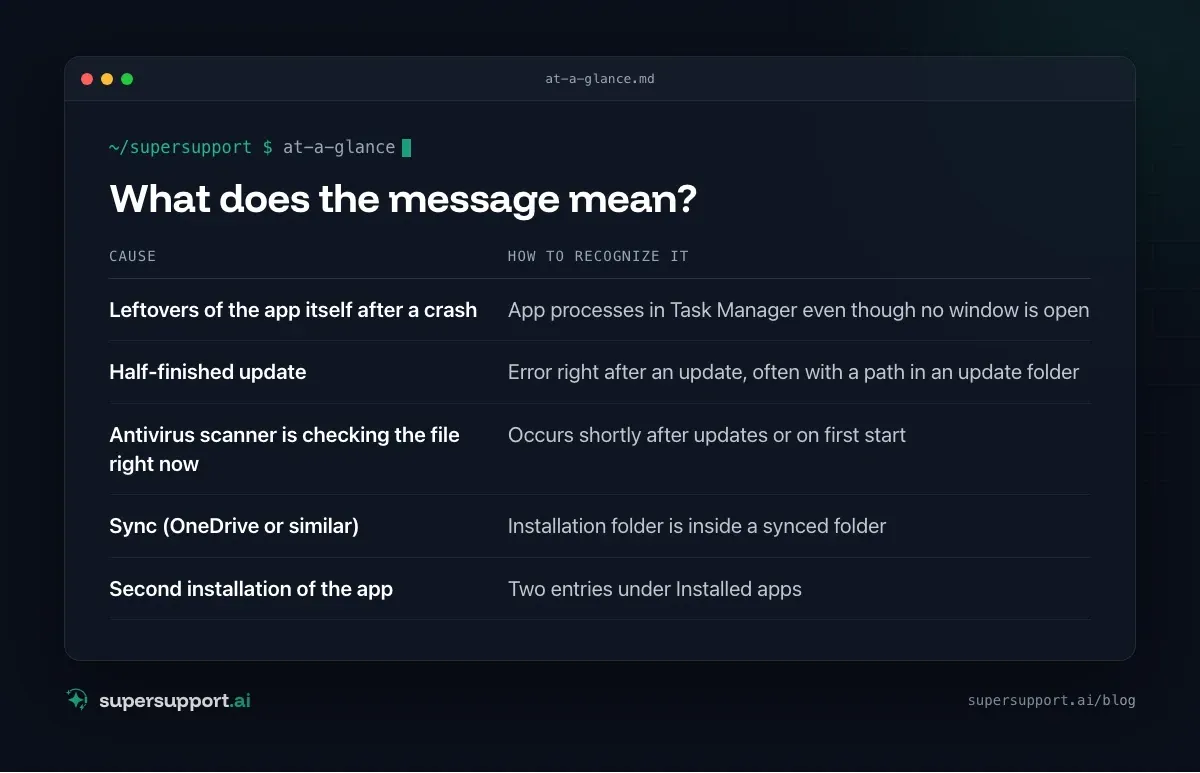
What does the message mean?
Another process has the file open, and Windows doesn't allow a second access. Typical causes:
- Leftovers of the app itself after a crash – App processes in Task Manager even though no window is open
- Half-finished update – Error right after an update, often with a path in an update folder
- Antivirus scanner is checking the file right now – Occurs shortly after updates or on first start
- Sync (OneDrive or similar) – Installation folder is inside a synced folder
- Second installation of the app – Two entries under Installed apps
Step 1: End background processes
- Ctrl+Shift+Esc opens Task Manager.
- Go to the Details tab, where you can also see processes without a window.
- Sort by the name of the app and end all related processes. Many modern desktop apps start several processes at the same time.
- Start the app again.
Using PowerShell (example, adjust the name):
Get-Process | Where-Object { $_.Path -like "*\AppName\*" } | Select-Object Name, Id, Path
Get-Process | Where-Object { $_.Path -like "*\AppName\*" } | Stop-Process -Force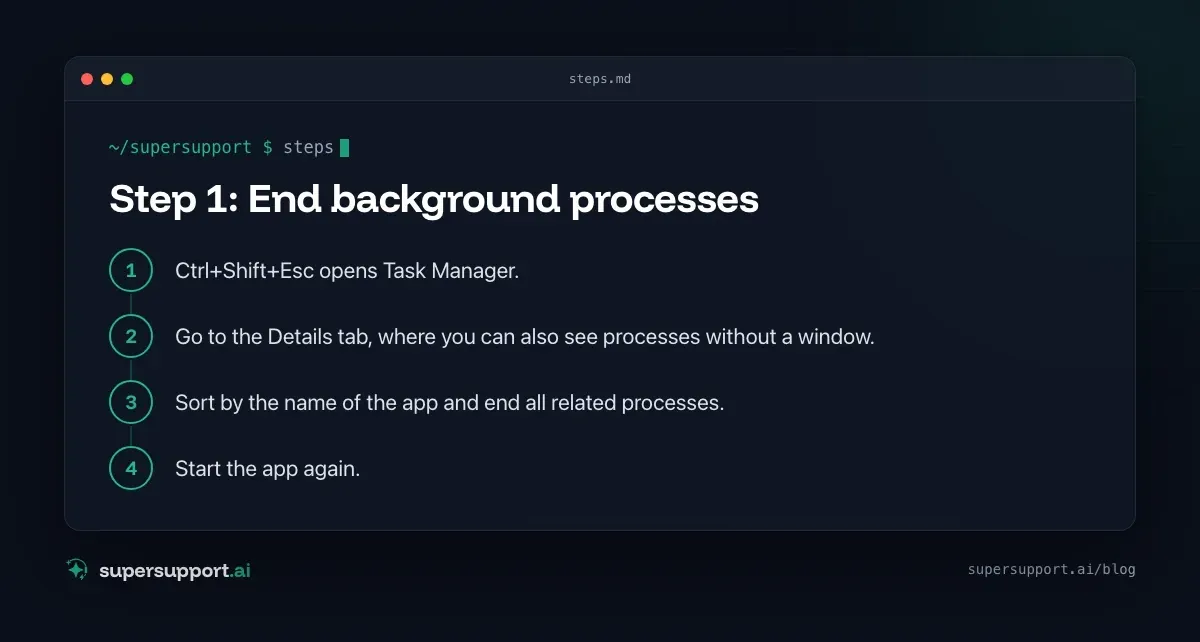
Step 2: Find the blocking process
If the app isn't the cause, Resource Monitor shows who is holding the file:
- Windows+R ›
resmon› Enter. - CPU tab › Associated Handles section.
- In the search box, enter the file name from the error message or the folder name of the app.
- The list shows the process that has the file open. Right-click › End Process, but only if it is clear what it does.
If it is an antivirus scanner, wait briefly and start again. If this happens regularly, IT can check whether an exception for the program folder makes sense.
Step 3: Restart
A restart resolves almost every file lock. It ends all processes, completes half-finished updates, and releases all files. Important: Restart, not Shut down. With Windows Fast Startup, a PC that was shut down doesn't really start fresh.
Step 4: Which version is installed?
Settings › Apps › Installed apps › search for the name of the app.
- If the same name appears twice, there is a Store version and a desktop version.
- The Store version is in a protected system folder and is updated through the Microsoft Store.
- The desktop version is usually under
%LOCALAPPDATA%\Programs\…orC:\Programme\…and updates itself.

14 days free
IT support that fixes itself.
SuperSupport fixes IT problems right on the device, before they turn into tickets. Try it free for 14 days.
Start free trialIf you have both, you should decide on one and uninstall the other. Otherwise two update mechanisms access similar files, and shortcuts point to one version at one time and the other at another, as in the actual case, where the wrong version was repaired first.
Step 5: Reinstall cleanly
If none of this helps, the installation is probably damaged, often by an interrupted update.
- Uninstall the app under Installed apps.
- Check the installation folder and delete it if it still exists (for example under
%LOCALAPPDATA%\Programs\). - Restart.
- Download and install the current version from the vendor's website.
Settings and sign-in data are usually in %APPDATA% and are kept, unless you delete that folder too. That is only necessary if the app crashes again right after the reinstall.
Similar cases: Program not responding, Mac app crashes on launch and AnyDesk crashes.
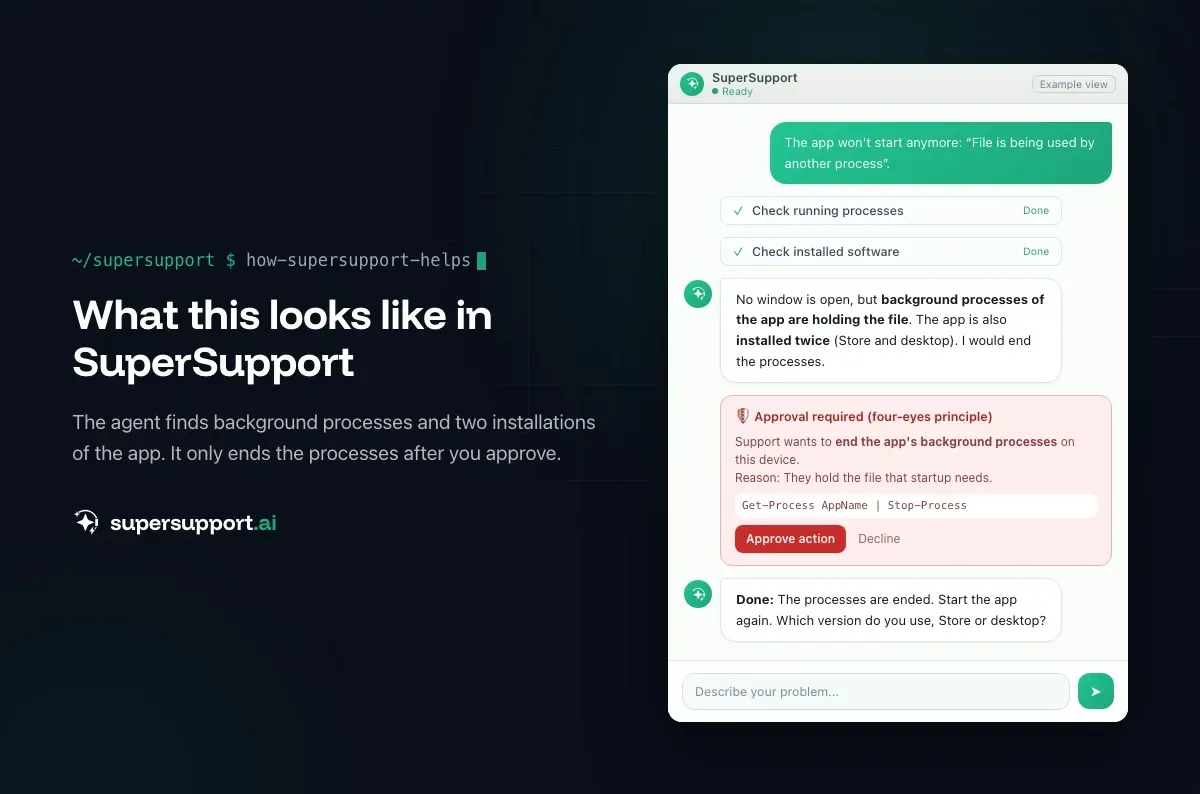
How does SuperSupport help with errors like this?
In the case described, the SuperSupport agent evaluated the screenshot, searched for running and crashed processes of the app, ended them, and re-registered the Store version. Only in the conversation did it become clear that the desktop version was meant, a good example of why the question "Which version?" comes first. What this looks like for internal IT teams and MSPs is described on the respective pages.
Frequently asked questions
What does “The process cannot access the file because it is being used by another process” mean?
Another program currently has the file open and locks it. Often it is a leftover of the app itself that keeps running in the background after a crash, a half-finished update, or an antivirus scanner that is checking the file right now.
How do I find out which process is locking the file?
With Resource Monitor: Windows+R › resmon › CPU tab › Associated Handles › enter the file name or folder name. It shows which process has the file open. Microsoft's Process Explorer shows the same.
The app isn't running at all. Why is the file still locked?
Because a background process is still running, such as an update service of the app, a helper process left over after a crash, or an antivirus scanner. In Task Manager under Details you can also see processes without a visible window.
What if nothing helps?
Restart the PC, which resolves almost every file lock. If that doesn't help either, the installation is usually damaged, often by an interrupted update. Then uninstall the app, delete the installation folder, and reinstall.
I have two versions of the app. Which one is the right one?
Many vendors have a Microsoft Store version and a desktop version to download. They are in different folders and are updated differently. Under Settings › Apps › Installed apps you can see which one is installed. It is best to keep only one of them.
14 days free
IT support that fixes itself.
SuperSupport fixes IT problems right on the device, before they turn into tickets. Try it free for 14 days.
Start free trialNico Haslberger is Co-Founder & CEO of SuperSupport.ai. With years of experience as an IT technician, he knows the problems in IT support first-hand: from overloaded help desks to recurring tickets that slow teams down. That knowledge is built into every feature of the platform today. He makes sure SuperSupport.ai solves exactly the problems he experienced himself for years.
This article was created with AI assistance and editorially reviewed.
Related Articles

Recover a Deleted File: All the Ways at Work
File deleted, overwritten or unsaved? Recover it via Recycle Bin, OneDrive and SharePoint, version history, AutoRecover, Previous Versions or Time Machine.


Find Your BitLocker Recovery Key: All the Ways
Windows asks for the BitLocker recovery key? Where to find the 48-digit key (Microsoft account, Entra ID, Intune, AD) and why it is requested.

Windows Server Shuts Down Every Hour? Check the License
Server shuts itself down after about an hour – taking VMs and printers with it? Usually the evaluation license has expired. How to spot and fix it.