;}.cls-2{fill:url(%23Unbenannter_Verlauf_5-2);}.cls-3{fill:url(%23Unbenannter_Verlauf_5-5);}.cls-4{fill:url(%23Unbenannter_Verlauf_5-6);}.cls-5{fill:url(%23Unbenannter_Verlauf_5-3);}.cls-6{fill:url(%23Unbenannter_Verlauf_5-4);}%3c/style%3e%3clinearGradient%20id='Unbenannter_Verlauf_5'%20x1='1075.02'%20y1='943.06'%20x2='1201.78'%20y2='943.06'%20gradientUnits='userSpaceOnUse'%3e%3cstop%20offset='0'%20stop-color='%2322b88a'/%3e%3cstop%20offset='1'%20stop-color='%231a9e78'/%3e%3c/linearGradient%3e%3clinearGradient%20id='Unbenannter_Verlauf_5-2'%20x1='234.11'%20y1='663.43'%20x2='1058.29'%20y2='663.43'%20xlink:href='%23Unbenannter_Verlauf_5'/%3e%3clinearGradient%20id='Unbenannter_Verlauf_5-3'%20x1='843.79'%20y1='1064.84'%20x2='1096.04'%20y2='1064.84'%20xlink:href='%23Unbenannter_Verlauf_5'/%3e%3clinearGradient%20id='Unbenannter_Verlauf_5-4'%20x1='1120.37'%20y1='662.1'%20x2='1253'%20y2='662.1'%20xlink:href='%23Unbenannter_Verlauf_5'/%3e%3clinearGradient%20id='Unbenannter_Verlauf_5-5'%20x1='97.45'%20y1='265.53'%20x2='385.89'%20y2='265.53'%20xlink:href='%23Unbenannter_Verlauf_5'/%3e%3clinearGradient%20id='Unbenannter_Verlauf_5-6'%20x1='295.45'%20y1='255.64'%20x2='1213.95'%20y2='255.64'%20xlink:href='%23Unbenannter_Verlauf_5'/%3e%3c/defs%3e%3cpath%20class='cls-1'%20d='M1201.78,871c-.61,1.55-1.23,3.1-1.86,4.66-20.33,50.18-47.14,96.85-80.02,139.45-7.56-13.82-21.78-22.31-37.69-22.31h-7.19c29.82-37.26,54.46-78.02,73.61-121.8h53.15Z'/%3e%3cpath%20class='cls-2'%20d='M665.24,264.59l69.02,186.52c21.3,57.57,66.69,102.96,124.26,124.26l186.52,69.02c17.67,6.54,17.67,31.54,0,38.08l-186.52,69.02c-57.57,21.3-102.96,66.69-124.26,124.26l-69.02,186.52c-6.54,17.67-31.54,17.67-38.08,0l-69.02-186.52c-21.3-57.57-66.69-102.96-124.26-124.26l-186.52-69.02c-17.67-6.54-17.67-31.54,0-38.08l186.52-69.02c57.57-21.3,102.96-66.69,124.26-124.26l69.02-186.52c6.54-17.67,31.54-17.67,38.08,0Z'/%3e%3cpath%20class='cls-5'%20d='M1082.21,1021.98h-79.13c-1.7,0-2.97-1.56-2.62-3.23l22.72-109.35c2.94-14.16-15.11-22.74-24.23-11.51l-152.04,187.31c-7.32,9.02-.9,22.5,10.72,22.5h79.13c1.7,0,2.97,1.56,2.62,3.23l-22.72,109.35c-2.94,14.16,15.11,22.74,24.23,11.51l152.04-187.31c7.32-9.02.9-22.5-10.72-22.5Z'/%3e%3crect%20class='cls-6'%20x='1120.37'%20y='486.36'%20width='132.63'%20height='351.48'%20rx='19.58'%20ry='19.58'/%3e%3cpath%20class='cls-3'%20d='M250.58,128.27l13.88,55.81c7.19,28.91,29.76,51.47,58.66,58.66l55.81,13.88c9.29,2.31,9.29,15.51,0,17.82l-55.81,13.88c-28.91,7.19-51.47,29.76-58.66,58.66l-13.88,55.81c-2.31,9.29-15.51,9.29-17.82,0l-13.88-55.81c-7.19-28.91-29.76-51.47-58.66-58.66l-55.81-13.88c-9.29-2.31-9.29-15.51,0-17.82l55.81-13.88c28.91-7.19,51.47-29.76,58.66-58.66l13.88-55.81c2.31-9.29,15.51-9.29,17.82,0Z'/%3e%3cpath%20class='cls-4'%20d='M1213.95,453.21h-67.62c-1.23,0-2.47.04-3.67.12-27.03-63.89-65.84-121.36-115.42-170.94-51.54-51.54-111.61-91.44-178.55-118.59-64.67-26.22-133.03-39.52-203.16-39.52s-138.48,13.3-203.16,39.52c-33.73,13.67-65.72,30.61-95.75,50.63l-.19-.05c-23.62-5.88-42.51-22.85-51-45.24,37.87-26.86,78.65-49.21,122.01-66.79,72.63-29.44,149.37-44.38,228.08-44.38s155.45,14.93,228.08,44.38c75.2,30.51,142.67,75.31,200.53,133.15,57.84,57.85,102.65,125.33,133.15,200.53,2.31,5.7,4.54,11.43,6.66,17.19Z'/%3e%3c/svg%3e)
Second Monitor Not Detected: Windows and Mac
Second screen black, mirrored or flickering? How to get external monitors working on Windows and macOS: Windows+P, cables, docks and MacBook limits.


The second monitor stays black. Often the cable is to blame, not the monitor.
“The second screen stays black.” – “It only shows the same as the laptop.” – “Since today it flickers.” External monitors are among the most common hardware questions in the office, especially with docking stations and in home offices. If the monitor went black after a BIOS or driver update, see External monitor: no signal after BIOS update. This article covers all other cases.
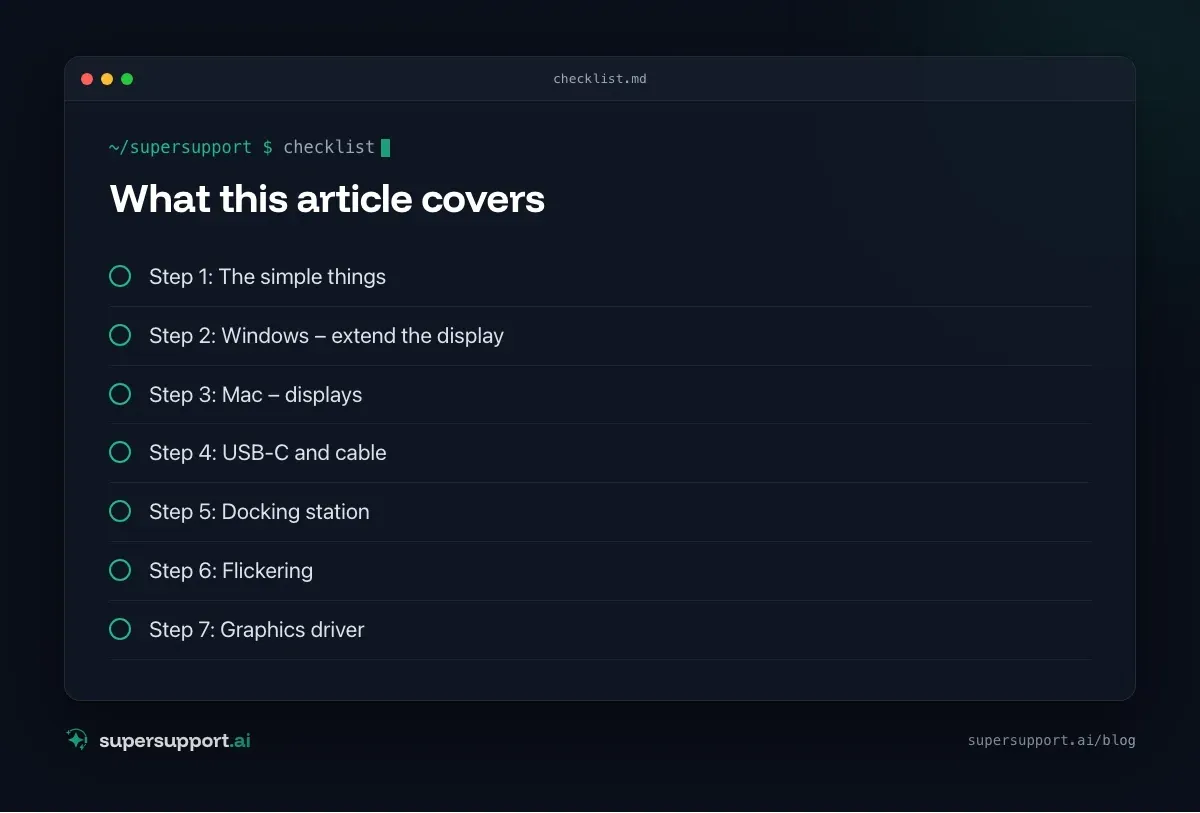
Step 1: The simple things
- Monitor on? Power cable, standby LED, power button.
- Right input? In the monitor menu, choose the input (HDMI 1, HDMI 2, DisplayPort, USB-C).
- Cable firmly seated? Check both ends, try another cable.
- Try it directly on the laptop instead of through a docking station or adapter.
Step 2: Windows – extend the display
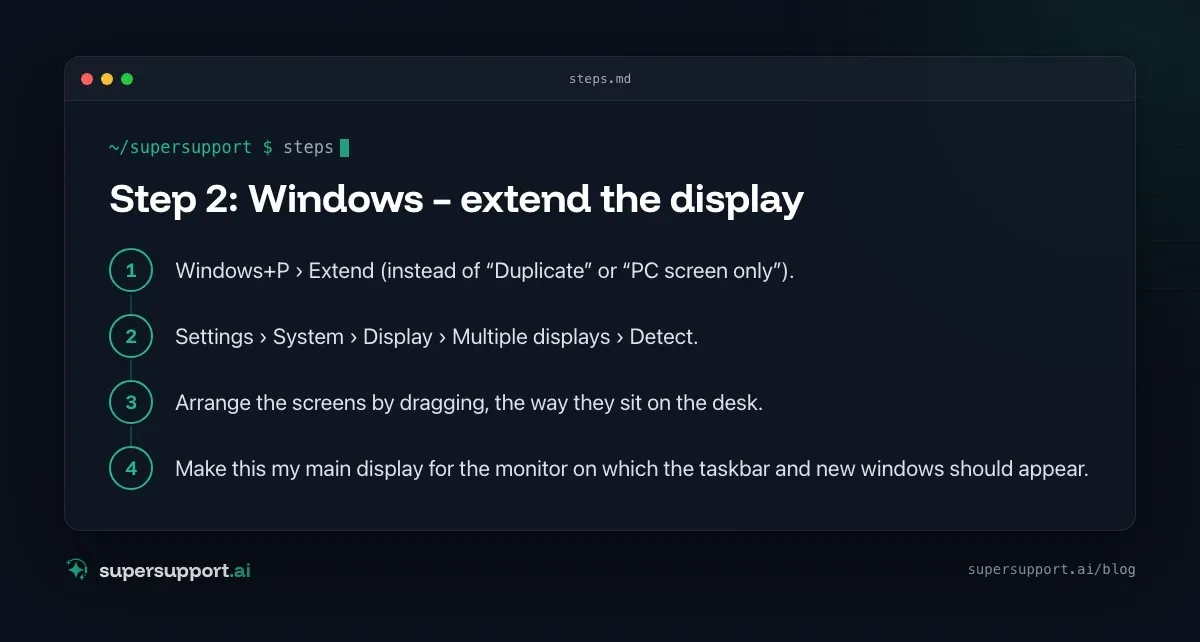
- Windows+P › Extend (instead of “Duplicate” or “PC screen only”).
- Settings › System › Display › Multiple displays › Detect.
- Arrange the screens by dragging, the way they sit on the desk.
- Make this my main display for the monitor on which the taskbar and new windows should appear.
Step 3: Mac – displays
System Settings › Displays:
- If the monitor appears, choose Arrange and turn off Mirror Displays if it should not mirror.
- If it does not appear: check cable and adapter, restart the Mac.
- Model limit: Some entry-level MacBooks with an Apple chip support only one external monitor. Which number applies is in the model's technical specifications at Apple.
Step 4: USB-C and cable
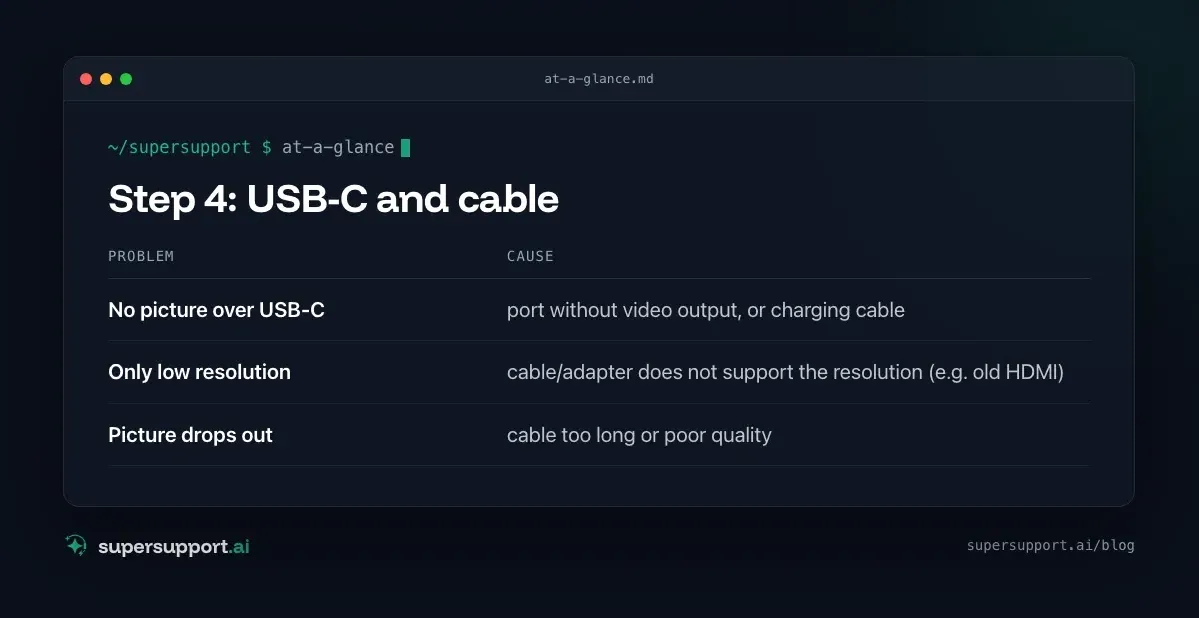
Not every USB-C port can output video. It needs DisplayPort Alternate Mode or Thunderbolt – recognizable by the DisplayPort or lightning bolt symbol or in the data sheet. The cable must also be able to carry video; simple charging cables often cannot.
- No picture over USB-C – port without video output, or charging cable
- Only low resolution – cable/adapter does not support the resolution (e.g. old HDMI)
- Picture drops out – cable too long or poor quality
Step 5: Docking station
Many docking stations need drivers – especially those with DisplayLink, which connect several monitors over USB. Without the right driver, the monitors stay black.
- Install or update the driver from the manufacturer.
- Update the firmware of the docking station.
- Enough power: Is the docking station's power supply connected?
On Windows, installing the driver often needs admin rights – see Removing local admin rights.

14 days free
IT support that fixes itself.
SuperSupport fixes IT problems right on the device, before they turn into tickets. Try it free for 14 days.
Start free trialStep 6: Flickering
- Swap the cable, as short and high-quality as possible.
- Lower the refresh rate: Settings › System › Display › Advanced display › e.g. 60 Hz instead of 144 Hz.
- Update the graphics driver (from the laptop manufacturer).
- Power saving on the monitor (adaptive brightness, eco mode): turn it off as a test.
Step 7: Graphics driver
Device Manager › Display adapters – warning icon? Install the driver from the laptop manufacturer, not just the generic “Microsoft Basic Display Adapter”.
How does SuperSupport help with monitor problems?
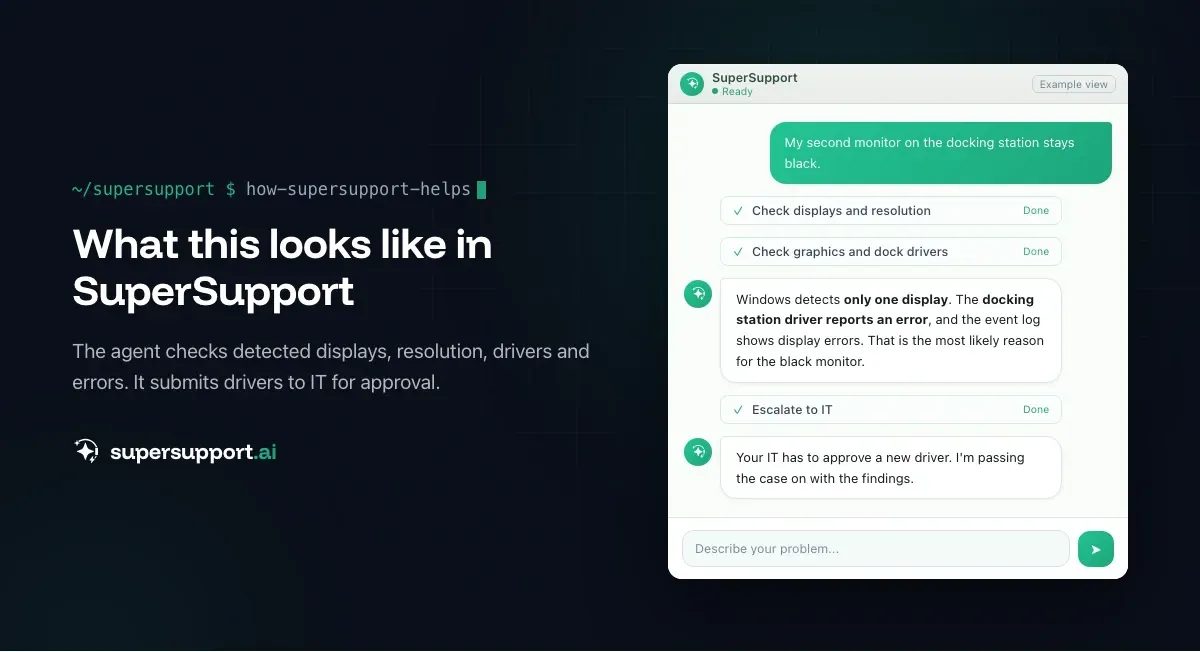
On the Windows or Mac device, the SuperSupport agent checks which screens are detected, with which resolution and refresh rate, which graphics and docking station driver is running and whether errors are reported. Settings such as “Extend” or the refresh rate can be changed step by step in the chat; driver installations it submits to IT for approval. What that looks like for internal IT teams and MSPs is described on the respective pages. See also Equipping a meeting room with Teams.
Frequently asked questions
Why is my second monitor not detected?
Common causes are a wrong input on the monitor, a loose or unsuitable cable, a USB-C port without video output, a docking station without the right driver, outdated graphics drivers or, on a Mac, a model that supports only one external display.
How do I enable the second screen on Windows?
Open the Project menu with Windows+P and choose Extend. If the monitor does not appear, click Detect under Settings › System › Display › Multiple displays. There you can also arrange the screens and set the main display.
Why does the monitor not work over USB-C?
Not every USB-C port outputs a video signal. It must support DisplayPort Alternate Mode or Thunderbolt – recognizable by the DisplayPort or lightning bolt symbol next to the port or in the device's data sheet. The cable must also be able to carry video signals.
Why does my external monitor flicker?
Often because of a cable that is too long or poor, a refresh rate that the cable or docking station cannot handle, an outdated graphics or docking station driver or a loose connection. Swapping the cable and, as a test, lowering the refresh rate under Display › Advanced display often helps.
How many external monitors does my MacBook support?
That depends on the model. Some entry-level MacBooks with an Apple chip natively support only one external display, others two or more. The figure is in the model's technical specifications at Apple. More monitors are sometimes possible through docking stations with DisplayLink.
14 days free
IT support that fixes itself.
SuperSupport fixes IT problems right on the device, before they turn into tickets. Try it free for 14 days.
Start free trialNico Haslberger is Co-Founder & CEO of SuperSupport.ai. With years of experience as an IT technician, he knows the problems in IT support first-hand: from overloaded help desks to recurring tickets that slow teams down. That knowledge is built into every feature of the platform today. He makes sure SuperSupport.ai solves exactly the problems he experienced himself for years.
This article was created with AI assistance and editorially reviewed.
Related Articles

Recover a Deleted File: All the Ways at Work
File deleted, overwritten or unsaved? Recover it via Recycle Bin, OneDrive and SharePoint, version history, AutoRecover, Previous Versions or Time Machine.


Find Your BitLocker Recovery Key: All the Ways
Windows asks for the BitLocker recovery key? Where to find the 48-digit key (Microsoft account, Entra ID, Intune, AD) and why it is requested.

Windows Server Shuts Down Every Hour? Check the License
Server shuts itself down after about an hour – taking VMs and printers with it? Usually the evaluation license has expired. How to spot and fix it.