;}.cls-2{fill:url(%23Unbenannter_Verlauf_5-2);}.cls-3{fill:url(%23Unbenannter_Verlauf_5-5);}.cls-4{fill:url(%23Unbenannter_Verlauf_5-6);}.cls-5{fill:url(%23Unbenannter_Verlauf_5-3);}.cls-6{fill:url(%23Unbenannter_Verlauf_5-4);}%3c/style%3e%3clinearGradient%20id='Unbenannter_Verlauf_5'%20x1='1075.02'%20y1='943.06'%20x2='1201.78'%20y2='943.06'%20gradientUnits='userSpaceOnUse'%3e%3cstop%20offset='0'%20stop-color='%2322b88a'/%3e%3cstop%20offset='1'%20stop-color='%231a9e78'/%3e%3c/linearGradient%3e%3clinearGradient%20id='Unbenannter_Verlauf_5-2'%20x1='234.11'%20y1='663.43'%20x2='1058.29'%20y2='663.43'%20xlink:href='%23Unbenannter_Verlauf_5'/%3e%3clinearGradient%20id='Unbenannter_Verlauf_5-3'%20x1='843.79'%20y1='1064.84'%20x2='1096.04'%20y2='1064.84'%20xlink:href='%23Unbenannter_Verlauf_5'/%3e%3clinearGradient%20id='Unbenannter_Verlauf_5-4'%20x1='1120.37'%20y1='662.1'%20x2='1253'%20y2='662.1'%20xlink:href='%23Unbenannter_Verlauf_5'/%3e%3clinearGradient%20id='Unbenannter_Verlauf_5-5'%20x1='97.45'%20y1='265.53'%20x2='385.89'%20y2='265.53'%20xlink:href='%23Unbenannter_Verlauf_5'/%3e%3clinearGradient%20id='Unbenannter_Verlauf_5-6'%20x1='295.45'%20y1='255.64'%20x2='1213.95'%20y2='255.64'%20xlink:href='%23Unbenannter_Verlauf_5'/%3e%3c/defs%3e%3cpath%20class='cls-1'%20d='M1201.78,871c-.61,1.55-1.23,3.1-1.86,4.66-20.33,50.18-47.14,96.85-80.02,139.45-7.56-13.82-21.78-22.31-37.69-22.31h-7.19c29.82-37.26,54.46-78.02,73.61-121.8h53.15Z'/%3e%3cpath%20class='cls-2'%20d='M665.24,264.59l69.02,186.52c21.3,57.57,66.69,102.96,124.26,124.26l186.52,69.02c17.67,6.54,17.67,31.54,0,38.08l-186.52,69.02c-57.57,21.3-102.96,66.69-124.26,124.26l-69.02,186.52c-6.54,17.67-31.54,17.67-38.08,0l-69.02-186.52c-21.3-57.57-66.69-102.96-124.26-124.26l-186.52-69.02c-17.67-6.54-17.67-31.54,0-38.08l186.52-69.02c57.57-21.3,102.96-66.69,124.26-124.26l69.02-186.52c6.54-17.67,31.54-17.67,38.08,0Z'/%3e%3cpath%20class='cls-5'%20d='M1082.21,1021.98h-79.13c-1.7,0-2.97-1.56-2.62-3.23l22.72-109.35c2.94-14.16-15.11-22.74-24.23-11.51l-152.04,187.31c-7.32,9.02-.9,22.5,10.72,22.5h79.13c1.7,0,2.97,1.56,2.62,3.23l-22.72,109.35c-2.94,14.16,15.11,22.74,24.23,11.51l152.04-187.31c7.32-9.02.9-22.5-10.72-22.5Z'/%3e%3crect%20class='cls-6'%20x='1120.37'%20y='486.36'%20width='132.63'%20height='351.48'%20rx='19.58'%20ry='19.58'/%3e%3cpath%20class='cls-3'%20d='M250.58,128.27l13.88,55.81c7.19,28.91,29.76,51.47,58.66,58.66l55.81,13.88c9.29,2.31,9.29,15.51,0,17.82l-55.81,13.88c-28.91,7.19-51.47,29.76-58.66,58.66l-13.88,55.81c-2.31,9.29-15.51,9.29-17.82,0l-13.88-55.81c-7.19-28.91-29.76-51.47-58.66-58.66l-55.81-13.88c-9.29-2.31-9.29-15.51,0-17.82l55.81-13.88c28.91-7.19,51.47-29.76,58.66-58.66l13.88-55.81c2.31-9.29,15.51-9.29,17.82,0Z'/%3e%3cpath%20class='cls-4'%20d='M1213.95,453.21h-67.62c-1.23,0-2.47.04-3.67.12-27.03-63.89-65.84-121.36-115.42-170.94-51.54-51.54-111.61-91.44-178.55-118.59-64.67-26.22-133.03-39.52-203.16-39.52s-138.48,13.3-203.16,39.52c-33.73,13.67-65.72,30.61-95.75,50.63l-.19-.05c-23.62-5.88-42.51-22.85-51-45.24,37.87-26.86,78.65-49.21,122.01-66.79,72.63-29.44,149.37-44.38,228.08-44.38s155.45,14.93,228.08,44.38c75.2,30.51,142.67,75.31,200.53,133.15,57.84,57.85,102.65,125.33,133.15,200.53,2.31,5.7,4.54,11.43,6.66,17.19Z'/%3e%3c/svg%3e)
Laptop running slow? How to find the cause
Apps freeze, the fan spins up, everything stutters? Find out on Windows and macOS what slows your laptop: CPU, memory, disk, power, background tasks.


“Laptop slow” has many causes. Guessing helps with none of them.
“My laptop is so slow.” That is probably the most common and at the same time the vaguest support request there is. Slow at startup? Then see PC starts slowly. Slow only in Outlook? Then see Outlook slow. This article is about the case in between: the laptop runs, but everything is sluggish. Programs hang, the fan spins up, Teams stutters.
The good news: you can usually find the cause in a few minutes.
Step 1: See what is running right now
Windows: Ctrl+Shift+Esc opens Task Manager. In the Processes view, click the CPU, Memory and Disk columns to sort by them.
macOS: Activity Monitor (via Spotlight, Cmd+Space). Tabs CPU, Memory and Disk.
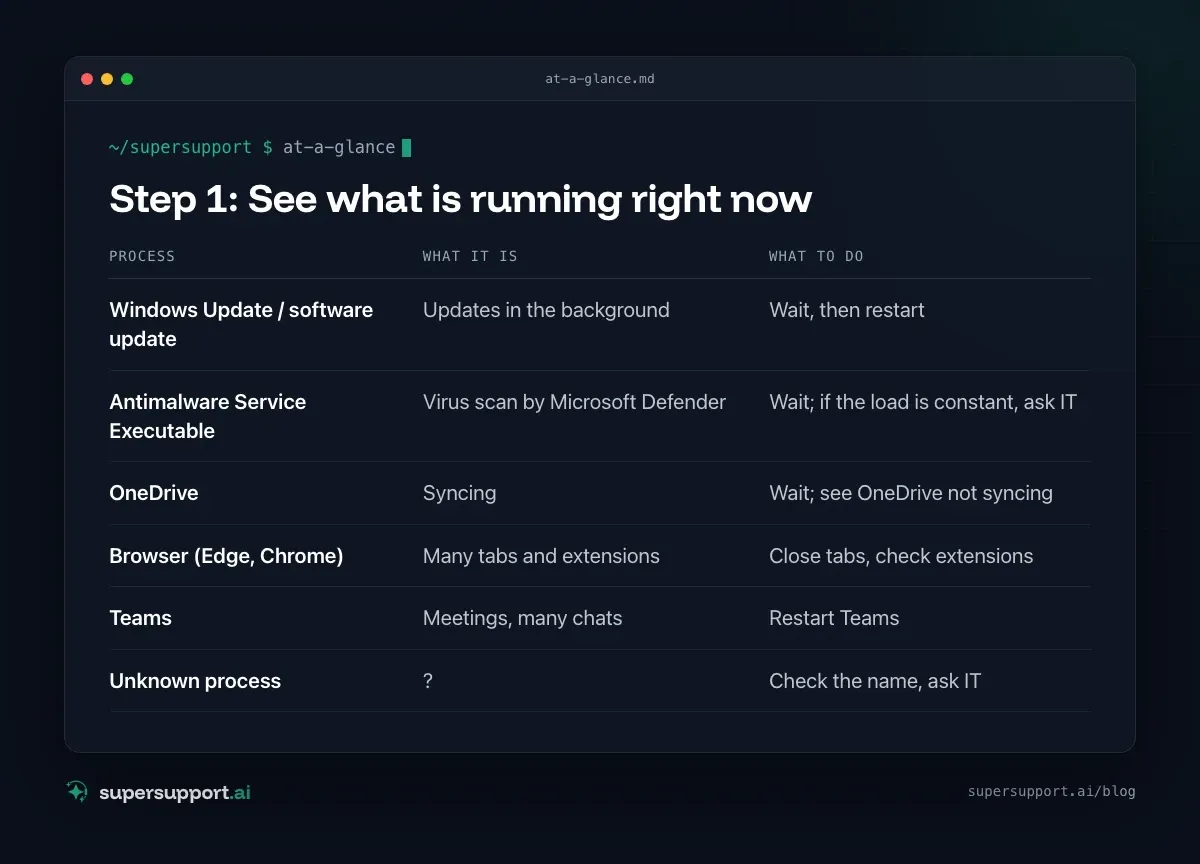
Whatever is at the top is usually the culprit. Typical candidates:
- Process: Windows Update / software update – What it is: Updates in the background; What to do: Wait, then restart
- Process: Antimalware Service Executable – What it is: Virus scan by Microsoft Defender; What to do: Wait; if the load is constant, ask IT
- Process: OneDrive – What it is: Syncing; What to do: Wait; see OneDrive not syncing
- Process: Browser (Edge, Chrome) – What it is: Many tabs and extensions; What to do: Close tabs, check extensions
- Process: Teams – What it is: Meetings, many chats; What to do: Restart Teams
- Process: Unknown process – What it is: ?; What to do: Check the name, ask IT
Step 2: Check the memory
Too little free memory is the most common permanent cause. When it runs short, the system swaps to disk and everything gets slow.
- Windows: Task Manager › Performance › Memory. Permanently above 85–90% in use? Then it is too tight.
- macOS: Activity Monitor › Memory › Memory Pressure at the bottom. Yellow or red means too tight.
Short term: close programs and browser tabs you don't need. Long term: more memory (if it can be upgraded) or a better-suited device.
Step 3: Check the disk
An almost full disk slows things down. The system needs free space for updates, swapping and temporary files.
- Windows: Settings › System › Storage. Below 10–15% free it gets tight. Turn on Storage Sense and remove Temporary files.
- macOS: System Settings › General › Storage. Use the recommendations.
With Files On-Demand in OneDrive, large files stay online only.
Step 4: Power mode
In a power-saving mode, the system throttles performance.
- Windows 11: Settings › System › Power & battery › Power mode. When plugged in, choose Balanced or Best performance.
- macOS: System Settings › Battery. Use Low Power Mode only when needed.
A weak charger or a docking station with too little power can also throttle the device.

14 days free
IT support that fixes itself.
SuperSupport fixes IT problems right on the device, before they turn into tickets. Try it free for 14 days.
Start free trialStep 5: Heat
Overheating leads to throttling. Signs: loud fan, hot case, performance dropping after a few minutes.
- Don't use the laptop on a soft surface (bed, sofa, lap).
- Keep the vents clear; on older devices, have them cleaned if needed.
Step 6: Restart, really
Many laptops run for weeks without a real restart. Closing the lid is not a restart, and on Windows even “Shut down” with Fast Startup is not a complete restart. Choose Restart: that ends hung processes and completes pending updates.
Step 7: If it is always slow
- Clean up startup items. See PC starts slowly.
- Remove unnecessary software: trial versions, manufacturer tools.
- Install updates. See Check whether all updates are installed.
- Check the hardware: Does the device still have an HDD instead of an SSD? Only 8 GB of memory? Then replacing it is often more economical than upgrading. See Planning the IT budget.

How does SuperSupport help when the laptop is slow?
“Slow” is hard for IT to pin down. The SuperSupport agent measures it directly on the Windows or Mac device: CPU, memory and disk load, the processes using the most, free storage space, power mode and pending restarts. It handles harmless things such as clearing temporary files itself, and submits everything else to IT with the measurements. How that looks for internal IT teams and MSPs is explained on their respective pages.
Frequently asked questions
Why is my laptop suddenly so slow?
Common causes are a program using a lot of processing power in the background (updates, virus scan, syncing), too little free memory, an almost full disk, energy saver mode, overheating from clogged fans, or a browser with a great many tabs.
How do I find out what is slowing down my laptop?
On Windows, use Task Manager (Ctrl+Shift+Esc) and sort the Processes view by CPU, Memory and Disk. On macOS, use Activity Monitor and its CPU, Memory and Disk tabs. The program at the top is usually the culprit.
How much RAM does a laptop need for office work?
For typical office work with Microsoft 365, Teams and a browser, 16 GB is a sensible size today. With 8 GB it quickly gets tight when many programs are open, and the system starts swapping to disk and slows down.
Does energy saver mode make the laptop slower?
Yes. In energy saver mode, or with the power mode “Best power efficiency”, Windows throttles performance to save battery. When plugged in, “Balanced” or “Best performance” is the better choice. macOS also has a Low Power Mode that reduces performance.
When is a new laptop worth it?
When the laptop permanently runs at its limit even after a cleanup, the memory cannot be upgraded, the drive is still an HDD instead of an SSD, or the device no longer gets updates. Many companies plan for workstation computers to last four to five years.
14 days free
IT support that fixes itself.
SuperSupport fixes IT problems right on the device, before they turn into tickets. Try it free for 14 days.
Start free trialNico Haslberger is Co-Founder & CEO of SuperSupport.ai. With years of experience as an IT technician, he knows the problems in IT support first-hand: from overloaded help desks to recurring tickets that slow teams down. That knowledge is built into every feature of the platform today. He makes sure SuperSupport.ai solves exactly the problems he experienced himself for years.
This article was created with AI assistance and editorially reviewed.
Related Articles

Recover a Deleted File: All the Ways at Work
File deleted, overwritten or unsaved? Recover it via Recycle Bin, OneDrive and SharePoint, version history, AutoRecover, Previous Versions or Time Machine.


Find Your BitLocker Recovery Key: All the Ways
Windows asks for the BitLocker recovery key? Where to find the 48-digit key (Microsoft account, Entra ID, Intune, AD) and why it is requested.

Windows Server Shuts Down Every Hour? Check the License
Server shuts itself down after about an hour – taking VMs and printers with it? Usually the evaluation license has expired. How to spot and fix it.