;}.cls-2{fill:url(%23Unbenannter_Verlauf_5-2);}.cls-3{fill:url(%23Unbenannter_Verlauf_5-5);}.cls-4{fill:url(%23Unbenannter_Verlauf_5-6);}.cls-5{fill:url(%23Unbenannter_Verlauf_5-3);}.cls-6{fill:url(%23Unbenannter_Verlauf_5-4);}%3c/style%3e%3clinearGradient%20id='Unbenannter_Verlauf_5'%20x1='1075.02'%20y1='943.06'%20x2='1201.78'%20y2='943.06'%20gradientUnits='userSpaceOnUse'%3e%3cstop%20offset='0'%20stop-color='%2322b88a'/%3e%3cstop%20offset='1'%20stop-color='%231a9e78'/%3e%3c/linearGradient%3e%3clinearGradient%20id='Unbenannter_Verlauf_5-2'%20x1='234.11'%20y1='663.43'%20x2='1058.29'%20y2='663.43'%20xlink:href='%23Unbenannter_Verlauf_5'/%3e%3clinearGradient%20id='Unbenannter_Verlauf_5-3'%20x1='843.79'%20y1='1064.84'%20x2='1096.04'%20y2='1064.84'%20xlink:href='%23Unbenannter_Verlauf_5'/%3e%3clinearGradient%20id='Unbenannter_Verlauf_5-4'%20x1='1120.37'%20y1='662.1'%20x2='1253'%20y2='662.1'%20xlink:href='%23Unbenannter_Verlauf_5'/%3e%3clinearGradient%20id='Unbenannter_Verlauf_5-5'%20x1='97.45'%20y1='265.53'%20x2='385.89'%20y2='265.53'%20xlink:href='%23Unbenannter_Verlauf_5'/%3e%3clinearGradient%20id='Unbenannter_Verlauf_5-6'%20x1='295.45'%20y1='255.64'%20x2='1213.95'%20y2='255.64'%20xlink:href='%23Unbenannter_Verlauf_5'/%3e%3c/defs%3e%3cpath%20class='cls-1'%20d='M1201.78,871c-.61,1.55-1.23,3.1-1.86,4.66-20.33,50.18-47.14,96.85-80.02,139.45-7.56-13.82-21.78-22.31-37.69-22.31h-7.19c29.82-37.26,54.46-78.02,73.61-121.8h53.15Z'/%3e%3cpath%20class='cls-2'%20d='M665.24,264.59l69.02,186.52c21.3,57.57,66.69,102.96,124.26,124.26l186.52,69.02c17.67,6.54,17.67,31.54,0,38.08l-186.52,69.02c-57.57,21.3-102.96,66.69-124.26,124.26l-69.02,186.52c-6.54,17.67-31.54,17.67-38.08,0l-69.02-186.52c-21.3-57.57-66.69-102.96-124.26-124.26l-186.52-69.02c-17.67-6.54-17.67-31.54,0-38.08l186.52-69.02c57.57-21.3,102.96-66.69,124.26-124.26l69.02-186.52c6.54-17.67,31.54-17.67,38.08,0Z'/%3e%3cpath%20class='cls-5'%20d='M1082.21,1021.98h-79.13c-1.7,0-2.97-1.56-2.62-3.23l22.72-109.35c2.94-14.16-15.11-22.74-24.23-11.51l-152.04,187.31c-7.32,9.02-.9,22.5,10.72,22.5h79.13c1.7,0,2.97,1.56,2.62,3.23l-22.72,109.35c-2.94,14.16,15.11,22.74,24.23,11.51l152.04-187.31c7.32-9.02.9-22.5-10.72-22.5Z'/%3e%3crect%20class='cls-6'%20x='1120.37'%20y='486.36'%20width='132.63'%20height='351.48'%20rx='19.58'%20ry='19.58'/%3e%3cpath%20class='cls-3'%20d='M250.58,128.27l13.88,55.81c7.19,28.91,29.76,51.47,58.66,58.66l55.81,13.88c9.29,2.31,9.29,15.51,0,17.82l-55.81,13.88c-28.91,7.19-51.47,29.76-58.66,58.66l-13.88,55.81c-2.31,9.29-15.51,9.29-17.82,0l-13.88-55.81c-7.19-28.91-29.76-51.47-58.66-58.66l-55.81-13.88c-9.29-2.31-9.29-15.51,0-17.82l55.81-13.88c28.91-7.19,51.47-29.76,58.66-58.66l13.88-55.81c2.31-9.29,15.51-9.29,17.82,0Z'/%3e%3cpath%20class='cls-4'%20d='M1213.95,453.21h-67.62c-1.23,0-2.47.04-3.67.12-27.03-63.89-65.84-121.36-115.42-170.94-51.54-51.54-111.61-91.44-178.55-118.59-64.67-26.22-133.03-39.52-203.16-39.52s-138.48,13.3-203.16,39.52c-33.73,13.67-65.72,30.61-95.75,50.63l-.19-.05c-23.62-5.88-42.51-22.85-51-45.24,37.87-26.86,78.65-49.21,122.01-66.79,72.63-29.44,149.37-44.38,228.08-44.38s155.45,14.93,228.08,44.38c75.2,30.51,142.67,75.31,200.53,133.15,57.84,57.85,102.65,125.33,133.15,200.53,2.31,5.7,4.54,11.43,6.66,17.19Z'/%3e%3c/svg%3e)
OneDrive Not Syncing? Causes and Fixes
Red X, endless loop, or “Syncing paused”? The most common reasons OneDrive isn’t syncing – from path length and special characters to resetting it.


“OneDrive can’t reach the library” sometimes means: OneDrive isn’t running at all.
“My file isn’t on the other computer.” – “There’s a red X on the folder.” – “OneDrive has been spinning for hours.” OneDrive problems are among the most common requests in IT support, especially since Documents and Desktop are backed up through OneDrive by default.
The good news: the cause is usually already shown in the OneDrive icon. Here is how to work through it step by step.
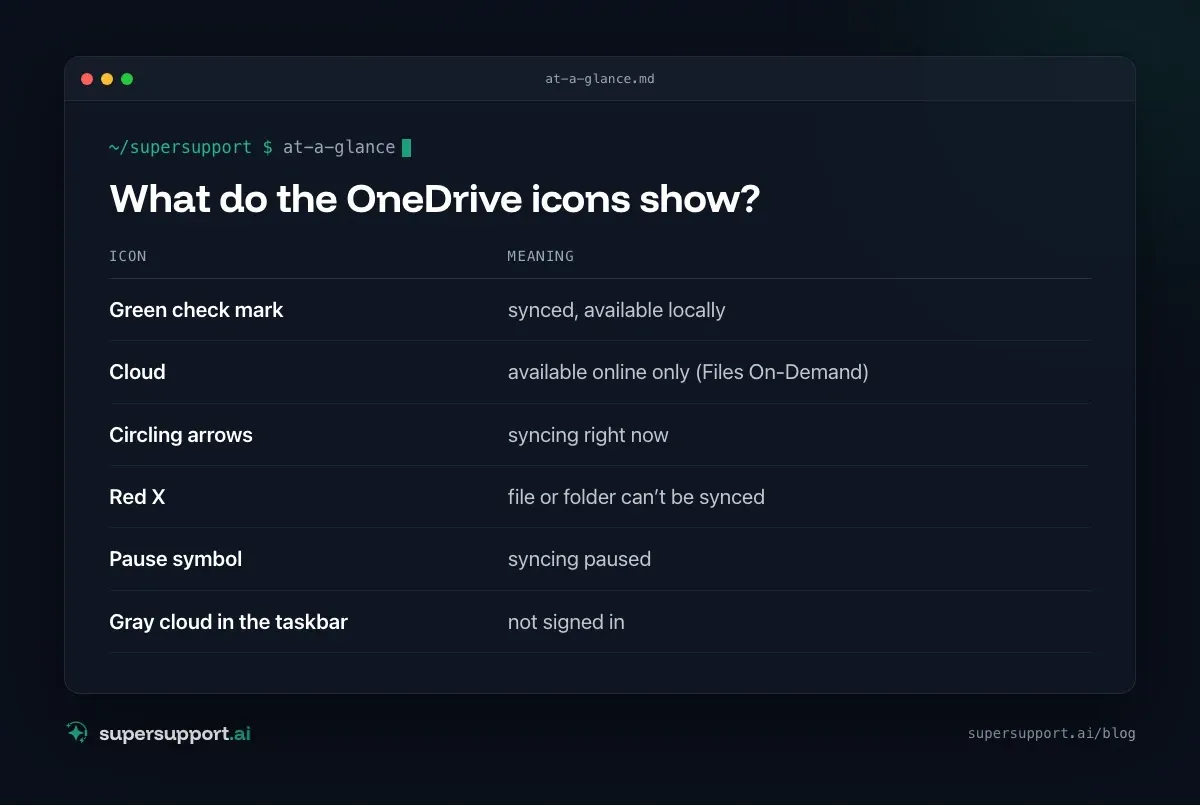
What do the OneDrive icons show?
- Green check mark – synced, available locally
- Cloud – available online only (Files On-Demand)
- Circling arrows – syncing right now
- Red X – file or folder can’t be synced
- Pause symbol – syncing paused
- Gray cloud in the taskbar – not signed in
Clicking the OneDrive icon in the taskbar (Windows) or in the menu bar (Mac) shows errors with a description.
Step 1: Paused? Signed in?
- Paused: OneDrive icon › gear › Resume syncing. OneDrive also pauses automatically in power-saving mode or on metered connections.
- Signed out: Gray cloud – open OneDrive and sign in with your work account. This often happens after a password change. See Office sign-in not working.
Step 2: Check file names and paths
Invalid names and paths that are too long are the most common reasons for red X icons.
- Invalid characters:
" * : < > ? / \ |– for example “Quote 12:00.docx”. - Reserved names:
CON,PRN,AUX,NUL, and similar. - Spaces at the start or end of the name.
- Path length: according to Microsoft, at most 400 characters for the entire path. Deeply nested folders like “Projects\2026\Customer XY\Quotes\Revised\Final\…” hit that limit quickly.
Fix: rename the file or flatten the folder structure.
Step 3: Open or locked files
Files that are currently open often only sync after you close them. Especially:
- Outlook data files (
.pst) – they don’t belong in OneDrive. - Databases (Access, line-of-business software) – they don’t belong in OneDrive either.
- Files locked by another program. See File is being used by another process.
Step 4: Check storage space
- OneDrive storage full: In the OneDrive menu, usage is shown under Settings › Account.
- Device full: With Files On-Demand, files stay online only and use no local space. Right-click a folder › Free up space.
Step 5: Too many files in SharePoint libraries
Synced SharePoint and Teams libraries with very many files slow OneDrive down. Microsoft recommends not syncing an excessive number of files on one device. Better:
- Sync only the folders you actually need.
- Instead of “Sync” in SharePoint, use the Add shortcut to My files option.
- Don’t sync large archives; open them in the browser.
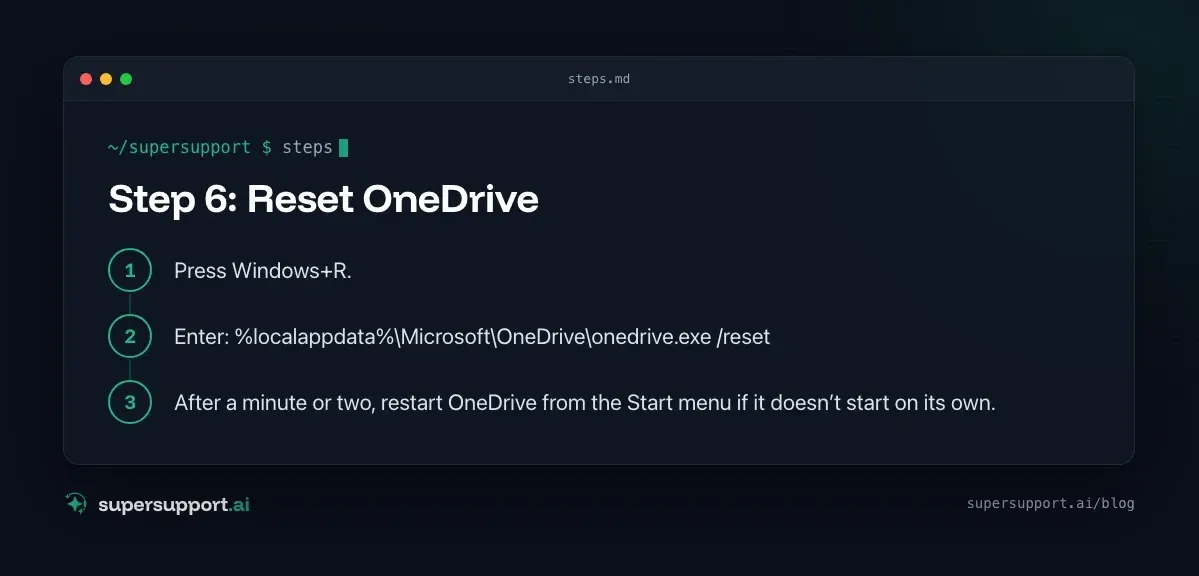
Step 6: Reset OneDrive

Beta
IT support that fixes itself.
supersupport.ai handles your 1st-level support fully automatically. Secure your spot on the waitlist now.
Join the WaitlistIf nothing helps: reset. Files aren’t deleted in the process, but they are reconciled again.
Windows:
- Press Windows+R.
- Enter:
%localappdata%\Microsoft\OneDrive\onedrive.exe /reset - After a minute or two, restart OneDrive from the Start menu if it doesn’t start on its own.
Mac: Quit OneDrive, right-click OneDrive in the Applications folder and choose Show Package Contents, then under Contents › Resources run the script ResetOneDriveApp.command.
With many files, syncing again takes a while.
When IT needs to get involved
- Policies: IT has blocked certain file types or limited syncing to managed devices.
- Permissions: No write permission in the SharePoint library.
- Storage quota of the organization reached.
- Conflicts on a large scale – many files with “-computername” in the name.

How does SuperSupport help with OneDrive problems?
The SuperSupport agent checks on the Windows or Mac device whether OneDrive is running and signed in, looks for paths that are too long and invalid file names, checks free storage and locked files – and guides you through the fix. It submits resetting OneDrive or changes to policies to IT for approval. What this looks like for internal IT teams and MSPs is described on the respective pages.
Frequently asked questions
Why isn’t OneDrive syncing?
Common causes are paused syncing, paths that are too long, invalid characters in the file name, open or locked files, full storage in OneDrive or on the device, a signed-out account, network problems, and very many files in synced SharePoint libraries.
What does the red X in OneDrive mean?
A red X on a file or folder shows that this file can’t be synced. Clicking the OneDrive icon in the taskbar shows the cause – often an invalid name, a path that is too long, or missing permission.
Which characters are not allowed in OneDrive?
According to Microsoft, file and folder names can’t contain, among others, the characters " * : < > ? / \ | or certain reserved names such as CON, PRN, or AUX, and they can’t start or end with a space.
How do I reset OneDrive?
On Windows, press Windows+R and enter %localappdata%\Microsoft\OneDrive\onedrive.exe /reset. Then restart OneDrive if it doesn’t start on its own. Resetting doesn’t delete any files, but it syncs everything again – with many files, that can take a while.
How long can a path be in OneDrive?
According to Microsoft, the entire path of a file in OneDrive and SharePoint can be at most 400 characters long. Deeply nested folders with long names quickly hit this limit, especially in synced SharePoint libraries.
Beta
IT support that fixes itself.
supersupport.ai handles your 1st-level support fully automatically. Secure your spot on the waitlist now.
Join the WaitlistNico Haslberger is Co-Founder & CEO of SuperSupport.ai. With years of experience as an IT technician, he knows the problems in IT support first-hand: from overloaded help desks to recurring tickets that slow teams down. That knowledge is built into every feature of the platform today. He makes sure SuperSupport.ai solves exactly the problems he experienced himself for years.
This article was created with AI assistance and editorially reviewed.
Related Articles

Program Not Responding: How to Close It Properly
“Not responding” and nothing works? Here's how to close frozen programs cleanly on Windows – even if the process has another name or runs several times.


Outlook Keeps Crashing: Find the Cause and Fix It for Good
Outlook keeps crashing, but the event log shows nothing? Here's how to find the trigger – from add-ins and the cache to a corrupted profile.

Printer Not Printing: Fix the Print Spooler
No printers visible anymore or jobs stuck? Often the Windows Print Spooler is stopped or disabled. Here is how to check and repair it.