;}.cls-2{fill:url(%23Unbenannter_Verlauf_5-2);}.cls-3{fill:url(%23Unbenannter_Verlauf_5-5);}.cls-4{fill:url(%23Unbenannter_Verlauf_5-6);}.cls-5{fill:url(%23Unbenannter_Verlauf_5-3);}.cls-6{fill:url(%23Unbenannter_Verlauf_5-4);}%3c/style%3e%3clinearGradient%20id='Unbenannter_Verlauf_5'%20x1='1075.02'%20y1='943.06'%20x2='1201.78'%20y2='943.06'%20gradientUnits='userSpaceOnUse'%3e%3cstop%20offset='0'%20stop-color='%2322b88a'/%3e%3cstop%20offset='1'%20stop-color='%231a9e78'/%3e%3c/linearGradient%3e%3clinearGradient%20id='Unbenannter_Verlauf_5-2'%20x1='234.11'%20y1='663.43'%20x2='1058.29'%20y2='663.43'%20xlink:href='%23Unbenannter_Verlauf_5'/%3e%3clinearGradient%20id='Unbenannter_Verlauf_5-3'%20x1='843.79'%20y1='1064.84'%20x2='1096.04'%20y2='1064.84'%20xlink:href='%23Unbenannter_Verlauf_5'/%3e%3clinearGradient%20id='Unbenannter_Verlauf_5-4'%20x1='1120.37'%20y1='662.1'%20x2='1253'%20y2='662.1'%20xlink:href='%23Unbenannter_Verlauf_5'/%3e%3clinearGradient%20id='Unbenannter_Verlauf_5-5'%20x1='97.45'%20y1='265.53'%20x2='385.89'%20y2='265.53'%20xlink:href='%23Unbenannter_Verlauf_5'/%3e%3clinearGradient%20id='Unbenannter_Verlauf_5-6'%20x1='295.45'%20y1='255.64'%20x2='1213.95'%20y2='255.64'%20xlink:href='%23Unbenannter_Verlauf_5'/%3e%3c/defs%3e%3cpath%20class='cls-1'%20d='M1201.78,871c-.61,1.55-1.23,3.1-1.86,4.66-20.33,50.18-47.14,96.85-80.02,139.45-7.56-13.82-21.78-22.31-37.69-22.31h-7.19c29.82-37.26,54.46-78.02,73.61-121.8h53.15Z'/%3e%3cpath%20class='cls-2'%20d='M665.24,264.59l69.02,186.52c21.3,57.57,66.69,102.96,124.26,124.26l186.52,69.02c17.67,6.54,17.67,31.54,0,38.08l-186.52,69.02c-57.57,21.3-102.96,66.69-124.26,124.26l-69.02,186.52c-6.54,17.67-31.54,17.67-38.08,0l-69.02-186.52c-21.3-57.57-66.69-102.96-124.26-124.26l-186.52-69.02c-17.67-6.54-17.67-31.54,0-38.08l186.52-69.02c57.57-21.3,102.96-66.69,124.26-124.26l69.02-186.52c6.54-17.67,31.54-17.67,38.08,0Z'/%3e%3cpath%20class='cls-5'%20d='M1082.21,1021.98h-79.13c-1.7,0-2.97-1.56-2.62-3.23l22.72-109.35c2.94-14.16-15.11-22.74-24.23-11.51l-152.04,187.31c-7.32,9.02-.9,22.5,10.72,22.5h79.13c1.7,0,2.97,1.56,2.62,3.23l-22.72,109.35c-2.94,14.16,15.11,22.74,24.23,11.51l152.04-187.31c7.32-9.02.9-22.5-10.72-22.5Z'/%3e%3crect%20class='cls-6'%20x='1120.37'%20y='486.36'%20width='132.63'%20height='351.48'%20rx='19.58'%20ry='19.58'/%3e%3cpath%20class='cls-3'%20d='M250.58,128.27l13.88,55.81c7.19,28.91,29.76,51.47,58.66,58.66l55.81,13.88c9.29,2.31,9.29,15.51,0,17.82l-55.81,13.88c-28.91,7.19-51.47,29.76-58.66,58.66l-13.88,55.81c-2.31,9.29-15.51,9.29-17.82,0l-13.88-55.81c-7.19-28.91-29.76-51.47-58.66-58.66l-55.81-13.88c-9.29-2.31-9.29-15.51,0-17.82l55.81-13.88c28.91-7.19,51.47-29.76,58.66-58.66l13.88-55.81c2.31-9.29,15.51-9.29,17.82,0Z'/%3e%3cpath%20class='cls-4'%20d='M1213.95,453.21h-67.62c-1.23,0-2.47.04-3.67.12-27.03-63.89-65.84-121.36-115.42-170.94-51.54-51.54-111.61-91.44-178.55-118.59-64.67-26.22-133.03-39.52-203.16-39.52s-138.48,13.3-203.16,39.52c-33.73,13.67-65.72,30.61-95.75,50.63l-.19-.05c-23.62-5.88-42.51-22.85-51-45.24,37.87-26.86,78.65-49.21,122.01-66.79,72.63-29.44,149.37-44.38,228.08-44.38s155.45,14.93,228.08,44.38c75.2,30.51,142.67,75.31,200.53,133.15,57.84,57.85,102.65,125.33,133.15,200.53,2.31,5.7,4.54,11.43,6.66,17.19Z'/%3e%3c/svg%3e)
Slow Windows Startup: Find and Clean Up Startup Programs
Windows takes forever to reach the desktop? Measure startup time, find all startup entries – even the hidden ones – and spot suspicious programs.


Your PC isn't old. It just starts a pile of programs every morning that you never ordered.
“The device starts slowly, please check it.” After switching on, it takes minutes until the desktop is usable. The Start menu doesn't respond, programs open one after another on their own, the fan runs at full speed.
In the concrete case, a Windows 11 laptop at a tax advisor's office, the very first look at the startup items showed a long list: OneDrive setup twice, VPN client, Copilot, Edge, remote support, audio service – and an entry nobody could place. Here is how to measure the startup time, find all startup locations and recognize suspicious entries.
Why does my PC start so slowly?
In most cases, too many programs load at the same time at sign-in. Every program in startup wants disk, processor and network at the same moment. Other typical brakes:
- Pending updates that are installed at startup
- Almost full drive, especially with less than 10–15% free space
- Conventional hard drive (HDD) instead of SSD – on older devices the biggest single factor
- Drivers or services that wait for a timeout at startup
- Network drives that are connected at sign-in but aren't reachable
Step 1: How long does startup really take?
Windows measures the startup time itself and writes it to the event log. That is better than a gut feeling – and later you can see whether your changes made a difference.
Get-WinEvent -LogName 'Microsoft-Windows-Diagnostics-Performance/Operational' -FilterXPath '*[System[EventID=100]]' -MaxEvents 5 |
  ForEach-Object { [pscustomobject]@{ Zeit = $_.TimeCreated; Startdauer_s = [math]::Round(([xml]$_.ToXml()).Event.EventData.Data[1].'#text' / 1000, 1) } }
The commands need a PowerShell with administrator rights. Rough guide: Under 30 seconds is good, 30–60 seconds is normal, and well over a minute is worth looking into.
In addition, Task Manager (Ctrl+Shift+Esc › Startup apps) shows the “Last BIOS time” at the top right – the time before Windows even loads. If that is already 20 seconds or more, the hardware or the BIOS setting is more likely the issue.
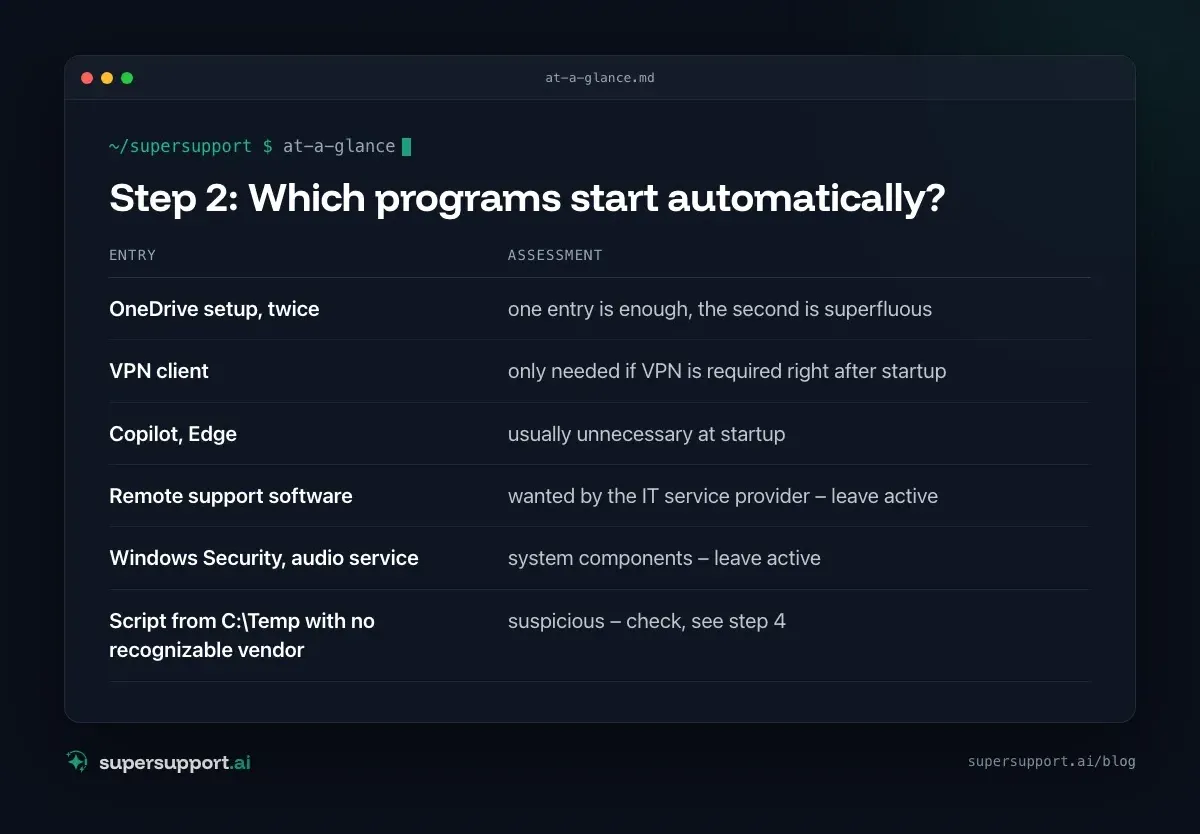
Step 2: Which programs start automatically?
Task Manager shows the visible startup programs along with their “Startup impact”. Under Startup apps, look at everything marked “High” and disable whatever isn't needed immediately after sign-in: right-click › Disable.
You get a more complete overview with PowerShell:
Get-CimInstance Win32_StartupCommand | Select-Object Name, Command, Location | Format-Table -AutoSizeIn the real case, this list included:
- OneDrive setup, twice – one entry is enough, the second is superfluous
- VPN client – only needed if VPN is required right after startup
- Copilot, Edge – usually unnecessary at startup
- Remote support software – wanted by the IT service provider – leave active
- Windows Security, audio service – system components – leave active
- Script from
C:\Tempwith no recognizable vendor – suspicious – check, see step 4
Step 3: Where else do startup entries hide?
Task Manager doesn't show everything. Programs can register themselves in several places:
- Registry, Run keys:
HKCU\Software\Microsoft\Windows\CurrentVersion\Run(this user only) andHKLM\Software\Microsoft\Windows\CurrentVersion\Run(all users) - Startup folders: Windows+R ›
shell:startup(user) orshell:common startup(all) - Scheduled tasks with the trigger “At log on” or “At startup” (
taskschd.msc) - Services with startup type “Automatic” (
services.msc)
In the real case, that was exactly the trap: The entry in question was not in the startup folder but in the Run key in the registry. Only there could it be removed.

14 days free
IT support that fixes itself.
SuperSupport fixes IT problems right on the device, before they turn into tickets. Try it free for 14 days.
Start free trialFor a complete overview of all locations, Autoruns from the Microsoft Sysinternals tools is recommended. It shows every startup entry, flags missing signatures and can disable entries with one click.
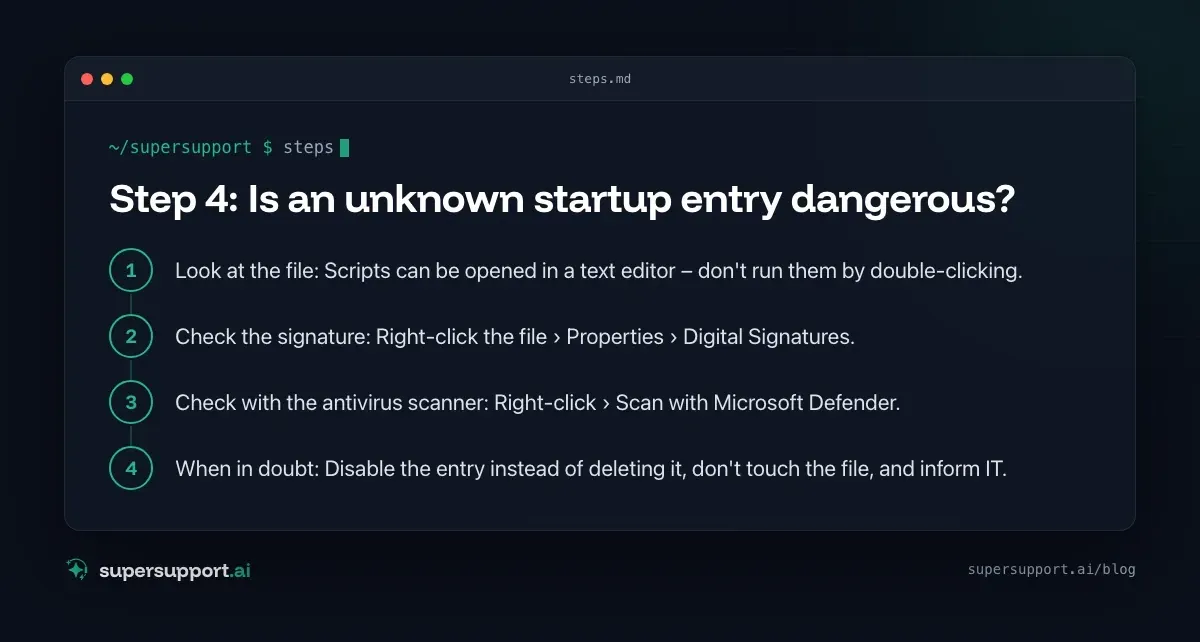
Step 4: Is an unknown startup entry dangerous?
Not automatically – but some characteristics are clear warning signs. This is exactly the question the user asked in the real case after the entry had been removed.
- Program under
C:\Program Fileswith a known vendor name – usually harmless - Program from
C:\Temp,%TEMP%or directly from%APPDATA%– suspicious - Script instead of a program (
.bat,.cmd,.vbs,.ps1) – suspicious, look at the contents - No digital signature – suspicious
- Name doesn't match any installed program – suspicious
Here is how to check an entry:
- Look at the file: Scripts can be opened in a text editor – don't run them by double-clicking.
- Check the signature: Right-click the file › Properties › Digital Signatures.
- Check with the antivirus scanner: Right-click › Scan with Microsoft Defender.
- When in doubt: Disable the entry instead of deleting it, don't touch the file, and inform IT.
Step 5: What else helps?
- Finish updates: Settings › Windows Update – install everything, restart once.
- Storage space: Keep at least 10–15% free.
- Fast startup: If it is on, “Shut down” doesn't give a real restart – background in High CPU and RAM usage.
- Network drives: Disconnect unreachable drives or connect them only when needed.
- Hardware: Older devices with an HDD benefit more from an SSD than from any optimization.
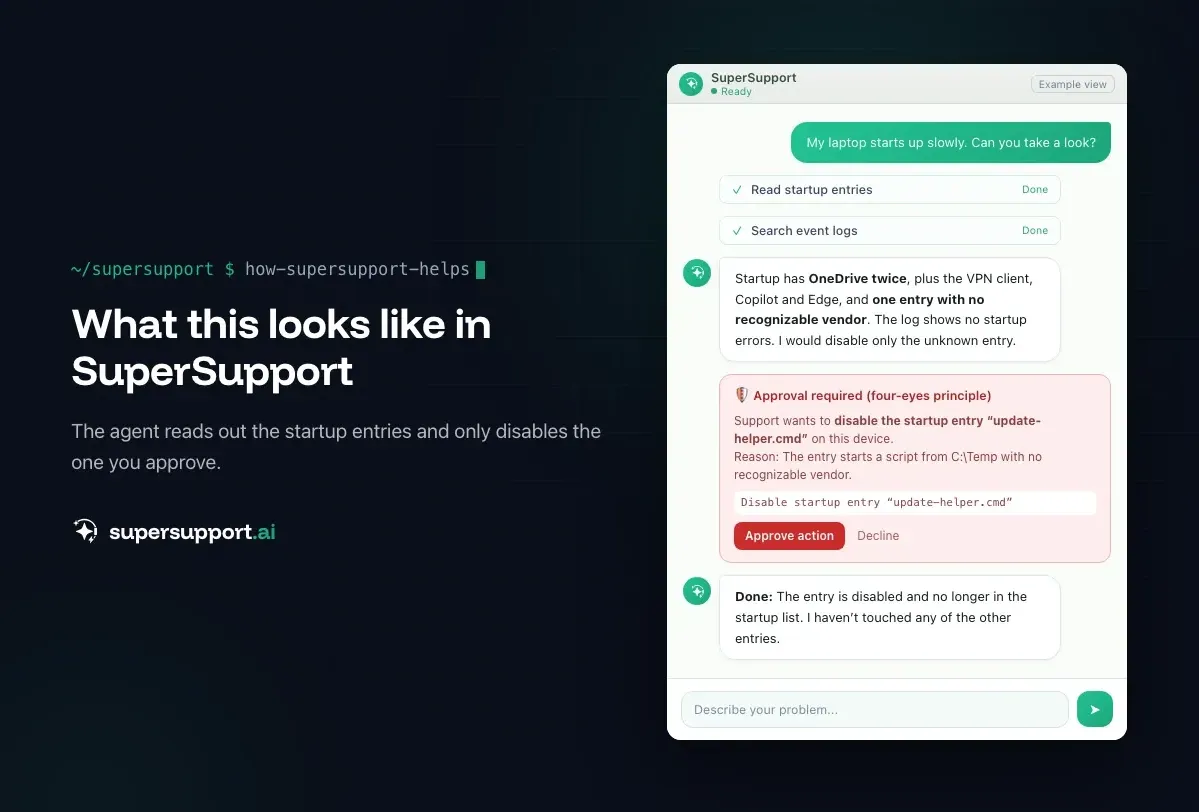
How does SuperSupport help when the PC starts slowly?
In the case described, the SuperSupport agent read out all startup entries, searched the system logs for startup errors and suggested a selection of which entries could be disabled. The user deliberately chose only the unknown entry. After confirmation, the agent first looked for it in the startup folder, then found it in the Run key, removed it and verified the result. What this looks like for internal IT teams and MSPs is described on their respective pages.
Frequently asked questions
Why does my PC start so slowly?
Usually too many programs load at sign-in, plus pending updates, an almost full drive, an old HDD instead of an SSD, or a driver that hangs at startup.
Where do I find all startup programs in Windows?
In Task Manager under “Startup apps” and in Settings under Apps › Startup. These lists aren't complete, though: more entries are in the registry (Run keys), in the startup folders, in scheduled tasks and in services.
How do I measure how long Windows takes to start?
Windows logs the startup duration in the event log “Microsoft-Windows-Diagnostics-Performance/Operational” as event 100. Task Manager also shows the last BIOS time under “Startup apps”.
How do I recognize a suspicious startup entry?
Warning signs are programs from temp folders or directly from AppData, scripts (.bat, .cmd, .vbs, .ps1), a missing digital signature, and names that can't be matched to any known program.
Can I disable startup entries safely?
Disabling yes, deleting only with care. Disabled entries can be turned back on at any time. Security software, driver services and VPN clients should stay active.
14 days free
IT support that fixes itself.
SuperSupport fixes IT problems right on the device, before they turn into tickets. Try it free for 14 days.
Start free trialNico Haslberger is Co-Founder & CEO of SuperSupport.ai. With years of experience as an IT technician, he knows the problems in IT support first-hand: from overloaded help desks to recurring tickets that slow teams down. That knowledge is built into every feature of the platform today. He makes sure SuperSupport.ai solves exactly the problems he experienced himself for years.
This article was created with AI assistance and editorially reviewed.
Related Articles

Recover a Deleted File: All the Ways at Work
File deleted, overwritten or unsaved? Recover it via Recycle Bin, OneDrive and SharePoint, version history, AutoRecover, Previous Versions or Time Machine.


Find Your BitLocker Recovery Key: All the Ways
Windows asks for the BitLocker recovery key? Where to find the 48-digit key (Microsoft account, Entra ID, Intune, AD) and why it is requested.

Windows Server Shuts Down Every Hour? Check the License
Server shuts itself down after about an hour – taking VMs and printers with it? Usually the evaluation license has expired. How to spot and fix it.