;}.cls-2{fill:url(%23Unbenannter_Verlauf_5-2);}.cls-3{fill:url(%23Unbenannter_Verlauf_5-5);}.cls-4{fill:url(%23Unbenannter_Verlauf_5-6);}.cls-5{fill:url(%23Unbenannter_Verlauf_5-3);}.cls-6{fill:url(%23Unbenannter_Verlauf_5-4);}%3c/style%3e%3clinearGradient%20id='Unbenannter_Verlauf_5'%20x1='1075.02'%20y1='943.06'%20x2='1201.78'%20y2='943.06'%20gradientUnits='userSpaceOnUse'%3e%3cstop%20offset='0'%20stop-color='%2322b88a'/%3e%3cstop%20offset='1'%20stop-color='%231a9e78'/%3e%3c/linearGradient%3e%3clinearGradient%20id='Unbenannter_Verlauf_5-2'%20x1='234.11'%20y1='663.43'%20x2='1058.29'%20y2='663.43'%20xlink:href='%23Unbenannter_Verlauf_5'/%3e%3clinearGradient%20id='Unbenannter_Verlauf_5-3'%20x1='843.79'%20y1='1064.84'%20x2='1096.04'%20y2='1064.84'%20xlink:href='%23Unbenannter_Verlauf_5'/%3e%3clinearGradient%20id='Unbenannter_Verlauf_5-4'%20x1='1120.37'%20y1='662.1'%20x2='1253'%20y2='662.1'%20xlink:href='%23Unbenannter_Verlauf_5'/%3e%3clinearGradient%20id='Unbenannter_Verlauf_5-5'%20x1='97.45'%20y1='265.53'%20x2='385.89'%20y2='265.53'%20xlink:href='%23Unbenannter_Verlauf_5'/%3e%3clinearGradient%20id='Unbenannter_Verlauf_5-6'%20x1='295.45'%20y1='255.64'%20x2='1213.95'%20y2='255.64'%20xlink:href='%23Unbenannter_Verlauf_5'/%3e%3c/defs%3e%3cpath%20class='cls-1'%20d='M1201.78,871c-.61,1.55-1.23,3.1-1.86,4.66-20.33,50.18-47.14,96.85-80.02,139.45-7.56-13.82-21.78-22.31-37.69-22.31h-7.19c29.82-37.26,54.46-78.02,73.61-121.8h53.15Z'/%3e%3cpath%20class='cls-2'%20d='M665.24,264.59l69.02,186.52c21.3,57.57,66.69,102.96,124.26,124.26l186.52,69.02c17.67,6.54,17.67,31.54,0,38.08l-186.52,69.02c-57.57,21.3-102.96,66.69-124.26,124.26l-69.02,186.52c-6.54,17.67-31.54,17.67-38.08,0l-69.02-186.52c-21.3-57.57-66.69-102.96-124.26-124.26l-186.52-69.02c-17.67-6.54-17.67-31.54,0-38.08l186.52-69.02c57.57-21.3,102.96-66.69,124.26-124.26l69.02-186.52c6.54-17.67,31.54-17.67,38.08,0Z'/%3e%3cpath%20class='cls-5'%20d='M1082.21,1021.98h-79.13c-1.7,0-2.97-1.56-2.62-3.23l22.72-109.35c2.94-14.16-15.11-22.74-24.23-11.51l-152.04,187.31c-7.32,9.02-.9,22.5,10.72,22.5h79.13c1.7,0,2.97,1.56,2.62,3.23l-22.72,109.35c-2.94,14.16,15.11,22.74,24.23,11.51l152.04-187.31c7.32-9.02.9-22.5-10.72-22.5Z'/%3e%3crect%20class='cls-6'%20x='1120.37'%20y='486.36'%20width='132.63'%20height='351.48'%20rx='19.58'%20ry='19.58'/%3e%3cpath%20class='cls-3'%20d='M250.58,128.27l13.88,55.81c7.19,28.91,29.76,51.47,58.66,58.66l55.81,13.88c9.29,2.31,9.29,15.51,0,17.82l-55.81,13.88c-28.91,7.19-51.47,29.76-58.66,58.66l-13.88,55.81c-2.31,9.29-15.51,9.29-17.82,0l-13.88-55.81c-7.19-28.91-29.76-51.47-58.66-58.66l-55.81-13.88c-9.29-2.31-9.29-15.51,0-17.82l55.81-13.88c28.91-7.19,51.47-29.76,58.66-58.66l13.88-55.81c2.31-9.29,15.51-9.29,17.82,0Z'/%3e%3cpath%20class='cls-4'%20d='M1213.95,453.21h-67.62c-1.23,0-2.47.04-3.67.12-27.03-63.89-65.84-121.36-115.42-170.94-51.54-51.54-111.61-91.44-178.55-118.59-64.67-26.22-133.03-39.52-203.16-39.52s-138.48,13.3-203.16,39.52c-33.73,13.67-65.72,30.61-95.75,50.63l-.19-.05c-23.62-5.88-42.51-22.85-51-45.24,37.87-26.86,78.65-49.21,122.01-66.79,72.63-29.44,149.37-44.38,228.08-44.38s155.45,14.93,228.08,44.38c75.2,30.51,142.67,75.31,200.53,133.15,57.84,57.85,102.65,125.33,133.15,200.53,2.31,5.7,4.54,11.43,6.66,17.19Z'/%3e%3c/svg%3e)
Are All Updates Installed? How to Check (Win + Mac)
Not sure your PC or Mac is up to date? Here's how to check system, driver and app updates on Windows and macOS – step by step.


“2 updates available” doesn't mean only two are missing. And “You're up to date” doesn't mean it's finished.
“I'm not sure whether all current updates are installed.” And: “2 updates available.” Two chats, two devices – a Mac and a Windows laptop – and the same uncertainty. On the Mac, it turned out the current macOS version was already running. On the Windows laptop, the two open updates were driver updates for Realtek components (audio and network). The installation in the background failed; through the Windows Update settings it worked.
Updates are the most important security measure at the workstation. Here is how to check whether everything is really up to date – for Windows and Mac.
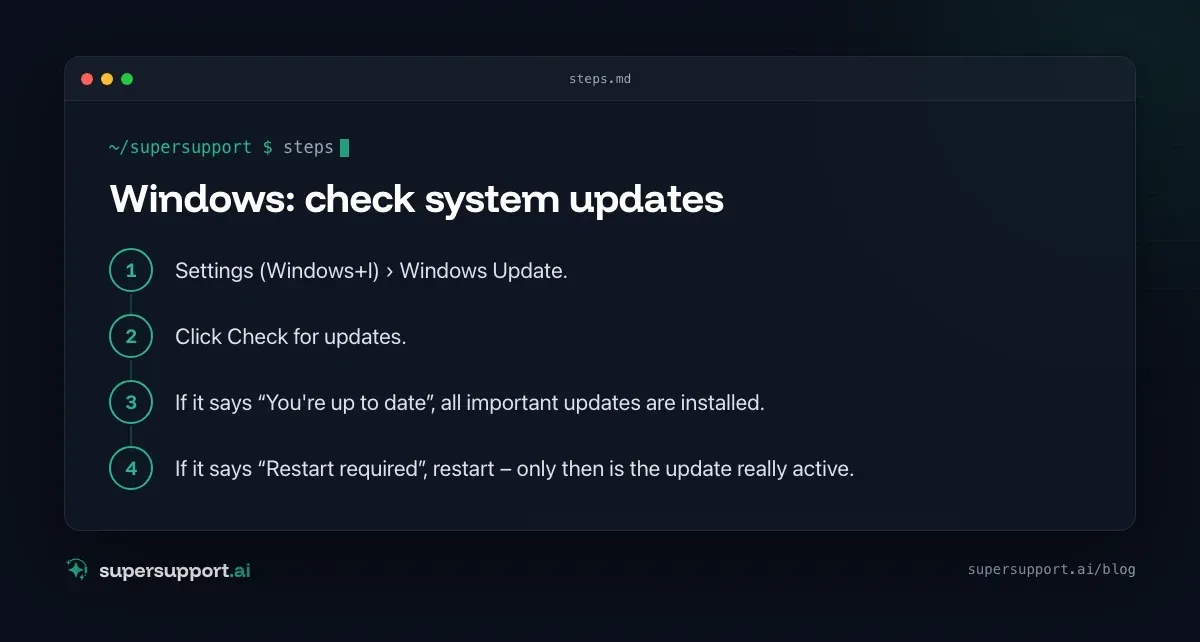
Windows: check system updates
- Settings (Windows+I) › Windows Update.
- Click Check for updates.
- If it says “You're up to date”, all important updates are installed.
- If it says “Restart required”, restart – only then is the update really active.
Which updates were installed most recently: Windows Update › Update history. It lists quality updates (monthly security updates), drivers, Microsoft Defender definitions and feature updates.
Quick overview with PowerShell:
Get-HotFix | Sort-Object InstalledOn -Descending | Select-Object -First 5 HotFixID, InstalledOn
[System.Environment]::OSVersion.Version
The last line shows the build number – you can compare it against Microsoft's release notes to see whether the current monthly update is installed.
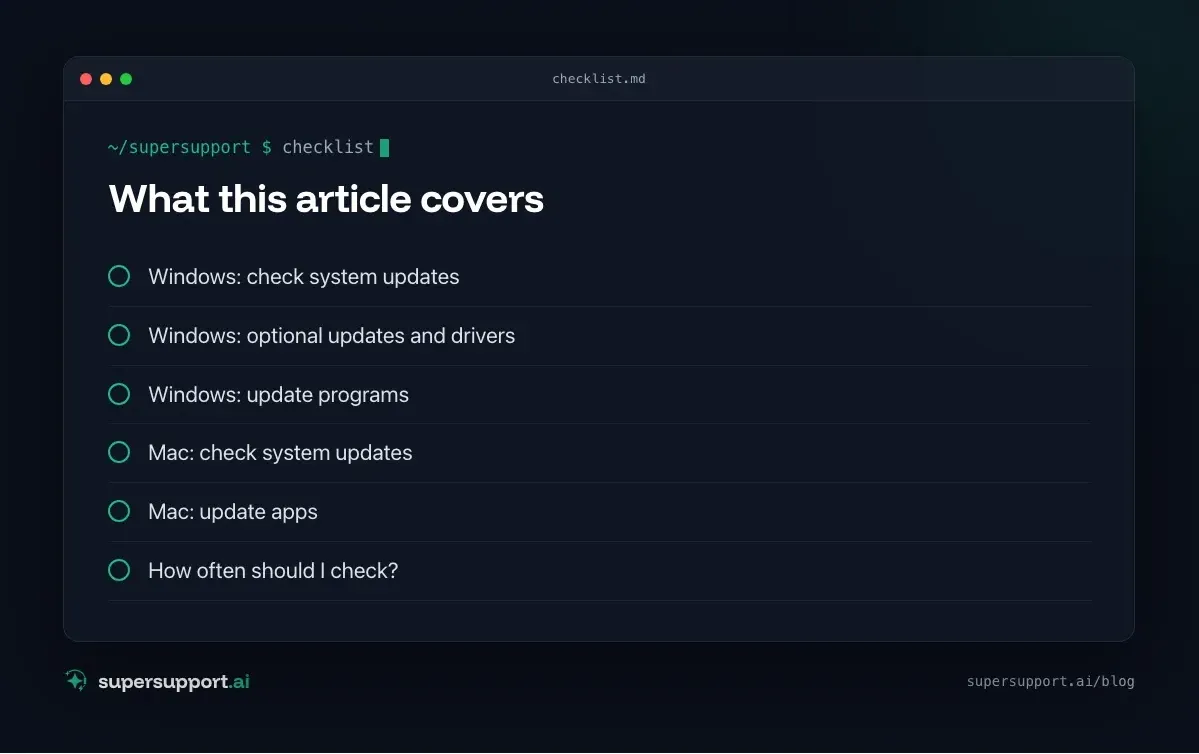
Windows: optional updates and drivers
This is where the updates that many people overlook are hiding. Windows doesn't always install driver updates automatically.
- Settings › Windows Update › Advanced options › Optional updates.
- Expand Driver updates.
- Select the updates you want › Download & install.
In the real-world case, those were the “2 updates available”: two Realtek drivers. Such updates aren't strictly necessary, but they often fix problems with sound, Wi-Fi or network.
If a driver update fails:
- Restart and try again – often a pending restart blocks the installation.
- Start the installation through the Windows Update settings instead of other routes – that is how it succeeded in the real-world case.
- If the device manufacturer uses its own tool (for business laptops, for example), better get the drivers there – they are matched to the model.
- Note the error code under Update history and pass it to IT.
Windows: update programs
Windows Update takes care of Windows, Office and Edge – not of all programs. For the rest:
- Browsers (Chrome, Firefox) usually update themselves – under Help › About … you can see the version.
- Microsoft Store apps: Store › Library › Get updates.
- winget shows which installed programs have updates:
winget upgradeIn companies, IT usually handles this through software distribution – then don't install yourself, just report it if something looks outdated.
Mac: check system updates
- Apple menu › System Settings › General › Software Update.
- macOS checks for updates. If it says “Your Mac is up to date”, everything is installed.
- Under Automatic updates (the small “i”), set Security Responses and system files to install automatically.

Beta
IT support that fixes itself.
supersupport.ai handles your 1st-level support fully automatically. Secure your spot on the waitlist now.
Join the WaitlistWhich macOS version is running: Apple menu › About This Mac.
In Terminal, this command shows available updates without installing anything:
softwareupdate --listIt takes a moment because macOS checks with Apple.
Important: a new major macOS upgrade (new major version) is offered separately. In a company setting, it is worth checking with IT beforehand whether all programs already work with it. Security updates for the version you are running should always be installed promptly, though.
Mac: update apps
- App Store › Updates – for all apps that come from the App Store.
- Other apps (browsers, Office, Zoom, PDF programs) usually through the app menu › Check for Updates.
- Microsoft Office for Mac through Microsoft AutoUpdate (Help › Check for Updates).
How often should I check?
- Windows security updates arrive on the second Tuesday of the month (“Patch Tuesday”). A quick check once a month is enough if automatic updates are active.
- Don't postpone restarts for weeks – an installed but not activated update doesn't protect you.
- Company devices: IT often controls updates centrally. Then the most important task is to allow restarts.
More on security on the device: Is my PC secure?, Is my Mac secure? and KB2267602 – the Defender update.
How does SuperSupport help with updates?
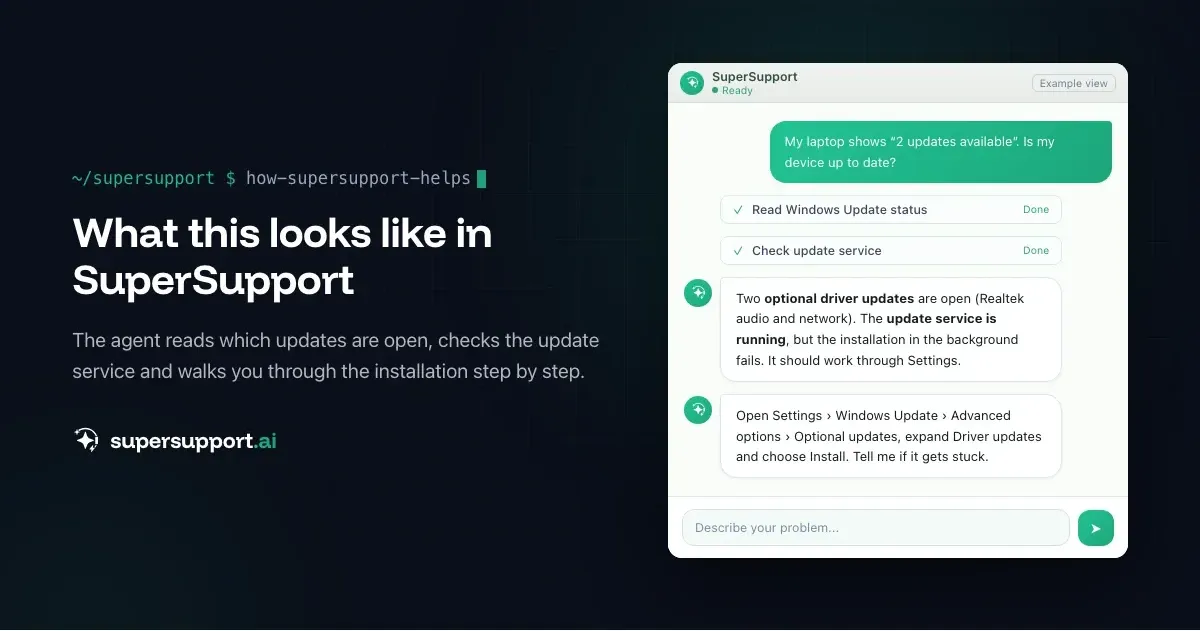
In the real-world case, the SuperSupport agent read on the Windows laptop which two updates were involved, checked whether the update service was running and – when the installation in the background failed – opened the Windows Update settings and walked through the installation step by step. On the Mac, it checked the installed macOS version. What this looks like for internal IT teams and MSPs is described on the respective pages.
Frequently asked questions
How do I check on Windows whether all updates are installed?
Settings › Windows Update › Check for updates. Also look under Advanced options › Optional updates – driver updates are often listed there. Windows Update › Update history shows the history.
How do I check on a Mac whether all updates are installed?
System Settings › General › Software Update. macOS shows available system and security updates there. Apps from the App Store are updated in the App Store under Updates, other apps usually through their own update function.
What are optional updates on Windows?
Updates that Windows doesn't install automatically – mostly drivers for graphics, audio, network or chipset, plus preview updates. They aren't strictly necessary, but they often fix problems with specific hardware.
Why does a driver update fail?
Common reasons are a pending restart, another update already running, a driver that is currently in use, or a conflict with a driver from the device manufacturer. A restart and a second attempt through the Windows Update settings often help.
Are programs like browsers, PDF readers or Office also updated through Windows Update?
Microsoft Office and Edge usually are, many other programs are not. Browsers such as Chrome or Firefox usually update themselves, other programs through their own update function or – on Windows – with winget.
Beta
IT support that fixes itself.
supersupport.ai handles your 1st-level support fully automatically. Secure your spot on the waitlist now.
Join the WaitlistNico Haslberger is Co-Founder & CEO of SuperSupport.ai. With years of experience as an IT technician, he knows the problems in IT support first-hand: from overloaded help desks to recurring tickets that slow teams down. That knowledge is built into every feature of the platform today. He makes sure SuperSupport.ai solves exactly the problems he experienced himself for years.
This article was created with AI assistance and editorially reviewed.
Related Articles

Program Not Responding: How to Close It Properly
“Not responding” and nothing works? Here's how to close frozen programs cleanly on Windows – even if the process has another name or runs several times.


Outlook Keeps Crashing: Find the Cause and Fix It for Good
Outlook keeps crashing, but the event log shows nothing? Here's how to find the trigger – from add-ins and the cache to a corrupted profile.

Printer Not Printing: Fix the Print Spooler
No printers visible anymore or jobs stuck? Often the Windows Print Spooler is stopped or disabled. Here is how to check and repair it.