;}.cls-2{fill:url(%23Unbenannter_Verlauf_5-2);}.cls-3{fill:url(%23Unbenannter_Verlauf_5-5);}.cls-4{fill:url(%23Unbenannter_Verlauf_5-6);}.cls-5{fill:url(%23Unbenannter_Verlauf_5-3);}.cls-6{fill:url(%23Unbenannter_Verlauf_5-4);}%3c/style%3e%3clinearGradient%20id='Unbenannter_Verlauf_5'%20x1='1075.02'%20y1='943.06'%20x2='1201.78'%20y2='943.06'%20gradientUnits='userSpaceOnUse'%3e%3cstop%20offset='0'%20stop-color='%2322b88a'/%3e%3cstop%20offset='1'%20stop-color='%231a9e78'/%3e%3c/linearGradient%3e%3clinearGradient%20id='Unbenannter_Verlauf_5-2'%20x1='234.11'%20y1='663.43'%20x2='1058.29'%20y2='663.43'%20xlink:href='%23Unbenannter_Verlauf_5'/%3e%3clinearGradient%20id='Unbenannter_Verlauf_5-3'%20x1='843.79'%20y1='1064.84'%20x2='1096.04'%20y2='1064.84'%20xlink:href='%23Unbenannter_Verlauf_5'/%3e%3clinearGradient%20id='Unbenannter_Verlauf_5-4'%20x1='1120.37'%20y1='662.1'%20x2='1253'%20y2='662.1'%20xlink:href='%23Unbenannter_Verlauf_5'/%3e%3clinearGradient%20id='Unbenannter_Verlauf_5-5'%20x1='97.45'%20y1='265.53'%20x2='385.89'%20y2='265.53'%20xlink:href='%23Unbenannter_Verlauf_5'/%3e%3clinearGradient%20id='Unbenannter_Verlauf_5-6'%20x1='295.45'%20y1='255.64'%20x2='1213.95'%20y2='255.64'%20xlink:href='%23Unbenannter_Verlauf_5'/%3e%3c/defs%3e%3cpath%20class='cls-1'%20d='M1201.78,871c-.61,1.55-1.23,3.1-1.86,4.66-20.33,50.18-47.14,96.85-80.02,139.45-7.56-13.82-21.78-22.31-37.69-22.31h-7.19c29.82-37.26,54.46-78.02,73.61-121.8h53.15Z'/%3e%3cpath%20class='cls-2'%20d='M665.24,264.59l69.02,186.52c21.3,57.57,66.69,102.96,124.26,124.26l186.52,69.02c17.67,6.54,17.67,31.54,0,38.08l-186.52,69.02c-57.57,21.3-102.96,66.69-124.26,124.26l-69.02,186.52c-6.54,17.67-31.54,17.67-38.08,0l-69.02-186.52c-21.3-57.57-66.69-102.96-124.26-124.26l-186.52-69.02c-17.67-6.54-17.67-31.54,0-38.08l186.52-69.02c57.57-21.3,102.96-66.69,124.26-124.26l69.02-186.52c6.54-17.67,31.54-17.67,38.08,0Z'/%3e%3cpath%20class='cls-5'%20d='M1082.21,1021.98h-79.13c-1.7,0-2.97-1.56-2.62-3.23l22.72-109.35c2.94-14.16-15.11-22.74-24.23-11.51l-152.04,187.31c-7.32,9.02-.9,22.5,10.72,22.5h79.13c1.7,0,2.97,1.56,2.62,3.23l-22.72,109.35c-2.94,14.16,15.11,22.74,24.23,11.51l152.04-187.31c7.32-9.02.9-22.5-10.72-22.5Z'/%3e%3crect%20class='cls-6'%20x='1120.37'%20y='486.36'%20width='132.63'%20height='351.48'%20rx='19.58'%20ry='19.58'/%3e%3cpath%20class='cls-3'%20d='M250.58,128.27l13.88,55.81c7.19,28.91,29.76,51.47,58.66,58.66l55.81,13.88c9.29,2.31,9.29,15.51,0,17.82l-55.81,13.88c-28.91,7.19-51.47,29.76-58.66,58.66l-13.88,55.81c-2.31,9.29-15.51,9.29-17.82,0l-13.88-55.81c-7.19-28.91-29.76-51.47-58.66-58.66l-55.81-13.88c-9.29-2.31-9.29-15.51,0-17.82l55.81-13.88c28.91-7.19,51.47-29.76,58.66-58.66l13.88-55.81c2.31-9.29,15.51-9.29,17.82,0Z'/%3e%3cpath%20class='cls-4'%20d='M1213.95,453.21h-67.62c-1.23,0-2.47.04-3.67.12-27.03-63.89-65.84-121.36-115.42-170.94-51.54-51.54-111.61-91.44-178.55-118.59-64.67-26.22-133.03-39.52-203.16-39.52s-138.48,13.3-203.16,39.52c-33.73,13.67-65.72,30.61-95.75,50.63l-.19-.05c-23.62-5.88-42.51-22.85-51-45.24,37.87-26.86,78.65-49.21,122.01-66.79,72.63-29.44,149.37-44.38,228.08-44.38s155.45,14.93,228.08,44.38c75.2,30.51,142.67,75.31,200.53,133.15,57.84,57.85,102.65,125.33,133.15,200.53,2.31,5.7,4.54,11.43,6.66,17.19Z'/%3e%3c/svg%3e)
Docking Station Not Working: USB-C, LAN, Charging
Laptop on the docking station: monitors black, mouse dead, no network, or no charging? Find the cause on Windows and macOS.

The docking station is often not broken. It just is not getting enough power, or it has the wrong driver.
In the morning you connect the laptop to the docking station, and nothing works: monitors stay black, the mouse and keyboard do not respond, the network is missing, or the battery does not charge. A docking station is basically many devices in one housing: network card, USB hub, video output, audio, power adapter. That is why it helps to first find out what exactly is not working.
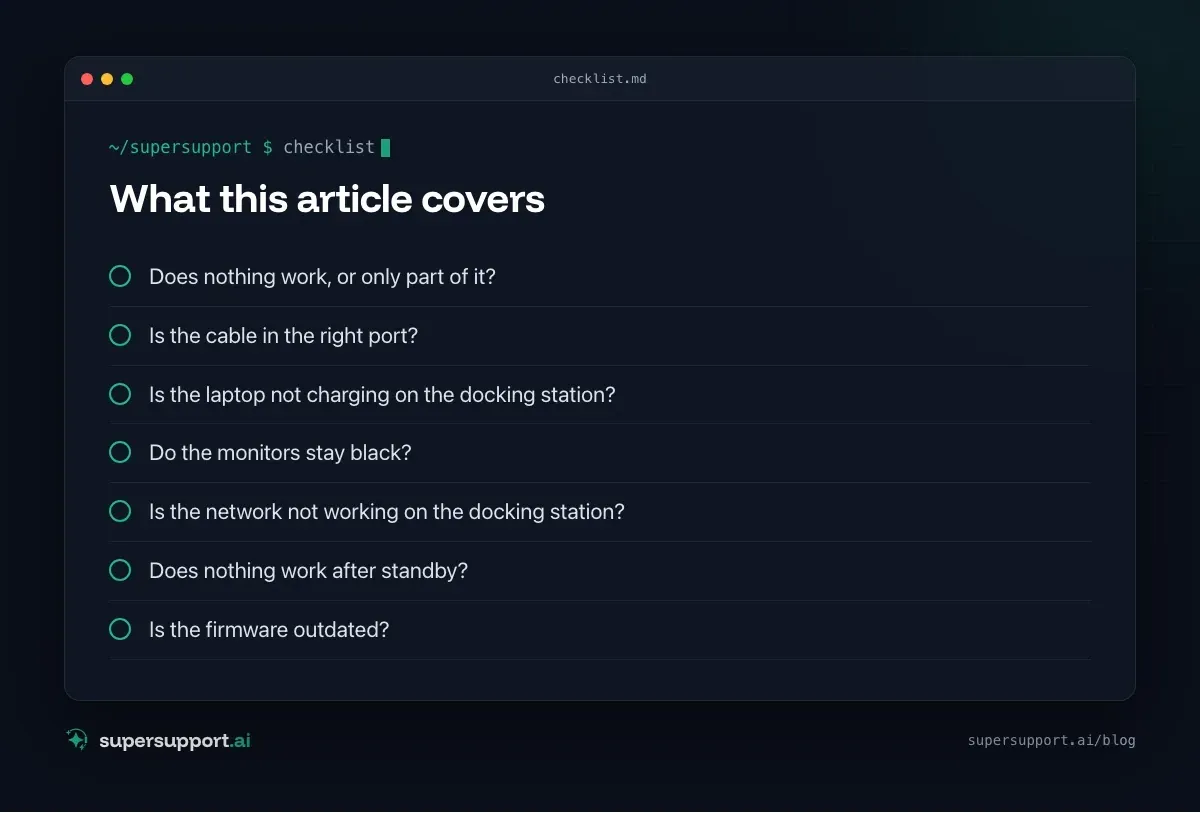
Does nothing work, or only part of it?
The answer shows the direction:
- Nothing works, no charging – wrong port, cable, power supply
- Charging works, nothing else – data connection, power-saving mode, firmware
- Mouse and keyboard work, monitors black – video output, DisplayLink driver
- Everything works except the network – the docking station's network adapter
- Dead after waking from standby – power-saving mode
- No sound – output device, see No sound on laptop
Is the cable in the right port?
Not every USB-C port on the laptop can do everything. Many laptops have two or three USB-C ports, but only one or two support video output, Thunderbolt, or charging.
- Look for the symbols next to the port: lightning bolt (Thunderbolt), D symbol (DisplayPort), plug or battery (charging).
- Pull the cable out firmly at both the laptop and the docking station and plug it back in.
- Use only the cable that came with it. Many USB-C cables are charge-only and transmit no video and hardly any data.
Is the laptop not charging on the docking station?
Usually the docking station delivers too little power. A laptop that needs 90 watts charges slowly on a 60-watt dock, not at all, or only when it is switched off.
- The wattage is printed on the docking station's power adapter, and it has to match the laptop's power adapter.
- Windows then often reports “Slow charger” or “Plugged in, not charging”.
- See also Laptop battery not charging.
Do the monitors stay black?
Check the display settings first:
- Windows: Win + P → Extend. Under Settings → System → Display, click Detect.
- macOS: System Settings → Displays.
If the mouse and keyboard work but the monitors stay black, it is often a DisplayLink docking station. It needs its own driver:
- On Windows, search for “DisplayLink” under Settings → Apps. If it is missing or old, IT has to install or update it.
- On macOS, DisplayLink needs the DisplayLink Manager app and permission for Screen Recording under Privacy & Security. Without that permission, the screen stays black.
More on monitor problems: Second monitor not detected and External monitor: no signal after BIOS update.
Is the network not working on the docking station?
The docking station's network port is a separate adapter, with its own driver and its own hardware address.
Windows:
- Settings → Network & internet → Ethernet: is an adapter shown?
- Right-click Start → Device Manager → Network adapters: does something like “USB Ethernet” or “Realtek USB GbE” show up? Is it disabled or marked with a yellow warning icon?
- In PowerShell,
Get-NetAdaptershows all adapters with their status.
macOS: System Settings → Network. The adapter is often called “USB 10/100/1000 LAN” or named after the manufacturer.
In company networks with access control, often only the hardware address of certain adapters is approved. A new dock then gets no network until IT approves it. If Wi-Fi is active, at least that works; see Internet connection unstable.

14 days free
IT support that fixes itself.
SuperSupport fixes IT problems right on the device, before they turn into tickets. Try it free for 14 days.
Start free trial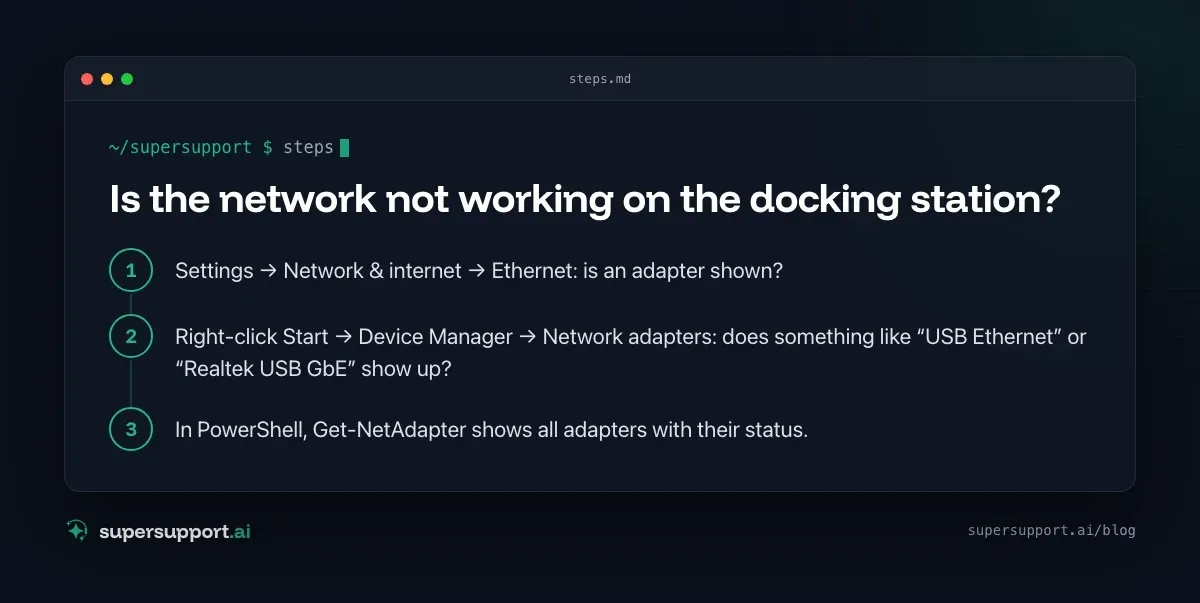
Does nothing work after standby?
Windows likes to switch off USB devices to save power, and sometimes does not switch them back on.
- Device Manager → USB controllers → for each one, Properties → Power Management → clear the checkmark for “Allow the computer to turn off this device to save power”.
- Under Control Panel → Power Options → Change plan settings → Change advanced power settings → USB settings, disable the USB selective suspend setting.
- A short-term fix: unplug the cable, wait 10 seconds, plug it back in.
Is the firmware outdated?
Docking stations have their own firmware, and laptops often need current BIOS and Thunderbolt drivers so that the dock runs reliably. Manufacturers such as Dell, Lenovo, and HP offer their own update tools for this.
In companies, firmware and BIOS updates should go through IT, because an interrupted update can make the device unusable.
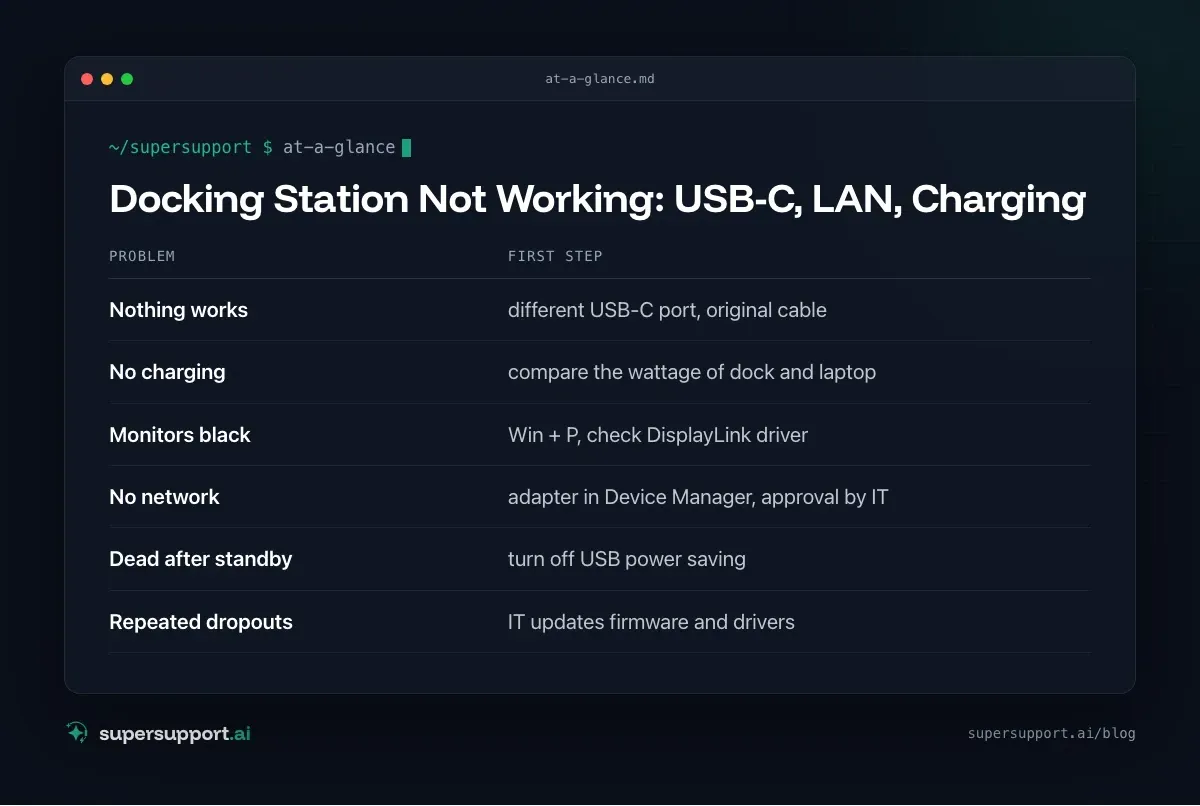
At a glance: docking station not working
- Nothing works – different USB-C port, original cable
- No charging – compare the wattage of dock and laptop
- Monitors black – Win + P, check DisplayLink driver
- No network – adapter in Device Manager, approval by IT
- Dead after standby – turn off USB power saving
- Repeated dropouts – IT updates firmware and drivers
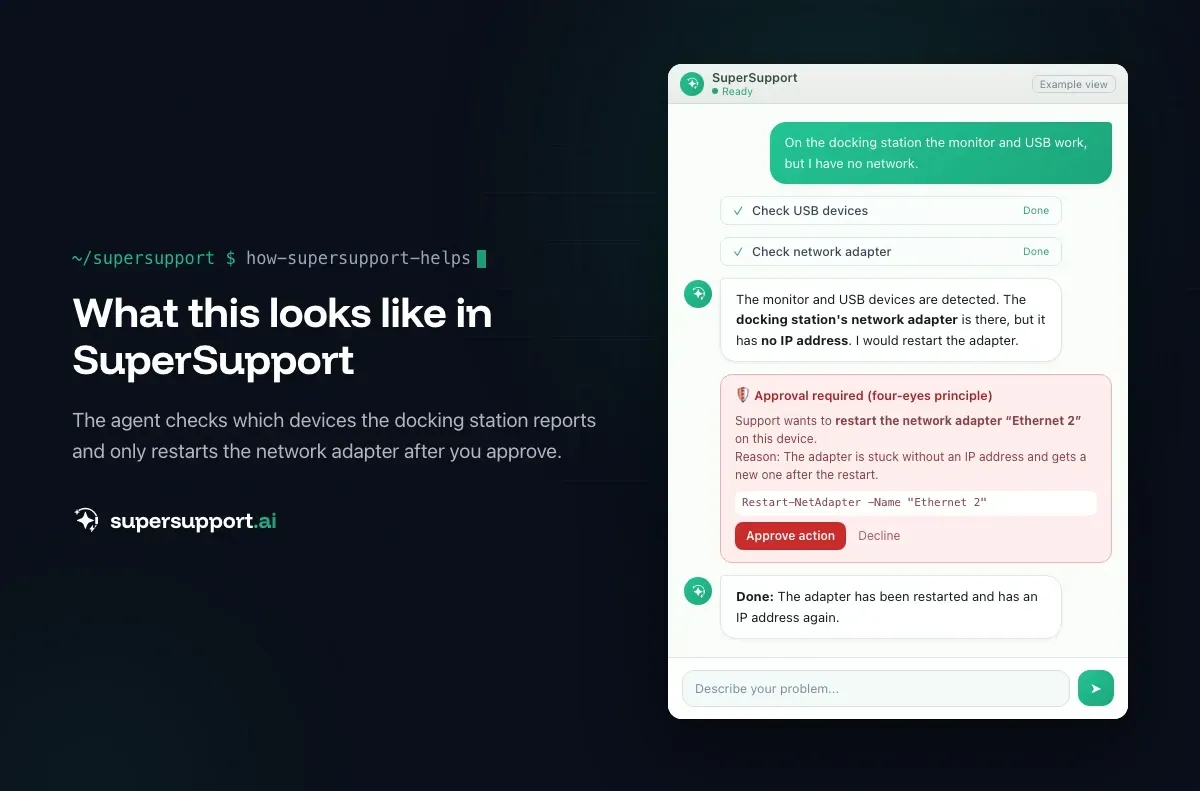
How does SuperSupport help with docking station problems?
On the Windows or Mac device, the SuperSupport agent checks which USB, network, audio, and display devices of the docking station are detected, which drivers are running, whether adapters are disabled, and whether power-saving settings interfere. It handles harmless things like restarting a network adapter itself, and it submits driver, firmware, and BIOS updates to IT for approval. Every step is logged. What that looks like for internal IT teams and MSPs is described on the respective pages.
Frequently asked questions
Why did my docking station suddenly stop working?
Often it is the wrong USB-C port on the laptop, a cable without data or video transmission, a power-saving mode that no longer addresses the docking station after waking up, or outdated firmware or a missing driver, for example with DisplayLink docks.
Why is my laptop not charging on the docking station?
The docking station's power adapter delivers too little power for the laptop, the cable does not support power delivery, or the laptop only charges on one particular USB-C port. The wattage is printed on the docking station's power adapter and has to match the laptop.
Why is the network not working on the docking station?
The docking station's network adapter is a separate device with its own driver. If it is disabled, the driver is missing, or the device has a different hardware address than the one approved on the company network, there is no connection. Check in Device Manager or in the network settings.
What is DisplayLink and why do I need it?
Some docking stations do not transmit video directly over USB-C but use DisplayLink technology. Windows or macOS then needs a dedicated driver. If it is missing or outdated, the monitors stay black even though the mouse and keyboard work.
Can SuperSupport help with docking station problems?
Yes. On the Windows or Mac device, the agent checks which USB, network, and display devices of the docking station are detected, which drivers are running, and whether power-saving settings interfere. It handles harmless things like restarting an adapter itself, and it submits driver and firmware updates to IT for approval.
14 days free
IT support that fixes itself.
SuperSupport fixes IT problems right on the device, before they turn into tickets. Try it free for 14 days.
Start free trialNico Haslberger is Co-Founder & CEO of SuperSupport.ai. With years of experience as an IT technician, he knows the problems in IT support first-hand: from overloaded help desks to recurring tickets that slow teams down. That knowledge is built into every feature of the platform today. He makes sure SuperSupport.ai solves exactly the problems he experienced himself for years.
This article was created with AI assistance and editorially reviewed.
Related Articles
IT Emergency Plan for SMBs: A Template in 8 Steps
Ransomware, server outage, locked mailbox – plan ahead and you lose hours instead of days. How to build a lean IT emergency plan for SMBs.

Help Desk Metrics: The 8 KPIs That Actually Matter
First contact resolution, time to resolution, reopen rate, cost per case: the help desk metrics small IT teams and MSPs should track, with formulas.
Print Spooler Won't Restart: What to Do
The Print Spooler hangs, restarting it fails or the service keeps stopping? How to kill it, clear the print queue and find the driver that crashes it.