;}.cls-2{fill:url(%23Unbenannter_Verlauf_5-2);}.cls-3{fill:url(%23Unbenannter_Verlauf_5-5);}.cls-4{fill:url(%23Unbenannter_Verlauf_5-6);}.cls-5{fill:url(%23Unbenannter_Verlauf_5-3);}.cls-6{fill:url(%23Unbenannter_Verlauf_5-4);}%3c/style%3e%3clinearGradient%20id='Unbenannter_Verlauf_5'%20x1='1075.02'%20y1='943.06'%20x2='1201.78'%20y2='943.06'%20gradientUnits='userSpaceOnUse'%3e%3cstop%20offset='0'%20stop-color='%2322b88a'/%3e%3cstop%20offset='1'%20stop-color='%231a9e78'/%3e%3c/linearGradient%3e%3clinearGradient%20id='Unbenannter_Verlauf_5-2'%20x1='234.11'%20y1='663.43'%20x2='1058.29'%20y2='663.43'%20xlink:href='%23Unbenannter_Verlauf_5'/%3e%3clinearGradient%20id='Unbenannter_Verlauf_5-3'%20x1='843.79'%20y1='1064.84'%20x2='1096.04'%20y2='1064.84'%20xlink:href='%23Unbenannter_Verlauf_5'/%3e%3clinearGradient%20id='Unbenannter_Verlauf_5-4'%20x1='1120.37'%20y1='662.1'%20x2='1253'%20y2='662.1'%20xlink:href='%23Unbenannter_Verlauf_5'/%3e%3clinearGradient%20id='Unbenannter_Verlauf_5-5'%20x1='97.45'%20y1='265.53'%20x2='385.89'%20y2='265.53'%20xlink:href='%23Unbenannter_Verlauf_5'/%3e%3clinearGradient%20id='Unbenannter_Verlauf_5-6'%20x1='295.45'%20y1='255.64'%20x2='1213.95'%20y2='255.64'%20xlink:href='%23Unbenannter_Verlauf_5'/%3e%3c/defs%3e%3cpath%20class='cls-1'%20d='M1201.78,871c-.61,1.55-1.23,3.1-1.86,4.66-20.33,50.18-47.14,96.85-80.02,139.45-7.56-13.82-21.78-22.31-37.69-22.31h-7.19c29.82-37.26,54.46-78.02,73.61-121.8h53.15Z'/%3e%3cpath%20class='cls-2'%20d='M665.24,264.59l69.02,186.52c21.3,57.57,66.69,102.96,124.26,124.26l186.52,69.02c17.67,6.54,17.67,31.54,0,38.08l-186.52,69.02c-57.57,21.3-102.96,66.69-124.26,124.26l-69.02,186.52c-6.54,17.67-31.54,17.67-38.08,0l-69.02-186.52c-21.3-57.57-66.69-102.96-124.26-124.26l-186.52-69.02c-17.67-6.54-17.67-31.54,0-38.08l186.52-69.02c57.57-21.3,102.96-66.69,124.26-124.26l69.02-186.52c6.54-17.67,31.54-17.67,38.08,0Z'/%3e%3cpath%20class='cls-5'%20d='M1082.21,1021.98h-79.13c-1.7,0-2.97-1.56-2.62-3.23l22.72-109.35c2.94-14.16-15.11-22.74-24.23-11.51l-152.04,187.31c-7.32,9.02-.9,22.5,10.72,22.5h79.13c1.7,0,2.97,1.56,2.62,3.23l-22.72,109.35c-2.94,14.16,15.11,22.74,24.23,11.51l152.04-187.31c7.32-9.02.9-22.5-10.72-22.5Z'/%3e%3crect%20class='cls-6'%20x='1120.37'%20y='486.36'%20width='132.63'%20height='351.48'%20rx='19.58'%20ry='19.58'/%3e%3cpath%20class='cls-3'%20d='M250.58,128.27l13.88,55.81c7.19,28.91,29.76,51.47,58.66,58.66l55.81,13.88c9.29,2.31,9.29,15.51,0,17.82l-55.81,13.88c-28.91,7.19-51.47,29.76-58.66,58.66l-13.88,55.81c-2.31,9.29-15.51,9.29-17.82,0l-13.88-55.81c-7.19-28.91-29.76-51.47-58.66-58.66l-55.81-13.88c-9.29-2.31-9.29-15.51,0-17.82l55.81-13.88c28.91-7.19,51.47-29.76,58.66-58.66l13.88-55.81c2.31-9.29,15.51-9.29,17.82,0Z'/%3e%3cpath%20class='cls-4'%20d='M1213.95,453.21h-67.62c-1.23,0-2.47.04-3.67.12-27.03-63.89-65.84-121.36-115.42-170.94-51.54-51.54-111.61-91.44-178.55-118.59-64.67-26.22-133.03-39.52-203.16-39.52s-138.48,13.3-203.16,39.52c-33.73,13.67-65.72,30.61-95.75,50.63l-.19-.05c-23.62-5.88-42.51-22.85-51-45.24,37.87-26.86,78.65-49.21,122.01-66.79,72.63-29.44,149.37-44.38,228.08-44.38s155.45,14.93,228.08,44.38c75.2,30.51,142.67,75.31,200.53,133.15,57.84,57.85,102.65,125.33,133.15,200.53,2.31,5.7,4.54,11.43,6.66,17.19Z'/%3e%3c/svg%3e)
Remove Local Admin Rights: How to Do It Without Chaos
Admin rights are a security risk, but removing them floods the helpdesk. How SMBs remove local admin rights: preparation, LAPS, Intune, GPO, exceptions.

Local admin rights are convenient. For attackers too.
“Can you give me admin rights real quick? I just need to install something.” In many small companies the answer has been the same for years: everyone has them anyway. Convenient – until an email attachment runs with the same rights and switches off the security software.
The opposite movement shows up in our support cases as well: after admin rights are removed, questions like “I can't change the IP address anymore” or “The printer driver won't install” come in. See Change IP address without admin rights. Both show: removing admin rights is the right thing to do – but it takes preparation.
Why local admin rights are a risk
Everything the user starts runs with their rights. With admin rights, that means:
- Malware can install services, settle in permanently and switch off security software.
- Users install unvetted software – including browser extensions and AI tools. See Shadow AI in the company.
- Settings that IT sets centrally can be overridden locally.
Many questionnaires from cyber insurers therefore explicitly ask whether users work without local admin rights.
Step 1: Take stock
Before you remove rights: who has them, and what are they needed for?
- Who is a member of the local Administrators group? On a device:
net localgroup Administrators(on German-language Windows:Administratoren). - What are admin rights used for? Ask the employees – and go through the tickets of the last few months.
- Which software needs admin rights at launch or update? Often line-of-business software, card readers, older industry-specific programs.
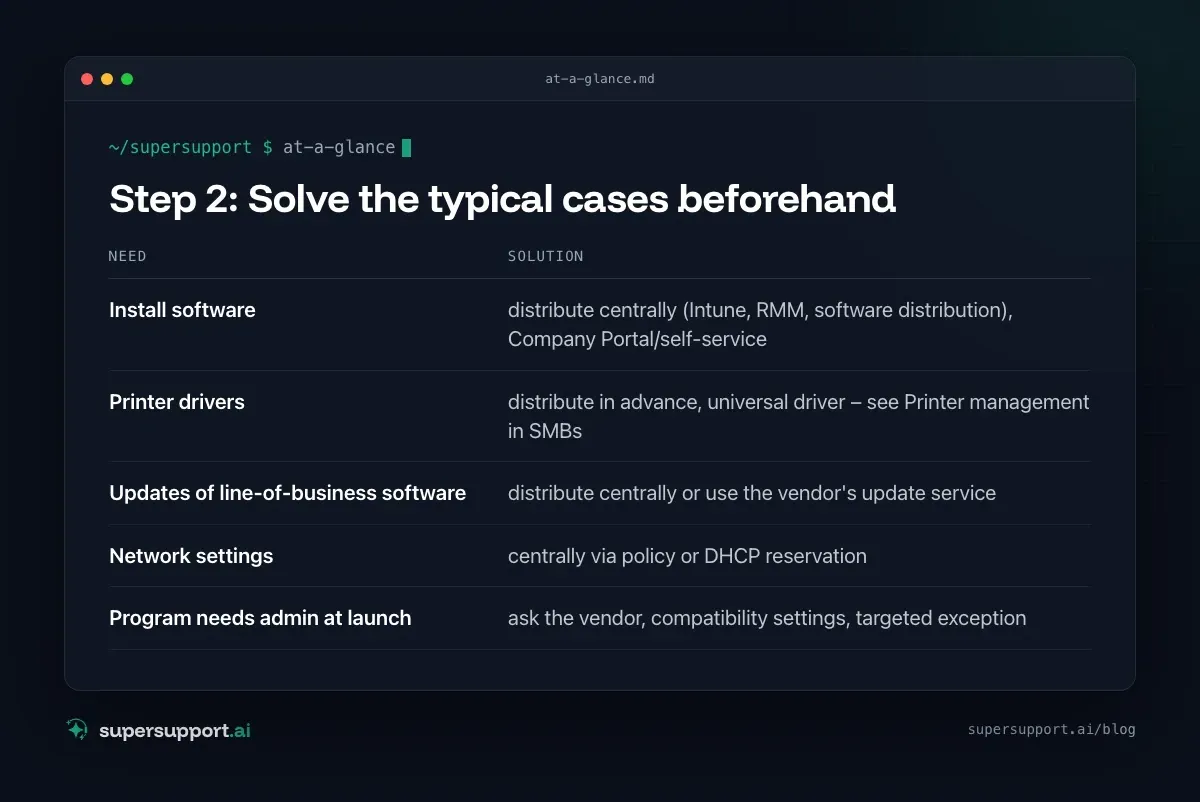
Step 2: Solve the typical cases beforehand
Most admin needs are always the same – and can be solved centrally:
- Install software – distribute centrally (Intune, RMM, software distribution), Company Portal/self-service
- Printer drivers – distribute in advance, universal driver – see Printer management in SMBs
- Updates of line-of-business software – distribute centrally or use the vendor's update service
- Network settings – centrally via policy or DHCP reservation
- Program needs admin at launch – ask the vendor, compatibility settings, targeted exception
Step 3: Turn on Windows LAPS
Each device gets its own random password for the local administrator account.
Windows LAPS is built into current Windows versions. It:
- sets a separate password per device,
- changes it regularly,
- stores it in Entra ID or Active Directory, where only authorized administrators can retrieve it.
Set it up in Intune under Endpoint security › Account protection › Local Admin Password Solution (Windows LAPS), in a domain via Group Policy. That leaves an emergency access without the same password sitting on all devices.
Step 4: Remove admin rights centrally
Not device by device, but via policy – otherwise the rights come back.

14 days free
IT support that fixes itself.
SuperSupport fixes IT problems right on the device, before they turn into tickets. Try it free for 14 days.
Start free trial- Intune: Endpoint security › Account protection › policy Local user group membership. Define who may be in the Administrators group – for example only the LAPS account and a group of IT administrators.
- Group Policy (domain): Computer Configuration › Preferences › Control Panel Settings › Local Users and Groups – or Restricted Groups.
- For Entra ID devices: Check whether users automatically become local admins at registration. In Entra ID under Devices › Device settings this can be turned off for new devices.
Proceed in stages: first a pilot group, then department by department.
Step 5: Handle exceptions
There are exceptions – but they should be specific, time-limited and traceable.
- Approve individual programs instead of blanket rights – for example with Endpoint Privilege Management in Intune or comparable tools for privilege management.
- A separate admin account for employees who administer regularly (e.g. in engineering) – not for everyday work, only when needed.
- Document who has which exception and why.
Step 6: Make the support path clear
After the removal, the number of requests rises in the short term. That is normal – what matters is that they are resolved quickly:
- Employees know where to request software or a setting.
- Frequent requests are collected and solved permanently (see Helpdesk metrics).
- IT can carry out elevated tasks in a targeted way without the user getting permanent rights.
How does SuperSupport help without admin rights?
This is exactly where SuperSupport comes in: the user describes in the chat what they need – a setting, a printer, a program. The agent on the Windows or Mac device checks what is going on, takes care of harmless things itself and submits steps that need elevated rights to IT for approval. The user does not get admin rights, and IT sees every step in the log. What that looks like for internal IT teams and MSPs is explained on the respective pages.
Frequently asked questions
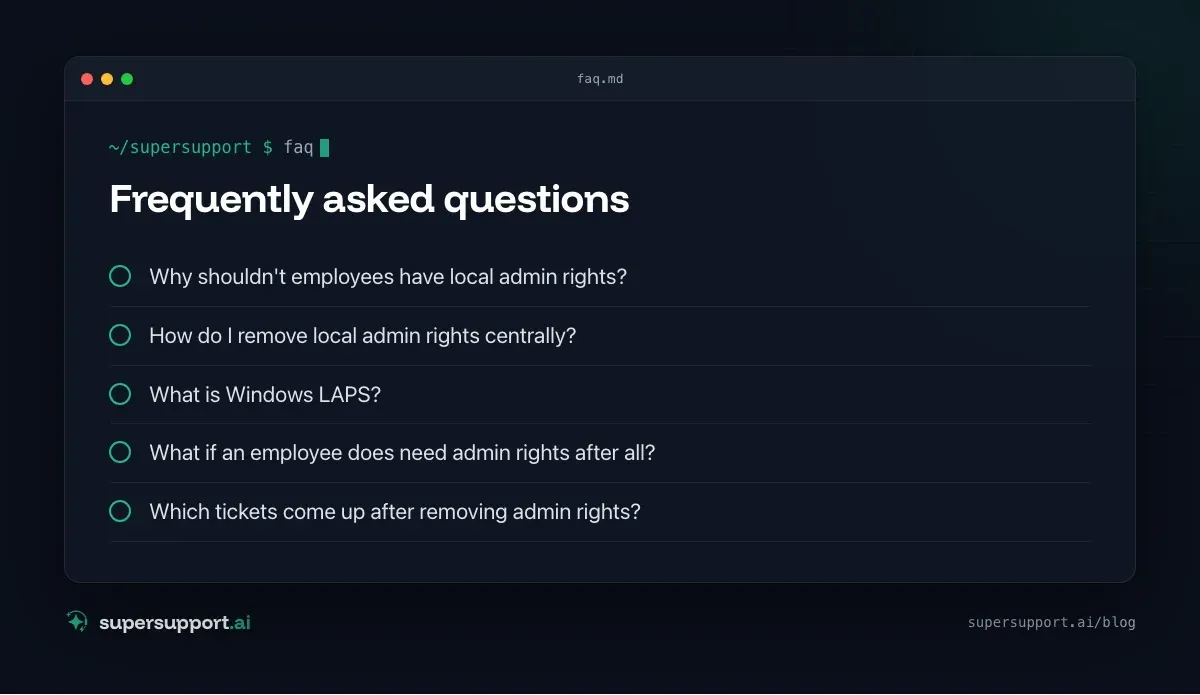
Why shouldn't employees have local admin rights?
Because everything the user runs then runs with full rights – including malware from an email attachment. Without admin rights, malicious code can do much less damage: it can't install services, switch off security software or change system files. Many cyber insurers and security frameworks therefore ask about it.
How do I remove local admin rights centrally?
In Intune under Endpoint security › Account protection with a policy for local user groups, in a domain via Group Policy (Restricted Groups or Preferences › Local Users and Groups). First clarify which accounts should stay in the local Administrators group.
What is Windows LAPS?
The Local Administrator Password Solution built into Windows. It sets a separate, random password for the local administrator account on each device, changes it regularly and stores it in Entra ID or Active Directory. That way not every device has the same admin password.
What if an employee does need admin rights after all?
Don't grant them permanently. Solve the specific task instead: distribute the software centrally, set up an exception for a specific program, or have IT carry out the task. Tools for privilege management (such as Endpoint Privilege Management) allow elevated rights for individual, approved programs.
Which tickets come up after removing admin rights?
Typical ones are software installations, printer drivers, network settings such as a fixed IP address, updates of line-of-business software and devices such as card readers. If you collect these cases beforehand and solve them centrally, you keep the wave of tickets small.
14 days free
IT support that fixes itself.
SuperSupport fixes IT problems right on the device, before they turn into tickets. Try it free for 14 days.
Start free trialNico Haslberger is Co-Founder & CEO of SuperSupport.ai. With years of experience as an IT technician, he knows the problems in IT support first-hand: from overloaded help desks to recurring tickets that slow teams down. That knowledge is built into every feature of the platform today. He makes sure SuperSupport.ai solves exactly the problems he experienced himself for years.
This article was created with AI assistance and editorially reviewed.
Related Articles
Restart a Windows Service Automatically If It Stops
A program feature suddenly stops working because a background service stopped? Find the service and have Windows restart it automatically from now on.


Microsoft 365 Quarantine: How to Release an Email
An important email is stuck in Microsoft 365 quarantine? Here is how to check it, release it, and keep it from happening again.
Roll Back a Driver in Windows After a Bad Update
Screen flickering or sound gone since the driver update? How to roll back the driver, read the versions and stop it from being reinstalled.