;}.cls-2{fill:url(%23Unbenannter_Verlauf_5-2);}.cls-3{fill:url(%23Unbenannter_Verlauf_5-5);}.cls-4{fill:url(%23Unbenannter_Verlauf_5-6);}.cls-5{fill:url(%23Unbenannter_Verlauf_5-3);}.cls-6{fill:url(%23Unbenannter_Verlauf_5-4);}%3c/style%3e%3clinearGradient%20id='Unbenannter_Verlauf_5'%20x1='1075.02'%20y1='943.06'%20x2='1201.78'%20y2='943.06'%20gradientUnits='userSpaceOnUse'%3e%3cstop%20offset='0'%20stop-color='%2322b88a'/%3e%3cstop%20offset='1'%20stop-color='%231a9e78'/%3e%3c/linearGradient%3e%3clinearGradient%20id='Unbenannter_Verlauf_5-2'%20x1='234.11'%20y1='663.43'%20x2='1058.29'%20y2='663.43'%20xlink:href='%23Unbenannter_Verlauf_5'/%3e%3clinearGradient%20id='Unbenannter_Verlauf_5-3'%20x1='843.79'%20y1='1064.84'%20x2='1096.04'%20y2='1064.84'%20xlink:href='%23Unbenannter_Verlauf_5'/%3e%3clinearGradient%20id='Unbenannter_Verlauf_5-4'%20x1='1120.37'%20y1='662.1'%20x2='1253'%20y2='662.1'%20xlink:href='%23Unbenannter_Verlauf_5'/%3e%3clinearGradient%20id='Unbenannter_Verlauf_5-5'%20x1='97.45'%20y1='265.53'%20x2='385.89'%20y2='265.53'%20xlink:href='%23Unbenannter_Verlauf_5'/%3e%3clinearGradient%20id='Unbenannter_Verlauf_5-6'%20x1='295.45'%20y1='255.64'%20x2='1213.95'%20y2='255.64'%20xlink:href='%23Unbenannter_Verlauf_5'/%3e%3c/defs%3e%3cpath%20class='cls-1'%20d='M1201.78,871c-.61,1.55-1.23,3.1-1.86,4.66-20.33,50.18-47.14,96.85-80.02,139.45-7.56-13.82-21.78-22.31-37.69-22.31h-7.19c29.82-37.26,54.46-78.02,73.61-121.8h53.15Z'/%3e%3cpath%20class='cls-2'%20d='M665.24,264.59l69.02,186.52c21.3,57.57,66.69,102.96,124.26,124.26l186.52,69.02c17.67,6.54,17.67,31.54,0,38.08l-186.52,69.02c-57.57,21.3-102.96,66.69-124.26,124.26l-69.02,186.52c-6.54,17.67-31.54,17.67-38.08,0l-69.02-186.52c-21.3-57.57-66.69-102.96-124.26-124.26l-186.52-69.02c-17.67-6.54-17.67-31.54,0-38.08l186.52-69.02c57.57-21.3,102.96-66.69,124.26-124.26l69.02-186.52c6.54-17.67,31.54-17.67,38.08,0Z'/%3e%3cpath%20class='cls-5'%20d='M1082.21,1021.98h-79.13c-1.7,0-2.97-1.56-2.62-3.23l22.72-109.35c2.94-14.16-15.11-22.74-24.23-11.51l-152.04,187.31c-7.32,9.02-.9,22.5,10.72,22.5h79.13c1.7,0,2.97,1.56,2.62,3.23l-22.72,109.35c-2.94,14.16,15.11,22.74,24.23,11.51l152.04-187.31c7.32-9.02.9-22.5-10.72-22.5Z'/%3e%3crect%20class='cls-6'%20x='1120.37'%20y='486.36'%20width='132.63'%20height='351.48'%20rx='19.58'%20ry='19.58'/%3e%3cpath%20class='cls-3'%20d='M250.58,128.27l13.88,55.81c7.19,28.91,29.76,51.47,58.66,58.66l55.81,13.88c9.29,2.31,9.29,15.51,0,17.82l-55.81,13.88c-28.91,7.19-51.47,29.76-58.66,58.66l-13.88,55.81c-2.31,9.29-15.51,9.29-17.82,0l-13.88-55.81c-7.19-28.91-29.76-51.47-58.66-58.66l-55.81-13.88c-9.29-2.31-9.29-15.51,0-17.82l55.81-13.88c28.91-7.19,51.47-29.76,58.66-58.66l13.88-55.81c2.31-9.29,15.51-9.29,17.82,0Z'/%3e%3cpath%20class='cls-4'%20d='M1213.95,453.21h-67.62c-1.23,0-2.47.04-3.67.12-27.03-63.89-65.84-121.36-115.42-170.94-51.54-51.54-111.61-91.44-178.55-118.59-64.67-26.22-133.03-39.52-203.16-39.52s-138.48,13.3-203.16,39.52c-33.73,13.67-65.72,30.61-95.75,50.63l-.19-.05c-23.62-5.88-42.51-22.85-51-45.24,37.87-26.86,78.65-49.21,122.01-66.79,72.63-29.44,149.37-44.38,228.08-44.38s155.45,14.93,228.08,44.38c75.2,30.51,142.67,75.31,200.53,133.15,57.84,57.85,102.65,125.33,133.15,200.53,2.31,5.7,4.54,11.43,6.66,17.19Z'/%3e%3c/svg%3e)
Restart a Windows Service Automatically If It Stops
A program feature suddenly stops working because a background service stopped? Find the service and have Windows restart it automatically from now on.

The ERP no longer sends files. Not because it is broken, but because a service silently stopped.
“Files can no longer be sent from the ERP.” That was the report from the sales department of a machine manufacturer. The program itself was running, orders could be processed – only sending documents failed. The cause was not at the workstation and not in the ERP itself: on the server of the connected document management system, a process service had stopped. After the service was started, the message soon followed: “It works again, according to our ladies.”
Cases like this repeat if you only start the service. Here is how you find the service – and make sure Windows restarts it on its own in the future.
Why does only one function fail although the program is running?
Because many functions do not run in the program itself, but in a service in the background. ERP and line-of-business programs hand tasks such as sending, archiving, printing or importing to a service on a server. If that service is not running, the user notices it in exactly one place – often with a meaningless error message.
Typical examples:
- Sending from ERP or inventory management → mail or DMS service
- Archiving or filing documents → document management service
- Scanning to folder → scan or import service
- Automatic exports or interfaces → job or interface service
Step 1: Find the stopped service
On the affected server, list all automatically starting services that are not running:
Get-CimInstance Win32_Service |
  Where-Object { $_.StartMode -eq 'Auto' -and $_.State -ne 'Running' } |
  Select-Object Name, DisplayName, State
Some Windows services regularly show up there because they exit after finishing their work (such as update services). The interesting ones are the services of the line-of-business application's vendor – usually recognizable by the name.
Graphically: Windows+R › services.msc › sort by Status and Startup type.
Step 2: Start the service and check
Start-Service -Name "DienstName"
Get-Service -Name "DienstName"
Then have the user test the function. If the service does not start, Event Viewer usually shows the reason – such as an expired password of the service account or an unreachable database.
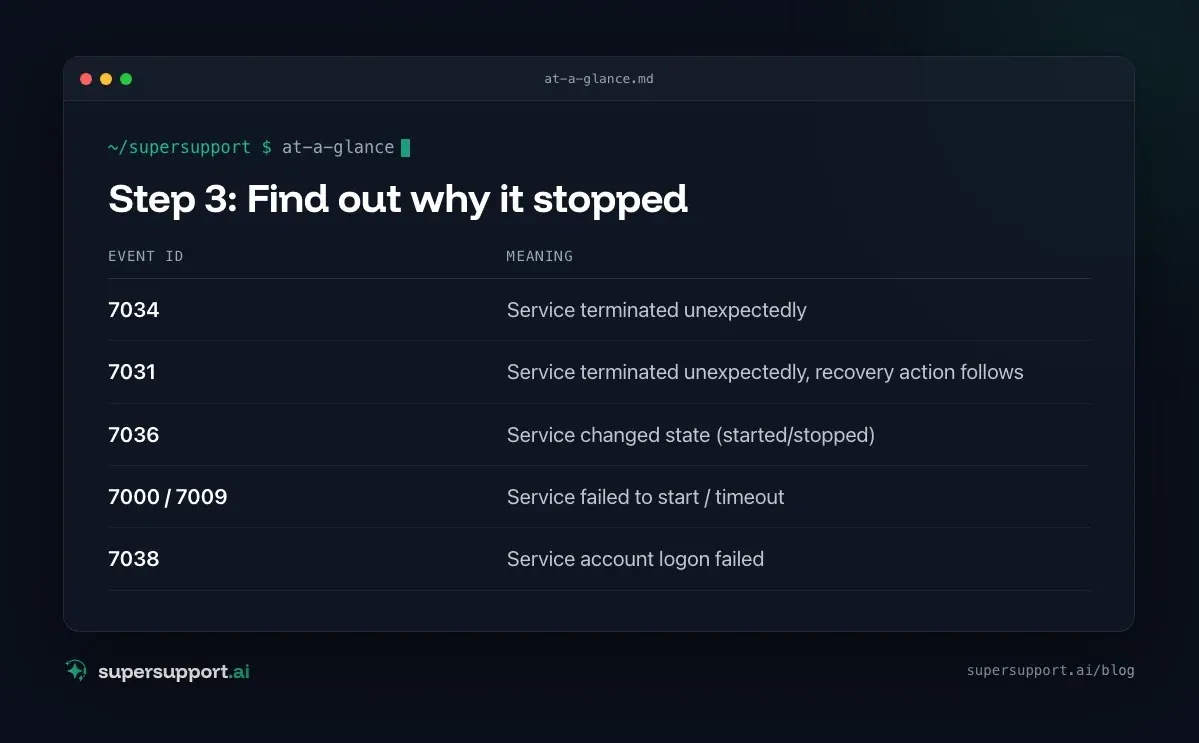
Step 3: Find out why it stopped
In the System log of Event Viewer (Windows Logs › System), look for these events:
- 7034 – Service terminated unexpectedly
- 7031 – Service terminated unexpectedly, recovery action follows
- 7036 – Service changed state (started/stopped)
- 7000 / 7009 – Service failed to start / timeout
- 7038 – Service account logon failed
With PowerShell:
Get-WinEvent -FilterHashtable @{LogName='System'; Id=7031,7034,7036,7038} -MaxEvents 30 |
  Where-Object Message -match "DienstName" | Select-Object TimeCreated, Id, Message
Common causes: a server restart after which the service started too early and could not yet reach its database, a crash of the application, or a changed password of the service account.
Step 4: Set up automatic restart
Graphically: services.msc › service › Properties › Recovery tab:
- First failure: Restart the Service
- Second failure: Restart the Service
- Subsequent failures: Restart the Service
- Reset fail count after: 1 day
- Restart service after: 1 minute
- Check Enable actions for stops with errors
On the command line (as administrator; the spaces after = are mandatory):

14 days free
IT support that fixes itself.
SuperSupport fixes IT problems right on the device, before they turn into tickets. Try it free for 14 days.
Start free trialsc.exe failure "DienstName" reset= 86400 actions= restart/60000/restart/60000/restart/300000
sc.exe failureflag "DienstName" 1
sc.exe qfailure "DienstName"With this, Windows restarts the service after one minute following a crash, and after five minutes the third time.
Important: Recovery only applies to crashes and stops with an error. If someone stops the service manually, it stays stopped.
Step 5: Adjust the startup type
If the service starts too early after a server restart, delayed start helps:
sc.exe config "DienstName" start= delayed-autoGraphically: Properties › Startup type › Automatic (Delayed Start). The service then starts about two minutes after boot – when network and database are ready.
If the service depends on another service (such as SQL Server), you can also enter the dependency permanently – but you should coordinate that with the application's vendor.
Step 6: Monitor instead of waiting
Ideally, IT notices the stopped service before users call.
- RMM or monitoring: Set up service monitoring for the most important line-of-business application services.
- Task Scheduler: A scheduled task that reacts to event 7034 and sends an email or starts the service.
- Documentation: Which function depends on which service on which server? That saves the search next time. In the real-world case, exactly that was in the MSP's documentation.
Similar cases where the cause is not at the workstation: Windows Server shuts down every hour and .NET runtime versions do not match.
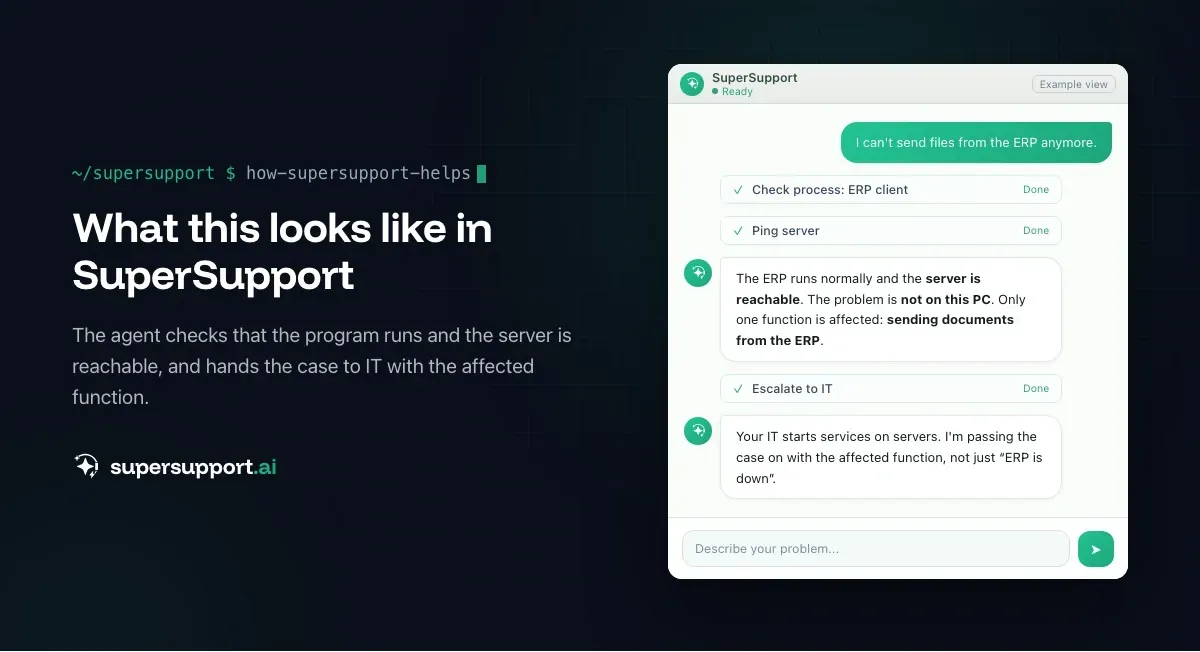
How does SuperSupport help with cases like these?
At the workstation, the SuperSupport agent can check whether the program itself is running and whether the associated server is reachable – and so narrow down that the problem is not with the PC. IT receives a case noting which function is affected, instead of a general report “ERP doesn't work”. Services on servers are still started by IT. What this looks like for internal IT teams and MSPs is described on the respective pages.
Frequently asked questions
How do I make a Windows service restart automatically?
In the Services console (services.msc), open the service's Properties › Recovery tab and choose “Restart the Service” for the first failure, the second failure and all subsequent failures. On the command line, use sc.exe failure with the actions you want.
Why doesn't my service restart despite the recovery option?
Recovery only applies if the service crashes. If it exits seemingly cleanly with an error code, you also need the option “Enable actions for stops with errors” (sc.exe failureflag service 1). If the service is stopped manually, Windows does not restart it.
How do I know a service has crashed?
In the System log of Event Viewer: Event 7034 means a service terminated unexpectedly, 7031 additionally means a recovery action is being run. 7036 shows every status change.
What is “Automatic (Delayed Start)”?
The service does not start immediately with Windows but shortly afterward. This helps with services that depend on a database or the network that are not yet ready at startup.
Why do you only notice the stopped service in one program?
Many programs – ERP, document management, scan or mail functions – rely on services on a server. If the service is not running, the program works in general, but a single function such as sending or archiving fails.
14 days free
IT support that fixes itself.
SuperSupport fixes IT problems right on the device, before they turn into tickets. Try it free for 14 days.
Start free trialNico Haslberger is Co-Founder & CEO of SuperSupport.ai. With years of experience as an IT technician, he knows the problems in IT support first-hand: from overloaded help desks to recurring tickets that slow teams down. That knowledge is built into every feature of the platform today. He makes sure SuperSupport.ai solves exactly the problems he experienced himself for years.
This article was created with AI assistance and editorially reviewed.
Related Articles

Microsoft 365 Quarantine: How to Release an Email
An important email is stuck in Microsoft 365 quarantine? Here is how to check it, release it, and keep it from happening again.


Remove Local Admin Rights: How to Do It Without Chaos
Admin rights are a security risk, but removing them floods the helpdesk. How SMBs remove local admin rights: preparation, LAPS, Intune, GPO, exceptions.

Roll Back a Driver in Windows After a Bad Update
Screen flickering or sound gone since the driver update? How to roll back the driver, read the versions and stop it from being reinstalled.