;}.cls-2{fill:url(%23Unbenannter_Verlauf_5-2);}.cls-3{fill:url(%23Unbenannter_Verlauf_5-5);}.cls-4{fill:url(%23Unbenannter_Verlauf_5-6);}.cls-5{fill:url(%23Unbenannter_Verlauf_5-3);}.cls-6{fill:url(%23Unbenannter_Verlauf_5-4);}%3c/style%3e%3clinearGradient%20id='Unbenannter_Verlauf_5'%20x1='1075.02'%20y1='943.06'%20x2='1201.78'%20y2='943.06'%20gradientUnits='userSpaceOnUse'%3e%3cstop%20offset='0'%20stop-color='%2322b88a'/%3e%3cstop%20offset='1'%20stop-color='%231a9e78'/%3e%3c/linearGradient%3e%3clinearGradient%20id='Unbenannter_Verlauf_5-2'%20x1='234.11'%20y1='663.43'%20x2='1058.29'%20y2='663.43'%20xlink:href='%23Unbenannter_Verlauf_5'/%3e%3clinearGradient%20id='Unbenannter_Verlauf_5-3'%20x1='843.79'%20y1='1064.84'%20x2='1096.04'%20y2='1064.84'%20xlink:href='%23Unbenannter_Verlauf_5'/%3e%3clinearGradient%20id='Unbenannter_Verlauf_5-4'%20x1='1120.37'%20y1='662.1'%20x2='1253'%20y2='662.1'%20xlink:href='%23Unbenannter_Verlauf_5'/%3e%3clinearGradient%20id='Unbenannter_Verlauf_5-5'%20x1='97.45'%20y1='265.53'%20x2='385.89'%20y2='265.53'%20xlink:href='%23Unbenannter_Verlauf_5'/%3e%3clinearGradient%20id='Unbenannter_Verlauf_5-6'%20x1='295.45'%20y1='255.64'%20x2='1213.95'%20y2='255.64'%20xlink:href='%23Unbenannter_Verlauf_5'/%3e%3c/defs%3e%3cpath%20class='cls-1'%20d='M1201.78,871c-.61,1.55-1.23,3.1-1.86,4.66-20.33,50.18-47.14,96.85-80.02,139.45-7.56-13.82-21.78-22.31-37.69-22.31h-7.19c29.82-37.26,54.46-78.02,73.61-121.8h53.15Z'/%3e%3cpath%20class='cls-2'%20d='M665.24,264.59l69.02,186.52c21.3,57.57,66.69,102.96,124.26,124.26l186.52,69.02c17.67,6.54,17.67,31.54,0,38.08l-186.52,69.02c-57.57,21.3-102.96,66.69-124.26,124.26l-69.02,186.52c-6.54,17.67-31.54,17.67-38.08,0l-69.02-186.52c-21.3-57.57-66.69-102.96-124.26-124.26l-186.52-69.02c-17.67-6.54-17.67-31.54,0-38.08l186.52-69.02c57.57-21.3,102.96-66.69,124.26-124.26l69.02-186.52c6.54-17.67,31.54-17.67,38.08,0Z'/%3e%3cpath%20class='cls-5'%20d='M1082.21,1021.98h-79.13c-1.7,0-2.97-1.56-2.62-3.23l22.72-109.35c2.94-14.16-15.11-22.74-24.23-11.51l-152.04,187.31c-7.32,9.02-.9,22.5,10.72,22.5h79.13c1.7,0,2.97,1.56,2.62,3.23l-22.72,109.35c-2.94,14.16,15.11,22.74,24.23,11.51l152.04-187.31c7.32-9.02.9-22.5-10.72-22.5Z'/%3e%3crect%20class='cls-6'%20x='1120.37'%20y='486.36'%20width='132.63'%20height='351.48'%20rx='19.58'%20ry='19.58'/%3e%3cpath%20class='cls-3'%20d='M250.58,128.27l13.88,55.81c7.19,28.91,29.76,51.47,58.66,58.66l55.81,13.88c9.29,2.31,9.29,15.51,0,17.82l-55.81,13.88c-28.91,7.19-51.47,29.76-58.66,58.66l-13.88,55.81c-2.31,9.29-15.51,9.29-17.82,0l-13.88-55.81c-7.19-28.91-29.76-51.47-58.66-58.66l-55.81-13.88c-9.29-2.31-9.29-15.51,0-17.82l55.81-13.88c28.91-7.19,51.47-29.76,58.66-58.66l13.88-55.81c2.31-9.29,15.51-9.29,17.82,0Z'/%3e%3cpath%20class='cls-4'%20d='M1213.95,453.21h-67.62c-1.23,0-2.47.04-3.67.12-27.03-63.89-65.84-121.36-115.42-170.94-51.54-51.54-111.61-91.44-178.55-118.59-64.67-26.22-133.03-39.52-203.16-39.52s-138.48,13.3-203.16,39.52c-33.73,13.67-65.72,30.61-95.75,50.63l-.19-.05c-23.62-5.88-42.51-22.85-51-45.24,37.87-26.86,78.65-49.21,122.01-66.79,72.63-29.44,149.37-44.38,228.08-44.38s155.45,14.93,228.08,44.38c75.2,30.51,142.67,75.31,200.53,133.15,57.84,57.85,102.65,125.33,133.15,200.53,2.31,5.7,4.54,11.43,6.66,17.19Z'/%3e%3c/svg%3e)
sfc /scannow and DISM: Repair System Files
Windows acting strange, updates failing? Here is how to check and repair system files with sfc and DISM, and how to read the result correctly.


Start menu lags, updates fail, a Windows program no longer opens.
Sometimes Windows acts strange without any single program being to blame: Updates abort, Settings won't open, built-in apps crash. Damaged system files can be behind this, after a crash, an aborted update, or a disk error. Windows ships with two tools that check and repair them: sfc and DISM. Here is how they work, in what order to use them, and how to read the result.
When is the check worth it?
When parts of Windows itself refuse to work. Typical occasions:
- Windows updates fail repeatedly. See Windows Update fails.
- Settings, Start menu, or search won't open or crash. See Start menu and taskbar not responding.
- Blue screens with no clear driver connection. See Blue screen: what to do?.
- Error messages about missing or damaged system files.
If the problem affects only a single program, that program is more likely to blame, and sfc rarely helps.
What does sfc /scannow do?
It checks the protected system files. The System File Checker compares every protected Windows file with an intact copy from a local store and replaces damaged files.
- Start menu → type cmd → Run as administrator.
- Enter:
sfc /scannow- Wait until the scan reaches 100%. Don't close the window.
This requires administrator rights. On company devices, IT usually takes care of that.
How do I read the result?
- Message: Windows Resource Protection did not find any integrity violations – Meaning: System files are fine; Next step: Look for the cause elsewhere
- Message: Windows Resource Protection found corrupt files and successfully repaired them – Meaning: Repair worked; Next step: Restart, check the problem
- Message: Windows Resource Protection found corrupt files but was unable to fix some of them – Meaning: The store itself is damaged; Next step: Run DISM, then sfc again
- Message: Windows Resource Protection could not perform the requested operation – Meaning: A restart is pending or similar; Next step: Restart, try again
The details are in the log C:\Windows\Logs\CBS\CBS.log. The file is large; the relevant lines contain "[SR]".
What does DISM do?
It repairs the store that sfc draws from. If the local store itself is damaged, sfc can't repair anything. DISM (Deployment Image Servicing and Management) checks and repairs this store, if necessary with files from Windows Update. In a Command Prompt with administrator rights:
DISM /Online /Cleanup-Image /CheckHealth
DISM /Online /Cleanup-Image /ScanHealth
DISM /Online /Cleanup-Image /RestoreHealth- CheckHealth: quick check whether damage is known.
- ScanHealth: thorough check, takes longer.
- RestoreHealth: checks and repairs.
DISM usually needs an internet connection for the repair. In companies with their own update server, IT can specify a different source. DISM sometimes stays at one percentage for a long time, for example at 20% or 62.3%, which is normal. Don't cancel it.
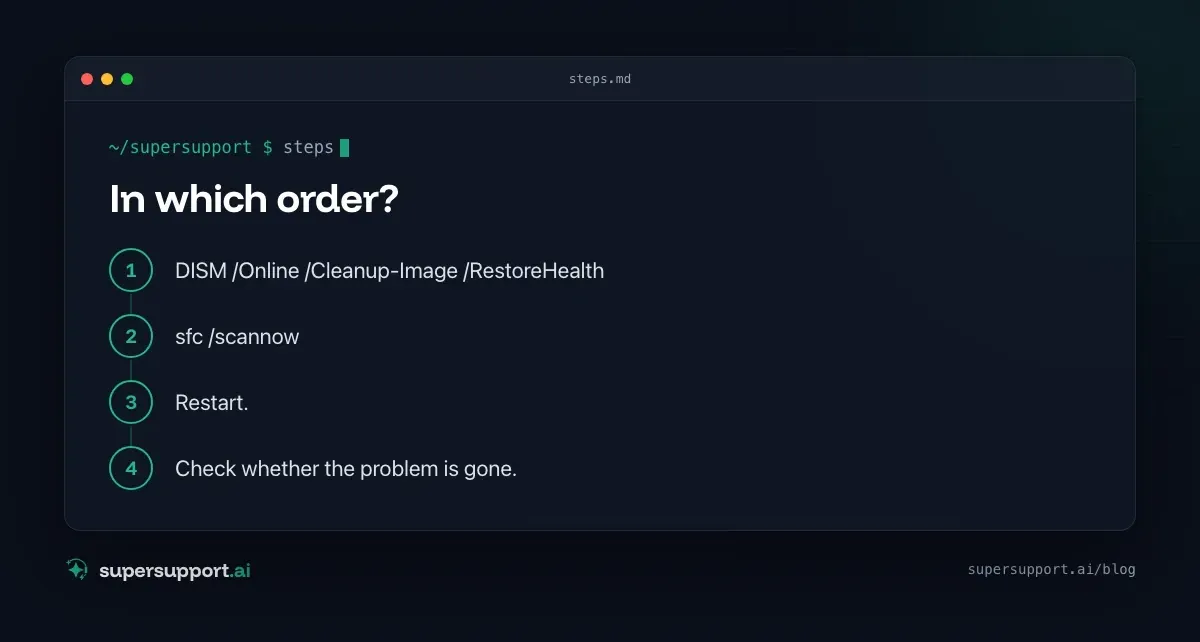
In which order?
DISM first, then sfc. What has proven reliable:
DISM /Online /Cleanup-Image /RestoreHealthsfc /scannow- Restart.
- Check whether the problem is gone.
This way, DISM repairs the store first, and sfc can then restore the system files from it.
And if Windows no longer starts at all?

14 days free
IT support that fixes itself.
SuperSupport fixes IT problems right on the device, before they turn into tickets. Try it free for 14 days.
Start free trialThen sfc also runs offline. In the Windows Recovery Environment, there is a command line under Troubleshoot → Advanced options → Command Prompt. There, sfc checks the installation on drive C: without Windows running:
sfc /scannow /offbootdir=C:\ /offwindir=C:\WindowsIn the recovery environment, drive C: can have a different letter. With dir D:\ or similar you can check where the Windows folder is located. If BitLocker is active, you need the recovery key beforehand. See BitLocker recovery key.
And chkdsk?
That is something different. chkdsk checks the file system of the drive, meaning whether folders and files are managed cleanly, not the Windows files themselves. If there are signs of disk errors, it comes first, because sfc achieves little on a damaged file system. Whether the drive itself has problems is shown by Check SSD health.
What if that doesn't help either?
Then there are bigger tools.
- System Restore to a state from before the problem. See Windows System Restore.
- Reinstall Windows via Windows Update: Under Settings → System → Recovery, Windows 11 offers to reinstall the system while keeping apps, files, and settings.
- Reset this PC, as a last step, with or without personal files.
On company devices, these are steps for IT, because apps, policies, and encryption have to be checked afterward.
And on a Mac?
There is no sfc there. macOS protects its system files on a sealed, read-only system volume. For problems, Disk Utility helps with First Aid for the file system. If that doesn't help, macOS can be reinstalled via macOS Recovery, and personal files are usually kept. See Mac won't start.
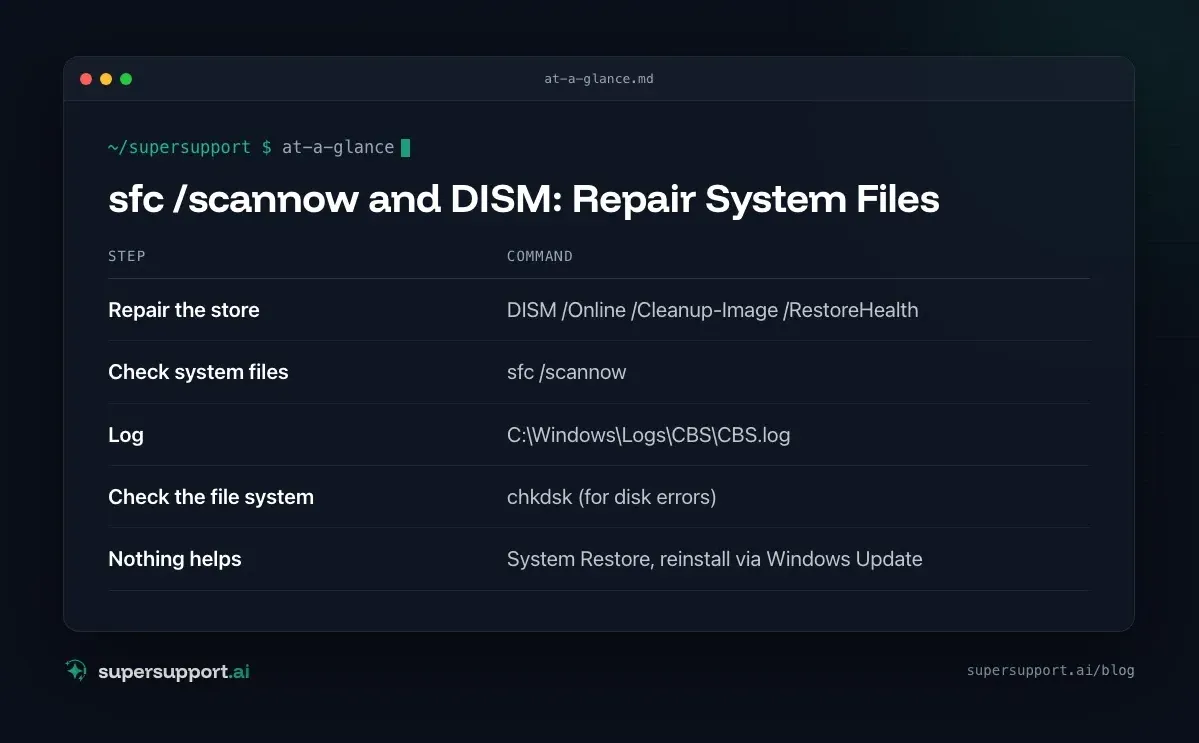
At a glance: sfc and DISM
- Repair the store –
DISM /Online /Cleanup-Image /RestoreHealth - Check system files –
sfc /scannow - Log – C:\Windows\Logs\CBS\CBS.log
- Check the file system –
chkdsk(for disk errors) - Nothing helps – System Restore, reinstall via Windows Update

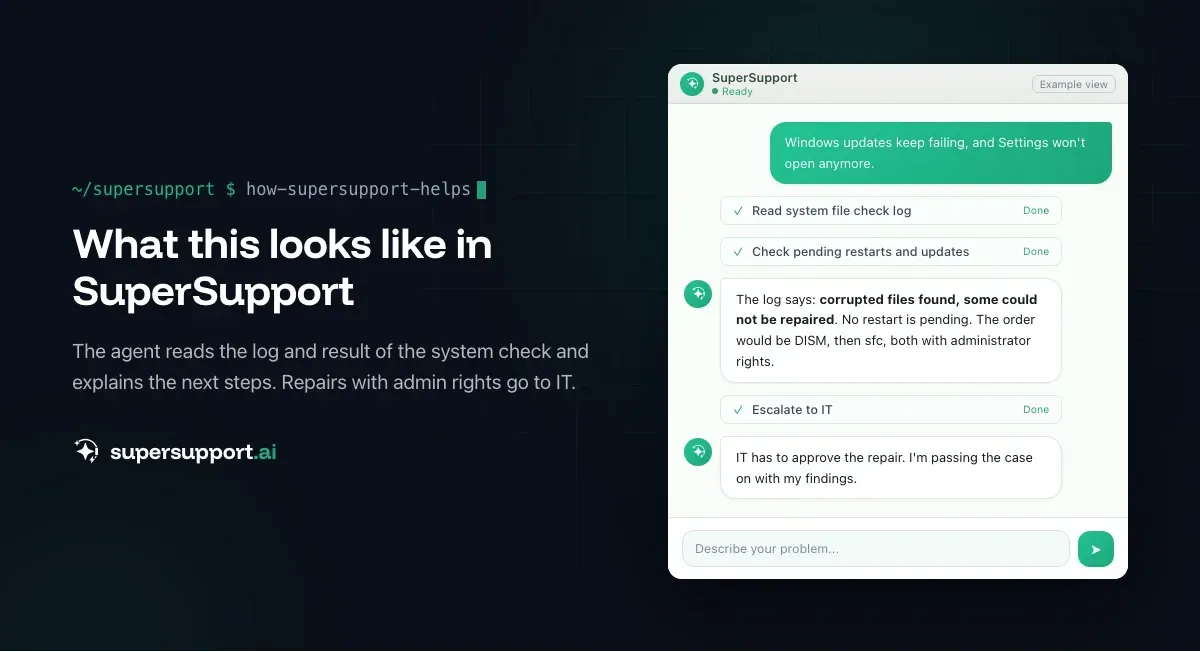
How does SuperSupport help?
The SuperSupport agent reads the result and log of a check on the device, checks for pending restarts and updates, and explains the next steps. It submits repairs that require administrator rights to IT for approval. For IT teams and MSPs.
Frequently asked questions
What does sfc /scannow do?
The command checks all protected Windows system files and replaces damaged or modified files with intact copies. It needs a Command Prompt with administrator rights.
What is the difference from DISM?
sfc repairs system files from a local store. DISM repairs that store itself, if necessary with files from Windows Update. If sfc can't repair, DISM often helps first, then sfc again.
In which order do I run the commands?
What has proven reliable: first DISM /Online /Cleanup-Image /RestoreHealth, then sfc /scannow, then restart.
How long does this take?
Depending on the computer and its condition, a while. DISM sometimes stays at one percentage for a long time, which is normal. Don't cancel it.
Can SuperSupport check the system files?
The agent reads the result and log of a check on the device, checks for pending restarts and updates, and explains the next steps. It submits repairs that require administrator rights to IT for approval.
14 days free
IT support that fixes itself.
SuperSupport fixes IT problems right on the device, before they turn into tickets. Try it free for 14 days.
Start free trialNico Haslberger is Co-Founder & CEO of SuperSupport.ai. With years of experience as an IT technician, he knows the problems in IT support first-hand: from overloaded help desks to recurring tickets that slow teams down. That knowledge is built into every feature of the platform today. He makes sure SuperSupport.ai solves exactly the problems he experienced himself for years.
This article was created with AI assistance and editorially reviewed.
Related Articles

Outlook Slow and Laggy: What Helps
Outlook Classic freezes, types with a delay and takes forever to open? The most common slowdowns – and what you lose if you disable individual add-ins.


Windows “This App Has Been Blocked”: What It Means
Windows blocks a program “for your protection” or for your organization? How to tell the messages apart and who can approve the program.

Word or Excel Keeps Crashing: How to Find the Cause
Word or Excel suddenly closes, freezes or reports “has stopped working”? Find the cause: add-ins, corrupted files, Safe Mode and Office repair.