;}.cls-2{fill:url(%23Unbenannter_Verlauf_5-2);}.cls-3{fill:url(%23Unbenannter_Verlauf_5-5);}.cls-4{fill:url(%23Unbenannter_Verlauf_5-6);}.cls-5{fill:url(%23Unbenannter_Verlauf_5-3);}.cls-6{fill:url(%23Unbenannter_Verlauf_5-4);}%3c/style%3e%3clinearGradient%20id='Unbenannter_Verlauf_5'%20x1='1075.02'%20y1='943.06'%20x2='1201.78'%20y2='943.06'%20gradientUnits='userSpaceOnUse'%3e%3cstop%20offset='0'%20stop-color='%2322b88a'/%3e%3cstop%20offset='1'%20stop-color='%231a9e78'/%3e%3c/linearGradient%3e%3clinearGradient%20id='Unbenannter_Verlauf_5-2'%20x1='234.11'%20y1='663.43'%20x2='1058.29'%20y2='663.43'%20xlink:href='%23Unbenannter_Verlauf_5'/%3e%3clinearGradient%20id='Unbenannter_Verlauf_5-3'%20x1='843.79'%20y1='1064.84'%20x2='1096.04'%20y2='1064.84'%20xlink:href='%23Unbenannter_Verlauf_5'/%3e%3clinearGradient%20id='Unbenannter_Verlauf_5-4'%20x1='1120.37'%20y1='662.1'%20x2='1253'%20y2='662.1'%20xlink:href='%23Unbenannter_Verlauf_5'/%3e%3clinearGradient%20id='Unbenannter_Verlauf_5-5'%20x1='97.45'%20y1='265.53'%20x2='385.89'%20y2='265.53'%20xlink:href='%23Unbenannter_Verlauf_5'/%3e%3clinearGradient%20id='Unbenannter_Verlauf_5-6'%20x1='295.45'%20y1='255.64'%20x2='1213.95'%20y2='255.64'%20xlink:href='%23Unbenannter_Verlauf_5'/%3e%3c/defs%3e%3cpath%20class='cls-1'%20d='M1201.78,871c-.61,1.55-1.23,3.1-1.86,4.66-20.33,50.18-47.14,96.85-80.02,139.45-7.56-13.82-21.78-22.31-37.69-22.31h-7.19c29.82-37.26,54.46-78.02,73.61-121.8h53.15Z'/%3e%3cpath%20class='cls-2'%20d='M665.24,264.59l69.02,186.52c21.3,57.57,66.69,102.96,124.26,124.26l186.52,69.02c17.67,6.54,17.67,31.54,0,38.08l-186.52,69.02c-57.57,21.3-102.96,66.69-124.26,124.26l-69.02,186.52c-6.54,17.67-31.54,17.67-38.08,0l-69.02-186.52c-21.3-57.57-66.69-102.96-124.26-124.26l-186.52-69.02c-17.67-6.54-17.67-31.54,0-38.08l186.52-69.02c57.57-21.3,102.96-66.69,124.26-124.26l69.02-186.52c6.54-17.67,31.54-17.67,38.08,0Z'/%3e%3cpath%20class='cls-5'%20d='M1082.21,1021.98h-79.13c-1.7,0-2.97-1.56-2.62-3.23l22.72-109.35c2.94-14.16-15.11-22.74-24.23-11.51l-152.04,187.31c-7.32,9.02-.9,22.5,10.72,22.5h79.13c1.7,0,2.97,1.56,2.62,3.23l-22.72,109.35c-2.94,14.16,15.11,22.74,24.23,11.51l152.04-187.31c7.32-9.02.9-22.5-10.72-22.5Z'/%3e%3crect%20class='cls-6'%20x='1120.37'%20y='486.36'%20width='132.63'%20height='351.48'%20rx='19.58'%20ry='19.58'/%3e%3cpath%20class='cls-3'%20d='M250.58,128.27l13.88,55.81c7.19,28.91,29.76,51.47,58.66,58.66l55.81,13.88c9.29,2.31,9.29,15.51,0,17.82l-55.81,13.88c-28.91,7.19-51.47,29.76-58.66,58.66l-13.88,55.81c-2.31,9.29-15.51,9.29-17.82,0l-13.88-55.81c-7.19-28.91-29.76-51.47-58.66-58.66l-55.81-13.88c-9.29-2.31-9.29-15.51,0-17.82l55.81-13.88c28.91-7.19,51.47-29.76,58.66-58.66l13.88-55.81c2.31-9.29,15.51-9.29,17.82,0Z'/%3e%3cpath%20class='cls-4'%20d='M1213.95,453.21h-67.62c-1.23,0-2.47.04-3.67.12-27.03-63.89-65.84-121.36-115.42-170.94-51.54-51.54-111.61-91.44-178.55-118.59-64.67-26.22-133.03-39.52-203.16-39.52s-138.48,13.3-203.16,39.52c-33.73,13.67-65.72,30.61-95.75,50.63l-.19-.05c-23.62-5.88-42.51-22.85-51-45.24,37.87-26.86,78.65-49.21,122.01-66.79,72.63-29.44,149.37-44.38,228.08-44.38s155.45,14.93,228.08,44.38c75.2,30.51,142.67,75.31,200.53,133.15,57.84,57.85,102.65,125.33,133.15,200.53,2.31,5.7,4.54,11.43,6.66,17.19Z'/%3e%3c/svg%3e)
Outlook Slow and Laggy: What Helps
Outlook Classic freezes, types with a delay and takes forever to open? The most common slowdowns – and what you lose if you disable individual add-ins.


Outlook isn't slow because it's old. It's slow because it has been keeping everything for years.
“Outlook Classic is slow and lags.” The window hangs when switching between folders, letters appear only a second after typing, and startup seems to take forever. Yet Task Manager shows no unusual load, and the connection to Microsoft 365 is up.
That's how it was in the actual case, a sales employee at a company with around 60 workstations. The quick fix – disabling an add-in – helped. The catch: that very add-in was needed. Here's how to find the slowdown and where the catch lies with each measure.
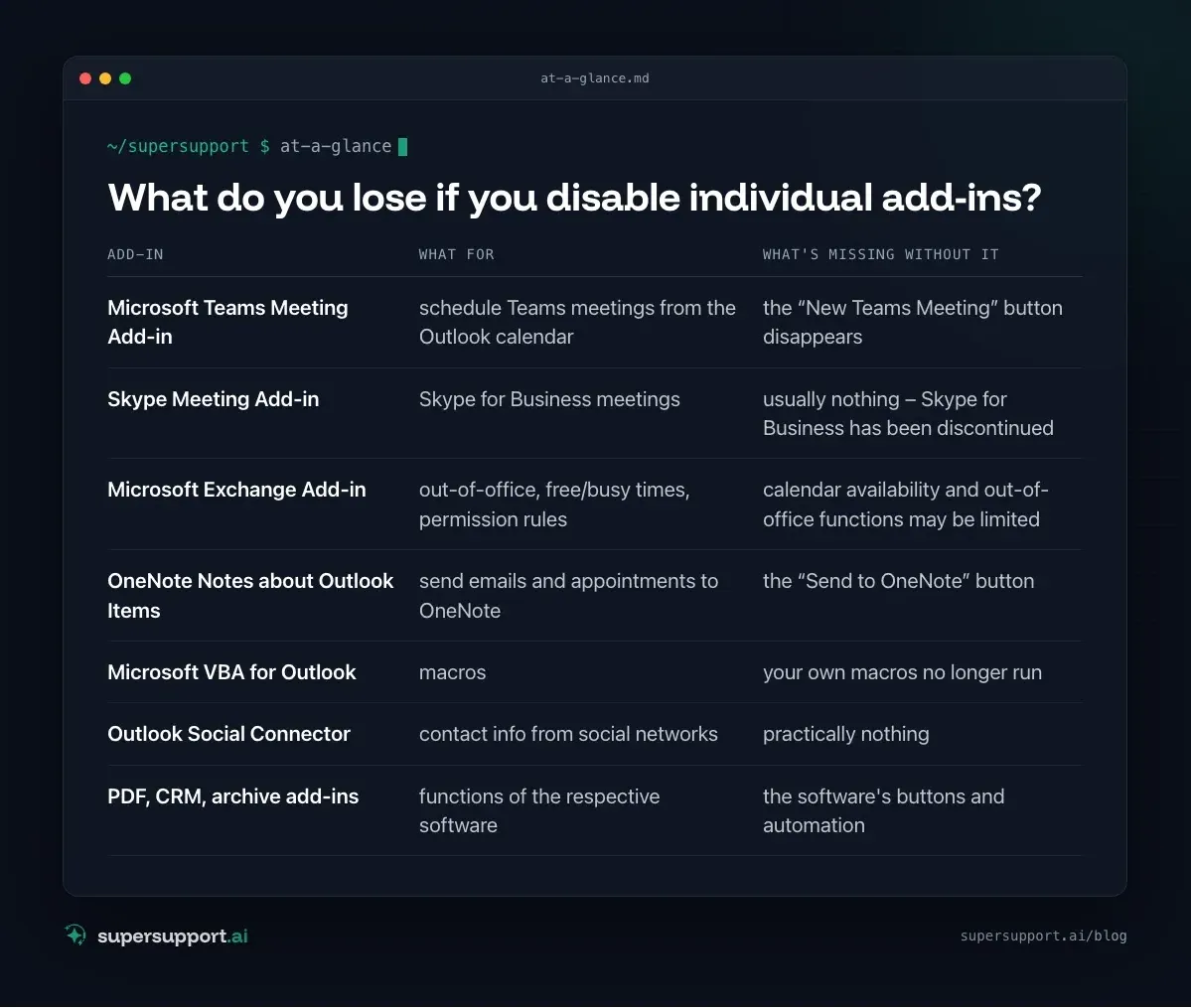
Why is Outlook slow even though the PC isn't maxed out?
Usually add-ins, a large offline data file or additionally connected mailboxes are the slowdown – not processing power. Outlook works through many things one after another: loading add-ins, syncing folders, updating the search index. If one of these steps hangs, the interface waits.
The most common causes:
- Add-ins with long load times – Teams, telephony, PDF, CRM, archiving
- A very large OST file – mailboxes with many years of email
- Many shared mailboxes and calendars in Cached Exchange Mode
- Attached PST files, especially on network drives
- Antivirus software that keeps scanning the OST file
- Corrupted Office installation
- Outdated graphics drivers
Step 1: Which add-in is slowing Outlook down?
Outlook measures the load time of each add-in itself – you just have to look.
- File › Info › Slow and Disabled COM Add-ins shows which extensions delay startup.
- In the Event Viewer under Windows Logs › Application, at every startup Outlook writes an event with ID 45 and the startup time of each add-in in milliseconds.
Via PowerShell:
Get-WinEvent -FilterHashtable @{LogName='Application'; ProviderName='Outlook'; Id=45} -MaxEvents 1 |
  Select-Object -ExpandProperty Message
In the actual case, Outlook loaded six add-ins: Exchange, Teams meetings, Skype meetings, OneNote, VBA and the Social Connector. Disabling the Teams add-in brought a noticeable improvement.
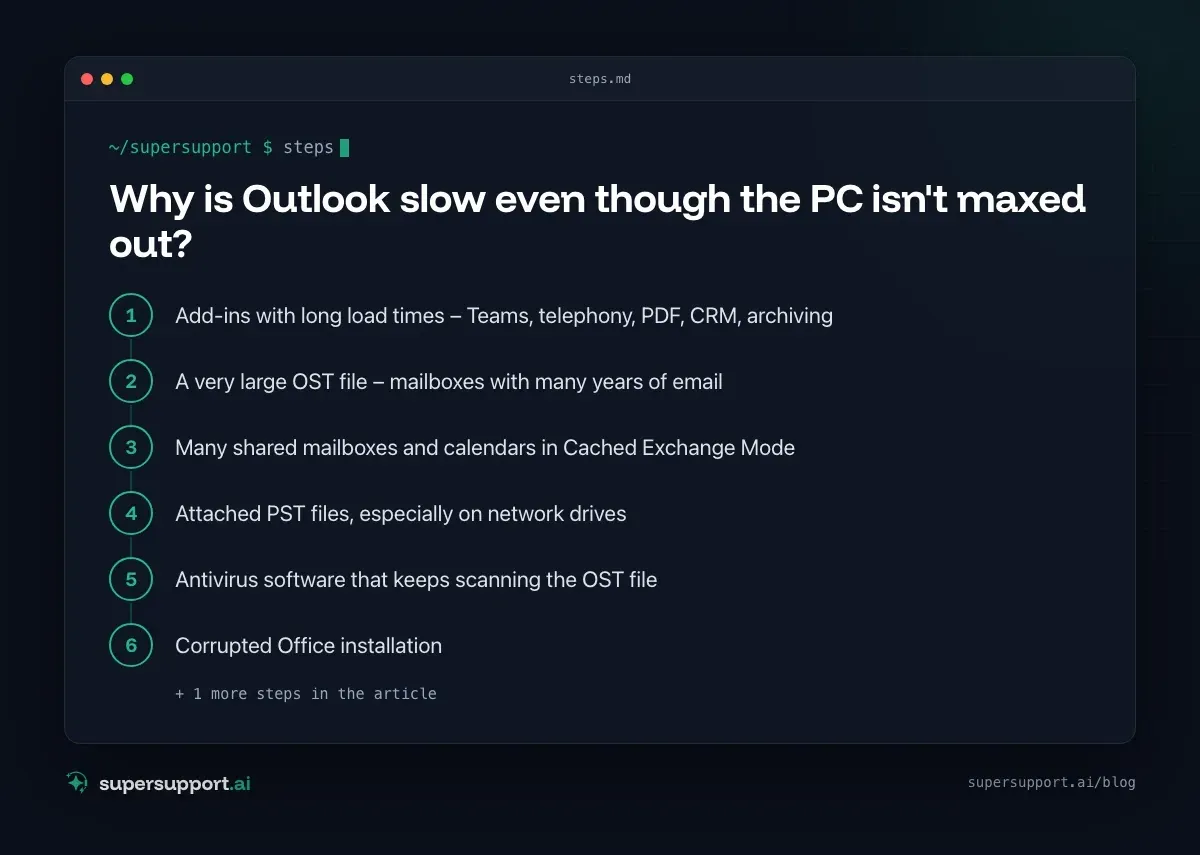
What do you lose if you disable individual add-ins?
Every add-in has a purpose – before disabling one, you should know which. Exactly this question came up in the actual case right after the deactivation, and the answer was: the Teams add-in is needed. It was turned back on.
- Add-in: Microsoft Teams Meeting Add-in – What for: schedule Teams meetings from the Outlook calendar; What's missing without it: the “New Teams Meeting” button disappears
- Add-in: Skype Meeting Add-in – What for: Skype for Business meetings; What's missing without it: usually nothing – Skype for Business has been discontinued
- Add-in: Microsoft Exchange Add-in – What for: out-of-office, free/busy times, permission rules; What's missing without it: calendar availability and out-of-office functions may be limited
- Add-in: OneNote Notes about Outlook Items – What for: send emails and appointments to OneNote; What's missing without it: the “Send to OneNote” button
- Add-in: Microsoft VBA for Outlook – What for: macros; What's missing without it: your own macros no longer run
- Add-in: Outlook Social Connector – What for: contact info from social networks; What's missing without it: practically nothing
- Add-in: PDF, CRM, archive add-ins – What for: functions of the respective software; What's missing without it: the software's buttons and automation
Rule of thumb: You can almost always disable Skype and Social Connector add-ins without a second thought. Teams, Exchange and anything that belongs to industry-specific software only after consulting the right people.
How do I disable an add-in – and turn it back on?
Via File › Options › Add-ins › Manage COM Add-ins › Go – clear or check the box. The setting takes effect after restarting Outlook.
Technically, behind it is the registry value LoadBehavior under:
HKCU\Software\Microsoft\Office\Outlook\Addins\<AddinName>- 3 – load at startup
- 2 – don't load (disabled)
- 9 / 16 – load on demand or once, respectively
Add-ins installed for all users are under HKLM instead of HKCU. That's why you don't always find every entry Outlook shows in the user registry – that was the case in the actual case too.

14 days free
IT support that fixes itself.
SuperSupport fixes IT problems right on the device, before they turn into tickets. Try it free for 14 days.
Start free trialStep 2: Is the offline data file too large?
An OST file with many gigabytes noticeably slows down switching between folders and searching. You can see the size under %LOCALAPPDATA%\Microsoft\Outlook.
Two levers:
- Limit the time period: File › Account Settings › Account Settings › double-click the account › set the “Mail to keep offline” slider to e.g. 12 months. Older emails stay on the server and remain searchable.
- Rebuild: Close Outlook, rename the OST file, start Outlook. It reloads everything from the server. Depending on the mailbox, that takes 10 to 30 minutes or longer – in the actual case, the user didn't want to do it right away for that reason. Plan it for when the computer isn't needed for a while anyway.
Step 3: Are shared mailboxes slowing it down?
Every connected team mailbox and every shared calendar is downloaded along in Cached Exchange Mode. With many such mailboxes, the OST file grows heavily and synchronization never really stops.
Remedy: Account Settings › account › More Settings › Advanced › clear the checkbox for “Download shared folders”. Shared mailboxes are then opened online – slightly slower to open, but Outlook itself gets snappier.
Step 4: What else helps?
- Detach PST files from the network drive or store them locally.
- Antivirus: exclude OST files from real-time scanning – only after agreement with IT.
- Repair Office: Settings › Apps › Microsoft 365 › Modify › Quick Repair.
- Keep drivers and updates current.
- Safe mode (
outlook.exe /safe) as a cross-check: if Outlook is fast there, it's an add-in.
If Outlook doesn't just hang now and then but crashes completely, the guide Outlook crashes helps. If the whole PC is sluggish, take a look at high CPU and RAM usage.

How does SuperSupport help when Outlook is slow?
In the case described, the SuperSupport agent checked whether Outlook was running, read the add-in load times from the event log and tested the connection to Microsoft 365. After approval, it disabled the Teams add-in, restarted Outlook, explained on request what each add-in does, and turned the Teams add-in back on at the user's request. It suggested the OST rebuild but did not carry it out against the user's wishes. How this works for internal IT teams and MSPs is described on the respective pages.
Frequently asked questions
Why is Outlook so slow?
The most common reasons are add-ins with long load times, a very large OST file, many connected shared mailboxes, attached PST files and problems with the Office installation.
How do I find out which add-in is slowing Outlook down?
Under File › Office Account or Info, Outlook shows the load times under “Slow and Disabled COM Add-ins”. In addition, at every startup Outlook writes the load time of each add-in to the Event Viewer, event ID 45.
Can I disable the Teams add-in in Outlook?
Technically yes, but then the “New Teams Meeting” button disappears from the Outlook calendar. If you schedule meetings from Outlook, you should leave it enabled and check other slowdowns first.
What does LoadBehavior mean for Outlook add-ins?
The registry value determines when an add-in is loaded. 3 means “load at startup”, 2 “don't load”. Outlook sets it to 2 itself when it disables an add-in because of problems.
Does rebuilding the OST file help?
Often yes, if the file is very large or corrupted. Outlook then reloads all data from the server, which takes some time depending on the mailbox size. With Microsoft 365, no data is lost.
14 days free
IT support that fixes itself.
SuperSupport fixes IT problems right on the device, before they turn into tickets. Try it free for 14 days.
Start free trialNico Haslberger is Co-Founder & CEO of SuperSupport.ai. With years of experience as an IT technician, he knows the problems in IT support first-hand: from overloaded help desks to recurring tickets that slow teams down. That knowledge is built into every feature of the platform today. He makes sure SuperSupport.ai solves exactly the problems he experienced himself for years.
This article was created with AI assistance and editorially reviewed.
Related Articles

Windows “This App Has Been Blocked”: What It Means
Windows blocks a program “for your protection” or for your organization? How to tell the messages apart and who can approve the program.


Word or Excel Keeps Crashing: How to Find the Cause
Word or Excel suddenly closes, freezes or reports “has stopped working”? Find the cause: add-ins, corrupted files, Safe Mode and Office repair.

Laptop Won't Connect to Wi-Fi: Windows and Mac
Wi-Fi isn't shown, the connection fails or it says “No internet, secured”? Here is how to find the cause on Windows and macOS.