;}.cls-2{fill:url(%23Unbenannter_Verlauf_5-2);}.cls-3{fill:url(%23Unbenannter_Verlauf_5-5);}.cls-4{fill:url(%23Unbenannter_Verlauf_5-6);}.cls-5{fill:url(%23Unbenannter_Verlauf_5-3);}.cls-6{fill:url(%23Unbenannter_Verlauf_5-4);}%3c/style%3e%3clinearGradient%20id='Unbenannter_Verlauf_5'%20x1='1075.02'%20y1='943.06'%20x2='1201.78'%20y2='943.06'%20gradientUnits='userSpaceOnUse'%3e%3cstop%20offset='0'%20stop-color='%2322b88a'/%3e%3cstop%20offset='1'%20stop-color='%231a9e78'/%3e%3c/linearGradient%3e%3clinearGradient%20id='Unbenannter_Verlauf_5-2'%20x1='234.11'%20y1='663.43'%20x2='1058.29'%20y2='663.43'%20xlink:href='%23Unbenannter_Verlauf_5'/%3e%3clinearGradient%20id='Unbenannter_Verlauf_5-3'%20x1='843.79'%20y1='1064.84'%20x2='1096.04'%20y2='1064.84'%20xlink:href='%23Unbenannter_Verlauf_5'/%3e%3clinearGradient%20id='Unbenannter_Verlauf_5-4'%20x1='1120.37'%20y1='662.1'%20x2='1253'%20y2='662.1'%20xlink:href='%23Unbenannter_Verlauf_5'/%3e%3clinearGradient%20id='Unbenannter_Verlauf_5-5'%20x1='97.45'%20y1='265.53'%20x2='385.89'%20y2='265.53'%20xlink:href='%23Unbenannter_Verlauf_5'/%3e%3clinearGradient%20id='Unbenannter_Verlauf_5-6'%20x1='295.45'%20y1='255.64'%20x2='1213.95'%20y2='255.64'%20xlink:href='%23Unbenannter_Verlauf_5'/%3e%3c/defs%3e%3cpath%20class='cls-1'%20d='M1201.78,871c-.61,1.55-1.23,3.1-1.86,4.66-20.33,50.18-47.14,96.85-80.02,139.45-7.56-13.82-21.78-22.31-37.69-22.31h-7.19c29.82-37.26,54.46-78.02,73.61-121.8h53.15Z'/%3e%3cpath%20class='cls-2'%20d='M665.24,264.59l69.02,186.52c21.3,57.57,66.69,102.96,124.26,124.26l186.52,69.02c17.67,6.54,17.67,31.54,0,38.08l-186.52,69.02c-57.57,21.3-102.96,66.69-124.26,124.26l-69.02,186.52c-6.54,17.67-31.54,17.67-38.08,0l-69.02-186.52c-21.3-57.57-66.69-102.96-124.26-124.26l-186.52-69.02c-17.67-6.54-17.67-31.54,0-38.08l186.52-69.02c57.57-21.3,102.96-66.69,124.26-124.26l69.02-186.52c6.54-17.67,31.54-17.67,38.08,0Z'/%3e%3cpath%20class='cls-5'%20d='M1082.21,1021.98h-79.13c-1.7,0-2.97-1.56-2.62-3.23l22.72-109.35c2.94-14.16-15.11-22.74-24.23-11.51l-152.04,187.31c-7.32,9.02-.9,22.5,10.72,22.5h79.13c1.7,0,2.97,1.56,2.62,3.23l-22.72,109.35c-2.94,14.16,15.11,22.74,24.23,11.51l152.04-187.31c7.32-9.02.9-22.5-10.72-22.5Z'/%3e%3crect%20class='cls-6'%20x='1120.37'%20y='486.36'%20width='132.63'%20height='351.48'%20rx='19.58'%20ry='19.58'/%3e%3cpath%20class='cls-3'%20d='M250.58,128.27l13.88,55.81c7.19,28.91,29.76,51.47,58.66,58.66l55.81,13.88c9.29,2.31,9.29,15.51,0,17.82l-55.81,13.88c-28.91,7.19-51.47,29.76-58.66,58.66l-13.88,55.81c-2.31,9.29-15.51,9.29-17.82,0l-13.88-55.81c-7.19-28.91-29.76-51.47-58.66-58.66l-55.81-13.88c-9.29-2.31-9.29-15.51,0-17.82l55.81-13.88c28.91-7.19,51.47-29.76,58.66-58.66l13.88-55.81c2.31-9.29,15.51-9.29,17.82,0Z'/%3e%3cpath%20class='cls-4'%20d='M1213.95,453.21h-67.62c-1.23,0-2.47.04-3.67.12-27.03-63.89-65.84-121.36-115.42-170.94-51.54-51.54-111.61-91.44-178.55-118.59-64.67-26.22-133.03-39.52-203.16-39.52s-138.48,13.3-203.16,39.52c-33.73,13.67-65.72,30.61-95.75,50.63l-.19-.05c-23.62-5.88-42.51-22.85-51-45.24,37.87-26.86,78.65-49.21,122.01-66.79,72.63-29.44,149.37-44.38,228.08-44.38s155.45,14.93,228.08,44.38c75.2,30.51,142.67,75.31,200.53,133.15,57.84,57.85,102.65,125.33,133.15,200.53,2.31,5.7,4.54,11.43,6.66,17.19Z'/%3e%3c/svg%3e)
Laptop Won't Connect to Wi-Fi: Windows and Mac
Wi-Fi isn't shown, the connection fails or it says “No internet, secured”? Here is how to find the cause on Windows and macOS.

The phone is on the Wi-Fi, the laptop isn't. The router is rarely to blame then.
The Wi-Fi doesn't show up in the list, the connection breaks off during sign-in or Windows reports “No internet, secured”. Usually it comes down to one of five places, which you can check in order: switch, password, profile, adapter or router.
If the connection keeps dropping briefly even though it basically works, Unstable internet connection is more likely to help.
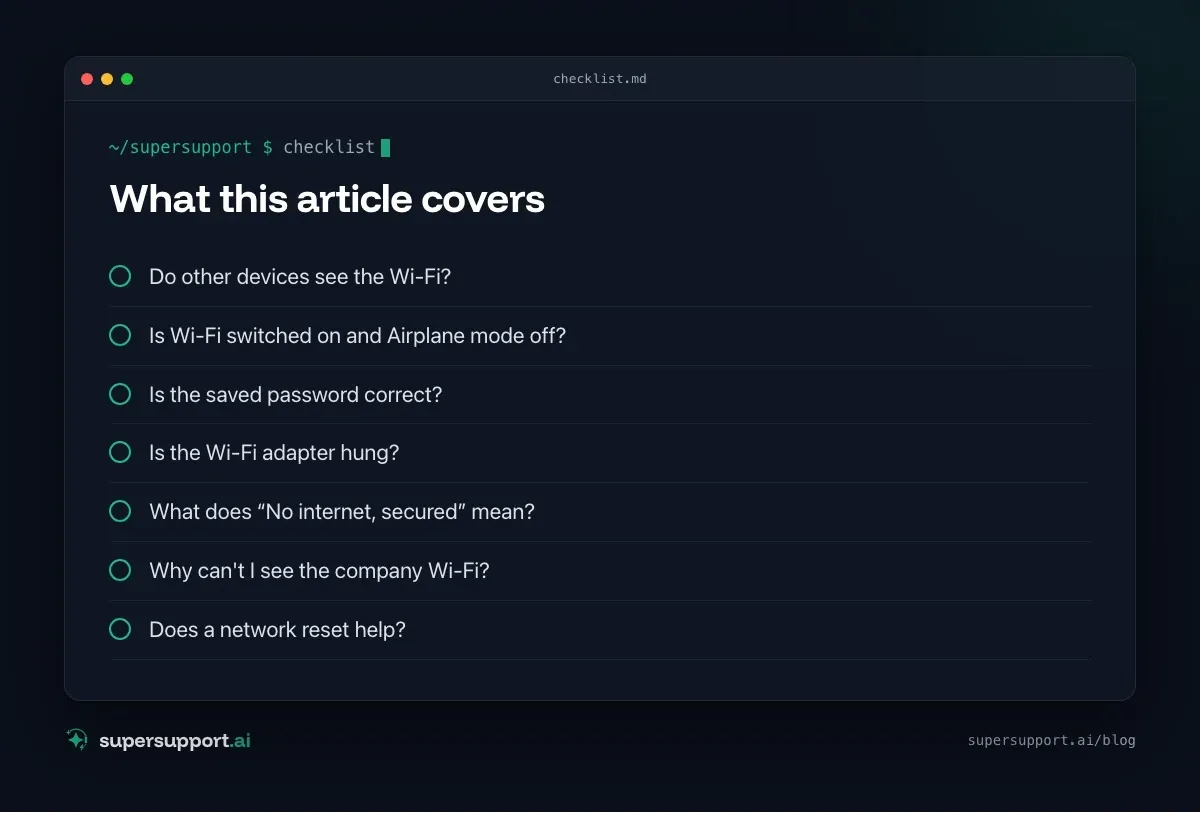
Do other devices see the Wi-Fi?
This question saves the most time.
- Phones and colleagues connect without problems: It's your laptop – continue with the steps below.
- Nobody can get on the Wi-Fi: Router, access point or internet provider. That is a case for IT.
Is Wi-Fi switched on and Airplane mode off?
Windows 11: Click the network icon at the bottom right – Wi-Fi must be blue, Airplane mode gray. Many laptops also have a function key with an antenna symbol that switches Wi-Fi off.
macOS: Click the Wi-Fi icon at the top right – Wi-Fi must be switched on.
Is the saved password correct?
If the Wi-Fi password was changed, the laptop keeps trying the old one – and fails without a clear message. Then delete the saved profile and reconnect:
Windows:
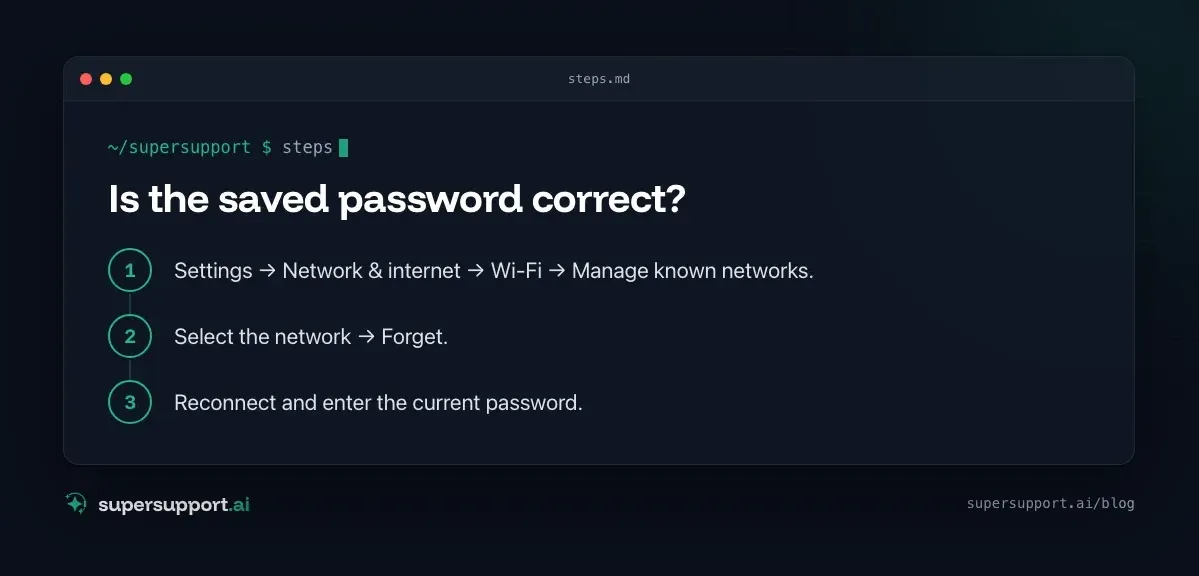
- Settings → Network & internet → Wi-Fi → Manage known networks.
- Select the network → Forget.
- Reconnect and enter the current password.
macOS:
- System Settings → Wi-Fi.
- Next to the network, click “…” → Forget This Network.
- Reconnect.
Is the Wi-Fi adapter hung?
An adapter that doesn't wake up properly after standby no longer finds networks.
Windows:
- Settings → Network & internet → Advanced network settings → for the Wi-Fi adapter, click Disable, then Enable.
- In Device Manager → Network adapters, check whether the Wi-Fi adapter (such as “Intel Wi-Fi”, “Realtek Wireless”) has a yellow warning symbol.
- Turn off power saving: Right-click the adapter → Properties → Power Management → clear the check mark at “Allow the computer to turn off this device to save power”.
macOS: Switch Wi-Fi off and on again, otherwise restart the Mac.
In companies, IT should reinstall drivers – that usually requires administrator rights.
What does “No internet, secured” mean?

14 days free
IT support that fixes itself.
SuperSupport fixes IT problems right on the device, before they turn into tickets. Try it free for 14 days.
Start free trialThe laptop is connected to the Wi-Fi but can't get to the internet. Common reasons:
- Guest Wi-Fi with a sign-in page (hotel, train, guest network): Open the browser and visit any page – the sign-in page should appear.
- No valid IP address: In Command Prompt, run
ipconfig– if the address starts with 169.254, the laptop didn't get an address from the router. Tryipconfig /releaseandipconfig /renew. - DNS problem: See DNS server not responding.
- VPN is hung: A VPN client that wasn't disconnected cleanly sometimes blocks internet access – see VPN authentication failed.
Why can't I see the company Wi-Fi?
- Hidden network: Some company networks don't broadcast their name – the profile has to be created by hand or by IT.
- Managed devices only: Many company Wi-Fis require a certificate that IT distributes to the device. Without the certificate, sign-in fails.
- Frequency band: Older laptops sometimes only support 2.4 GHz; they don't see networks that only broadcast on 5 or 6 GHz.
- Too far away: In large offices, it helps to move closer to an access point.
Setup and certificates are IT's job – see also Setting up office Wi-Fi.
Does a network reset help?
As a last step, under Settings → Network & internet → Advanced network settings → Network reset, Windows resets all adapters and saved networks. Afterwards, Wi-Fi passwords and VPN settings have to be set up again – in companies, better together with IT.
At a glance: laptop won't connect to Wi-Fi
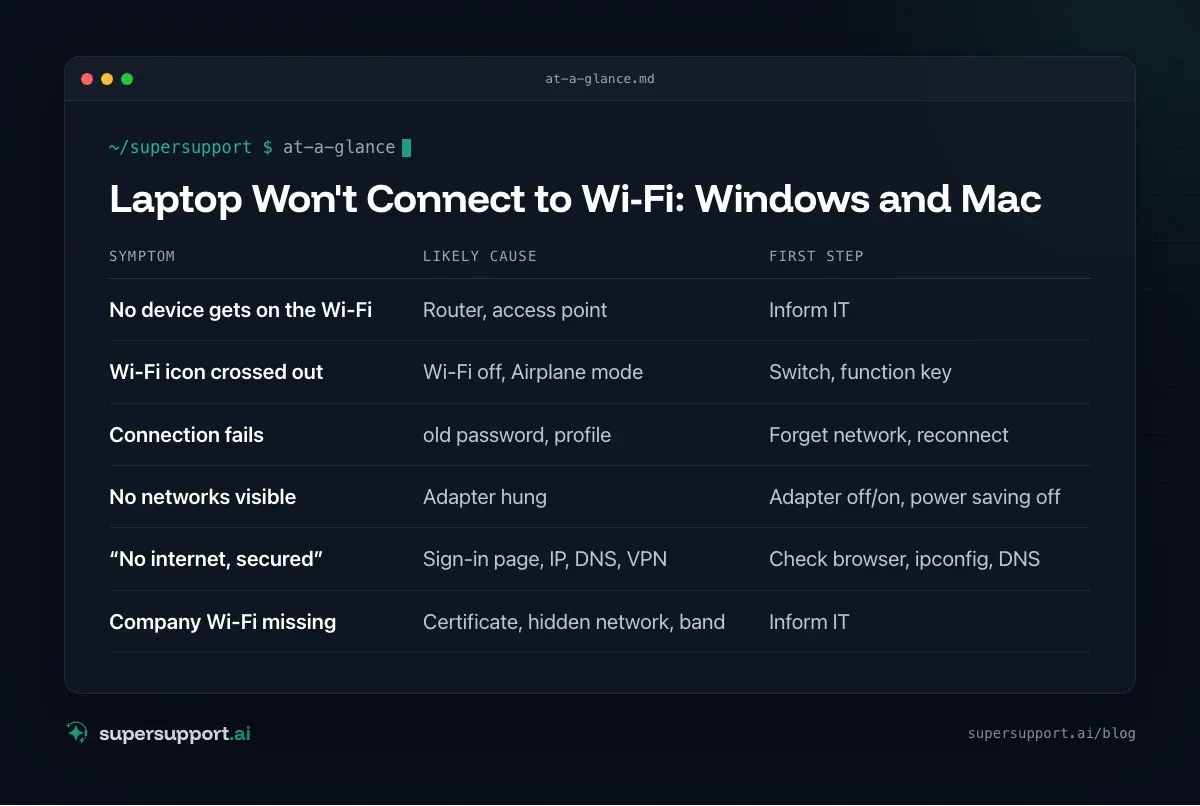
- Symptom: No device gets on the Wi-Fi – Likely cause: Router, access point; First step: Inform IT
- Symptom: Wi-Fi icon crossed out – Likely cause: Wi-Fi off, Airplane mode; First step: Switch, function key
- Symptom: Connection fails – Likely cause: old password, profile; First step: Forget network, reconnect
- Symptom: No networks visible – Likely cause: Adapter hung; First step: Adapter off/on, power saving off
- Symptom: “No internet, secured” – Likely cause: Sign-in page, IP, DNS, VPN; First step: Check browser,
ipconfig, DNS - Symptom: Company Wi-Fi missing – Likely cause: Certificate, hidden network, band; First step: Inform IT
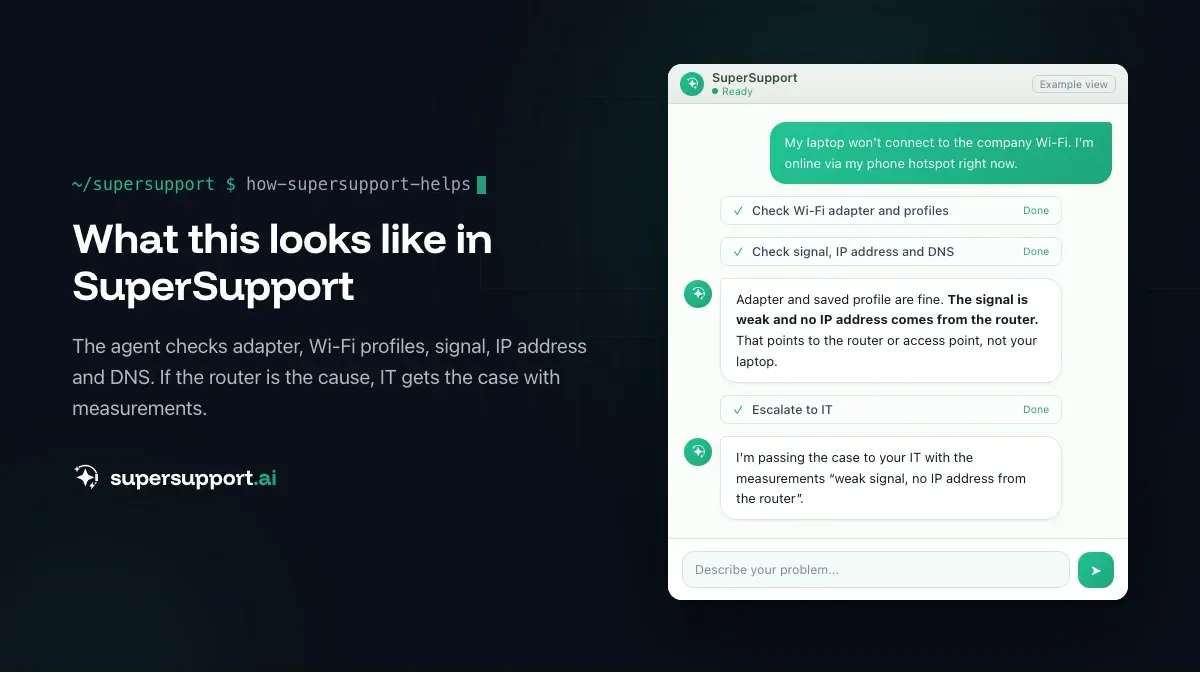
How does SuperSupport help with Wi-Fi problems?
Once the device is online – for example via network cable or phone hotspot – the SuperSupport agent checks adapter, saved Wi-Fi profiles, signal strength, frequency band, IP address and DNS on the Windows or Mac device. It restarts the adapter or reconnects a profile itself. If the router or access point is the cause, the case goes to IT with measurements – such as “weak signal, no IP address from the router, also affects other devices on the second floor”. What this looks like for internal IT teams and MSPs is described on their respective pages.
Frequently asked questions
Why won't my laptop connect to Wi-Fi?
Often Wi-Fi or Airplane mode is switched off, the saved password is outdated, the Wi-Fi profile is corrupted or the network adapter is hung. If other devices can't see the Wi-Fi either, it's the router or access point.
What does “No internet, secured” mean?
The laptop is connected to the Wi-Fi but can't get to the internet. Causes are usually a problem at the router, a missing IP address, a DNS error or a guest Wi-Fi that first requires a sign-in page in the browser.
How do I delete a saved Wi-Fi profile?
On Windows: Settings → Network & internet → Wi-Fi → Manage known networks → select the network → Forget. On macOS: System Settings → Wi-Fi → click “…” next to the network → Forget This Network. Then reconnect and enter the password.
Why can't I see the company Wi-Fi?
Some company networks are hidden or only available to managed devices, for example via certificate. Then IT has to set up the profile on the device. A laptop that only supports 2.4 GHz or only 5 GHz also doesn't see some networks.
Can SuperSupport help with Wi-Fi problems?
Yes. On the Windows or Mac device, the agent checks adapter, Wi-Fi profiles, signal strength, IP address and DNS. It restarts the adapter or reconnects a profile itself; if the router or access point is the cause, the case goes to IT with measurements.
14 days free
IT support that fixes itself.
SuperSupport fixes IT problems right on the device, before they turn into tickets. Try it free for 14 days.
Start free trialNico Haslberger is Co-Founder & CEO of SuperSupport.ai. With years of experience as an IT technician, he knows the problems in IT support first-hand: from overloaded help desks to recurring tickets that slow teams down. That knowledge is built into every feature of the platform today. He makes sure SuperSupport.ai solves exactly the problems he experienced himself for years.
This article was created with AI assistance and editorially reviewed.
Related Articles

Outlook Slow and Laggy: What Helps
Outlook Classic freezes, types with a delay and takes forever to open? The most common slowdowns – and what you lose if you disable individual add-ins.


Windows “This App Has Been Blocked”: What It Means
Windows blocks a program “for your protection” or for your organization? How to tell the messages apart and who can approve the program.

Word or Excel Keeps Crashing: How to Find the Cause
Word or Excel suddenly closes, freezes or reports “has stopped working”? Find the cause: add-ins, corrupted files, Safe Mode and Office repair.