;}.cls-2{fill:url(%23Unbenannter_Verlauf_5-2);}.cls-3{fill:url(%23Unbenannter_Verlauf_5-5);}.cls-4{fill:url(%23Unbenannter_Verlauf_5-6);}.cls-5{fill:url(%23Unbenannter_Verlauf_5-3);}.cls-6{fill:url(%23Unbenannter_Verlauf_5-4);}%3c/style%3e%3clinearGradient%20id='Unbenannter_Verlauf_5'%20x1='1075.02'%20y1='943.06'%20x2='1201.78'%20y2='943.06'%20gradientUnits='userSpaceOnUse'%3e%3cstop%20offset='0'%20stop-color='%2322b88a'/%3e%3cstop%20offset='1'%20stop-color='%231a9e78'/%3e%3c/linearGradient%3e%3clinearGradient%20id='Unbenannter_Verlauf_5-2'%20x1='234.11'%20y1='663.43'%20x2='1058.29'%20y2='663.43'%20xlink:href='%23Unbenannter_Verlauf_5'/%3e%3clinearGradient%20id='Unbenannter_Verlauf_5-3'%20x1='843.79'%20y1='1064.84'%20x2='1096.04'%20y2='1064.84'%20xlink:href='%23Unbenannter_Verlauf_5'/%3e%3clinearGradient%20id='Unbenannter_Verlauf_5-4'%20x1='1120.37'%20y1='662.1'%20x2='1253'%20y2='662.1'%20xlink:href='%23Unbenannter_Verlauf_5'/%3e%3clinearGradient%20id='Unbenannter_Verlauf_5-5'%20x1='97.45'%20y1='265.53'%20x2='385.89'%20y2='265.53'%20xlink:href='%23Unbenannter_Verlauf_5'/%3e%3clinearGradient%20id='Unbenannter_Verlauf_5-6'%20x1='295.45'%20y1='255.64'%20x2='1213.95'%20y2='255.64'%20xlink:href='%23Unbenannter_Verlauf_5'/%3e%3c/defs%3e%3cpath%20class='cls-1'%20d='M1201.78,871c-.61,1.55-1.23,3.1-1.86,4.66-20.33,50.18-47.14,96.85-80.02,139.45-7.56-13.82-21.78-22.31-37.69-22.31h-7.19c29.82-37.26,54.46-78.02,73.61-121.8h53.15Z'/%3e%3cpath%20class='cls-2'%20d='M665.24,264.59l69.02,186.52c21.3,57.57,66.69,102.96,124.26,124.26l186.52,69.02c17.67,6.54,17.67,31.54,0,38.08l-186.52,69.02c-57.57,21.3-102.96,66.69-124.26,124.26l-69.02,186.52c-6.54,17.67-31.54,17.67-38.08,0l-69.02-186.52c-21.3-57.57-66.69-102.96-124.26-124.26l-186.52-69.02c-17.67-6.54-17.67-31.54,0-38.08l186.52-69.02c57.57-21.3,102.96-66.69,124.26-124.26l69.02-186.52c6.54-17.67,31.54-17.67,38.08,0Z'/%3e%3cpath%20class='cls-5'%20d='M1082.21,1021.98h-79.13c-1.7,0-2.97-1.56-2.62-3.23l22.72-109.35c2.94-14.16-15.11-22.74-24.23-11.51l-152.04,187.31c-7.32,9.02-.9,22.5,10.72,22.5h79.13c1.7,0,2.97,1.56,2.62,3.23l-22.72,109.35c-2.94,14.16,15.11,22.74,24.23,11.51l152.04-187.31c7.32-9.02.9-22.5-10.72-22.5Z'/%3e%3crect%20class='cls-6'%20x='1120.37'%20y='486.36'%20width='132.63'%20height='351.48'%20rx='19.58'%20ry='19.58'/%3e%3cpath%20class='cls-3'%20d='M250.58,128.27l13.88,55.81c7.19,28.91,29.76,51.47,58.66,58.66l55.81,13.88c9.29,2.31,9.29,15.51,0,17.82l-55.81,13.88c-28.91,7.19-51.47,29.76-58.66,58.66l-13.88,55.81c-2.31,9.29-15.51,9.29-17.82,0l-13.88-55.81c-7.19-28.91-29.76-51.47-58.66-58.66l-55.81-13.88c-9.29-2.31-9.29-15.51,0-17.82l55.81-13.88c28.91-7.19,51.47-29.76,58.66-58.66l13.88-55.81c2.31-9.29,15.51-9.29,17.82,0Z'/%3e%3cpath%20class='cls-4'%20d='M1213.95,453.21h-67.62c-1.23,0-2.47.04-3.67.12-27.03-63.89-65.84-121.36-115.42-170.94-51.54-51.54-111.61-91.44-178.55-118.59-64.67-26.22-133.03-39.52-203.16-39.52s-138.48,13.3-203.16,39.52c-33.73,13.67-65.72,30.61-95.75,50.63l-.19-.05c-23.62-5.88-42.51-22.85-51-45.24,37.87-26.86,78.65-49.21,122.01-66.79,72.63-29.44,149.37-44.38,228.08-44.38s155.45,14.93,228.08,44.38c75.2,30.51,142.67,75.31,200.53,133.15,57.84,57.85,102.65,125.33,133.15,200.53,2.31,5.7,4.54,11.43,6.66,17.19Z'/%3e%3c/svg%3e)
“DNS server not responding”: how to fix the error
Wi-Fi connected but no page loads and Windows says “The DNS server isn't responding”? Find the cause: cache, adapter, VPN, router.


“DNS server not responding” sounds like a server. Often it is just the router.
The Wi-Fi icon shows a connection, but no web page loads. Windows Network Diagnostics reports: “The DNS server isn't responding.” That means: the computer is on the network but cannot translate names like microsoft.com into addresses. This guide shows how to find out in a few steps whether it is the device, the VPN or the network.
If only one particular page doesn't load and all the others do, then Only one website won't load is more likely to help.
Do other devices have the same problem?
This is the most important question – it decides where you look.
- All devices in the office affected: Router, firewall or internet provider. That is a case for IT.
- Only your device affected: It is the PC or Mac – continue with the steps below.
- Phone on the same Wi-Fi works, laptop doesn't: a clear pointer to the laptop.
Does clearing the DNS cache help?
Often yes – it is the quickest step. The computer remembers name resolutions; an outdated entry can cause trouble.
Windows – open Command Prompt:
ipconfig /flushdnsmacOS – Terminal:
sudo dscacheutil -flushcache; sudo killall -HUP mDNSResponderThen close the browser completely and reopen it.
Which DNS server is entered?
On Windows, in Command Prompt:
ipconfig /allFor the active adapter (Wi-Fi or Ethernet) you will see Default Gateway and DNS Servers. Important:
- If the DNS server shows an address that doesn't fit the network – such as a fixed entry from another office or from home – that is the reason. Then under Settings → Network & internet → Wi-Fi/Ethernet → Hardware properties → DNS server assignment set it to Automatic (DHCP).
- If the gateway shows nothing or 0.0.0.0, the device did not get a valid network configuration at all.
Test name resolution:
nslookup microsoft.comIf an address comes back, DNS works. If you get “DNS request timed out”, the DNS server is not responding.
macOS: System Settings → Network → Wi-Fi → Details → DNS.
Is a VPN client interfering?
VPN clients often set their own DNS servers. If the VPN is not shut down cleanly or hangs, the VPN DNS server stays entered – but without the VPN it is not reachable.
- Quit the VPN client completely and reconnect.
- If the error only occurs with the VPN, it is down to the VPN configuration – see VPN authentication failed.
- Security software with its own web filter can also redirect DNS requests.
Does restarting the network adapter help?

14 days free
IT support that fixes itself.
SuperSupport fixes IT problems right on the device, before they turn into tickets. Try it free for 14 days.
Start free trialA stuck adapter sometimes doesn't get a valid configuration.
Windows – Command Prompt as administrator:
ipconfig /release
ipconfig /renew
Or under Settings → Network & internet → Advanced network settings, disable and re-enable the adapter.
As a last step, under Advanced network settings → Network reset there is a complete reset. After that, Wi-Fi passwords and VPN settings have to be set up again – in companies, better with IT.
Is it the router or the firewall?
If all devices are affected, it is the infrastructure:
- The router has lost the connection to the internet provider.
- The internal DNS server (often on a server or domain controller) has failed.
- A firewall rule or a DNS filter is blocking requests.
This is not a do-it-yourself case – router and firewall belong to IT. See also Why SuperSupport doesn't change firewall rules.
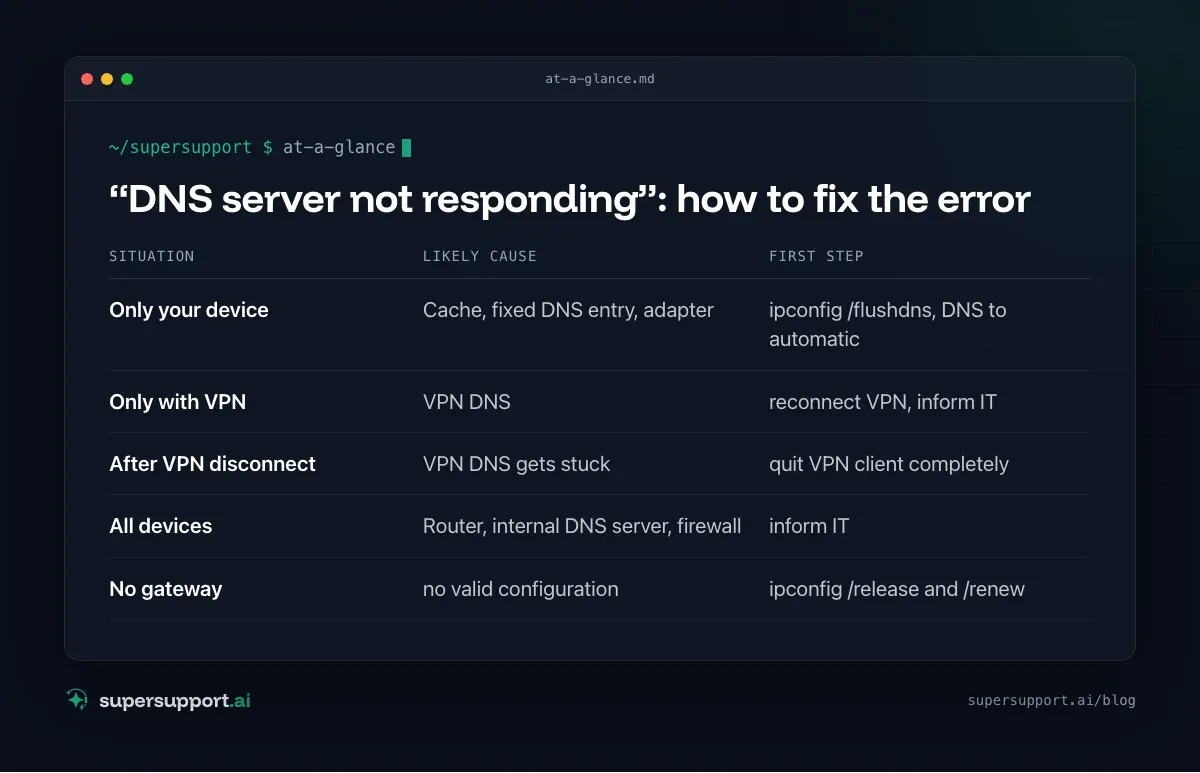
At a glance: DNS server not responding
- Situation: Only your device – Likely cause: Cache, fixed DNS entry, adapter; First step:
ipconfig /flushdns, DNS to automatic - Situation: Only with VPN – Likely cause: VPN DNS; First step: reconnect VPN, inform IT
- Situation: After VPN disconnect – Likely cause: VPN DNS gets stuck; First step: quit VPN client completely
- Situation: All devices – Likely cause: Router, internal DNS server, firewall; First step: inform IT
- Situation: No gateway – Likely cause: no valid configuration; First step:
ipconfig /releaseand/renew
For constant dropouts, Internet connection unstable also helps.
How does SuperSupport help with the DNS error?
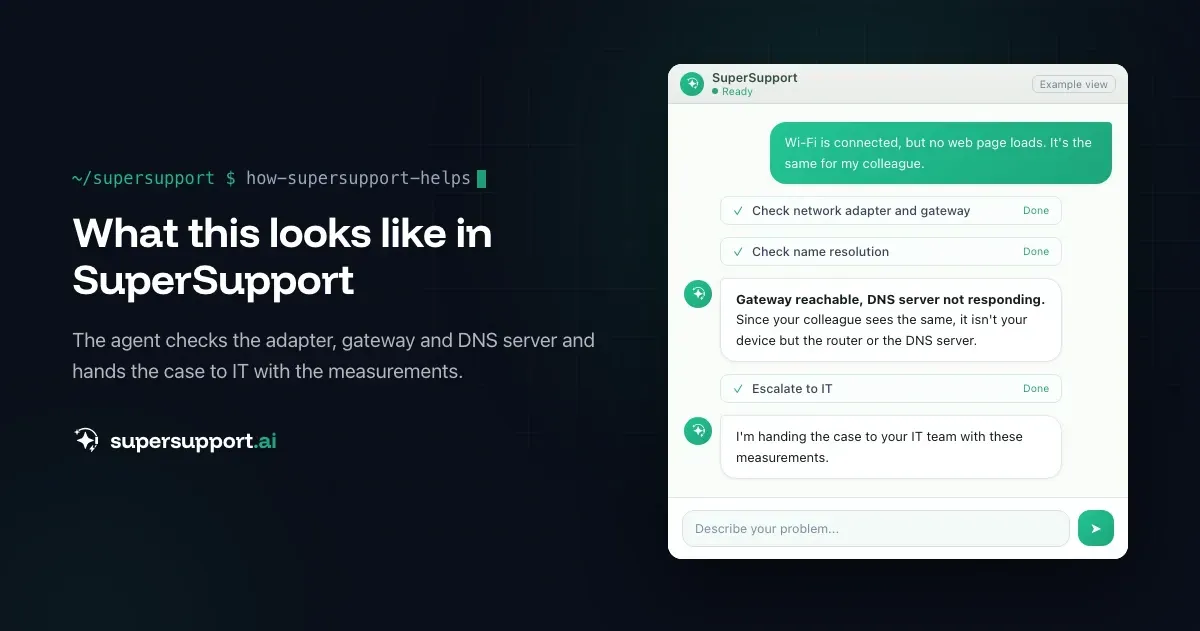
On the Windows or Mac device, the SuperSupport agent checks adapter, IP address, gateway and entered DNS servers, tests name resolution and detects whether a VPN client is interfering. It clears the DNS cache or restarts the adapter itself. If it is the router, the internal DNS server or the firewall, the case goes to IT with measured values – such as “gateway reachable, DNS server not responding, other devices affected as well”. How that looks for internal IT teams and MSPs is explained on the respective pages.
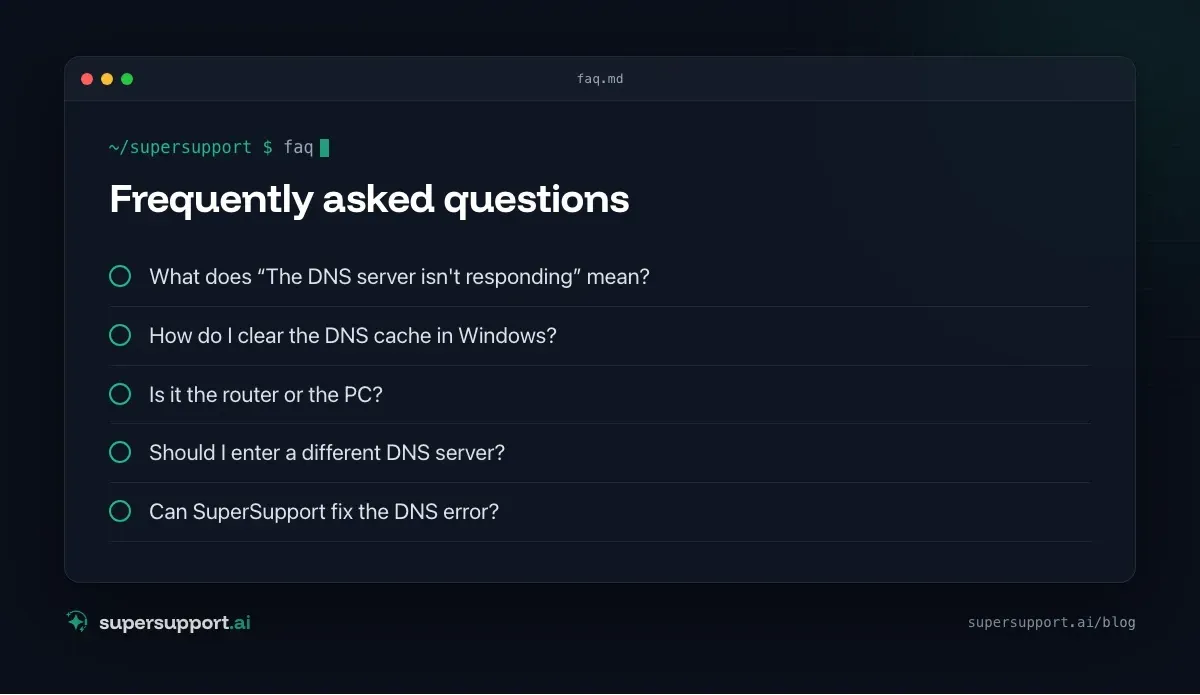
Frequently asked questions
What does “The DNS server isn't responding” mean?
The computer is connected to the network but cannot translate names like microsoft.com into IP addresses. Without that translation, no web page loads, even though the connection itself is up.
How do I clear the DNS cache in Windows?
In Command Prompt: ipconfig /flushdns. Then reopen the browser. On macOS, in Terminal: sudo dscacheutil -flushcache; sudo killall -HUP mDNSResponder.
Is it the router or the PC?
If all devices in the office have the problem, it is the router, the firewall or the internet provider. If only one device has the problem, it is usually the PC – a fixed DNS entry, a VPN client or a stuck network adapter.
Should I enter a different DNS server?
Not in company networks. There the PC needs the company's DNS server to find internal servers, printers and drives. A public DNS server like 1.1.1.1 can help at home, but in the office it often breaks internal services.
Can SuperSupport fix the DNS error?
Often yes. On the Windows or Mac device, the agent checks adapter, IP address, gateway and DNS server, tests name resolution and clears the DNS cache itself. If it is the router or the firewall, the case goes to IT with measured values.
14 days free
IT support that fixes itself.
SuperSupport fixes IT problems right on the device, before they turn into tickets. Try it free for 14 days.
Start free trialNico Haslberger is Co-Founder & CEO of SuperSupport.ai. With years of experience as an IT technician, he knows the problems in IT support first-hand: from overloaded help desks to recurring tickets that slow teams down. That knowledge is built into every feature of the platform today. He makes sure SuperSupport.ai solves exactly the problems he experienced himself for years.
This article was created with AI assistance and editorially reviewed.
Related Articles

Outlook Slow and Laggy: What Helps
Outlook Classic freezes, types with a delay and takes forever to open? The most common slowdowns – and what you lose if you disable individual add-ins.


Windows “This App Has Been Blocked”: What It Means
Windows blocks a program “for your protection” or for your organization? How to tell the messages apart and who can approve the program.

Word or Excel Keeps Crashing: How to Find the Cause
Word or Excel suddenly closes, freezes or reports “has stopped working”? Find the cause: add-ins, corrupted files, Safe Mode and Office repair.