;}.cls-2{fill:url(%23Unbenannter_Verlauf_5-2);}.cls-3{fill:url(%23Unbenannter_Verlauf_5-5);}.cls-4{fill:url(%23Unbenannter_Verlauf_5-6);}.cls-5{fill:url(%23Unbenannter_Verlauf_5-3);}.cls-6{fill:url(%23Unbenannter_Verlauf_5-4);}%3c/style%3e%3clinearGradient%20id='Unbenannter_Verlauf_5'%20x1='1075.02'%20y1='943.06'%20x2='1201.78'%20y2='943.06'%20gradientUnits='userSpaceOnUse'%3e%3cstop%20offset='0'%20stop-color='%2322b88a'/%3e%3cstop%20offset='1'%20stop-color='%231a9e78'/%3e%3c/linearGradient%3e%3clinearGradient%20id='Unbenannter_Verlauf_5-2'%20x1='234.11'%20y1='663.43'%20x2='1058.29'%20y2='663.43'%20xlink:href='%23Unbenannter_Verlauf_5'/%3e%3clinearGradient%20id='Unbenannter_Verlauf_5-3'%20x1='843.79'%20y1='1064.84'%20x2='1096.04'%20y2='1064.84'%20xlink:href='%23Unbenannter_Verlauf_5'/%3e%3clinearGradient%20id='Unbenannter_Verlauf_5-4'%20x1='1120.37'%20y1='662.1'%20x2='1253'%20y2='662.1'%20xlink:href='%23Unbenannter_Verlauf_5'/%3e%3clinearGradient%20id='Unbenannter_Verlauf_5-5'%20x1='97.45'%20y1='265.53'%20x2='385.89'%20y2='265.53'%20xlink:href='%23Unbenannter_Verlauf_5'/%3e%3clinearGradient%20id='Unbenannter_Verlauf_5-6'%20x1='295.45'%20y1='255.64'%20x2='1213.95'%20y2='255.64'%20xlink:href='%23Unbenannter_Verlauf_5'/%3e%3c/defs%3e%3cpath%20class='cls-1'%20d='M1201.78,871c-.61,1.55-1.23,3.1-1.86,4.66-20.33,50.18-47.14,96.85-80.02,139.45-7.56-13.82-21.78-22.31-37.69-22.31h-7.19c29.82-37.26,54.46-78.02,73.61-121.8h53.15Z'/%3e%3cpath%20class='cls-2'%20d='M665.24,264.59l69.02,186.52c21.3,57.57,66.69,102.96,124.26,124.26l186.52,69.02c17.67,6.54,17.67,31.54,0,38.08l-186.52,69.02c-57.57,21.3-102.96,66.69-124.26,124.26l-69.02,186.52c-6.54,17.67-31.54,17.67-38.08,0l-69.02-186.52c-21.3-57.57-66.69-102.96-124.26-124.26l-186.52-69.02c-17.67-6.54-17.67-31.54,0-38.08l186.52-69.02c57.57-21.3,102.96-66.69,124.26-124.26l69.02-186.52c6.54-17.67,31.54-17.67,38.08,0Z'/%3e%3cpath%20class='cls-5'%20d='M1082.21,1021.98h-79.13c-1.7,0-2.97-1.56-2.62-3.23l22.72-109.35c2.94-14.16-15.11-22.74-24.23-11.51l-152.04,187.31c-7.32,9.02-.9,22.5,10.72,22.5h79.13c1.7,0,2.97,1.56,2.62,3.23l-22.72,109.35c-2.94,14.16,15.11,22.74,24.23,11.51l152.04-187.31c7.32-9.02.9-22.5-10.72-22.5Z'/%3e%3crect%20class='cls-6'%20x='1120.37'%20y='486.36'%20width='132.63'%20height='351.48'%20rx='19.58'%20ry='19.58'/%3e%3cpath%20class='cls-3'%20d='M250.58,128.27l13.88,55.81c7.19,28.91,29.76,51.47,58.66,58.66l55.81,13.88c9.29,2.31,9.29,15.51,0,17.82l-55.81,13.88c-28.91,7.19-51.47,29.76-58.66,58.66l-13.88,55.81c-2.31,9.29-15.51,9.29-17.82,0l-13.88-55.81c-7.19-28.91-29.76-51.47-58.66-58.66l-55.81-13.88c-9.29-2.31-9.29-15.51,0-17.82l55.81-13.88c28.91-7.19,51.47-29.76,58.66-58.66l13.88-55.81c2.31-9.29,15.51-9.29,17.82,0Z'/%3e%3cpath%20class='cls-4'%20d='M1213.95,453.21h-67.62c-1.23,0-2.47.04-3.67.12-27.03-63.89-65.84-121.36-115.42-170.94-51.54-51.54-111.61-91.44-178.55-118.59-64.67-26.22-133.03-39.52-203.16-39.52s-138.48,13.3-203.16,39.52c-33.73,13.67-65.72,30.61-95.75,50.63l-.19-.05c-23.62-5.88-42.51-22.85-51-45.24,37.87-26.86,78.65-49.21,122.01-66.79,72.63-29.44,149.37-44.38,228.08-44.38s155.45,14.93,228.08,44.38c75.2,30.51,142.67,75.31,200.53,133.15,57.84,57.85,102.65,125.33,133.15,200.53,2.31,5.7,4.54,11.43,6.66,17.19Z'/%3e%3c/svg%3e)
Windows blue screen: read the stop code, find the cause
Windows crashes with a blue screen? Read the stop code, find the crash in Event Viewer and narrow it down to drivers, updates, memory or hardware.

The blue screen often reveals the cause. You just have to read the stop code.
“My computer just crashed – blue screen, then restart.” Often the stop code is gone before anyone could write it down. And after the restart everything works again – until the next time.
Here is how to find the crash after the fact, read the stop code and narrow down the cause. The steps apply to Windows 10 and 11; by the way, newer Windows 11 versions show a black screen instead of the blue one – the causes are the same.
Step 1: Find the stop code
The stop code is the most important clue. If it was on the screen, take a photo if you can. Otherwise:
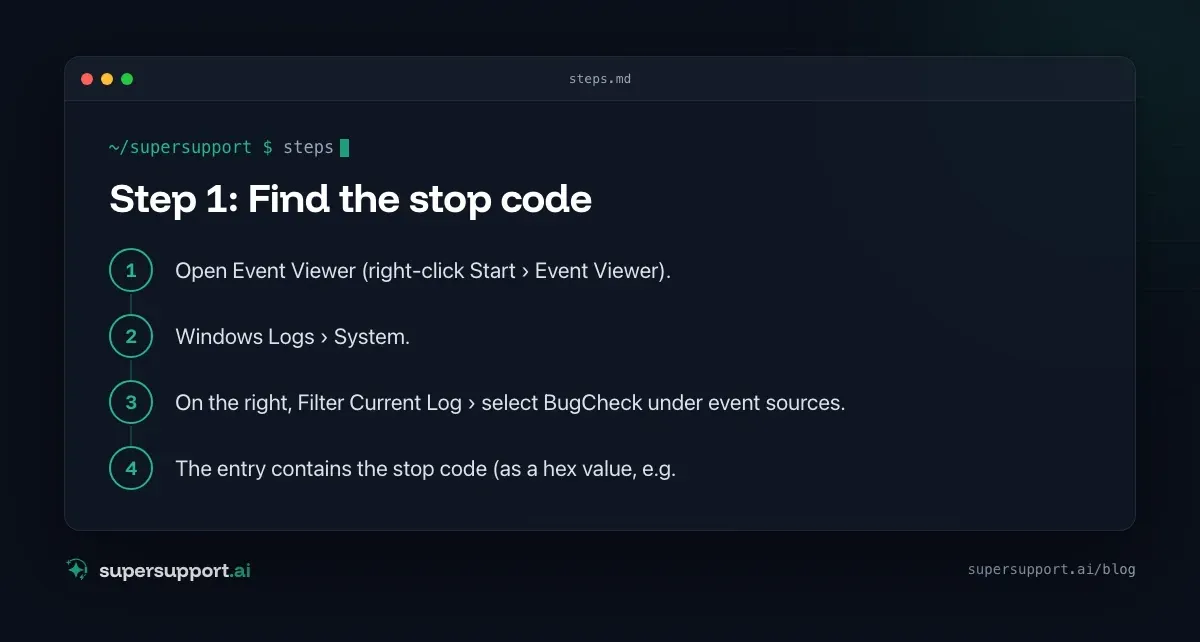
- Open Event Viewer (right-click Start › Event Viewer).
- Windows Logs › System.
- On the right, Filter Current Log › select BugCheck under event sources.
- The entry contains the stop code (as a hex value, e.g.
0x000000ef).
Also helpful: Kernel-Power, event ID 41 – the computer was not shut down properly.
With PowerShell:
Get-WinEvent -FilterHashtable @{LogName='System'; ProviderName='Microsoft-Windows-WER-SystemErrorReporting'} -MaxEvents 5 |
  Select-Object TimeCreated, Message
Crash dumps are stored in C:\Windows\Minidump – IT can analyze them with WinDbg.
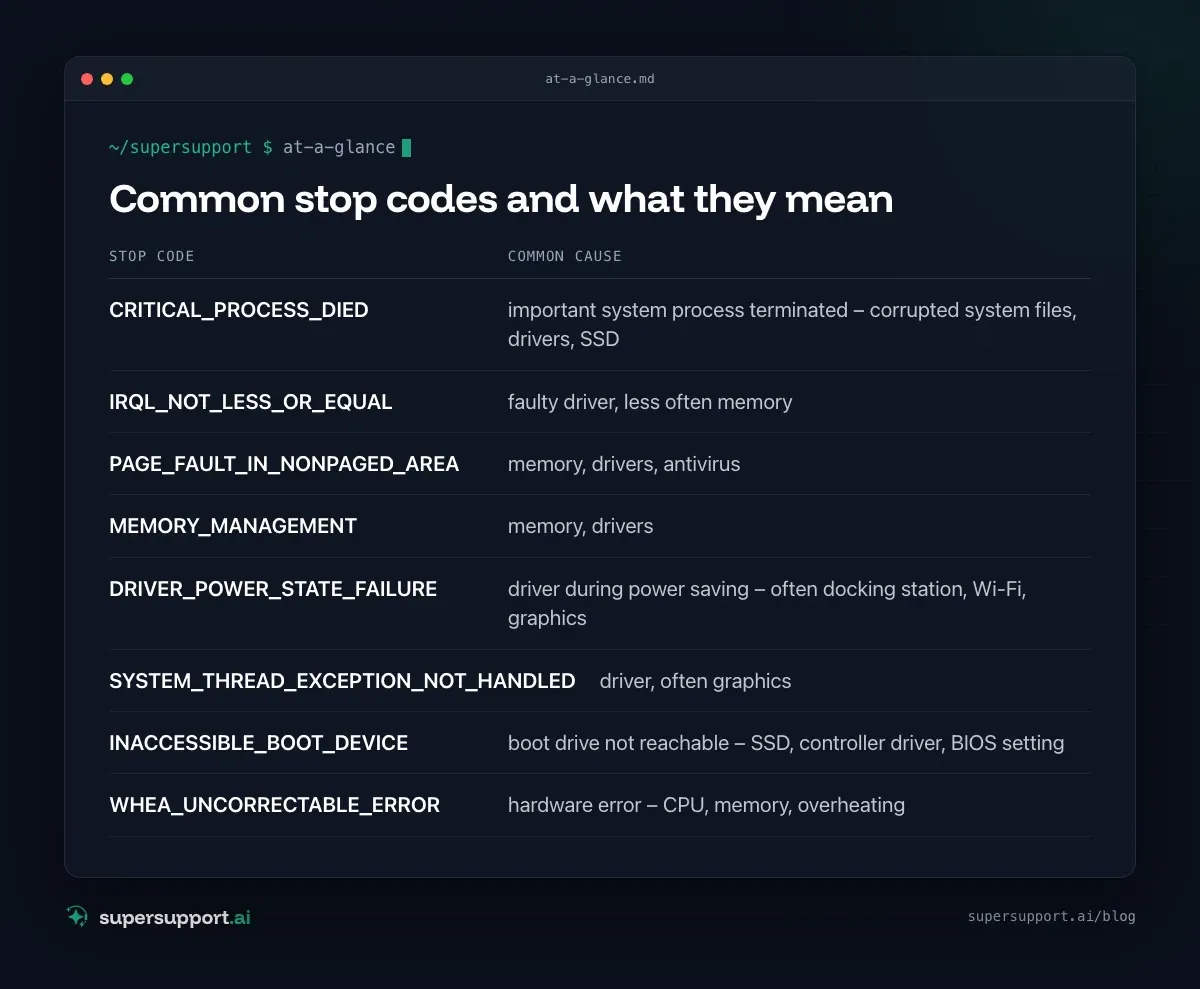
Common stop codes and what they mean
CRITICAL_PROCESS_DIED– important system process terminated – corrupted system files, drivers, SSDIRQL_NOT_LESS_OR_EQUAL– faulty driver, less often memoryPAGE_FAULT_IN_NONPAGED_AREA– memory, drivers, antivirusMEMORY_MANAGEMENT– memory, driversDRIVER_POWER_STATE_FAILURE– driver during power saving – often docking station, Wi-Fi, graphicsSYSTEM_THREAD_EXCEPTION_NOT_HANDLED– driver, often graphicsINACCESSIBLE_BOOT_DEVICE– boot drive not reachable – SSD, controller driver, BIOS settingWHEA_UNCORRECTABLE_ERROR– hardware error – CPU, memory, overheating
Step 2: What has changed?
If the blue screen came after a change, that change is the first suspect.
- Windows update: Settings › Windows Update › Update history – what was installed shortly before? A faulty update can be removed there under Uninstall updates.
- New driver: graphics, docking station, network. In Device Manager, open the device's Properties › Driver › Roll Back Driver.
- New software: especially antivirus, VPN clients, driver tools.
- New hardware: docking station, USB devices. Unplug them as a test.
- BIOS update – see External monitor: no signal after BIOS update.
Step 3: Update drivers
Drivers are the most common cause. Best from the device manufacturer (Dell, HP, Lenovo …) – their support tools know the right drivers for the model. In particular:
- Graphics drivers
- Drivers for the docking station (DisplayLink, Thunderbolt)
- Network and Wi-Fi drivers
- Chipset and storage controller
Step 4: Check system files
In a Command Prompt as administrator:
DISM /Online /Cleanup-Image /RestoreHealth
sfc /scannow
14 days free
IT support that fixes itself.
SuperSupport fixes IT problems right on the device, before they turn into tickets. Try it free for 14 days.
Start free trialDISM repairs the component store, sfc checks and replaces corrupted system files.
Step 5: Check memory and SSD
- Memory: Windows+R ›
mdsched.exe› Restart now and check for problems. - SSD: check its health with the manufacturer's tool or with PowerShell:
Get-PhysicalDisk | Select-Object FriendlyName, HealthStatus, OperationalStatusIf the drive reports problems: back up your data immediately and have the device replaced.
Step 6: Rule out overheating
Blue screens under load – for example during video calls or with large Excel files – can point to overheating. See Laptop slow during use.
When IT needs to step in
- Repeated blue screens despite current drivers and updates.
- Hardware errors (SSD, memory,
WHEA_UNCORRECTABLE_ERROR). - Windows no longer starts – recovery environment, possibly the BitLocker recovery key.
- Several devices at once – then it is usually down to an update or centrally deployed software.
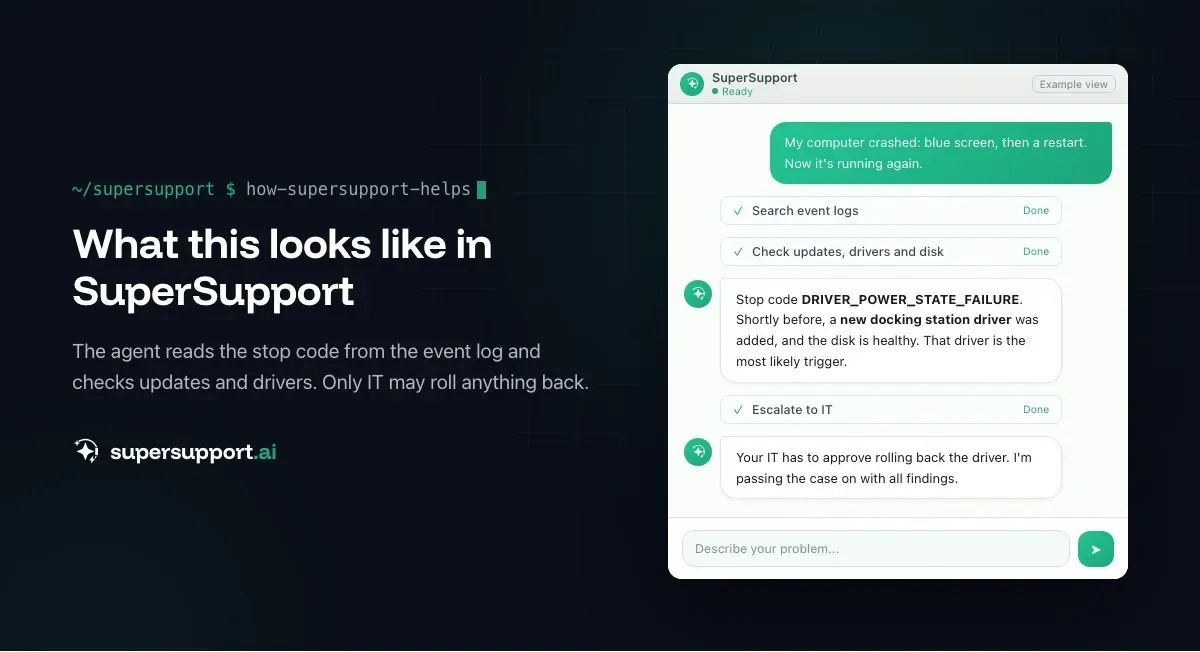
How does SuperSupport help with blue screens?
After a crash, the SuperSupport agent on the Windows device reads Event Viewer, finds the stop code, and checks the update history, recently installed drivers and the state of the drive. It can start harmless things like system file checks; driver and update uninstalls it submits to IT for approval – with all findings in the log. What that looks like for internal IT teams and MSPs is described on the respective pages.
Frequently asked questions
What is a blue screen?
A blue screen (stop error) means Windows ran into a serious error and has to restart to protect the system. The screen shows a stop code such as CRITICAL_PROCESS_DIED or IRQL_NOT_LESS_OR_EQUAL that points to the cause. Newer Windows 11 versions show a black screen instead of a blue one.
How do I find the stop code after the restart?
In Event Viewer, go to Windows Logs › System and look for the source BugCheck – the stop code is listed there. A Kernel-Power entry with event ID 41 shows that the computer restarted unexpectedly. Crash dumps are stored in the folder C:\Windows\Minidump.
What are the most common causes of blue screens?
Faulty or outdated drivers (graphics, network, docking station), a recently installed update or program, defective memory, problems with the SSD, overheating, and corrupted system files. If the blue screen appears after a change, that change is the first suspect.
Is a blue screen dangerous?
A single blue screen is usually nothing to worry about. If they pile up, the cause should be found – unsaved work is lost, and with hardware defects such as the SSD or memory, data loss and further failures are possible.
How do I check the memory?
With Windows Memory Diagnostic: press Windows+R, enter mdsched.exe and choose “Restart now and check for problems”. After the test, Windows shows the result or stores it in Event Viewer under MemoryDiagnostics-Results.
14 days free
IT support that fixes itself.
SuperSupport fixes IT problems right on the device, before they turn into tickets. Try it free for 14 days.
Start free trialNico Haslberger is Co-Founder & CEO of SuperSupport.ai. With years of experience as an IT technician, he knows the problems in IT support first-hand: from overloaded help desks to recurring tickets that slow teams down. That knowledge is built into every feature of the platform today. He makes sure SuperSupport.ai solves exactly the problems he experienced himself for years.
This article was created with AI assistance and editorially reviewed.
Related Articles
Recover a Deleted File: All the Ways at Work
File deleted, overwritten or unsaved? Recover it via Recycle Bin, OneDrive and SharePoint, version history, AutoRecover, Previous Versions or Time Machine.


Find Your BitLocker Recovery Key: All the Ways
Windows asks for the BitLocker recovery key? Where to find the 48-digit key (Microsoft account, Entra ID, Intune, AD) and why it is requested.
Windows Server Shuts Down Every Hour? Check the License
Server shuts itself down after about an hour – taking VMs and printers with it? Usually the evaluation license has expired. How to spot and fix it.