;}.cls-2{fill:url(%23Unbenannter_Verlauf_5-2);}.cls-3{fill:url(%23Unbenannter_Verlauf_5-5);}.cls-4{fill:url(%23Unbenannter_Verlauf_5-6);}.cls-5{fill:url(%23Unbenannter_Verlauf_5-3);}.cls-6{fill:url(%23Unbenannter_Verlauf_5-4);}%3c/style%3e%3clinearGradient%20id='Unbenannter_Verlauf_5'%20x1='1075.02'%20y1='943.06'%20x2='1201.78'%20y2='943.06'%20gradientUnits='userSpaceOnUse'%3e%3cstop%20offset='0'%20stop-color='%2322b88a'/%3e%3cstop%20offset='1'%20stop-color='%231a9e78'/%3e%3c/linearGradient%3e%3clinearGradient%20id='Unbenannter_Verlauf_5-2'%20x1='234.11'%20y1='663.43'%20x2='1058.29'%20y2='663.43'%20xlink:href='%23Unbenannter_Verlauf_5'/%3e%3clinearGradient%20id='Unbenannter_Verlauf_5-3'%20x1='843.79'%20y1='1064.84'%20x2='1096.04'%20y2='1064.84'%20xlink:href='%23Unbenannter_Verlauf_5'/%3e%3clinearGradient%20id='Unbenannter_Verlauf_5-4'%20x1='1120.37'%20y1='662.1'%20x2='1253'%20y2='662.1'%20xlink:href='%23Unbenannter_Verlauf_5'/%3e%3clinearGradient%20id='Unbenannter_Verlauf_5-5'%20x1='97.45'%20y1='265.53'%20x2='385.89'%20y2='265.53'%20xlink:href='%23Unbenannter_Verlauf_5'/%3e%3clinearGradient%20id='Unbenannter_Verlauf_5-6'%20x1='295.45'%20y1='255.64'%20x2='1213.95'%20y2='255.64'%20xlink:href='%23Unbenannter_Verlauf_5'/%3e%3c/defs%3e%3cpath%20class='cls-1'%20d='M1201.78,871c-.61,1.55-1.23,3.1-1.86,4.66-20.33,50.18-47.14,96.85-80.02,139.45-7.56-13.82-21.78-22.31-37.69-22.31h-7.19c29.82-37.26,54.46-78.02,73.61-121.8h53.15Z'/%3e%3cpath%20class='cls-2'%20d='M665.24,264.59l69.02,186.52c21.3,57.57,66.69,102.96,124.26,124.26l186.52,69.02c17.67,6.54,17.67,31.54,0,38.08l-186.52,69.02c-57.57,21.3-102.96,66.69-124.26,124.26l-69.02,186.52c-6.54,17.67-31.54,17.67-38.08,0l-69.02-186.52c-21.3-57.57-66.69-102.96-124.26-124.26l-186.52-69.02c-17.67-6.54-17.67-31.54,0-38.08l186.52-69.02c57.57-21.3,102.96-66.69,124.26-124.26l69.02-186.52c6.54-17.67,31.54-17.67,38.08,0Z'/%3e%3cpath%20class='cls-5'%20d='M1082.21,1021.98h-79.13c-1.7,0-2.97-1.56-2.62-3.23l22.72-109.35c2.94-14.16-15.11-22.74-24.23-11.51l-152.04,187.31c-7.32,9.02-.9,22.5,10.72,22.5h79.13c1.7,0,2.97,1.56,2.62,3.23l-22.72,109.35c-2.94,14.16,15.11,22.74,24.23,11.51l152.04-187.31c7.32-9.02.9-22.5-10.72-22.5Z'/%3e%3crect%20class='cls-6'%20x='1120.37'%20y='486.36'%20width='132.63'%20height='351.48'%20rx='19.58'%20ry='19.58'/%3e%3cpath%20class='cls-3'%20d='M250.58,128.27l13.88,55.81c7.19,28.91,29.76,51.47,58.66,58.66l55.81,13.88c9.29,2.31,9.29,15.51,0,17.82l-55.81,13.88c-28.91,7.19-51.47,29.76-58.66,58.66l-13.88,55.81c-2.31,9.29-15.51,9.29-17.82,0l-13.88-55.81c-7.19-28.91-29.76-51.47-58.66-58.66l-55.81-13.88c-9.29-2.31-9.29-15.51,0-17.82l55.81-13.88c28.91-7.19,51.47-29.76,58.66-58.66l13.88-55.81c2.31-9.29,15.51-9.29,17.82,0Z'/%3e%3cpath%20class='cls-4'%20d='M1213.95,453.21h-67.62c-1.23,0-2.47.04-3.67.12-27.03-63.89-65.84-121.36-115.42-170.94-51.54-51.54-111.61-91.44-178.55-118.59-64.67-26.22-133.03-39.52-203.16-39.52s-138.48,13.3-203.16,39.52c-33.73,13.67-65.72,30.61-95.75,50.63l-.19-.05c-23.62-5.88-42.51-22.85-51-45.24,37.87-26.86,78.65-49.21,122.01-66.79,72.63-29.44,149.37-44.38,228.08-44.38s155.45,14.93,228.08,44.38c75.2,30.51,142.67,75.31,200.53,133.15,57.84,57.85,102.65,125.33,133.15,200.53,2.31,5.7,4.54,11.43,6.66,17.19Z'/%3e%3c/svg%3e)
Print Spooler Won't Restart: What to Do
The Print Spooler hangs, restarting it fails or the service keeps stopping? How to kill it, clear the print queue and find the driver that crashes it.


Restarting the Print Spooler sounds like one click. Until it refuses to start again.
“Restart the Print Spooler.” A clear instruction from a support chat, and the classic when the printer doesn't print. The service was running, set to automatic start, the restart was triggered, and it failed. A look at the queue showed the reason: on the default printer, an inkjet multifunction device in the office, several print jobs were stuck and blocking the service. Before they were deleted, a question came up: should all jobs be removed? They have to be sent again afterward.
When the normal restart of the Print Spooler doesn't work, you need a few more steps. The basics about the print queue are in Printer won't print: fixing the print queue; this article is about the stubborn cases.
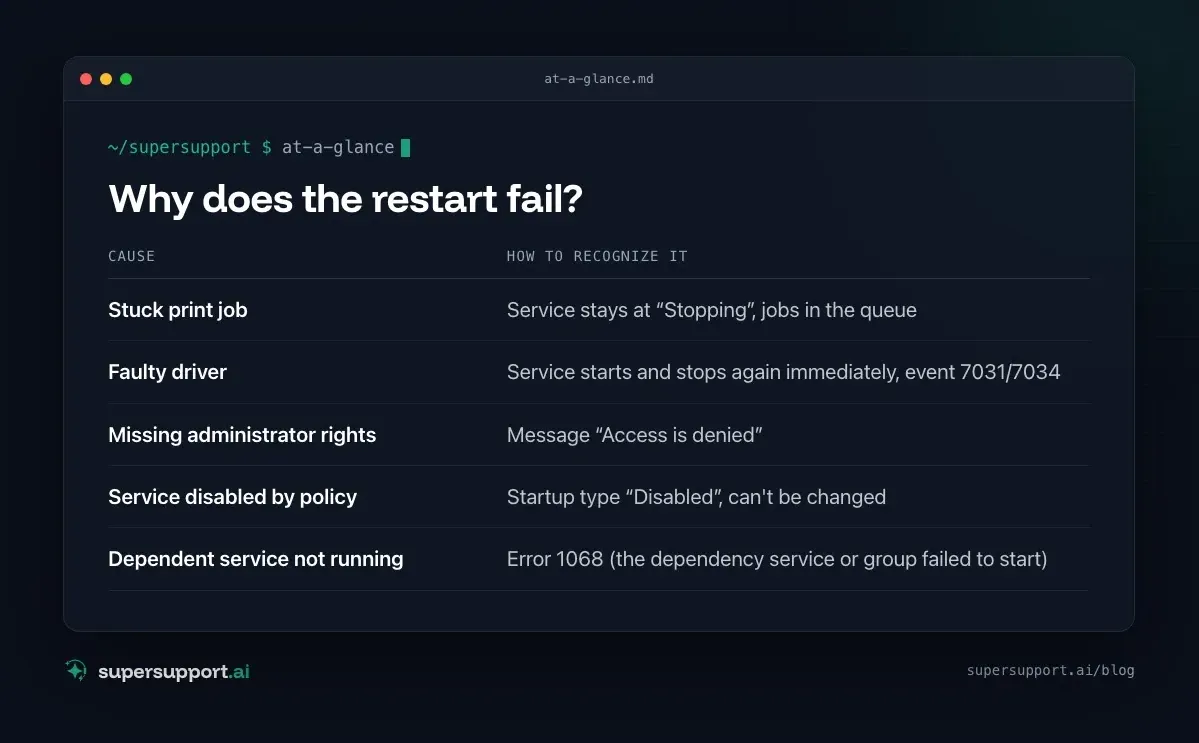
Why does the restart fail?
- Stuck print job – Service stays at “Stopping”, jobs in the queue
- Faulty driver – Service starts and stops again immediately, event 7031/7034
- Missing administrator rights – Message “Access is denied”
- Service disabled by policy – Startup type “Disabled”, can't be changed
- Dependent service not running – Error 1068 (the dependency service or group failed to start)
Step 1: Check the status and the error message
PowerShell as administrator:
Get-Service Spooler | Select-Object Status, StartType
Get-WinEvent -FilterHashtable @{LogName='System'; ProviderName='Service Control Manager'} -MaxEvents 20 |
Where-Object Message -match "Druckwarteschlange|Print Spooler" | Select-Object TimeCreated, Id, Message- If the service is set to Disabled and can't be changed, a Group Policy is usually behind it. That is a deliberate setting by IT.
- If 7031 or 7034 show up several times, the service is crashing. Continue with step 4.
Step 2: Kill the hung service
If the service hangs while stopping, the only thing that helps is to end the process directly:
taskkill /F /IM spoolsv.exeAfter that the service is stopped, even if Services still shows “Stopping” for a moment.
Step 3: Clear the queue and restart
Now remove the stuck jobs. But first: let people know that jobs that haven't been printed will have to be sent again, as in the real case, where someone asked before deleting.
del /Q /F "%systemroot%\System32\spool\PRINTERS\*.*"
net start spooler
Then print a test page: Settings › Bluetooth & devices › Printers & scanners › printer › Print test page.
Delete only the jobs of a single printer (the service has to be running):
Get-PrintJob -PrinterName "Büro Drucker" | Remove-PrintJobStep 4: If the service keeps crashing
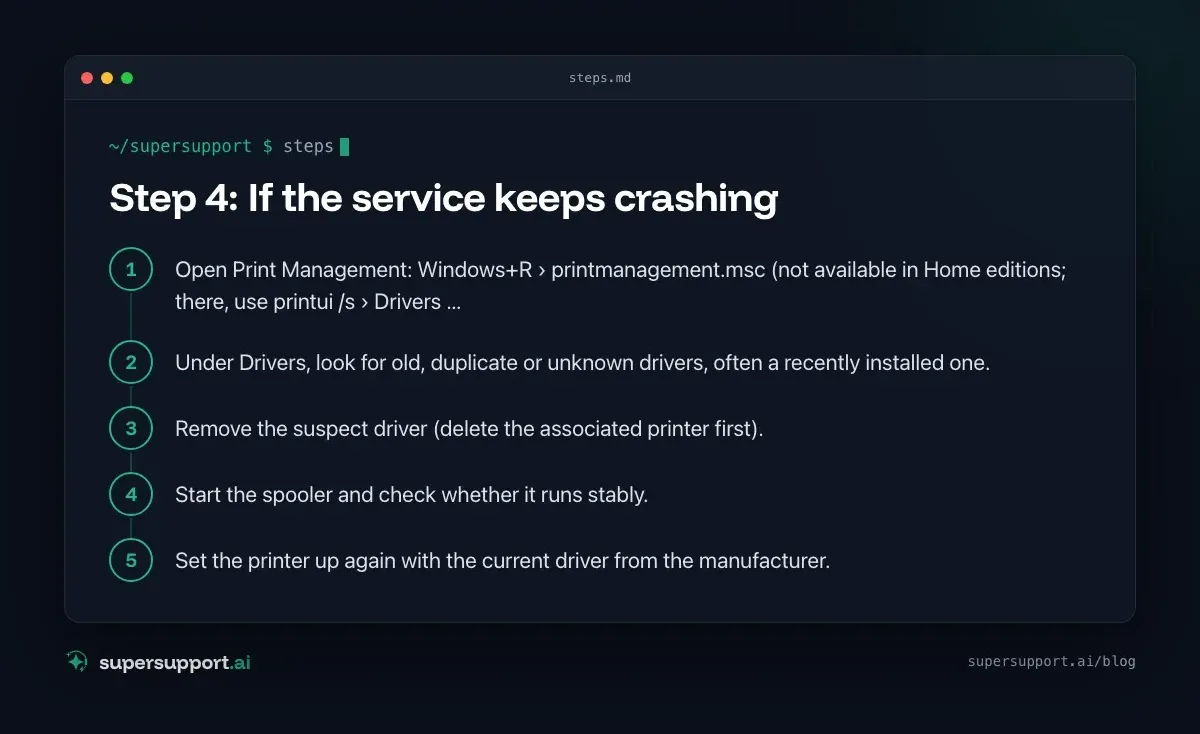
Then a printer driver is almost always to blame. At startup, the spooler loads all installed drivers; if one is faulty, it takes the service down with it.
- Open Print Management: Windows+R ›
printmanagement.msc(not available in Home editions; there, useprintui /s› Drivers tab). - Under Drivers, look for old, duplicate or unknown drivers, often a recently installed one.
- Remove the suspect driver (delete the associated printer first).
- Start the spooler and check whether it runs stably.
- Set the printer up again with the current driver from the manufacturer.

14 days free
IT support that fixes itself.
SuperSupport fixes IT problems right on the device, before they turn into tickets. Try it free for 14 days.
Start free trialThe Microsoft-Windows-PrintService/Admin log in Event Viewer (under Applications and Services Logs) often names the driver that is causing problems.
Which drivers exist and which printer uses which:
Get-PrinterDriver | Select-Object Name, Manufacturer, DriverVersion
Get-Printer | Select-Object Name, DriverName, PortName
More about drivers: HP Universal Print Driver: traditional or dynamic?.
Step 5: Configure recovery
So that the spooler restarts itself after a crash: services.msc › Print Spooler › Properties › Recovery › for the first and second failure, Restart the Service. Details: Restart a Windows service automatically. This doesn't fix the cause, but it makes sure not every crash turns into a phone call.
Print server instead of workstation?
If the printers run through a print server, a hung spooler there affects all users. The same steps apply, but on the server and ideally outside working hours. If the print server can't be reached at all, the cause is elsewhere: see Windows Server shuts down every hour.
How does SuperSupport help with spooler problems?
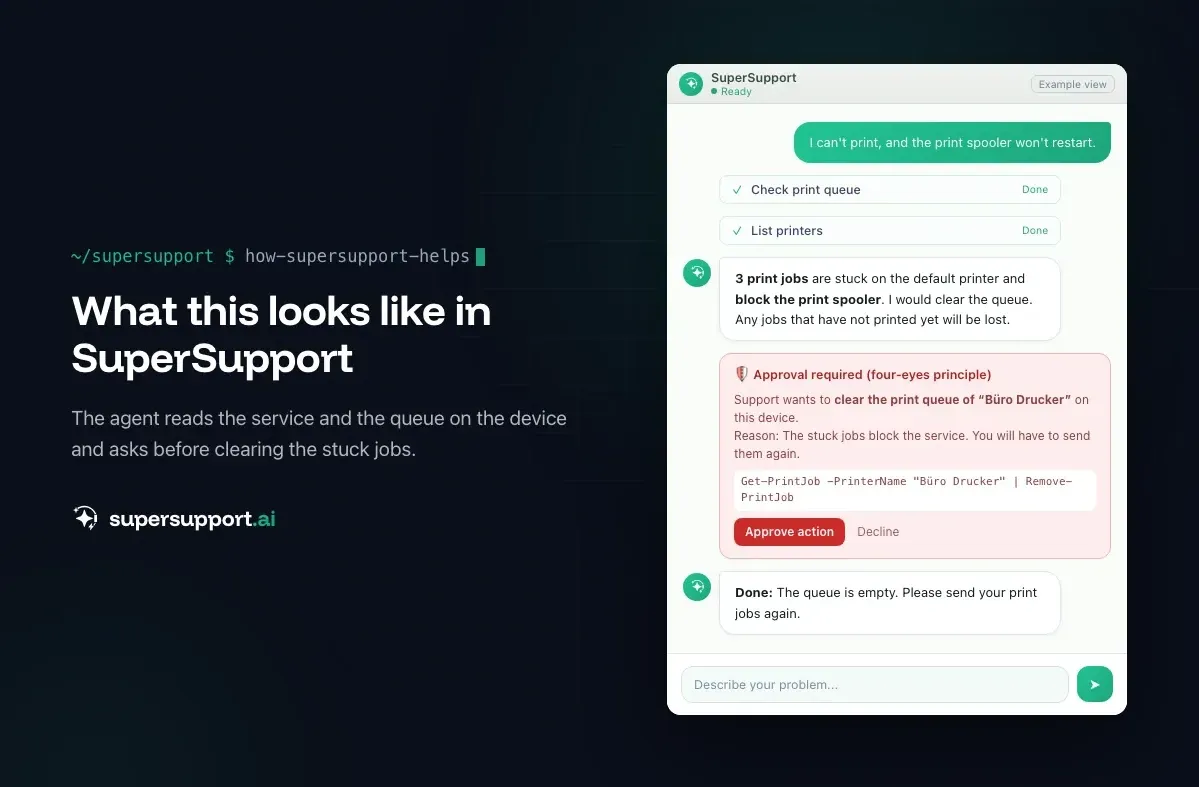
In the case described, the SuperSupport agent checked the status of the Print Spooler, tried the restart, read the default printer's queue after it failed and found the stuck jobs. Before deleting, it asked the user, because jobs are lost in the process. What this looks like for internal IT teams and IT service providers is described on the respective pages.
Frequently asked questions
Why won't the Print Spooler restart?
Usually the service is stuck on a faulty print job or driver and no longer responds to being stopped. Other causes are missing administrator rights, a service configuration locked by Group Policy, or a driver that makes the service crash again right at startup.
How do I kill the Print Spooler when it hangs?
In a Command Prompt as administrator, with taskkill /F /IM spoolsv.exe. Then delete the files in the folder C:\Windows\System32\spool\PRINTERS and restart the service with net start spooler.
Are print jobs lost when I clear the queue?
Yes, all jobs that have not been printed yet are deleted and have to be sent again. So give people a heads-up first, especially with shared printers.
The Print Spooler keeps stopping on its own. Why?
Almost always because of a faulty printer driver. The System log then shows event 7031 or 7034 for the Print Spooler service. Remove the suspect driver in Print Management and replace it with a current version from the manufacturer.
Do I need administrator rights to restart the Print Spooler?
Yes. Without administrator rights you get “Access is denied”. In companies, IT takes care of this, or a tool that carries out the action after approval.
14 days free
IT support that fixes itself.
SuperSupport fixes IT problems right on the device, before they turn into tickets. Try it free for 14 days.
Start free trialNico Haslberger is Co-Founder & CEO of SuperSupport.ai. With years of experience as an IT technician, he knows the problems in IT support first-hand: from overloaded help desks to recurring tickets that slow teams down. That knowledge is built into every feature of the platform today. He makes sure SuperSupport.ai solves exactly the problems he experienced himself for years.
This article was created with AI assistance and editorially reviewed.
Related Articles

Restart a Windows Service Automatically If It Stops
A program feature suddenly stops working because a background service stopped? Find the service and have Windows restart it automatically from now on.


Microsoft 365 Quarantine: How to Release an Email
An important email is stuck in Microsoft 365 quarantine? Here is how to check it, release it, and keep it from happening again.

Remove Local Admin Rights: How to Do It Without Chaos
Admin rights are a security risk, but removing them floods the helpdesk. How SMBs remove local admin rights: preparation, LAPS, Intune, GPO, exceptions.