;}.cls-2{fill:url(%23Unbenannter_Verlauf_5-2);}.cls-3{fill:url(%23Unbenannter_Verlauf_5-5);}.cls-4{fill:url(%23Unbenannter_Verlauf_5-6);}.cls-5{fill:url(%23Unbenannter_Verlauf_5-3);}.cls-6{fill:url(%23Unbenannter_Verlauf_5-4);}%3c/style%3e%3clinearGradient%20id='Unbenannter_Verlauf_5'%20x1='1075.02'%20y1='943.06'%20x2='1201.78'%20y2='943.06'%20gradientUnits='userSpaceOnUse'%3e%3cstop%20offset='0'%20stop-color='%2322b88a'/%3e%3cstop%20offset='1'%20stop-color='%231a9e78'/%3e%3c/linearGradient%3e%3clinearGradient%20id='Unbenannter_Verlauf_5-2'%20x1='234.11'%20y1='663.43'%20x2='1058.29'%20y2='663.43'%20xlink:href='%23Unbenannter_Verlauf_5'/%3e%3clinearGradient%20id='Unbenannter_Verlauf_5-3'%20x1='843.79'%20y1='1064.84'%20x2='1096.04'%20y2='1064.84'%20xlink:href='%23Unbenannter_Verlauf_5'/%3e%3clinearGradient%20id='Unbenannter_Verlauf_5-4'%20x1='1120.37'%20y1='662.1'%20x2='1253'%20y2='662.1'%20xlink:href='%23Unbenannter_Verlauf_5'/%3e%3clinearGradient%20id='Unbenannter_Verlauf_5-5'%20x1='97.45'%20y1='265.53'%20x2='385.89'%20y2='265.53'%20xlink:href='%23Unbenannter_Verlauf_5'/%3e%3clinearGradient%20id='Unbenannter_Verlauf_5-6'%20x1='295.45'%20y1='255.64'%20x2='1213.95'%20y2='255.64'%20xlink:href='%23Unbenannter_Verlauf_5'/%3e%3c/defs%3e%3cpath%20class='cls-1'%20d='M1201.78,871c-.61,1.55-1.23,3.1-1.86,4.66-20.33,50.18-47.14,96.85-80.02,139.45-7.56-13.82-21.78-22.31-37.69-22.31h-7.19c29.82-37.26,54.46-78.02,73.61-121.8h53.15Z'/%3e%3cpath%20class='cls-2'%20d='M665.24,264.59l69.02,186.52c21.3,57.57,66.69,102.96,124.26,124.26l186.52,69.02c17.67,6.54,17.67,31.54,0,38.08l-186.52,69.02c-57.57,21.3-102.96,66.69-124.26,124.26l-69.02,186.52c-6.54,17.67-31.54,17.67-38.08,0l-69.02-186.52c-21.3-57.57-66.69-102.96-124.26-124.26l-186.52-69.02c-17.67-6.54-17.67-31.54,0-38.08l186.52-69.02c57.57-21.3,102.96-66.69,124.26-124.26l69.02-186.52c6.54-17.67,31.54-17.67,38.08,0Z'/%3e%3cpath%20class='cls-5'%20d='M1082.21,1021.98h-79.13c-1.7,0-2.97-1.56-2.62-3.23l22.72-109.35c2.94-14.16-15.11-22.74-24.23-11.51l-152.04,187.31c-7.32,9.02-.9,22.5,10.72,22.5h79.13c1.7,0,2.97,1.56,2.62,3.23l-22.72,109.35c-2.94,14.16,15.11,22.74,24.23,11.51l152.04-187.31c7.32-9.02.9-22.5-10.72-22.5Z'/%3e%3crect%20class='cls-6'%20x='1120.37'%20y='486.36'%20width='132.63'%20height='351.48'%20rx='19.58'%20ry='19.58'/%3e%3cpath%20class='cls-3'%20d='M250.58,128.27l13.88,55.81c7.19,28.91,29.76,51.47,58.66,58.66l55.81,13.88c9.29,2.31,9.29,15.51,0,17.82l-55.81,13.88c-28.91,7.19-51.47,29.76-58.66,58.66l-13.88,55.81c-2.31,9.29-15.51,9.29-17.82,0l-13.88-55.81c-7.19-28.91-29.76-51.47-58.66-58.66l-55.81-13.88c-9.29-2.31-9.29-15.51,0-17.82l55.81-13.88c28.91-7.19,51.47-29.76,58.66-58.66l13.88-55.81c2.31-9.29,15.51-9.29,17.82,0Z'/%3e%3cpath%20class='cls-4'%20d='M1213.95,453.21h-67.62c-1.23,0-2.47.04-3.67.12-27.03-63.89-65.84-121.36-115.42-170.94-51.54-51.54-111.61-91.44-178.55-118.59-64.67-26.22-133.03-39.52-203.16-39.52s-138.48,13.3-203.16,39.52c-33.73,13.67-65.72,30.61-95.75,50.63l-.19-.05c-23.62-5.88-42.51-22.85-51-45.24,37.87-26.86,78.65-49.21,122.01-66.79,72.63-29.44,149.37-44.38,228.08-44.38s155.45,14.93,228.08,44.38c75.2,30.51,142.67,75.31,200.53,133.15,57.84,57.85,102.65,125.33,133.15,200.53,2.31,5.7,4.54,11.43,6.66,17.19Z'/%3e%3c/svg%3e)
Network Drive Disconnected? Fix Red X and Missing Drives
“Could not reconnect all network drives”, a red X or Z: missing? Common causes (logon timing, VPN, credentials, SMB) and how to map drives permanently.


The red X on a network drive does not mean the data is gone.
Monday morning, computer booted, and at the bottom right: “Could not reconnect all network drives.” In File Explorer, drive Z: has a red X, or it is missing entirely. Accounting can't reach its folders, the line-of-business software can't find its data. Network drives are among the most recurring topics in our support cases. See also Logging network drive access.
Here are the most common causes and how to fix them.
Step 1: Double-click
Often the drive is only “not connected” because the network was not there yet at sign-in. Double-click the drive in File Explorer. If it connects, it was a timing problem (see Step 5).
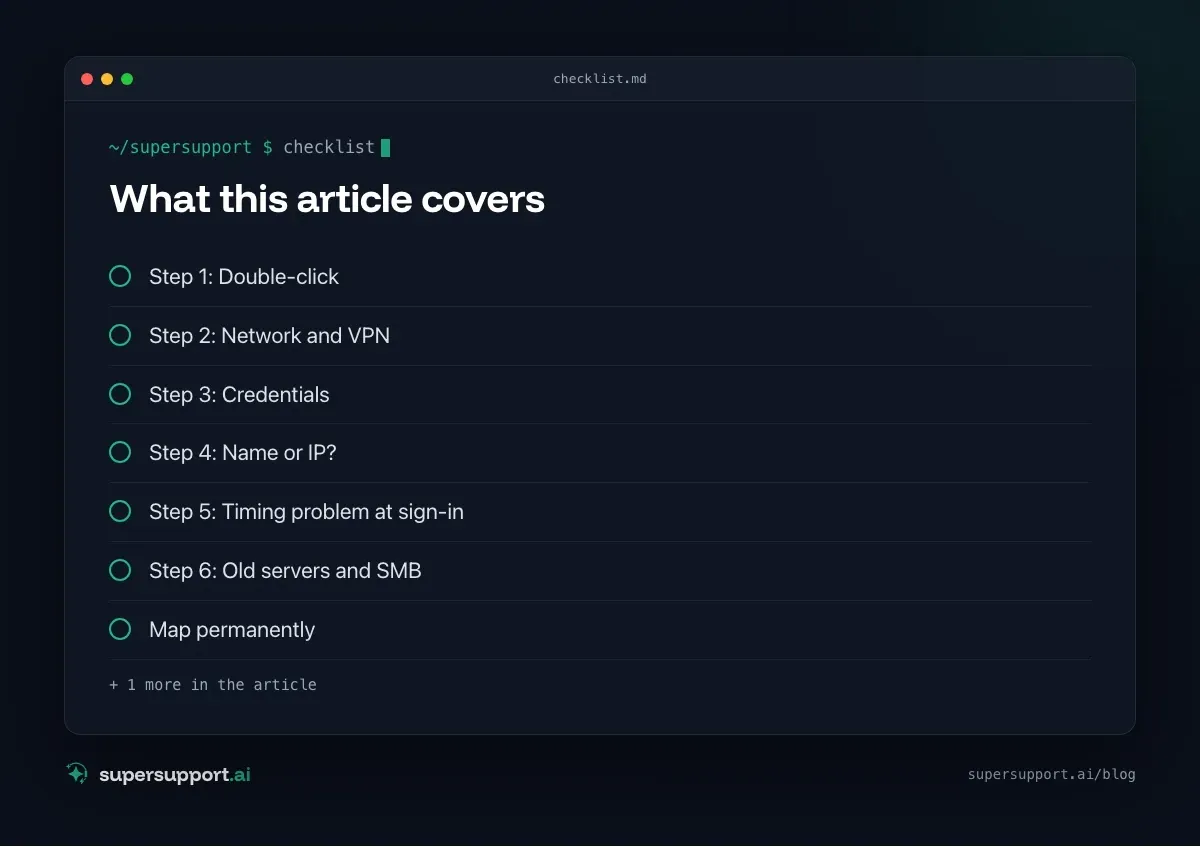
Step 2: Network and VPN
- In the office: Cable/Wi-Fi connected? On the right network (not the guest Wi-Fi)? See Setting up Wi-Fi in the office.
- At home: Connect the VPN, then click the drive. Without VPN, the server is unreachable. See VPN: authentication failed.
- Is the server reachable? In PowerShell:
Test-NetConnection server -Port 445Step 3: Credentials
After a password change, Windows often still tries the old password.
- Open Credential Manager › Windows Credentials › remove the entries for the server.
- Disconnect and reconnect the drive:
net use Z: /delete
net use Z: \\server\freigabe /persistent:yes
Step 4: Name or IP?
If \\192.168.1.10\freigabe works but \\server\freigabe does not, the cause is name resolution, often over VPN. IT checks the DNS settings. The IP is only a workaround.
Step 5: Timing problem at sign-in
Windows connects network drives before the network (or Wi-Fi, VPN) is ready. Solutions for IT:
- Enable the policy “Always wait for the network at computer startup and logon” (Group Policy or Intune).
- Connect drives via logon script or Group Policy preferences instead of saving them permanently.
- With VPN after sign-in: connect drives only once the VPN is up, or use a VPN that connects before sign-in.
Step 6: Old servers and SMB
Older NAS devices or servers only speak SMB1, which is disabled in current Windows for security reasons. Do not turn it back on; update or replace the device instead. See Updating Synology DSM automatically.

Beta
IT support that fixes itself.
supersupport.ai handles your 1st-level support fully automatically. Secure your spot on the waitlist now.
Join the WaitlistMap permanently
Individually in File Explorer: This PC › Map network drive › letter and path › Reconnect at sign-in.
Centrally in a company: via Group Policy (User Configuration › Preferences › Windows Settings › Drive Maps) or an Intune script. That way everyone has the same drives, even after a device swap.
In the long run, it is worth looking at OneDrive/SharePoint instead of a network drive. See OneDrive not syncing.
On the Mac
Finder › Go › Connect to Server (Cmd+K) › smb://server/freigabe. For automatic connection, add the share under System Settings › General › Login Items.
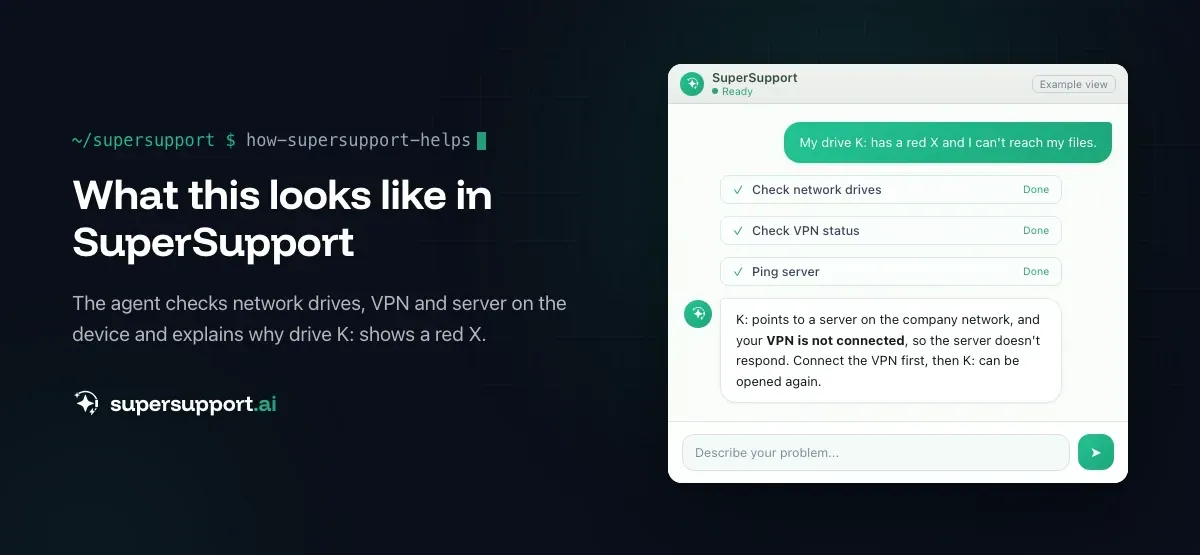
How does SuperSupport help with network drives?
On the Windows or Mac device, the SuperSupport agent checks which network drives are saved, whether the server is reachable, whether VPN and name resolution work and whether outdated credentials are saved. It handles harmless things such as reconnecting itself; policies and server questions go to IT. What this looks like for internal IT teams and MSPs is described on the respective pages.
Frequently asked questions
Why does my network drive show a red X?
At sign-in, Windows tries to connect saved network drives. If the network or VPN is not there yet at that moment, the drive stays disconnected and shows a red X. Often a double-click is enough to connect it. If the X stays, the server is unreachable or the credentials are wrong.
What does “Could not reconnect all network drives” mean?
At startup, Windows could not connect at least one saved network drive, usually because the network was not ready yet, the VPN was missing or the password has changed. After connecting to the network or VPN, click the drive in File Explorer.
How do I map a network drive permanently?
In File Explorer, under This PC › Map network drive, enter the drive letter and path (\server\freigabe) and enable Reconnect at sign-in. Via Command Prompt: net use Z: \server\freigabe /persistent:yes. In a company, it is better done centrally via Group Policy or an Intune script.
Why does the network drive only work with the IP address?
Then name resolution is not working, for example because the PC uses a different DNS server over VPN or Wi-Fi. IT should check the DNS settings; the IP address is only a workaround, since it can change and sign-ins are handled differently with it.
How do I connect a network drive on a Mac?
In Finder, under Go › Connect to Server, enter the address smb://server/freigabe and sign in with the company account. To have it connect automatically at login, add the share under System Settings › General › Login Items.
Beta
IT support that fixes itself.
supersupport.ai handles your 1st-level support fully automatically. Secure your spot on the waitlist now.
Join the WaitlistNico Haslberger is Co-Founder & CEO of SuperSupport.ai. With years of experience as an IT technician, he knows the problems in IT support first-hand: from overloaded help desks to recurring tickets that slow teams down. That knowledge is built into every feature of the platform today. He makes sure SuperSupport.ai solves exactly the problems he experienced himself for years.
This article was created with AI assistance and editorially reviewed.
Related Articles

Program Not Responding: How to Close It Properly
“Not responding” and nothing works? Here's how to close frozen programs cleanly on Windows – even if the process has another name or runs several times.


Outlook Keeps Crashing: Find the Cause and Fix It for Good
Outlook keeps crashing, but the event log shows nothing? Here's how to find the trigger – from add-ins and the cache to a corrupted profile.

Printer Not Printing: Fix the Print Spooler
No printers visible anymore or jobs stuck? Often the Windows Print Spooler is stopped or disabled. Here is how to check and repair it.