;}.cls-2{fill:url(%23Unbenannter_Verlauf_5-2);}.cls-3{fill:url(%23Unbenannter_Verlauf_5-5);}.cls-4{fill:url(%23Unbenannter_Verlauf_5-6);}.cls-5{fill:url(%23Unbenannter_Verlauf_5-3);}.cls-6{fill:url(%23Unbenannter_Verlauf_5-4);}%3c/style%3e%3clinearGradient%20id='Unbenannter_Verlauf_5'%20x1='1075.02'%20y1='943.06'%20x2='1201.78'%20y2='943.06'%20gradientUnits='userSpaceOnUse'%3e%3cstop%20offset='0'%20stop-color='%2322b88a'/%3e%3cstop%20offset='1'%20stop-color='%231a9e78'/%3e%3c/linearGradient%3e%3clinearGradient%20id='Unbenannter_Verlauf_5-2'%20x1='234.11'%20y1='663.43'%20x2='1058.29'%20y2='663.43'%20xlink:href='%23Unbenannter_Verlauf_5'/%3e%3clinearGradient%20id='Unbenannter_Verlauf_5-3'%20x1='843.79'%20y1='1064.84'%20x2='1096.04'%20y2='1064.84'%20xlink:href='%23Unbenannter_Verlauf_5'/%3e%3clinearGradient%20id='Unbenannter_Verlauf_5-4'%20x1='1120.37'%20y1='662.1'%20x2='1253'%20y2='662.1'%20xlink:href='%23Unbenannter_Verlauf_5'/%3e%3clinearGradient%20id='Unbenannter_Verlauf_5-5'%20x1='97.45'%20y1='265.53'%20x2='385.89'%20y2='265.53'%20xlink:href='%23Unbenannter_Verlauf_5'/%3e%3clinearGradient%20id='Unbenannter_Verlauf_5-6'%20x1='295.45'%20y1='255.64'%20x2='1213.95'%20y2='255.64'%20xlink:href='%23Unbenannter_Verlauf_5'/%3e%3c/defs%3e%3cpath%20class='cls-1'%20d='M1201.78,871c-.61,1.55-1.23,3.1-1.86,4.66-20.33,50.18-47.14,96.85-80.02,139.45-7.56-13.82-21.78-22.31-37.69-22.31h-7.19c29.82-37.26,54.46-78.02,73.61-121.8h53.15Z'/%3e%3cpath%20class='cls-2'%20d='M665.24,264.59l69.02,186.52c21.3,57.57,66.69,102.96,124.26,124.26l186.52,69.02c17.67,6.54,17.67,31.54,0,38.08l-186.52,69.02c-57.57,21.3-102.96,66.69-124.26,124.26l-69.02,186.52c-6.54,17.67-31.54,17.67-38.08,0l-69.02-186.52c-21.3-57.57-66.69-102.96-124.26-124.26l-186.52-69.02c-17.67-6.54-17.67-31.54,0-38.08l186.52-69.02c57.57-21.3,102.96-66.69,124.26-124.26l69.02-186.52c6.54-17.67,31.54-17.67,38.08,0Z'/%3e%3cpath%20class='cls-5'%20d='M1082.21,1021.98h-79.13c-1.7,0-2.97-1.56-2.62-3.23l22.72-109.35c2.94-14.16-15.11-22.74-24.23-11.51l-152.04,187.31c-7.32,9.02-.9,22.5,10.72,22.5h79.13c1.7,0,2.97,1.56,2.62,3.23l-22.72,109.35c-2.94,14.16,15.11,22.74,24.23,11.51l152.04-187.31c7.32-9.02.9-22.5-10.72-22.5Z'/%3e%3crect%20class='cls-6'%20x='1120.37'%20y='486.36'%20width='132.63'%20height='351.48'%20rx='19.58'%20ry='19.58'/%3e%3cpath%20class='cls-3'%20d='M250.58,128.27l13.88,55.81c7.19,28.91,29.76,51.47,58.66,58.66l55.81,13.88c9.29,2.31,9.29,15.51,0,17.82l-55.81,13.88c-28.91,7.19-51.47,29.76-58.66,58.66l-13.88,55.81c-2.31,9.29-15.51,9.29-17.82,0l-13.88-55.81c-7.19-28.91-29.76-51.47-58.66-58.66l-55.81-13.88c-9.29-2.31-9.29-15.51,0-17.82l55.81-13.88c28.91-7.19,51.47-29.76,58.66-58.66l13.88-55.81c2.31-9.29,15.51-9.29,17.82,0Z'/%3e%3cpath%20class='cls-4'%20d='M1213.95,453.21h-67.62c-1.23,0-2.47.04-3.67.12-27.03-63.89-65.84-121.36-115.42-170.94-51.54-51.54-111.61-91.44-178.55-118.59-64.67-26.22-133.03-39.52-203.16-39.52s-138.48,13.3-203.16,39.52c-33.73,13.67-65.72,30.61-95.75,50.63l-.19-.05c-23.62-5.88-42.51-22.85-51-45.24,37.87-26.86,78.65-49.21,122.01-66.79,72.63-29.44,149.37-44.38,228.08-44.38s155.45,14.93,228.08,44.38c75.2,30.51,142.67,75.31,200.53,133.15,57.84,57.85,102.65,125.33,133.15,200.53,2.31,5.7,4.54,11.43,6.66,17.19Z'/%3e%3c/svg%3e)
IT Emergency Plan for SMBs: A Template in 8 Steps
Ransomware, server outage, locked mailbox – plan ahead and you lose hours instead of days. How to build a lean IT emergency plan for SMBs.

The best time for an IT emergency plan was before the emergency. The second best is today.
Monday, 7:30 a.m. Accounting reports: "All the files on the drive have been renamed, and there's a text file with a ransom demand." Or less dramatic: after an update the server no longer starts, the ERP is gone, and nobody knows where the login details for the hosting provider are.
In our day-to-day support work, we often see how much time gets lost in moments like these – not because of the technology, but because nobody knows who does what and when. An IT emergency plan solves exactly that. For small and mid-size businesses, it does not have to be long or complicated. Here is the template.
Why an emergency plan?
- In a real emergency, nobody thinks clearly. A plan replaces thinking with working through a list.
- The first minutes matter most. Wrong first steps – such as switching devices off or carrying on working – can make the damage worse.
- Customers, insurers and lawmakers ask for it. NIS2 requires emergency and recovery plans from affected companies; cyber insurers ask for them too. See NIS2 for MSPs.
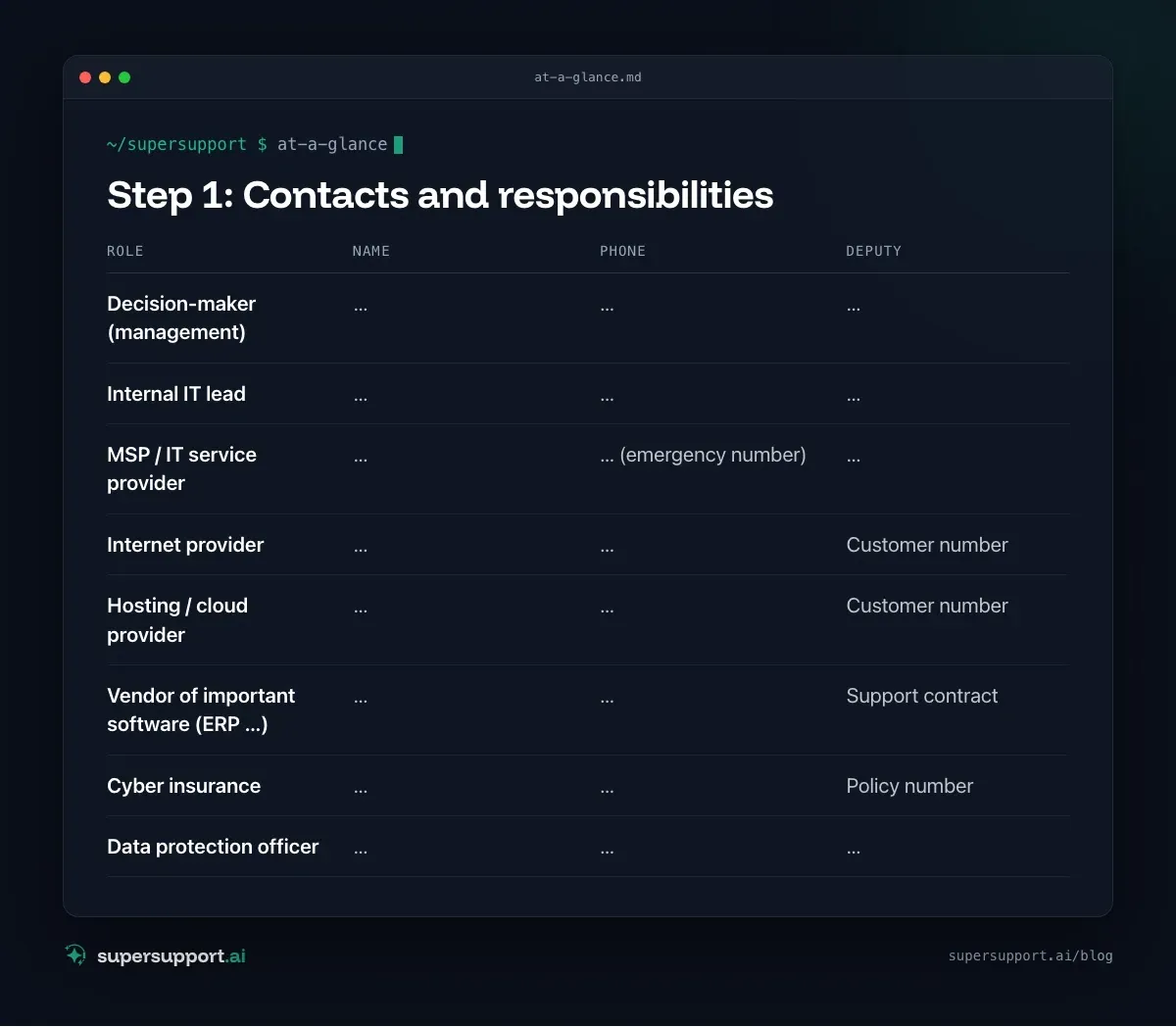
Step 1: Contacts and responsibilities
The most important page of the plan. With phone numbers – not just email addresses, because email may not work in a real emergency.
- Role: Decision-maker (management) – Name: …; Phone: …; Deputy: …
- Role: Internal IT lead – Name: …; Phone: …; Deputy: …
- Role: MSP / IT service provider – Name: …; Phone: … (emergency number); Deputy: …
- Role: Internet provider – Name: …; Phone: …; Deputy: Customer number
- Role: Hosting / cloud provider – Name: …; Phone: …; Deputy: Customer number
- Role: Vendor of important software (ERP …) – Name: …; Phone: …; Deputy: Support contract
- Role: Cyber insurance – Name: …; Phone: …; Deputy: Policy number
- Role: Data protection officer – Name: …; Phone: …; Deputy: …
Step 2: The most important systems and priorities
What has to be running again first? A short list with priority and maximum tolerable downtime:
- System: Email / Microsoft 365 – Purpose: Communication; Priority: high; Max. downtime: 4 hours
- System: ERP / inventory management – Purpose: Orders, invoices; Priority: high; Max. downtime: 1 day
- System: File server / NAS – Purpose: Documents; Priority: medium; Max. downtime: 1 day
- System: Phone system – Purpose: Reachability; Priority: high; Max. downtime: 2 hours
- System: … – Purpose: …; Priority: …; Max. downtime: …
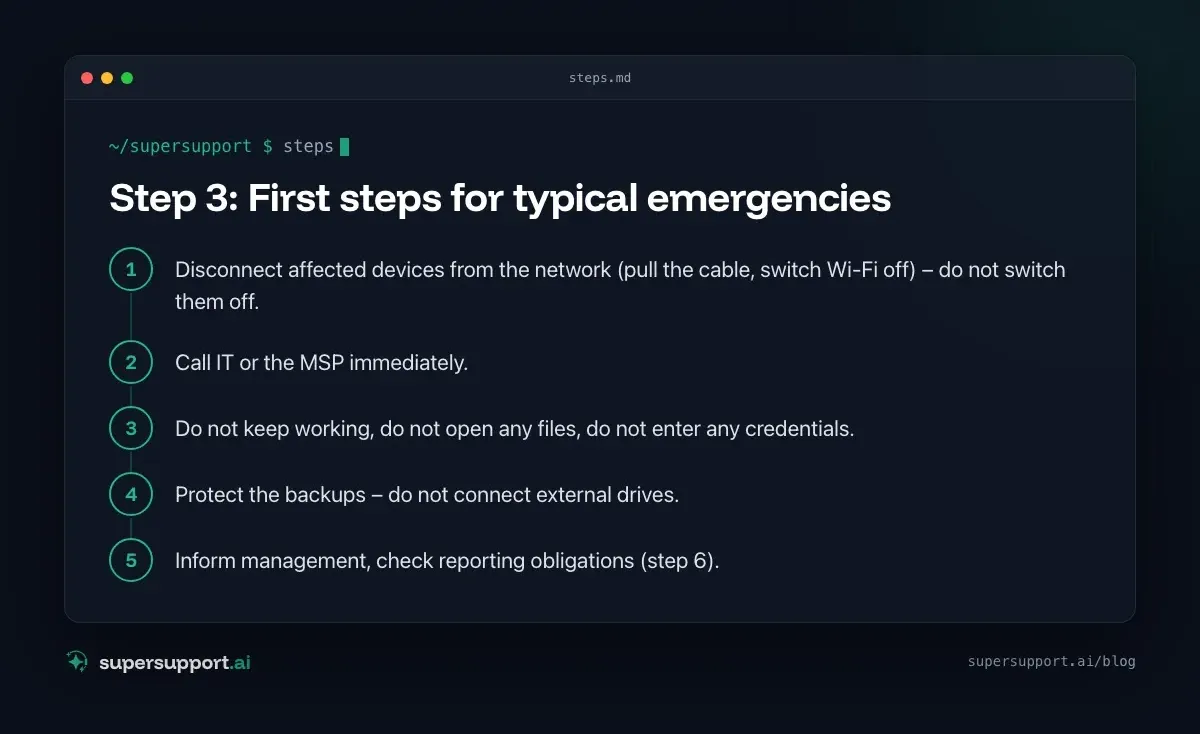
Step 3: First steps for typical emergencies
A short list for each emergency. Examples:
Suspected ransomware / hacker attack
- Disconnect affected devices from the network (pull the cable, switch Wi-Fi off) – do not switch them off.
- Call IT or the MSP immediately.
- Do not keep working, do not open any files, do not enter any credentials.
- Protect the backups – do not connect external drives.
- Inform management, check reporting obligations (step 6).
Server or a central application goes down
- Check whether several services are affected at the same time (shared host?).
- Inform IT or the MSP.
- Tell employees what they can keep working with. Examples from practice: Windows Server shuts down every hour, Run a program as a service.
Account compromised (phishing)
- Change the password, have sessions ended.
- Check mailbox rules and forwarding.
- Warn contacts if emails were sent. See Recognizing a phishing email "from Microsoft".
Step 4: Backup and recovery
- Where are the backups – at least one copy off-site or immutable?
- Who can restore, and with which credentials?
- How long does recovery of the most important systems take?
- When was it last tested?
A backup whose recovery has never been tested is a hope. See Veeam Health Check: "Failed to verify backup file".
Step 5: Credentials for emergencies
In a real emergency, it is often exactly the access that is missing: admin account for Microsoft 365, access to the hosting provider, registrar, firewall. Therefore:

14 days free
IT support that fixes itself.
SuperSupport fixes IT problems right on the device, before they turn into tickets. Try it free for 14 days.
Start free trial- Emergency accounts with a strong password and their own MFA method that does not depend on the phone of a single employee.
- Sealed envelope or a password manager with emergency access – known to at least two people.
Step 6: Reporting and notification obligations
- Data breach: report to the data protection authority, generally within 72 hours, if there is a risk to the people affected.
- Companies affected by NIS2: early warning within 24 hours, report within 72 hours.
- Cyber insurance: reporting deadlines per the contract – often very short.
- Police: file a report for criminal offenses.
- Customers and partners: if they could be affected.
Step 7: Communication
A short template for employees, customers and partners saves time in a real emergency:
"We are currently experiencing a disruption to our IT systems. We are working hard to resolve it. Until further notice you can reach us at … We will inform you as soon as the systems are available again."
And: define a communication channel outside your own IT – for example a phone tree or a messenger group on private phones.
Step 8: Practice and keep it current
- Once a year, a tabletop exercise: "Monday, 7:30 a.m., ransom demand – what do we do?"
- Test recovery, at least for the most important system.
- Update contacts as soon as anything changes.
- Keep it offline: printed, in a known place.
The emergency card
In addition to the plan: one page for all employees, for example next to the printer:
- Suspicious? Do not keep working, disconnect the device from the network, do not switch it off.
- Call immediately: IT emergency number …
- Do not delete anything, do not pay anything, do not try to "fix" it yourself.
How does SuperSupport help in an emergency?
In a real emergency, many simultaneous requests pile up – "My drive is gone", "Outlook isn't working". The SuperSupport agent can check first steps on the device, explain the instructions from the emergency plan to employees and pass the reports to IT in bundled form so that IT can concentrate on the fix. It does not replace the emergency plan itself. What this looks like for internal IT teams and MSPs is described on the respective pages.
Frequently asked questions
What belongs in an IT emergency plan?
Contacts and responsibilities, a list of the most important systems with priorities, first steps for typical emergencies (ransomware, outage, data loss), the path to recovery from backups, reporting obligations and a communication template – all short enough that it actually gets read in a real emergency.
How long should an IT emergency plan be?
As short as possible. For small companies, a few pages are often enough, plus a one-page emergency card with the first steps and phone numbers. A plan that nobody reads does not help in a real emergency.
Where do I keep the emergency plan?
Offline too – printed and in a place the people in charge know. If the plan lives only on the server that has just been encrypted, it is not reachable when you need it.
What should you do in a ransomware attack?
Disconnect affected devices from the network, but do not switch them off, so that traces are preserved. Alert IT or the MSP, stop using the credentials, protect the backups, check reporting obligations and do not pay a ransom hastily. Bring in professional help.
How often should the emergency plan be practiced?
At least once a year – for example as a tabletop exercise and as a test of a recovery from backup. Update contacts and the system list with every major change.
14 days free
IT support that fixes itself.
SuperSupport fixes IT problems right on the device, before they turn into tickets. Try it free for 14 days.
Start free trialNico Haslberger is Co-Founder & CEO of SuperSupport.ai. With years of experience as an IT technician, he knows the problems in IT support first-hand: from overloaded help desks to recurring tickets that slow teams down. That knowledge is built into every feature of the platform today. He makes sure SuperSupport.ai solves exactly the problems he experienced himself for years.
This article was created with AI assistance and editorially reviewed.
Related Articles
Restart a Windows Service Automatically If It Stops
A program feature suddenly stops working because a background service stopped? Find the service and have Windows restart it automatically from now on.

Microsoft 365 Quarantine: How to Release an Email
An important email is stuck in Microsoft 365 quarantine? Here is how to check it, release it, and keep it from happening again.
Remove Local Admin Rights: How to Do It Without Chaos
Admin rights are a security risk, but removing them floods the helpdesk. How SMBs remove local admin rights: preparation, LAPS, Intune, GPO, exceptions.