;}.cls-2{fill:url(%23Unbenannter_Verlauf_5-2);}.cls-3{fill:url(%23Unbenannter_Verlauf_5-5);}.cls-4{fill:url(%23Unbenannter_Verlauf_5-6);}.cls-5{fill:url(%23Unbenannter_Verlauf_5-3);}.cls-6{fill:url(%23Unbenannter_Verlauf_5-4);}%3c/style%3e%3clinearGradient%20id='Unbenannter_Verlauf_5'%20x1='1075.02'%20y1='943.06'%20x2='1201.78'%20y2='943.06'%20gradientUnits='userSpaceOnUse'%3e%3cstop%20offset='0'%20stop-color='%2322b88a'/%3e%3cstop%20offset='1'%20stop-color='%231a9e78'/%3e%3c/linearGradient%3e%3clinearGradient%20id='Unbenannter_Verlauf_5-2'%20x1='234.11'%20y1='663.43'%20x2='1058.29'%20y2='663.43'%20xlink:href='%23Unbenannter_Verlauf_5'/%3e%3clinearGradient%20id='Unbenannter_Verlauf_5-3'%20x1='843.79'%20y1='1064.84'%20x2='1096.04'%20y2='1064.84'%20xlink:href='%23Unbenannter_Verlauf_5'/%3e%3clinearGradient%20id='Unbenannter_Verlauf_5-4'%20x1='1120.37'%20y1='662.1'%20x2='1253'%20y2='662.1'%20xlink:href='%23Unbenannter_Verlauf_5'/%3e%3clinearGradient%20id='Unbenannter_Verlauf_5-5'%20x1='97.45'%20y1='265.53'%20x2='385.89'%20y2='265.53'%20xlink:href='%23Unbenannter_Verlauf_5'/%3e%3clinearGradient%20id='Unbenannter_Verlauf_5-6'%20x1='295.45'%20y1='255.64'%20x2='1213.95'%20y2='255.64'%20xlink:href='%23Unbenannter_Verlauf_5'/%3e%3c/defs%3e%3cpath%20class='cls-1'%20d='M1201.78,871c-.61,1.55-1.23,3.1-1.86,4.66-20.33,50.18-47.14,96.85-80.02,139.45-7.56-13.82-21.78-22.31-37.69-22.31h-7.19c29.82-37.26,54.46-78.02,73.61-121.8h53.15Z'/%3e%3cpath%20class='cls-2'%20d='M665.24,264.59l69.02,186.52c21.3,57.57,66.69,102.96,124.26,124.26l186.52,69.02c17.67,6.54,17.67,31.54,0,38.08l-186.52,69.02c-57.57,21.3-102.96,66.69-124.26,124.26l-69.02,186.52c-6.54,17.67-31.54,17.67-38.08,0l-69.02-186.52c-21.3-57.57-66.69-102.96-124.26-124.26l-186.52-69.02c-17.67-6.54-17.67-31.54,0-38.08l186.52-69.02c57.57-21.3,102.96-66.69,124.26-124.26l69.02-186.52c6.54-17.67,31.54-17.67,38.08,0Z'/%3e%3cpath%20class='cls-5'%20d='M1082.21,1021.98h-79.13c-1.7,0-2.97-1.56-2.62-3.23l22.72-109.35c2.94-14.16-15.11-22.74-24.23-11.51l-152.04,187.31c-7.32,9.02-.9,22.5,10.72,22.5h79.13c1.7,0,2.97,1.56,2.62,3.23l-22.72,109.35c-2.94,14.16,15.11,22.74,24.23,11.51l152.04-187.31c7.32-9.02.9-22.5-10.72-22.5Z'/%3e%3crect%20class='cls-6'%20x='1120.37'%20y='486.36'%20width='132.63'%20height='351.48'%20rx='19.58'%20ry='19.58'/%3e%3cpath%20class='cls-3'%20d='M250.58,128.27l13.88,55.81c7.19,28.91,29.76,51.47,58.66,58.66l55.81,13.88c9.29,2.31,9.29,15.51,0,17.82l-55.81,13.88c-28.91,7.19-51.47,29.76-58.66,58.66l-13.88,55.81c-2.31,9.29-15.51,9.29-17.82,0l-13.88-55.81c-7.19-28.91-29.76-51.47-58.66-58.66l-55.81-13.88c-9.29-2.31-9.29-15.51,0-17.82l55.81-13.88c28.91-7.19,51.47-29.76,58.66-58.66l13.88-55.81c2.31-9.29,15.51-9.29,17.82,0Z'/%3e%3cpath%20class='cls-4'%20d='M1213.95,453.21h-67.62c-1.23,0-2.47.04-3.67.12-27.03-63.89-65.84-121.36-115.42-170.94-51.54-51.54-111.61-91.44-178.55-118.59-64.67-26.22-133.03-39.52-203.16-39.52s-138.48,13.3-203.16,39.52c-33.73,13.67-65.72,30.61-95.75,50.63l-.19-.05c-23.62-5.88-42.51-22.85-51-45.24,37.87-26.86,78.65-49.21,122.01-66.79,72.63-29.44,149.37-44.38,228.08-44.38s155.45,14.93,228.08,44.38c75.2,30.51,142.67,75.31,200.53,133.15,57.84,57.85,102.65,125.33,133.15,200.53,2.31,5.7,4.54,11.43,6.66,17.19Z'/%3e%3c/svg%3e)
Antivirus Threat Detected: What to Do Now
Defender or another antivirus says “Threats found”? How to read the alert, check Protection history, spot false positives and why not to click Allow.

Your antivirus reports a threat. The good news: it saw it.
A pop-up appears at the bottom right: “Threats found” or “Microsoft Defender Antivirus found threats. Get details.” Many people dismiss the alert, or worse, click Allow because the file came from the customer. Here is how to react correctly.
Step 1: Do not allow anything
The most important rule: do not choose “Allow” or “Allow on device” yourself. Not even if the file looks important, comes from a known sender or “can only be a false positive”. IT decides whether it is one.
Step 2: Write down the alert
- Name of the threat: for example
Trojan:Win32/…,PUA:Win32/…orExploit:…. - Where it was found: which file, which folder, which email?
- What you just did: opened an attachment, downloaded something, plugged in a USB stick?
A screenshot helps. See Take a screenshot.
Step 3: Check Protection history
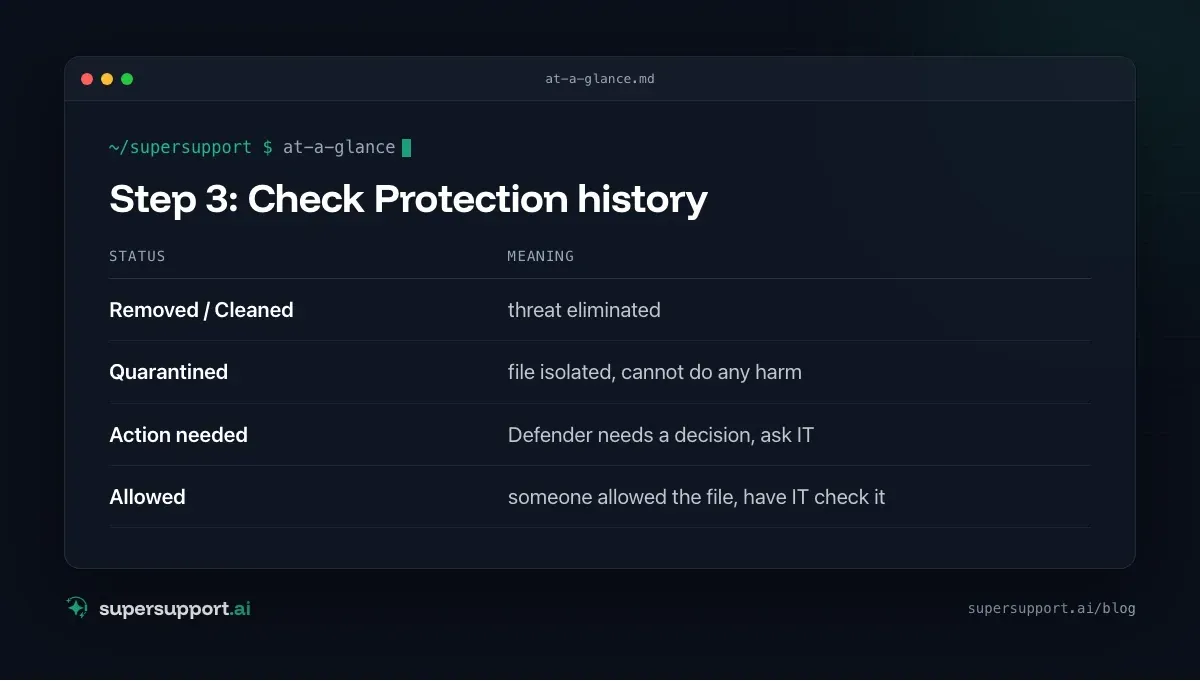
Windows Security (Start menu) › Virus & threat protection › Protection history. It shows:
- Removed / Cleaned – threat eliminated
- Quarantined – file isolated, cannot do any harm
- Action needed – Defender needs a decision, ask IT
- Allowed – someone allowed the file, have IT check it
Step 4: Tell IT
Even if the threat was removed. IT checks:
- whether other devices are affected,
- whether the source (email, website, USB stick) needs to be blocked,
- whether it is a false positive and the file may be released.
When do you disconnect from the network right away?
Disconnect from the network immediately (turn off Wi-Fi, unplug the cable) and call IT if:
- files are suddenly renamed or encrypted or a ransom demand appears,
- the alert keeps coming back,
- unknown programs are running or the PC is doing something “on its own”,
- there is a remote access you do not know about. See Fake Microsoft support.
See also IT emergency plan for small businesses.
What do the names mean?

14 days free
IT support that fixes itself.
SuperSupport fixes IT problems right on the device, before they turn into tickets. Try it free for 14 days.
Start free trial- Trojan – malicious program that disguises itself as harmless
- Ransom – extortion software (ransomware)
- Exploit – exploits a security vulnerability
- PUA / PUP – potentially unwanted application (ads, tracking)
- HackTool – tool that can also be used for attacks
Where does the threat usually come from?
- Email attachments: see Recognizing a phishing email “from Microsoft”.
- Downloads from unknown sites or “free” tools.
- USB sticks: see USB stick is not recognized.
- Macros in Office files: see Excel: macros blocked.
And on a Mac?
macOS has built-in protection (XProtect) and reports known malware when you open it. In companies, endpoint protection often runs in addition. Here too: do not dismiss the alert, do not ignore it, tell IT. See Is my Mac safe?.
How does SuperSupport help with virus alerts?
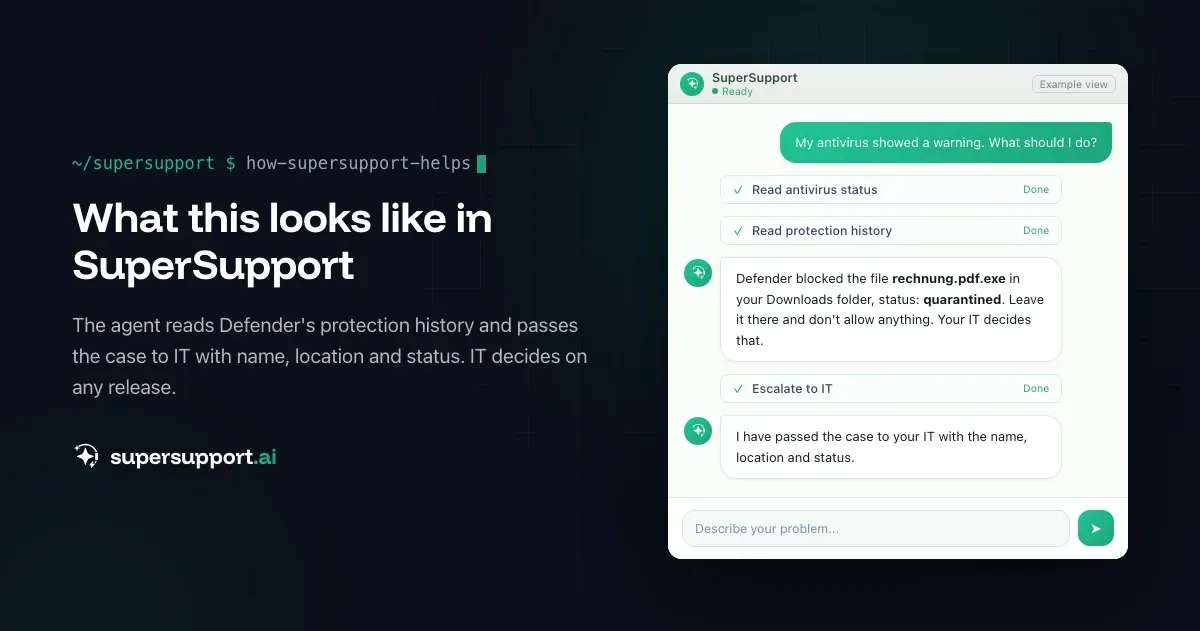
For “A virus alert came up”, the SuperSupport agent takes the alert in the chat, reads Defender's Protection history on the Windows device and hands the case to IT with name, location and status. It does not release files or restore them from quarantine itself. IT decides that. How this looks for internal IT teams and MSPs is described on the respective pages.
Frequently asked questions
What should I do when Windows reports a threat?
Stay calm and do not allow anything. Note the alert and the name of the threat, check under Windows Security › Virus & threat protection › Protection history whether it was removed or quarantined, and tell IT. Do not release it yourself, even if the file seems important.
What does “quarantine” mean in antivirus software?
The suspicious file was moved to a protected location where it cannot do any harm. It can be restored if it was a false positive, but only IT should do that, after checking.
What does PUA or PUP mean?
Potentially unwanted application or program: software that is not directly harmful but, for example, shows ads, collects data or slows down the system. Often installed along with free programs. It should be removed as well.
Can it be a false positive?
Yes, occasionally, for example with self-written scripts, older specialist software or tools for administrators. Whether it is one is decided by IT based on the file's name, location and origin. As an employee, always assume the alert is serious.
Do I need to take the PC off the network?
If the alert keeps coming back, files are suddenly encrypted or renamed, unknown programs are running or a ransom demand appears: yes, disconnect from the network immediately (turn off Wi-Fi, unplug the cable) and call IT. For a single threat that was removed successfully, reporting it to IT is usually enough.
14 days free
IT support that fixes itself.
SuperSupport fixes IT problems right on the device, before they turn into tickets. Try it free for 14 days.
Start free trialNico Haslberger is Co-Founder & CEO of SuperSupport.ai. With years of experience as an IT technician, he knows the problems in IT support first-hand: from overloaded help desks to recurring tickets that slow teams down. That knowledge is built into every feature of the platform today. He makes sure SuperSupport.ai solves exactly the problems he experienced himself for years.
This article was created with AI assistance and editorially reviewed.
Related Articles

Outlook Slow and Laggy: What Helps
Outlook Classic freezes, types with a delay and takes forever to open? The most common slowdowns – and what you lose if you disable individual add-ins.


Windows “This App Has Been Blocked”: What It Means
Windows blocks a program “for your protection” or for your organization? How to tell the messages apart and who can approve the program.

Word or Excel Keeps Crashing: How to Find the Cause
Word or Excel suddenly closes, freezes or reports “has stopped working”? Find the cause: add-ins, corrupted files, Safe Mode and Office repair.