;}.cls-2{fill:url(%23Unbenannter_Verlauf_5-2);}.cls-3{fill:url(%23Unbenannter_Verlauf_5-5);}.cls-4{fill:url(%23Unbenannter_Verlauf_5-6);}.cls-5{fill:url(%23Unbenannter_Verlauf_5-3);}.cls-6{fill:url(%23Unbenannter_Verlauf_5-4);}%3c/style%3e%3clinearGradient%20id='Unbenannter_Verlauf_5'%20x1='1075.02'%20y1='943.06'%20x2='1201.78'%20y2='943.06'%20gradientUnits='userSpaceOnUse'%3e%3cstop%20offset='0'%20stop-color='%2322b88a'/%3e%3cstop%20offset='1'%20stop-color='%231a9e78'/%3e%3c/linearGradient%3e%3clinearGradient%20id='Unbenannter_Verlauf_5-2'%20x1='234.11'%20y1='663.43'%20x2='1058.29'%20y2='663.43'%20xlink:href='%23Unbenannter_Verlauf_5'/%3e%3clinearGradient%20id='Unbenannter_Verlauf_5-3'%20x1='843.79'%20y1='1064.84'%20x2='1096.04'%20y2='1064.84'%20xlink:href='%23Unbenannter_Verlauf_5'/%3e%3clinearGradient%20id='Unbenannter_Verlauf_5-4'%20x1='1120.37'%20y1='662.1'%20x2='1253'%20y2='662.1'%20xlink:href='%23Unbenannter_Verlauf_5'/%3e%3clinearGradient%20id='Unbenannter_Verlauf_5-5'%20x1='97.45'%20y1='265.53'%20x2='385.89'%20y2='265.53'%20xlink:href='%23Unbenannter_Verlauf_5'/%3e%3clinearGradient%20id='Unbenannter_Verlauf_5-6'%20x1='295.45'%20y1='255.64'%20x2='1213.95'%20y2='255.64'%20xlink:href='%23Unbenannter_Verlauf_5'/%3e%3c/defs%3e%3cpath%20class='cls-1'%20d='M1201.78,871c-.61,1.55-1.23,3.1-1.86,4.66-20.33,50.18-47.14,96.85-80.02,139.45-7.56-13.82-21.78-22.31-37.69-22.31h-7.19c29.82-37.26,54.46-78.02,73.61-121.8h53.15Z'/%3e%3cpath%20class='cls-2'%20d='M665.24,264.59l69.02,186.52c21.3,57.57,66.69,102.96,124.26,124.26l186.52,69.02c17.67,6.54,17.67,31.54,0,38.08l-186.52,69.02c-57.57,21.3-102.96,66.69-124.26,124.26l-69.02,186.52c-6.54,17.67-31.54,17.67-38.08,0l-69.02-186.52c-21.3-57.57-66.69-102.96-124.26-124.26l-186.52-69.02c-17.67-6.54-17.67-31.54,0-38.08l186.52-69.02c57.57-21.3,102.96-66.69,124.26-124.26l69.02-186.52c6.54-17.67,31.54-17.67,38.08,0Z'/%3e%3cpath%20class='cls-5'%20d='M1082.21,1021.98h-79.13c-1.7,0-2.97-1.56-2.62-3.23l22.72-109.35c2.94-14.16-15.11-22.74-24.23-11.51l-152.04,187.31c-7.32,9.02-.9,22.5,10.72,22.5h79.13c1.7,0,2.97,1.56,2.62,3.23l-22.72,109.35c-2.94,14.16,15.11,22.74,24.23,11.51l152.04-187.31c7.32-9.02.9-22.5-10.72-22.5Z'/%3e%3crect%20class='cls-6'%20x='1120.37'%20y='486.36'%20width='132.63'%20height='351.48'%20rx='19.58'%20ry='19.58'/%3e%3cpath%20class='cls-3'%20d='M250.58,128.27l13.88,55.81c7.19,28.91,29.76,51.47,58.66,58.66l55.81,13.88c9.29,2.31,9.29,15.51,0,17.82l-55.81,13.88c-28.91,7.19-51.47,29.76-58.66,58.66l-13.88,55.81c-2.31,9.29-15.51,9.29-17.82,0l-13.88-55.81c-7.19-28.91-29.76-51.47-58.66-58.66l-55.81-13.88c-9.29-2.31-9.29-15.51,0-17.82l55.81-13.88c28.91-7.19,51.47-29.76,58.66-58.66l13.88-55.81c2.31-9.29,15.51-9.29,17.82,0Z'/%3e%3cpath%20class='cls-4'%20d='M1213.95,453.21h-67.62c-1.23,0-2.47.04-3.67.12-27.03-63.89-65.84-121.36-115.42-170.94-51.54-51.54-111.61-91.44-178.55-118.59-64.67-26.22-133.03-39.52-203.16-39.52s-138.48,13.3-203.16,39.52c-33.73,13.67-65.72,30.61-95.75,50.63l-.19-.05c-23.62-5.88-42.51-22.85-51-45.24,37.87-26.86,78.65-49.21,122.01-66.79,72.63-29.44,149.37-44.38,228.08-44.38s155.45,14.93,228.08,44.38c75.2,30.51,142.67,75.31,200.53,133.15,57.84,57.85,102.65,125.33,133.15,200.53,2.31,5.7,4.54,11.43,6.66,17.19Z'/%3e%3c/svg%3e)
Windows Event Viewer: How to Find Errors
The Windows Event Viewer holds thousands of entries, most of them noise. Which entries matter in support – with IDs, filters and real cases.

The cause is often already in the log. It's just that almost nobody reads it at 1st level.
The Windows Event Viewer is the machine's memory: crashes, hanging services, failed logons, unexpected shutdowns – it's all there, with a timestamp. The problem: Between the important entries lie thousands of unimportant ones. In our agent's chats, the log keeps leading to a finding. Here is how you find the right entries, with examples from real cases.
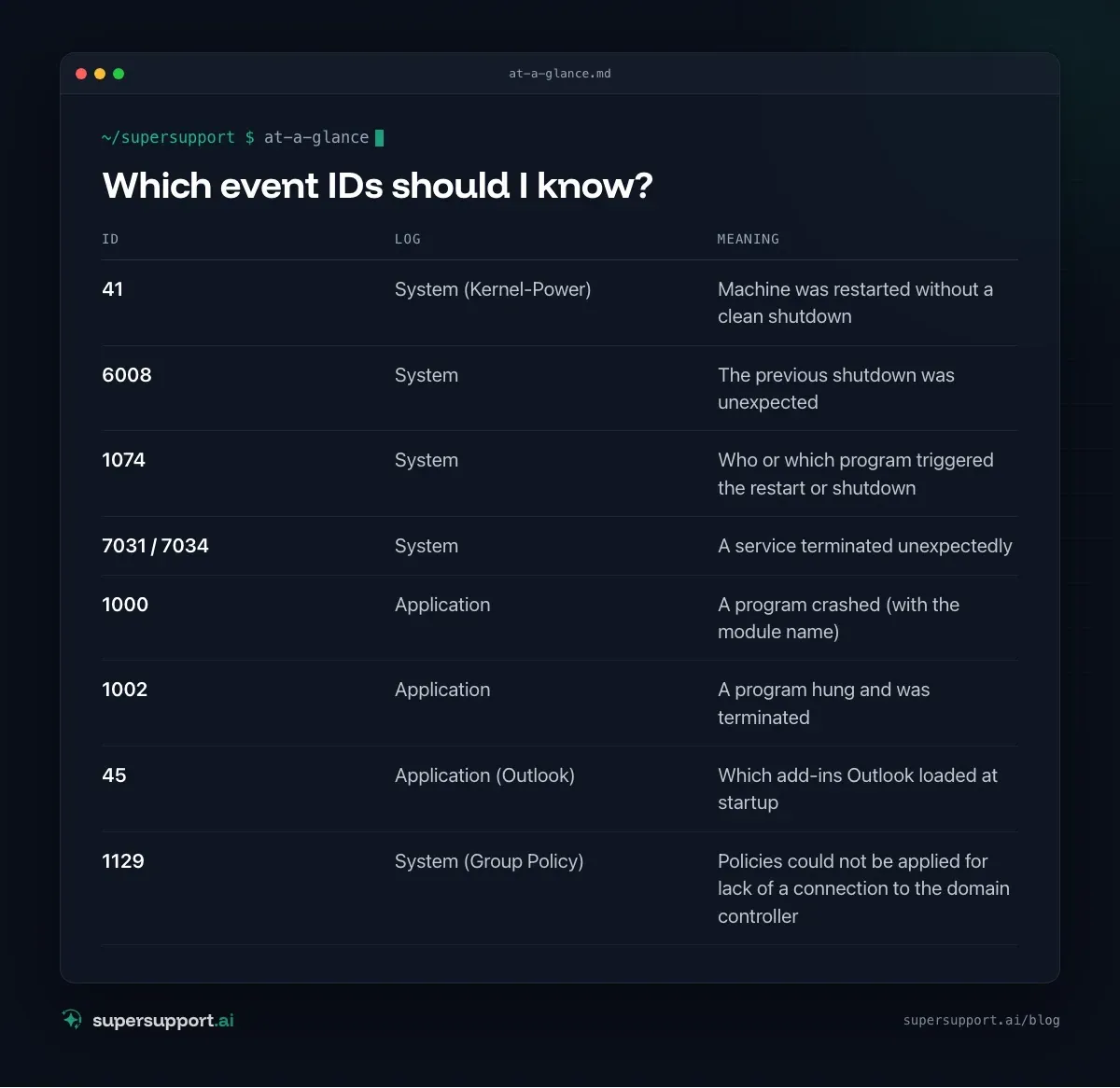
Where do I look?
Two logs are enough for most cases.
- Right-click Start → Event Viewer (or Windows key + R →
eventvwr.msc). - Windows Logs → System: drivers, services, shutdowns, restarts, hardware.
- Windows Logs → Application: programs such as Outlook, Office, line-of-business software.
The levels: Critical, Error, Warning, Information. To start with, Critical and Error are enough.
How do I filter out the noise?
By time range and level, then by source.
- On the right, choose Filter Current Log.
- Logged: the time range of the problem, such as “Last 24 hours”.
- Event level: Critical and Error.
- Optionally enter Event sources or Event IDs.
In the terminal it's faster:
Get-WinEvent -FilterHashtable @{LogName='System'; Level=1,2; StartTime=(Get-Date).AddDays(-2)} |
  Select-Object TimeCreated, Id, ProviderName, Message -First 20
Important: Every machine has errors in its log. The DCOM warning 10016, for example, shows up on almost every system; Microsoft classifies it as ignorable. What counts is what lines up in time with the problem.
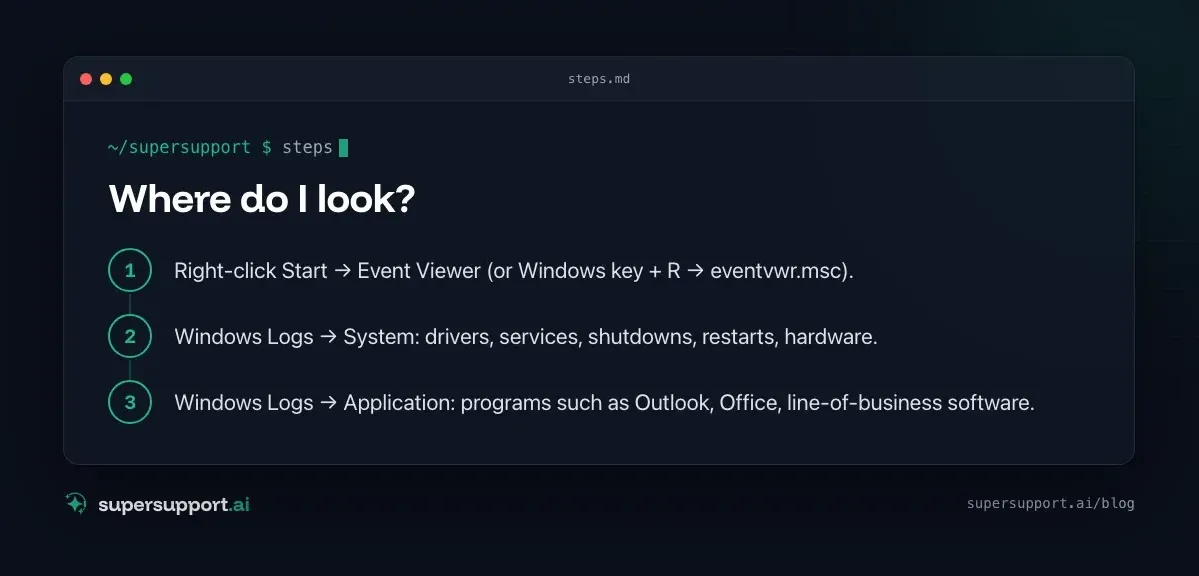
Which event IDs should I know?
- ID: 41 – Log: System (Kernel-Power); Meaning: Machine was restarted without a clean shutdown
- ID: 6008 – Log: System; Meaning: The previous shutdown was unexpected
- ID: 1074 – Log: System; Meaning: Who or which program triggered the restart or shutdown
- ID: 7031 / 7034 – Log: System; Meaning: A service terminated unexpectedly
- ID: 1000 – Log: Application; Meaning: A program crashed (with the module name)
- ID: 1002 – Log: Application; Meaning: A program hung and was terminated
- ID: 45 – Log: Application (Outlook); Meaning: Which add-ins Outlook loaded at startup
- ID: 1129 – Log: System (Group Policy); Meaning: Policies could not be applied for lack of a connection to the domain controller
For blue screens, Blue screen: what to do? helps in addition.
Example 1: Laptop won't shut down
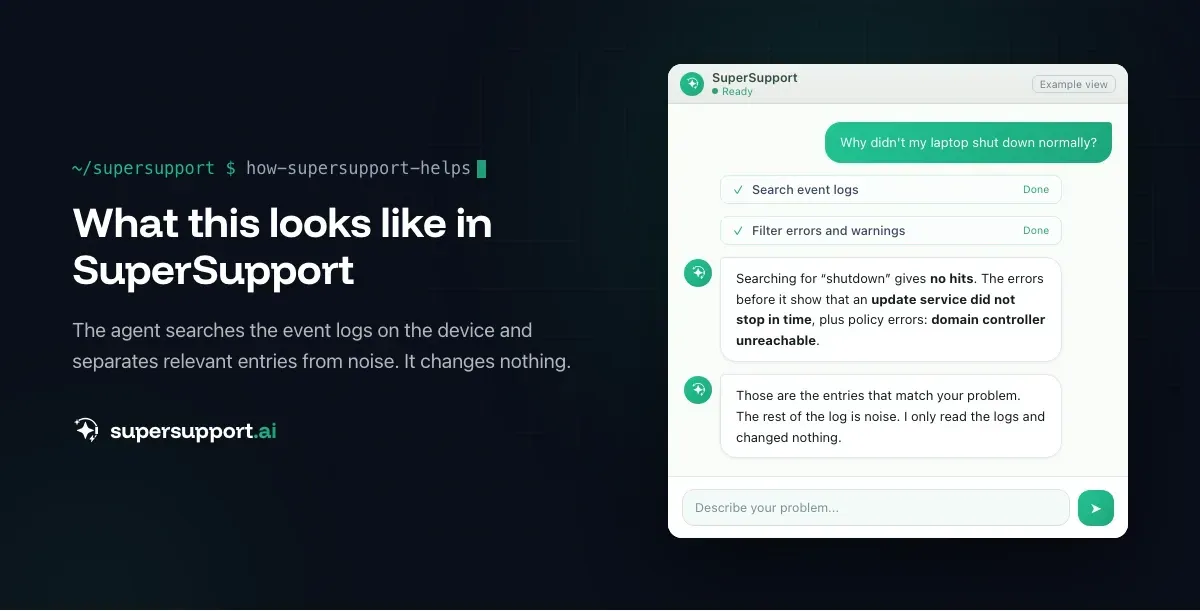
“Why didn't my laptop shut down normally?” In a real chat, our agent first searched specifically for “shutdown” – nothing. Then all errors and warnings of the last 48 hours: There it said several times that an update service could not terminate in time, shortly before the shutdown hung. Plus Group Policy errors, because the machine could not reach the domain controller.
Lesson: The narrow search often finds nothing. Only the broad search in the right time window shows the connection. More in PC won't shut down.
Example 2: Which Outlook add-ins are running?
“Which 6 add-ins exactly?” At every startup, Outlook writes an entry with ID 45 to the Application log – with the name and path of each loaded add-in. The agent looked it up there and delivered the list, instead of sending the employee through the add-in management. More on slow Outlook in Outlook slow.

14 days free
IT support that fixes itself.
SuperSupport fixes IT problems right on the device, before they turn into tickets. Try it free for 14 days.
Start free trialExample 3: No hits is also a finding
“My Outlook crashed a few times.” In the real chat, the search for Outlook errors of the last 72 hours found: nothing. That doesn't mean nothing happened – but it does mean Outlook itself did not log a crash. The next step is then not “reinstall Outlook” but checking other sources: add-ins, graphics, the System log.
What do I do with the finding?
- Program crashes (1000): The “faulting module” often points to an add-in or a driver.
- Service terminates (7031/7034): Check the service, restart if necessary – in companies, together with IT. See Program not responding.
- Unexpected restarts (41, 6008): Check power, battery, overheating, blue screen. Restarts without asking caused by updates are shown by 1074 – see Windows restarts without asking.
- Group Policy (1129): The machine had no connection to the company network at startup – check VPN or network.
On the Mac, the counterpart is called Console (Applications → Utilities); logs and crash reports are there.
Why 1st level rarely reads the log
Because it takes time and practice. Thousands of entries, cryptic messages, time pressure on the phone. That's why it often stays at “Please restart” – and the case moves on. An agent on the device reads the log itself, filters by time range and keyword and brings the finding into the first contact. See Increasing the first-contact resolution rate in IT support.
How does SuperSupport help?
On the device, the SuperSupport agent searches the System and Application logs by time range, level and keyword and says which entries match the problem – and which are noise. Reading logs does not change anything on the machine; changes afterward only happen with consent or approval. For IT teams and MSPs.
Frequently asked questions
Where do I find the Event Viewer?
Right-click Start → Event Viewer, or Windows key + R and eventvwr.msc. For support, Windows Logs → System and Windows Logs → Application matter most.
Which entries are important?
Errors and critical entries around the time of the problem. Useful IDs include 41 (Kernel-Power, unexpected shutdown), 6008 (previous shutdown was unexpected), 1074 (who triggered the restart), 1000 and 1002 (program crashed or hung) and 7031 and 7034 (service terminated unexpectedly).
Are many errors in the Event Viewer dangerous?
No. Every Windows machine collects warnings and errors that mean nothing. Microsoft classifies the DCOM warning 10016, for example, as ignorable. What matters is what lines up in time with the problem.
How do I filter the Event Viewer?
Click “Filter Current Log” on the right, select the levels “Critical” and “Error” and narrow down the time range. Or use Get-WinEvent in the terminal with a filter on log, level and start time.
Can SuperSupport analyze the Event Viewer?
Yes. On the device, the agent searches the System and Application logs by time range, level and keyword and says which entries match the problem. Reading the logs does not change anything on the machine.
14 days free
IT support that fixes itself.
SuperSupport fixes IT problems right on the device, before they turn into tickets. Try it free for 14 days.
Start free trialNico Haslberger is Co-Founder & CEO of SuperSupport.ai. With years of experience as an IT technician, he knows the problems in IT support first-hand: from overloaded help desks to recurring tickets that slow teams down. That knowledge is built into every feature of the platform today. He makes sure SuperSupport.ai solves exactly the problems he experienced himself for years.
This article was created with AI assistance and editorially reviewed.
Related Articles
Excel Drop-Down List: Fixed, Growing, Dependent
Want a selection list in an Excel cell? Create drop-downs with Data Validation – fixed, from a range, growing or dependent on another list.

External Monitor No Signal After BIOS Update: What to Do
External monitor shows “No signal” since the BIOS update, over HDMI and USB-C? Steps: drivers, BIOS settings, graphics switching, hardware test.
Restart a Windows Service Automatically If It Stops
A program feature suddenly stops working because a background service stopped? Find the service and have Windows restart it automatically from now on.