;}.cls-2{fill:url(%23Unbenannter_Verlauf_5-2);}.cls-3{fill:url(%23Unbenannter_Verlauf_5-5);}.cls-4{fill:url(%23Unbenannter_Verlauf_5-6);}.cls-5{fill:url(%23Unbenannter_Verlauf_5-3);}.cls-6{fill:url(%23Unbenannter_Verlauf_5-4);}%3c/style%3e%3clinearGradient%20id='Unbenannter_Verlauf_5'%20x1='1075.02'%20y1='943.06'%20x2='1201.78'%20y2='943.06'%20gradientUnits='userSpaceOnUse'%3e%3cstop%20offset='0'%20stop-color='%2322b88a'/%3e%3cstop%20offset='1'%20stop-color='%231a9e78'/%3e%3c/linearGradient%3e%3clinearGradient%20id='Unbenannter_Verlauf_5-2'%20x1='234.11'%20y1='663.43'%20x2='1058.29'%20y2='663.43'%20xlink:href='%23Unbenannter_Verlauf_5'/%3e%3clinearGradient%20id='Unbenannter_Verlauf_5-3'%20x1='843.79'%20y1='1064.84'%20x2='1096.04'%20y2='1064.84'%20xlink:href='%23Unbenannter_Verlauf_5'/%3e%3clinearGradient%20id='Unbenannter_Verlauf_5-4'%20x1='1120.37'%20y1='662.1'%20x2='1253'%20y2='662.1'%20xlink:href='%23Unbenannter_Verlauf_5'/%3e%3clinearGradient%20id='Unbenannter_Verlauf_5-5'%20x1='97.45'%20y1='265.53'%20x2='385.89'%20y2='265.53'%20xlink:href='%23Unbenannter_Verlauf_5'/%3e%3clinearGradient%20id='Unbenannter_Verlauf_5-6'%20x1='295.45'%20y1='255.64'%20x2='1213.95'%20y2='255.64'%20xlink:href='%23Unbenannter_Verlauf_5'/%3e%3c/defs%3e%3cpath%20class='cls-1'%20d='M1201.78,871c-.61,1.55-1.23,3.1-1.86,4.66-20.33,50.18-47.14,96.85-80.02,139.45-7.56-13.82-21.78-22.31-37.69-22.31h-7.19c29.82-37.26,54.46-78.02,73.61-121.8h53.15Z'/%3e%3cpath%20class='cls-2'%20d='M665.24,264.59l69.02,186.52c21.3,57.57,66.69,102.96,124.26,124.26l186.52,69.02c17.67,6.54,17.67,31.54,0,38.08l-186.52,69.02c-57.57,21.3-102.96,66.69-124.26,124.26l-69.02,186.52c-6.54,17.67-31.54,17.67-38.08,0l-69.02-186.52c-21.3-57.57-66.69-102.96-124.26-124.26l-186.52-69.02c-17.67-6.54-17.67-31.54,0-38.08l186.52-69.02c57.57-21.3,102.96-66.69,124.26-124.26l69.02-186.52c6.54-17.67,31.54-17.67,38.08,0Z'/%3e%3cpath%20class='cls-5'%20d='M1082.21,1021.98h-79.13c-1.7,0-2.97-1.56-2.62-3.23l22.72-109.35c2.94-14.16-15.11-22.74-24.23-11.51l-152.04,187.31c-7.32,9.02-.9,22.5,10.72,22.5h79.13c1.7,0,2.97,1.56,2.62,3.23l-22.72,109.35c-2.94,14.16,15.11,22.74,24.23,11.51l152.04-187.31c7.32-9.02.9-22.5-10.72-22.5Z'/%3e%3crect%20class='cls-6'%20x='1120.37'%20y='486.36'%20width='132.63'%20height='351.48'%20rx='19.58'%20ry='19.58'/%3e%3cpath%20class='cls-3'%20d='M250.58,128.27l13.88,55.81c7.19,28.91,29.76,51.47,58.66,58.66l55.81,13.88c9.29,2.31,9.29,15.51,0,17.82l-55.81,13.88c-28.91,7.19-51.47,29.76-58.66,58.66l-13.88,55.81c-2.31,9.29-15.51,9.29-17.82,0l-13.88-55.81c-7.19-28.91-29.76-51.47-58.66-58.66l-55.81-13.88c-9.29-2.31-9.29-15.51,0-17.82l55.81-13.88c28.91-7.19,51.47-29.76,58.66-58.66l13.88-55.81c2.31-9.29,15.51-9.29,17.82,0Z'/%3e%3cpath%20class='cls-4'%20d='M1213.95,453.21h-67.62c-1.23,0-2.47.04-3.67.12-27.03-63.89-65.84-121.36-115.42-170.94-51.54-51.54-111.61-91.44-178.55-118.59-64.67-26.22-133.03-39.52-203.16-39.52s-138.48,13.3-203.16,39.52c-33.73,13.67-65.72,30.61-95.75,50.63l-.19-.05c-23.62-5.88-42.51-22.85-51-45.24,37.87-26.86,78.65-49.21,122.01-66.79,72.63-29.44,149.37-44.38,228.08-44.38s155.45,14.93,228.08,44.38c75.2,30.51,142.67,75.31,200.53,133.15,57.84,57.85,102.65,125.33,133.15,200.53,2.31,5.7,4.54,11.43,6.66,17.19Z'/%3e%3c/svg%3e)
External Monitor No Signal After BIOS Update: What to Do
External monitor shows “No signal” since the BIOS update, over HDMI and USB-C? Steps: drivers, BIOS settings, graphics switching, hardware test.

The BIOS update was supposed to fix something. Instead, both monitors are now black.
“Since the last BIOS update, no external monitor works anymore – neither over HDMI nor over USB-C.” That is how the report arrived from a user in the electrical engineering department of a machine builder. When the HDMI cable was plugged in, the monitor briefly showed “Input Signal not found” and switched off. The notebook – a business laptop with integrated and additional NVIDIA graphics – otherwise ran normally.
The case is instructive because it shows the order in which to proceed – and when to stop searching. Here are the steps.
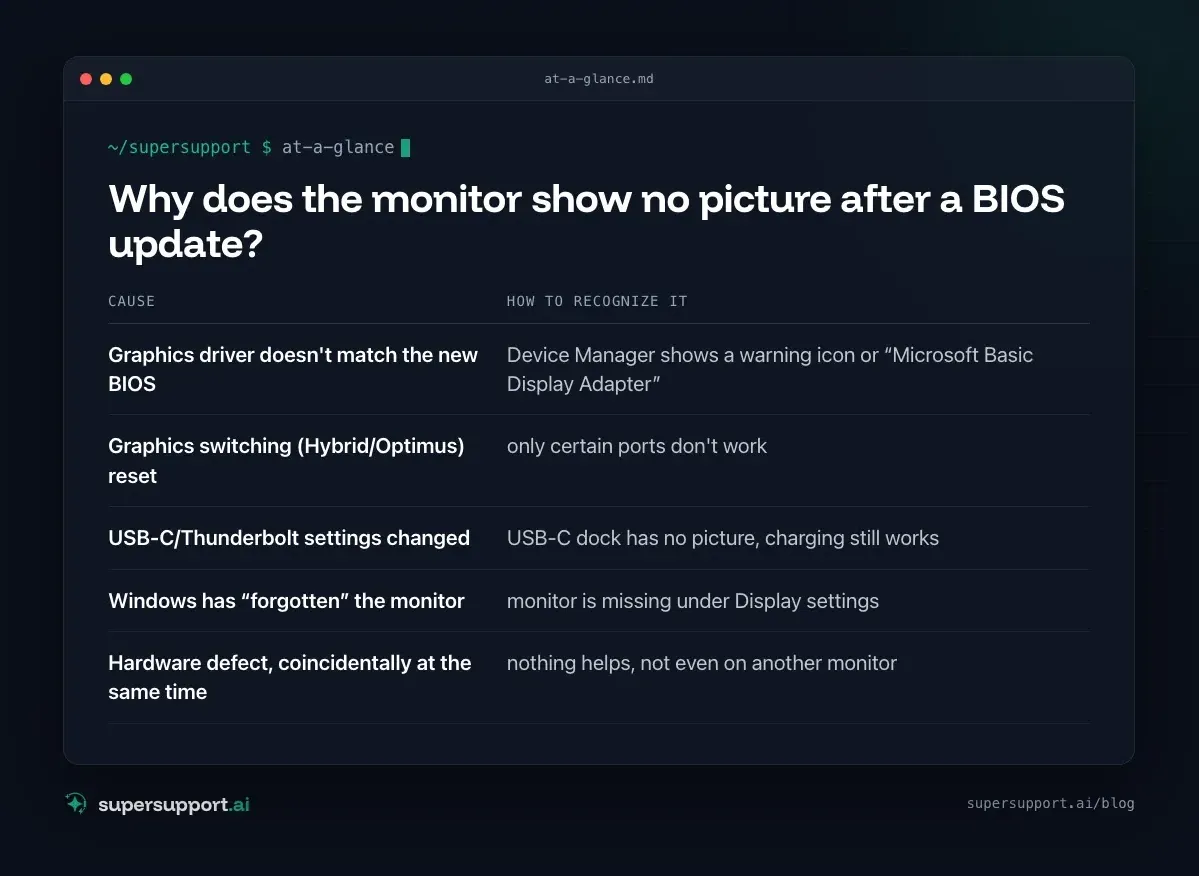
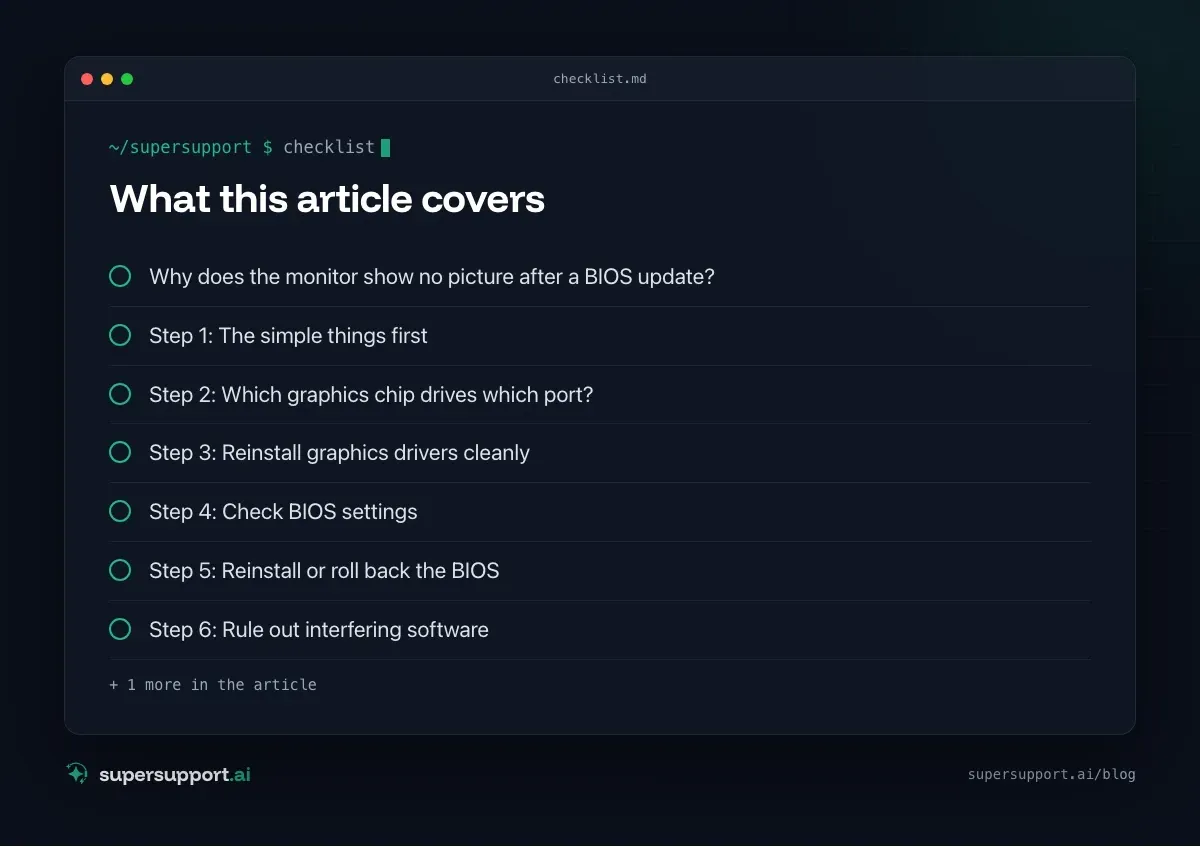
Why does the monitor show no picture after a BIOS update?
Usually because the update reset graphics settings or no longer matches the installed graphics driver. Typical causes:
- Graphics driver doesn't match the new BIOS – Device Manager shows a warning icon or “Microsoft Basic Display Adapter”
- Graphics switching (Hybrid/Optimus) reset – only certain ports don't work
- USB-C/Thunderbolt settings changed – USB-C dock has no picture, charging still works
- Windows has “forgotten” the monitor – monitor is missing under Display settings
- Hardware defect, coincidentally at the same time – nothing helps, not even on another monitor
“Input Signal not found” means: the monitor notices that a cable is plugged in but gets no picture. The problem sits almost always on the laptop side.
Step 1: The simple things first
- Try another cable and another monitor – once, to rule out the monitor.
- Press Windows+P and choose Duplicate or Extend.
- Settings › System › Display › Detect – is the monitor found?
- Shut down the laptop completely (not just a restart), unplug the cable, switch it back on, then plug in.
- Restart the graphics driver: Windows+Ctrl+Shift+B – the screen flickers briefly.
Step 2: Which graphics chip drives which port?
On laptops with two graphics chips, the ports are often connected to different chips. HDMI often runs via the NVIDIA graphics, USB-C via the integrated Intel graphics – or the other way around. If both fail, it usually affects both drivers or the BIOS.
In Device Manager (Windows+X › Device Manager › Display adapters), both chips should appear without a warning icon:
Get-PnpDevice -Class Display | Select-Object FriendlyName, StatusIf it shows only “Microsoft Basic Display Adapter” or a status like Error, the correct driver is missing.
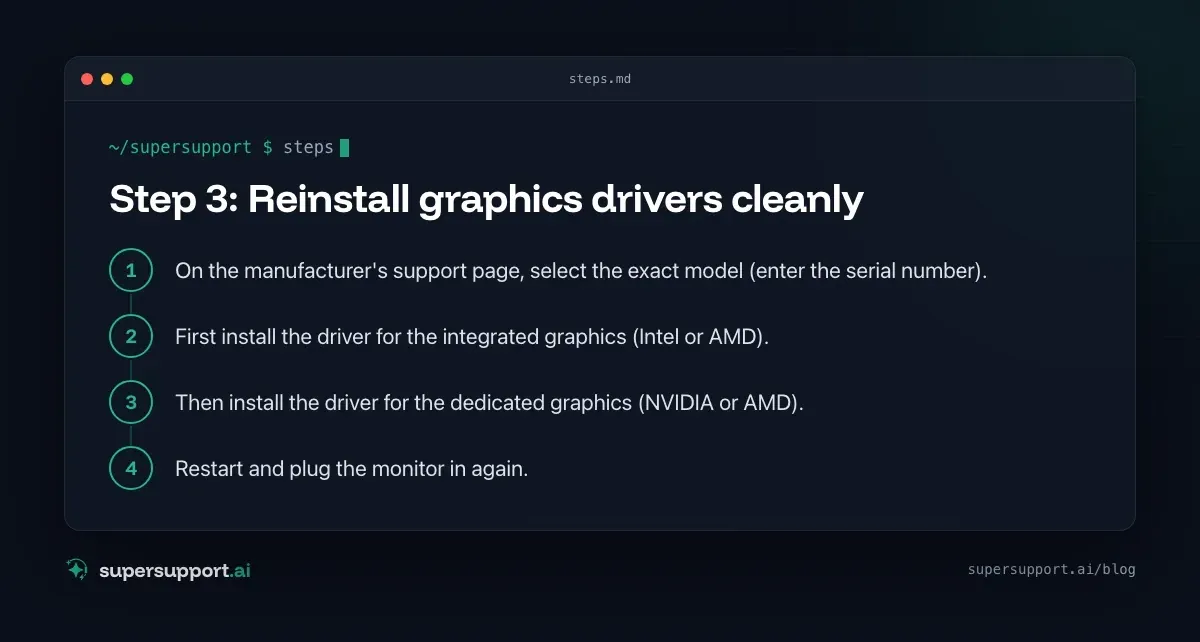
Step 3: Reinstall graphics drivers cleanly
Both drivers, in the right order, from the laptop manufacturer's support page.
- On the manufacturer's support page, select the exact model (enter the serial number).
- First install the driver for the integrated graphics (Intel or AMD).
- Then install the driver for the dedicated graphics (NVIDIA or AMD).
- Restart and plug the monitor in again.
If that doesn't help, install the NVIDIA driver in the installer with Custom (Advanced) › Perform a clean installation – that resets all settings.
In the real case, reinstalling the NVIDIA driver brought no improvement; instead, an error message appeared that had already shown up once right after the BIOS update. A sign that the problem ran deeper.
Step 4: Check BIOS settings
In the BIOS (on HP with F10 at startup), look at graphics and port settings:
- Hybrid Graphics / Switchable Graphics / Optimus: leave enabled or try switching as a test.
- USB-C / Thunderbolt: Is “video over USB-C” or “DisplayPort Alt Mode” allowed?
- Load default values (on HP: Apply Factory Defaults and Exit) – afterwards check date/time and boot order.
Company devices with BitLocker: Have the recovery key ready before changing anything in the BIOS – BitLocker may ask for it after BIOS changes.
14 days free
IT support that fixes itself.
SuperSupport fixes IT problems right on the device, before they turn into tickets. Try it free for 14 days.
Start free trialStep 5: Reinstall or roll back the BIOS
If the update went wrong, installing it again or a rollback can help. Many manufacturers offer older BIOS versions. On HP, the BIOS rollback option must be allowed in the BIOS for this. Security updates sometimes block going back on purpose.
In the real case, the BIOS was reinstalled – without success.
Step 6: Rule out interfering software
Security and VPN software with its own drivers can interfere with the display. In the real case, an isolation security software from the manufacturer and a VPN client for remote machine maintenance were uninstalled as a test. That didn't change anything either – an important finding, because it largely ruled out software as the cause.
When is it a hardware defect?
When drivers, BIOS and software are ruled out and neither HDMI nor USB-C delivers a picture. Then a defect in the mainboard or graphics is likely – even if it coincides in time with the update. Next steps:
- Start the manufacturer test (on HP: F2 at power-on › HP PC Hardware Diagnostics) and check memory and graphics there.
- Test the memory modules individually if two are installed – in the real case, that was the last recommended test.
- Check the warranty and involve the manufacturer's support.
The pragmatic route in the real case: prepare a new notebook in parallel while the old one keeps running without an external monitor. That way the user doesn't lose a working day.
Similarly systematic guides: PC starts slowly and Which PC do I have? – useful for finding the model and serial number for the driver page.
How does SuperSupport help with display problems?
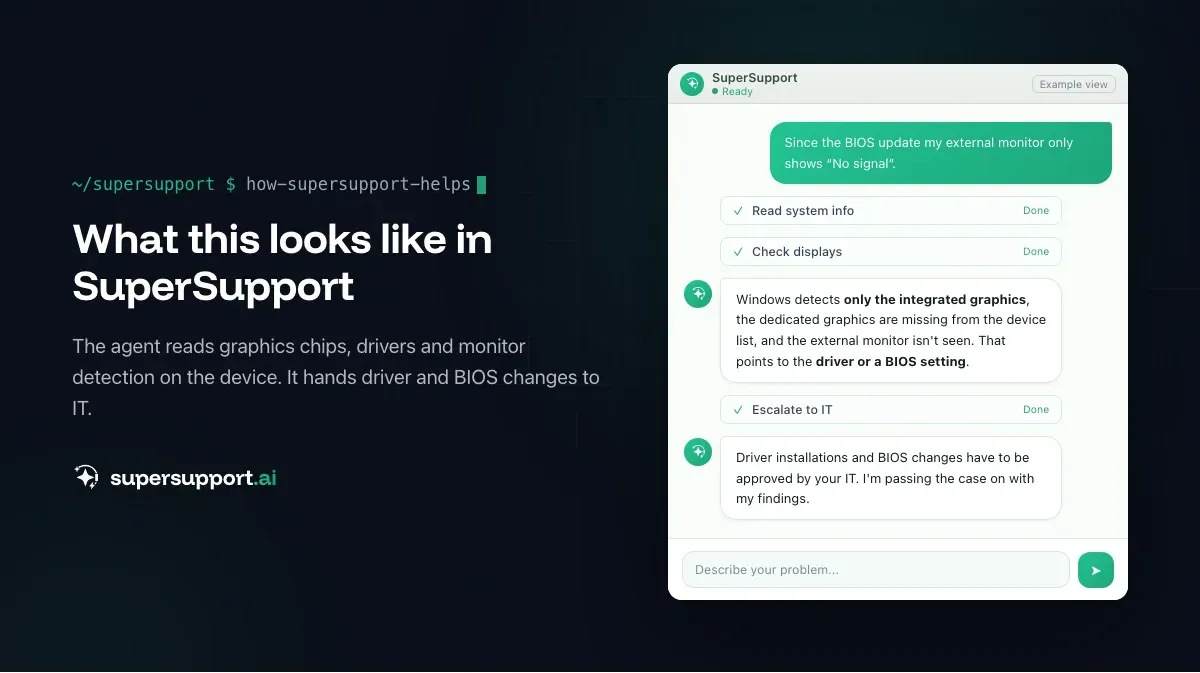
The SuperSupport agent can read out on the device which graphics chips are detected, which driver versions are installed and whether Windows sees the monitor – and narrow down whether it is the driver, the setting or the hardware. It submits driver installations and BIOS changes to IT for approval. What this looks like for internal IT teams and IT service providers is described on the respective pages.
Frequently asked questions
Why does my external monitor no longer work after a BIOS update?
A BIOS update can reset graphics settings, such as the switching between integrated and dedicated graphics, and sometimes no longer matches the installed graphics driver. Rarely, it also exposes a hardware fault that wasn't noticed before.
What does “Input Signal not found” mean?
The monitor detects that a cable is plugged in but gets no picture signal and goes into standby after a short time. The problem is then usually on the laptop – driver, graphics switching or port – not the monitor.
Which driver do I need to reinstall?
On laptops with two graphics chips, both: first the Intel or AMD driver for the integrated graphics, then the NVIDIA or AMD driver for the dedicated graphics – ideally the versions from the laptop manufacturer's support page.
Can I undo a BIOS update?
With many manufacturers, yes, provided the older version is offered and no security update blocks going back. On HP this is called “BIOS rollback” and must be allowed in the BIOS. For company devices, coordinate with IT beforehand.
When is it a hardware defect?
If the monitor works on another laptop, drivers and BIOS have been reinstalled and neither HDMI nor USB-C delivers a picture, a defect in the mainboard or graphics is likely. Then a manufacturer test or a replacement is worthwhile.
14 days free
IT support that fixes itself.
SuperSupport fixes IT problems right on the device, before they turn into tickets. Try it free for 14 days.
Start free trialNico Haslberger is Co-Founder & CEO of SuperSupport.ai. With years of experience as an IT technician, he knows the problems in IT support first-hand: from overloaded help desks to recurring tickets that slow teams down. That knowledge is built into every feature of the platform today. He makes sure SuperSupport.ai solves exactly the problems he experienced himself for years.
This article was created with AI assistance and editorially reviewed.
Related Articles
Excel Drop-Down List: Fixed, Growing, Dependent
Want a selection list in an Excel cell? Create drop-downs with Data Validation – fixed, from a range, growing or dependent on another list.

Restart a Windows Service Automatically If It Stops
A program feature suddenly stops working because a background service stopped? Find the service and have Windows restart it automatically from now on.
Microsoft 365 Quarantine: How to Release an Email
An important email is stuck in Microsoft 365 quarantine? Here is how to check it, release it, and keep it from happening again.