;}.cls-2{fill:url(%23Unbenannter_Verlauf_5-2);}.cls-3{fill:url(%23Unbenannter_Verlauf_5-5);}.cls-4{fill:url(%23Unbenannter_Verlauf_5-6);}.cls-5{fill:url(%23Unbenannter_Verlauf_5-3);}.cls-6{fill:url(%23Unbenannter_Verlauf_5-4);}%3c/style%3e%3clinearGradient%20id='Unbenannter_Verlauf_5'%20x1='1075.02'%20y1='943.06'%20x2='1201.78'%20y2='943.06'%20gradientUnits='userSpaceOnUse'%3e%3cstop%20offset='0'%20stop-color='%2322b88a'/%3e%3cstop%20offset='1'%20stop-color='%231a9e78'/%3e%3c/linearGradient%3e%3clinearGradient%20id='Unbenannter_Verlauf_5-2'%20x1='234.11'%20y1='663.43'%20x2='1058.29'%20y2='663.43'%20xlink:href='%23Unbenannter_Verlauf_5'/%3e%3clinearGradient%20id='Unbenannter_Verlauf_5-3'%20x1='843.79'%20y1='1064.84'%20x2='1096.04'%20y2='1064.84'%20xlink:href='%23Unbenannter_Verlauf_5'/%3e%3clinearGradient%20id='Unbenannter_Verlauf_5-4'%20x1='1120.37'%20y1='662.1'%20x2='1253'%20y2='662.1'%20xlink:href='%23Unbenannter_Verlauf_5'/%3e%3clinearGradient%20id='Unbenannter_Verlauf_5-5'%20x1='97.45'%20y1='265.53'%20x2='385.89'%20y2='265.53'%20xlink:href='%23Unbenannter_Verlauf_5'/%3e%3clinearGradient%20id='Unbenannter_Verlauf_5-6'%20x1='295.45'%20y1='255.64'%20x2='1213.95'%20y2='255.64'%20xlink:href='%23Unbenannter_Verlauf_5'/%3e%3c/defs%3e%3cpath%20class='cls-1'%20d='M1201.78,871c-.61,1.55-1.23,3.1-1.86,4.66-20.33,50.18-47.14,96.85-80.02,139.45-7.56-13.82-21.78-22.31-37.69-22.31h-7.19c29.82-37.26,54.46-78.02,73.61-121.8h53.15Z'/%3e%3cpath%20class='cls-2'%20d='M665.24,264.59l69.02,186.52c21.3,57.57,66.69,102.96,124.26,124.26l186.52,69.02c17.67,6.54,17.67,31.54,0,38.08l-186.52,69.02c-57.57,21.3-102.96,66.69-124.26,124.26l-69.02,186.52c-6.54,17.67-31.54,17.67-38.08,0l-69.02-186.52c-21.3-57.57-66.69-102.96-124.26-124.26l-186.52-69.02c-17.67-6.54-17.67-31.54,0-38.08l186.52-69.02c57.57-21.3,102.96-66.69,124.26-124.26l69.02-186.52c6.54-17.67,31.54-17.67,38.08,0Z'/%3e%3cpath%20class='cls-5'%20d='M1082.21,1021.98h-79.13c-1.7,0-2.97-1.56-2.62-3.23l22.72-109.35c2.94-14.16-15.11-22.74-24.23-11.51l-152.04,187.31c-7.32,9.02-.9,22.5,10.72,22.5h79.13c1.7,0,2.97,1.56,2.62,3.23l-22.72,109.35c-2.94,14.16,15.11,22.74,24.23,11.51l152.04-187.31c7.32-9.02.9-22.5-10.72-22.5Z'/%3e%3crect%20class='cls-6'%20x='1120.37'%20y='486.36'%20width='132.63'%20height='351.48'%20rx='19.58'%20ry='19.58'/%3e%3cpath%20class='cls-3'%20d='M250.58,128.27l13.88,55.81c7.19,28.91,29.76,51.47,58.66,58.66l55.81,13.88c9.29,2.31,9.29,15.51,0,17.82l-55.81,13.88c-28.91,7.19-51.47,29.76-58.66,58.66l-13.88,55.81c-2.31,9.29-15.51,9.29-17.82,0l-13.88-55.81c-7.19-28.91-29.76-51.47-58.66-58.66l-55.81-13.88c-9.29-2.31-9.29-15.51,0-17.82l55.81-13.88c28.91-7.19,51.47-29.76,58.66-58.66l13.88-55.81c2.31-9.29,15.51-9.29,17.82,0Z'/%3e%3cpath%20class='cls-4'%20d='M1213.95,453.21h-67.62c-1.23,0-2.47.04-3.67.12-27.03-63.89-65.84-121.36-115.42-170.94-51.54-51.54-111.61-91.44-178.55-118.59-64.67-26.22-133.03-39.52-203.16-39.52s-138.48,13.3-203.16,39.52c-33.73,13.67-65.72,30.61-95.75,50.63l-.19-.05c-23.62-5.88-42.51-22.85-51-45.24,37.87-26.86,78.65-49.21,122.01-66.79,72.63-29.44,149.37-44.38,228.08-44.38s155.45,14.93,228.08,44.38c75.2,30.51,142.67,75.31,200.53,133.15,57.84,57.85,102.65,125.33,133.15,200.53,2.31,5.7,4.54,11.43,6.66,17.19Z'/%3e%3c/svg%3e)
Teams Won’t Start or Shows a White Screen: Fixes
Microsoft Teams won’t open, shows only a white screen or hangs while loading? Here is how to fix it on Windows and macOS.


Teams won’t start. Often it helps to clear a folder that hardly anyone knows about.
The meeting starts in two minutes, and Microsoft Teams does not open – or shows only a white screen, loads endlessly or closes again right away. Usually a stuck process or a damaged cache is behind it. Both can be fixed quickly, and your chats are kept in the process.
Quick tip: If you are in a hurry, open Teams in the browser at teams.microsoft.com. There you can join the meeting while you repair the app.
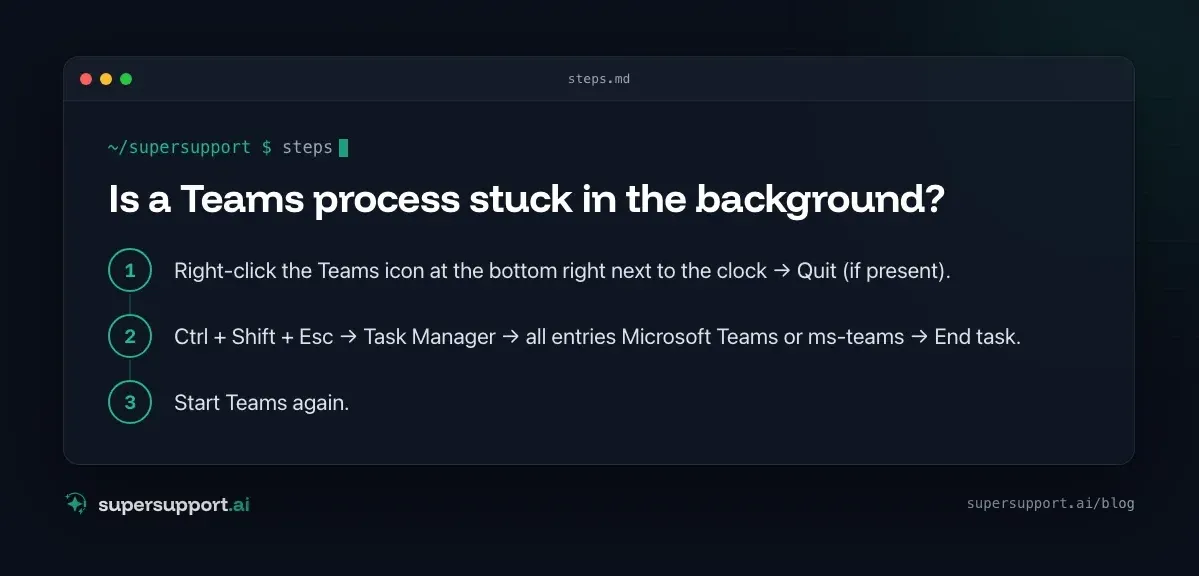
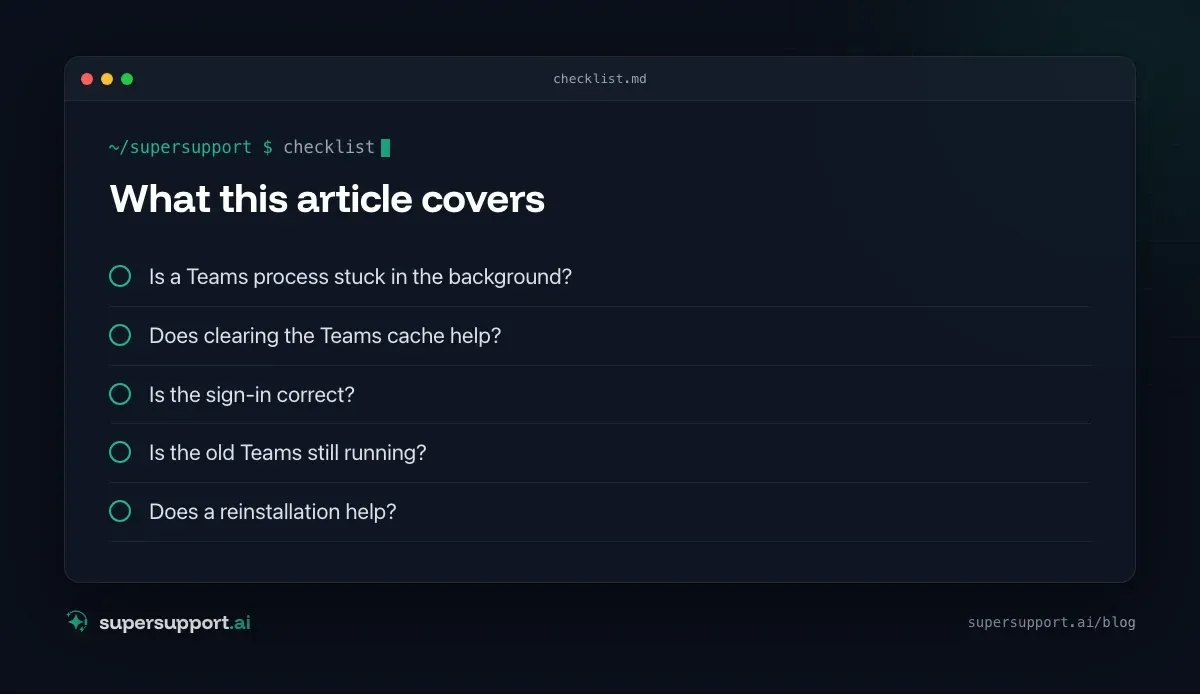
Is a Teams process stuck in the background?
This is the most common cause. Teams was not closed properly, an old process keeps running and blocks the restart.
Windows:
- Right-click the Teams icon at the bottom right next to the clock → Quit (if present).
- Ctrl + Shift + Esc → Task Manager → all entries Microsoft Teams or ms-teams → End task.
- Start Teams again.
macOS:
- Cmd + Q in Teams, or right-click the Dock icon → Quit.
- If it is stuck: Cmd + Option + Esc → Teams → Force Quit.
- Start Teams again.
Does clearing the Teams cache help?
A damaged cache is the second most common cause – typical with a white screen or endless loading. Chats and files are kept because they are stored in Microsoft 365.
Windows (new Teams):
- Quit Teams completely (see above).
- Win + R → paste and press Enter:
%LocalAppData%\Packages\MSTeams_8wekyb3d8bbwe\LocalCache\Microsoft\MSTeams - Delete the contents of the folder.
- Start Teams again.
Alternatively: Settings → Apps → Installed apps → Microsoft Teams → “…” → Advanced options → Reset.
macOS (new Teams):
- Quit Teams.
- In Finder, Go → Go to Folder and enter:
~/Library/Group Containers/UBF8T346G9.com.microsoft.teamsas well as~/Library/Containers/com.microsoft.teams2 - Delete the contents and start Teams again.
Afterward, you have to choose local settings such as background images and audio devices again.
Is the sign-in correct?
If the sign-in token has expired or the password was changed, Teams sometimes hangs while loading instead of asking for the password.
- In Teams, click the profile picture at the top right → Sign out, then sign in again.
- If Outlook and OneDrive no longer work either, the problem is the Microsoft 365 sign-in – see Office sign-in does not work.
- A wrong system time on the device also prevents signing in – see PC clock is wrong.
Is the old Teams still running?

14 days free
IT support that fixes itself.
SuperSupport fixes IT problems right on the device, before they turn into tickets. Try it free for 14 days.
Start free trialMicrosoft has replaced “classic Teams” with “new Teams”. If both are installed or the old version still starts, problems are common.
- Check under Settings → Apps → Installed apps: If “Microsoft Teams classic” is listed there, IT should remove it and deploy the new Teams.
- The version is shown in Teams under “…” → Settings → About Teams.
Does a reinstallation help?
If clearing the cache and signing in again do not help, a reinstallation is the last step:
- Uninstall Teams under Settings → Apps.
- Install the current Teams from Microsoft or from the Company Portal.
In companies, IT often installs Teams centrally – in that case, report it there instead of installing it yourself.
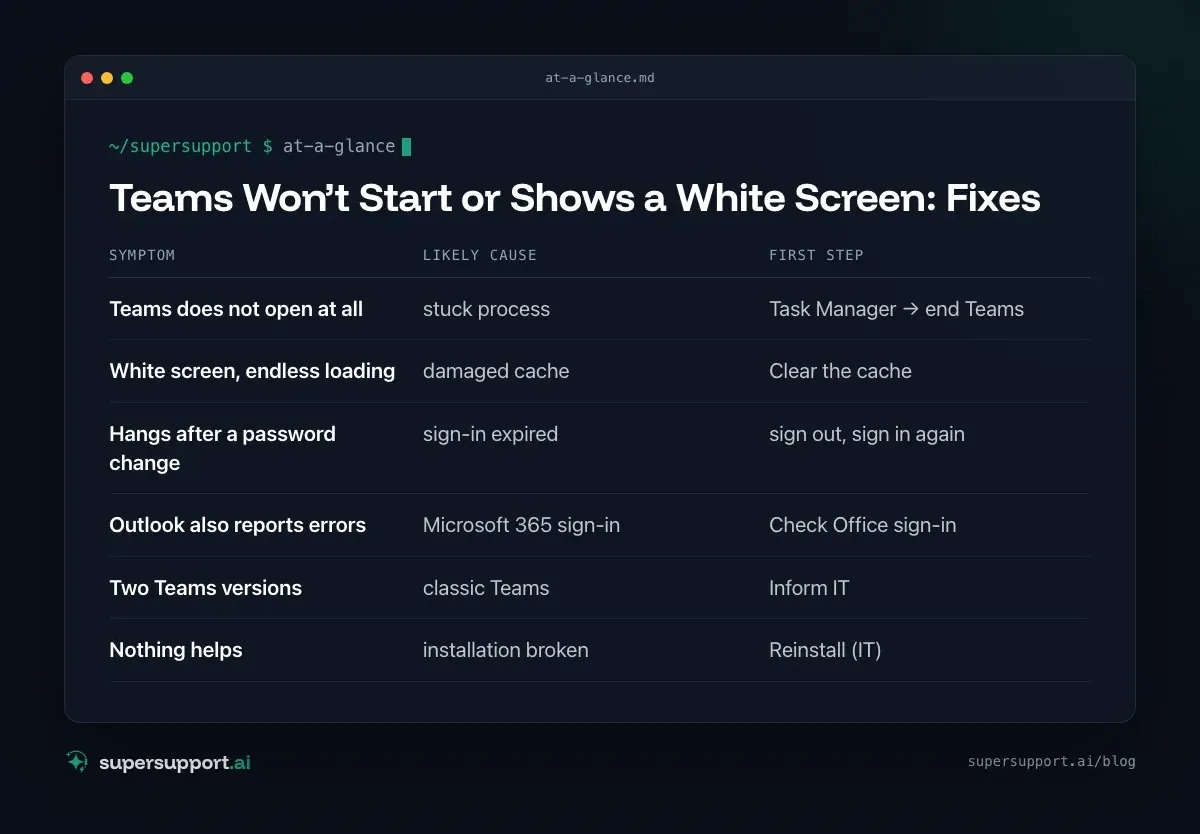
At a glance: Teams won’t start
- Symptom: Teams does not open at all – Likely cause: stuck process; First step: Task Manager → end Teams
- Symptom: White screen, endless loading – Likely cause: damaged cache; First step: Clear the cache
- Symptom: Hangs after a password change – Likely cause: sign-in expired; First step: sign out, sign in again
- Symptom: Outlook also reports errors – Likely cause: Microsoft 365 sign-in; First step: Check Office sign-in
- Symptom: Two Teams versions – Likely cause: classic Teams; First step: Inform IT
- Symptom: Nothing helps – Likely cause: installation broken; First step: Reinstall (IT)
If Teams works but camera or sound do not, see Teams camera and microphone or Bluetooth headset won’t connect.
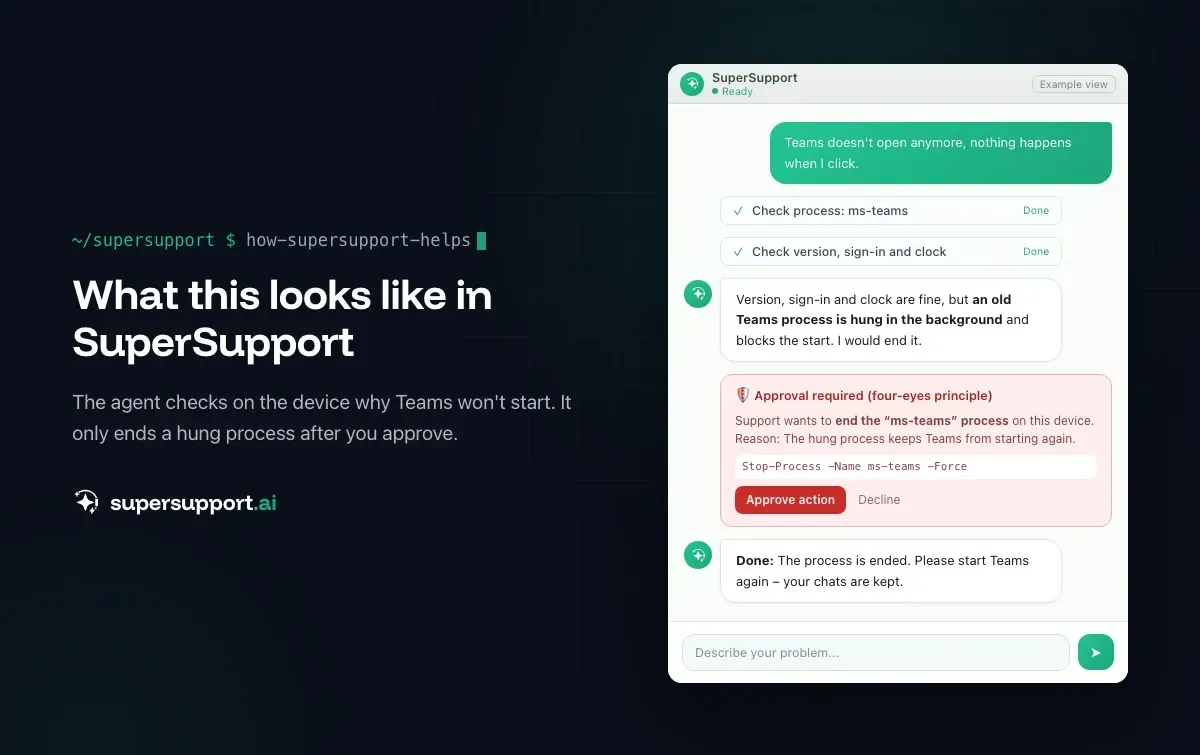
How does SuperSupport help when Teams won’t start?
The SuperSupport agent checks on the Windows or Mac device whether Teams processes are stuck, which Teams version is installed, whether sign-in and system time are correct and whether errors appear in the log. It ends stuck processes and clears the cache itself – for steps that reset local settings, it asks first. It submits a reinstallation to IT for approval. Every step is logged. How this looks for internal IT teams and MSPs is described on the respective pages.
Frequently asked questions
Why won’t Microsoft Teams start?
Usually an old Teams process is stuck in the background, the cache is damaged or the sign-in has expired. Less often, an update, a policy or a wrong system time blocks the start.
How do I clear the Teams cache on Windows?
Quit Teams completely, then in File Explorer open the folder %LocalAppData%\Packages\MSTeams_8wekyb3d8bbwe\LocalCache\Microsoft\MSTeams and delete its contents. On the next start, Teams rebuilds the cache. Chats and files are kept because they are stored in the cloud.
Why does Teams show only a white screen?
That points to a damaged cache or a problem with the embedded browser component. Clearing the cache and restarting Teams helps in most cases. If Teams works in the browser at teams.microsoft.com, the problem is definitely the app.
Do I lose my chats when I reset Teams?
No. Chats, channels, files and meetings are stored in Microsoft 365. Resetting only loses local settings such as background images or the selected audio devices.
Can SuperSupport help if Teams won’t start?
Yes. The agent checks on the Windows or Mac device whether Teams processes are stuck, which version is installed and whether sign-in and system time are correct, and can end stuck processes and clear the cache. It submits a reinstallation to IT for approval.
14 days free
IT support that fixes itself.
SuperSupport fixes IT problems right on the device, before they turn into tickets. Try it free for 14 days.
Start free trialNico Haslberger is Co-Founder & CEO of SuperSupport.ai. With years of experience as an IT technician, he knows the problems in IT support first-hand: from overloaded help desks to recurring tickets that slow teams down. That knowledge is built into every feature of the platform today. He makes sure SuperSupport.ai solves exactly the problems he experienced himself for years.
This article was created with AI assistance and editorially reviewed.
Related Articles
Laptop Battery Not Charging: “Plugged In, Not Charging”
Windows says “Plugged in, not charging” or the battery sticks at 80%? The usual causes (adapter, USB-C power, charge limit, wear) and how to check.

Excel Drop-Down List: Fixed, Growing, Dependent
Want a selection list in an Excel cell? Create drop-downs with Data Validation – fixed, from a range, growing or dependent on another list.
External Monitor No Signal After BIOS Update: What to Do
External monitor shows “No signal” since the BIOS update, over HDMI and USB-C? Steps: drivers, BIOS settings, graphics switching, hardware test.