;}.cls-2{fill:url(%23Unbenannter_Verlauf_5-2);}.cls-3{fill:url(%23Unbenannter_Verlauf_5-5);}.cls-4{fill:url(%23Unbenannter_Verlauf_5-6);}.cls-5{fill:url(%23Unbenannter_Verlauf_5-3);}.cls-6{fill:url(%23Unbenannter_Verlauf_5-4);}%3c/style%3e%3clinearGradient%20id='Unbenannter_Verlauf_5'%20x1='1075.02'%20y1='943.06'%20x2='1201.78'%20y2='943.06'%20gradientUnits='userSpaceOnUse'%3e%3cstop%20offset='0'%20stop-color='%2322b88a'/%3e%3cstop%20offset='1'%20stop-color='%231a9e78'/%3e%3c/linearGradient%3e%3clinearGradient%20id='Unbenannter_Verlauf_5-2'%20x1='234.11'%20y1='663.43'%20x2='1058.29'%20y2='663.43'%20xlink:href='%23Unbenannter_Verlauf_5'/%3e%3clinearGradient%20id='Unbenannter_Verlauf_5-3'%20x1='843.79'%20y1='1064.84'%20x2='1096.04'%20y2='1064.84'%20xlink:href='%23Unbenannter_Verlauf_5'/%3e%3clinearGradient%20id='Unbenannter_Verlauf_5-4'%20x1='1120.37'%20y1='662.1'%20x2='1253'%20y2='662.1'%20xlink:href='%23Unbenannter_Verlauf_5'/%3e%3clinearGradient%20id='Unbenannter_Verlauf_5-5'%20x1='97.45'%20y1='265.53'%20x2='385.89'%20y2='265.53'%20xlink:href='%23Unbenannter_Verlauf_5'/%3e%3clinearGradient%20id='Unbenannter_Verlauf_5-6'%20x1='295.45'%20y1='255.64'%20x2='1213.95'%20y2='255.64'%20xlink:href='%23Unbenannter_Verlauf_5'/%3e%3c/defs%3e%3cpath%20class='cls-1'%20d='M1201.78,871c-.61,1.55-1.23,3.1-1.86,4.66-20.33,50.18-47.14,96.85-80.02,139.45-7.56-13.82-21.78-22.31-37.69-22.31h-7.19c29.82-37.26,54.46-78.02,73.61-121.8h53.15Z'/%3e%3cpath%20class='cls-2'%20d='M665.24,264.59l69.02,186.52c21.3,57.57,66.69,102.96,124.26,124.26l186.52,69.02c17.67,6.54,17.67,31.54,0,38.08l-186.52,69.02c-57.57,21.3-102.96,66.69-124.26,124.26l-69.02,186.52c-6.54,17.67-31.54,17.67-38.08,0l-69.02-186.52c-21.3-57.57-66.69-102.96-124.26-124.26l-186.52-69.02c-17.67-6.54-17.67-31.54,0-38.08l186.52-69.02c57.57-21.3,102.96-66.69,124.26-124.26l69.02-186.52c6.54-17.67,31.54-17.67,38.08,0Z'/%3e%3cpath%20class='cls-5'%20d='M1082.21,1021.98h-79.13c-1.7,0-2.97-1.56-2.62-3.23l22.72-109.35c2.94-14.16-15.11-22.74-24.23-11.51l-152.04,187.31c-7.32,9.02-.9,22.5,10.72,22.5h79.13c1.7,0,2.97,1.56,2.62,3.23l-22.72,109.35c-2.94,14.16,15.11,22.74,24.23,11.51l152.04-187.31c7.32-9.02.9-22.5-10.72-22.5Z'/%3e%3crect%20class='cls-6'%20x='1120.37'%20y='486.36'%20width='132.63'%20height='351.48'%20rx='19.58'%20ry='19.58'/%3e%3cpath%20class='cls-3'%20d='M250.58,128.27l13.88,55.81c7.19,28.91,29.76,51.47,58.66,58.66l55.81,13.88c9.29,2.31,9.29,15.51,0,17.82l-55.81,13.88c-28.91,7.19-51.47,29.76-58.66,58.66l-13.88,55.81c-2.31,9.29-15.51,9.29-17.82,0l-13.88-55.81c-7.19-28.91-29.76-51.47-58.66-58.66l-55.81-13.88c-9.29-2.31-9.29-15.51,0-17.82l55.81-13.88c28.91-7.19,51.47-29.76,58.66-58.66l13.88-55.81c2.31-9.29,15.51-9.29,17.82,0Z'/%3e%3cpath%20class='cls-4'%20d='M1213.95,453.21h-67.62c-1.23,0-2.47.04-3.67.12-27.03-63.89-65.84-121.36-115.42-170.94-51.54-51.54-111.61-91.44-178.55-118.59-64.67-26.22-133.03-39.52-203.16-39.52s-138.48,13.3-203.16,39.52c-33.73,13.67-65.72,30.61-95.75,50.63l-.19-.05c-23.62-5.88-42.51-22.85-51-45.24,37.87-26.86,78.65-49.21,122.01-66.79,72.63-29.44,149.37-44.38,228.08-44.38s155.45,14.93,228.08,44.38c75.2,30.51,142.67,75.31,200.53,133.15,57.84,57.85,102.65,125.33,133.15,200.53,2.31,5.7,4.54,11.43,6.66,17.19Z'/%3e%3c/svg%3e)
Laptop Battery Not Charging: “Plugged In, Not Charging”
Windows says “Plugged in, not charging” or the battery sticks at 80%? The usual causes (adapter, USB-C power, charge limit, wear) and how to check.


“Plugged in, not charging” is often not a malfunction. It is a setting.
“My laptop isn't charging anymore.” At the bottom right it says “Plugged in, not charging,” or the battery stubbornly stays at 80%. Sometimes that is a defect, but often it is intentional, or the docking station simply delivers too little power. Here is how you find the cause.
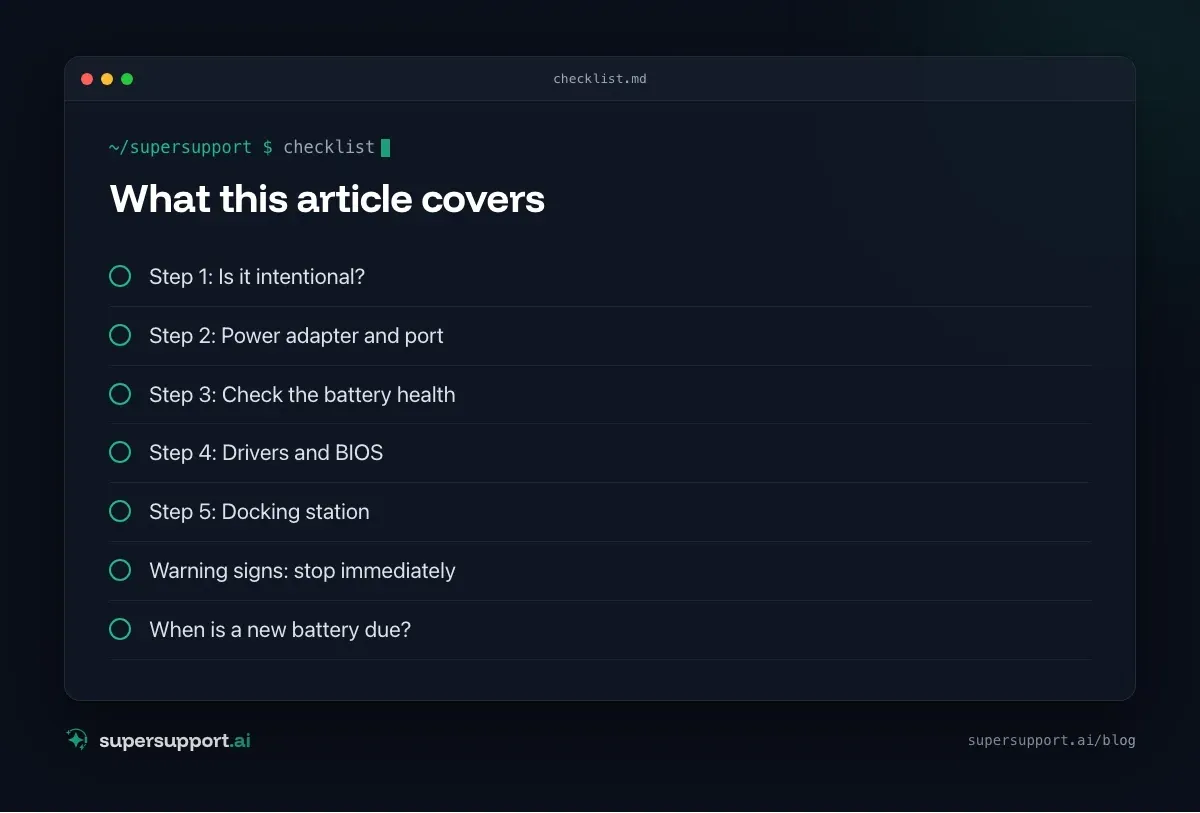
Step 1: Is it intentional?
Many laptops deliberately don't charge fully to protect the battery:
- Manufacturer battery protection limits charging to 80% or an adjustable value. You can set it in the manufacturer's software (such as Dell Power Manager, Lenovo Vantage, HP tools) or in the BIOS.
- macOS: Optimized Battery Charging learns your usage and temporarily holds at 80%. System Settings › Battery › Battery Health › (i).
- Battery warm: after heavy load or in heat, charging pauses until the battery has cooled down.
If you work almost only on the power adapter in the office, you should leave the battery protection turned on.
Step 2: Power adapter and port
- Test the original power adapter directly on the laptop, not through a docking station, monitor, or hub.
- Power: USB-C power adapters and docking stations have to deliver enough watts. A 30 W adapter on a laptop that needs 65 W charges barely or not at all.
- Right USB-C port: not every USB-C port charges; often only the one with the power symbol does.
- Check the cable and connector for damage, and try a different wall outlet.
Step 3: Check the battery health
Windows (Command Prompt):
powercfg /batteryreportThe report is then saved as an HTML file at the path shown. What matters: Design Capacity (new condition) and Full Charge Capacity (today). If the current capacity is well below that, the battery is worn out.
Mac: System Settings › Battery › Battery Health: “Normal” or “Service Recommended.”
Step 4: Drivers and BIOS
- Windows: Device Manager › Batteries › Microsoft ACPI-Compliant Control Method Battery › right-click › Uninstall device, then restart. Windows reinstalls the driver.
- Install the manufacturer's BIOS and firmware updates. They often contain improvements for charging and docking stations. See Patch management for SMBs.
- Mac: restart; on Intel Macs, reset the SMC if necessary.
Step 5: Docking station
Docking stations charge the laptop over USB-C or Thunderbolt, but only with sufficient power and up-to-date firmware. Laptop charges on the power adapter but not on the dock? Then:
- Check the dock's power rating (data sheet).
- Update the dock's firmware and drivers.
- Is the dock's own power adapter connected?

14 days free
IT support that fixes itself.
SuperSupport fixes IT problems right on the device, before they turn into tickets. Try it free for 14 days.
Start free trialWarning signs: stop immediately
- Bulging case, raised touchpad, lid no longer closes: possibly a swollen battery.
- Unusual heat or a smell while charging.
In that case: stop charging, stop using it, disconnect it from power, and inform IT or the manufacturer.
When is a new battery due?
When the full charge capacity is well below the new-condition value and the laptop no longer lasts through the day. With older devices, replacing the whole device sometimes makes more sense. See Plan your IT budget.
How does SuperSupport help with battery problems?
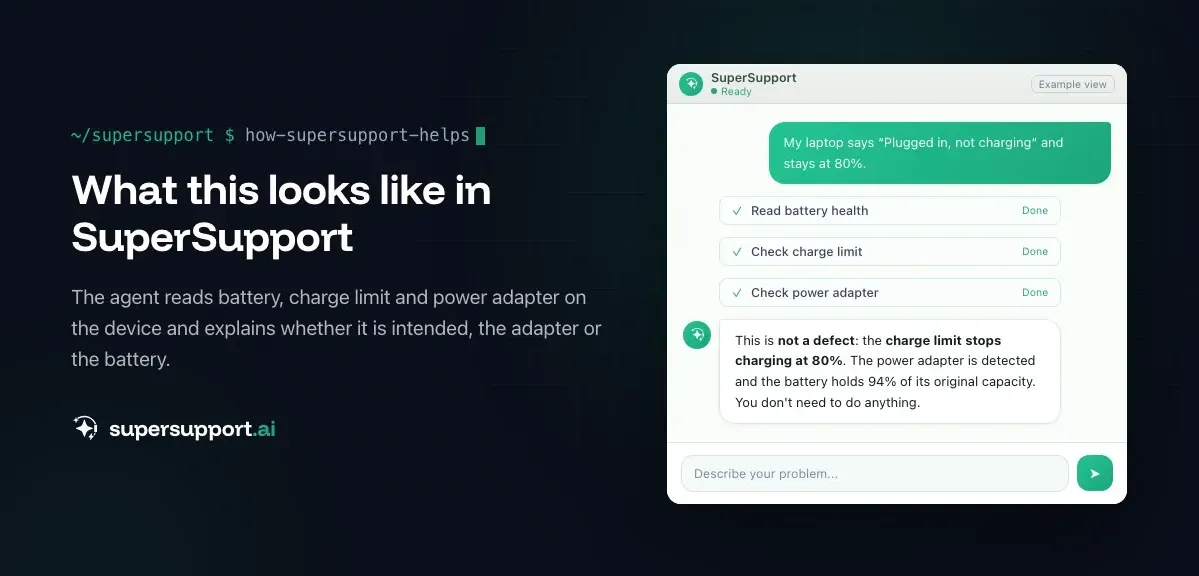
On the Windows or Mac device, the SuperSupport agent reads out the charge level, battery health, and capacity, detects whether a charge limit is active, and checks the status of the power adapter or docking station. That makes it clear whether it is intentional, the power adapter, or a worn-out battery. In case of a defect, the case goes to IT with all the values. What that looks like for internal IT teams and MSPs is described on the respective pages. See also Laptop slow in operation.
Frequently asked questions
What does “Plugged in, not charging” mean?
The laptop detects the power adapter but does not charge the battery. Often that is intentional, for example because a battery protection feature stops charging at 80%. Or the adapter or docking station delivers too little power, the battery is too warm or worn out, or a driver or the BIOS needs an update.
Why does my laptop only charge to 80%?
Many manufacturers offer battery protection that limits the charge to 80% or a similar value to extend battery life. It is set in the manufacturer's software or in the BIOS. macOS also temporarily limits charging to 80% with Optimized Battery Charging.
Is any USB-C power adapter enough for charging?
No. The adapter has to deliver enough power, often 45, 65, or more watts, depending on the laptop. Phone chargers or weak docking stations are not enough and lead to slow charging or none at all. The required power is printed on the original adapter.
How do I check the health of my laptop battery?
On Windows, run powercfg /batteryreport in a Command Prompt. The report compares the original with the current full charge capacity. On a Mac, go to System Settings › Battery › Battery Health. If the capacity is well below the new-condition value, the battery is worn out.
Is a swollen battery dangerous?
Yes. If the case bulges, the touchpad lifts, or the lid no longer closes properly, the battery may be swollen. Then stop charging and using the device, disconnect it from power, and inform IT or the manufacturer.
14 days free
IT support that fixes itself.
SuperSupport fixes IT problems right on the device, before they turn into tickets. Try it free for 14 days.
Start free trialNico Haslberger is Co-Founder & CEO of SuperSupport.ai. With years of experience as an IT technician, he knows the problems in IT support first-hand: from overloaded help desks to recurring tickets that slow teams down. That knowledge is built into every feature of the platform today. He makes sure SuperSupport.ai solves exactly the problems he experienced himself for years.
This article was created with AI assistance and editorially reviewed.
Related Articles

Teams Won’t Start or Shows a White Screen: Fixes
Microsoft Teams won’t open, shows only a white screen or hangs while loading? Here is how to fix it on Windows and macOS.


Excel Drop-Down List: Fixed, Growing, Dependent
Want a selection list in an Excel cell? Create drop-downs with Data Validation – fixed, from a range, growing or dependent on another list.

External Monitor No Signal After BIOS Update: What to Do
External monitor shows “No signal” since the BIOS update, over HDMI and USB-C? Steps: drivers, BIOS settings, graphics switching, hardware test.