;}.cls-2{fill:url(%23Unbenannter_Verlauf_5-2);}.cls-3{fill:url(%23Unbenannter_Verlauf_5-5);}.cls-4{fill:url(%23Unbenannter_Verlauf_5-6);}.cls-5{fill:url(%23Unbenannter_Verlauf_5-3);}.cls-6{fill:url(%23Unbenannter_Verlauf_5-4);}%3c/style%3e%3clinearGradient%20id='Unbenannter_Verlauf_5'%20x1='1075.02'%20y1='943.06'%20x2='1201.78'%20y2='943.06'%20gradientUnits='userSpaceOnUse'%3e%3cstop%20offset='0'%20stop-color='%2322b88a'/%3e%3cstop%20offset='1'%20stop-color='%231a9e78'/%3e%3c/linearGradient%3e%3clinearGradient%20id='Unbenannter_Verlauf_5-2'%20x1='234.11'%20y1='663.43'%20x2='1058.29'%20y2='663.43'%20xlink:href='%23Unbenannter_Verlauf_5'/%3e%3clinearGradient%20id='Unbenannter_Verlauf_5-3'%20x1='843.79'%20y1='1064.84'%20x2='1096.04'%20y2='1064.84'%20xlink:href='%23Unbenannter_Verlauf_5'/%3e%3clinearGradient%20id='Unbenannter_Verlauf_5-4'%20x1='1120.37'%20y1='662.1'%20x2='1253'%20y2='662.1'%20xlink:href='%23Unbenannter_Verlauf_5'/%3e%3clinearGradient%20id='Unbenannter_Verlauf_5-5'%20x1='97.45'%20y1='265.53'%20x2='385.89'%20y2='265.53'%20xlink:href='%23Unbenannter_Verlauf_5'/%3e%3clinearGradient%20id='Unbenannter_Verlauf_5-6'%20x1='295.45'%20y1='255.64'%20x2='1213.95'%20y2='255.64'%20xlink:href='%23Unbenannter_Verlauf_5'/%3e%3c/defs%3e%3cpath%20class='cls-1'%20d='M1201.78,871c-.61,1.55-1.23,3.1-1.86,4.66-20.33,50.18-47.14,96.85-80.02,139.45-7.56-13.82-21.78-22.31-37.69-22.31h-7.19c29.82-37.26,54.46-78.02,73.61-121.8h53.15Z'/%3e%3cpath%20class='cls-2'%20d='M665.24,264.59l69.02,186.52c21.3,57.57,66.69,102.96,124.26,124.26l186.52,69.02c17.67,6.54,17.67,31.54,0,38.08l-186.52,69.02c-57.57,21.3-102.96,66.69-124.26,124.26l-69.02,186.52c-6.54,17.67-31.54,17.67-38.08,0l-69.02-186.52c-21.3-57.57-66.69-102.96-124.26-124.26l-186.52-69.02c-17.67-6.54-17.67-31.54,0-38.08l186.52-69.02c57.57-21.3,102.96-66.69,124.26-124.26l69.02-186.52c6.54-17.67,31.54-17.67,38.08,0Z'/%3e%3cpath%20class='cls-5'%20d='M1082.21,1021.98h-79.13c-1.7,0-2.97-1.56-2.62-3.23l22.72-109.35c2.94-14.16-15.11-22.74-24.23-11.51l-152.04,187.31c-7.32,9.02-.9,22.5,10.72,22.5h79.13c1.7,0,2.97,1.56,2.62,3.23l-22.72,109.35c-2.94,14.16,15.11,22.74,24.23,11.51l152.04-187.31c7.32-9.02.9-22.5-10.72-22.5Z'/%3e%3crect%20class='cls-6'%20x='1120.37'%20y='486.36'%20width='132.63'%20height='351.48'%20rx='19.58'%20ry='19.58'/%3e%3cpath%20class='cls-3'%20d='M250.58,128.27l13.88,55.81c7.19,28.91,29.76,51.47,58.66,58.66l55.81,13.88c9.29,2.31,9.29,15.51,0,17.82l-55.81,13.88c-28.91,7.19-51.47,29.76-58.66,58.66l-13.88,55.81c-2.31,9.29-15.51,9.29-17.82,0l-13.88-55.81c-7.19-28.91-29.76-51.47-58.66-58.66l-55.81-13.88c-9.29-2.31-9.29-15.51,0-17.82l55.81-13.88c28.91-7.19,51.47-29.76,58.66-58.66l13.88-55.81c2.31-9.29,15.51-9.29,17.82,0Z'/%3e%3cpath%20class='cls-4'%20d='M1213.95,453.21h-67.62c-1.23,0-2.47.04-3.67.12-27.03-63.89-65.84-121.36-115.42-170.94-51.54-51.54-111.61-91.44-178.55-118.59-64.67-26.22-133.03-39.52-203.16-39.52s-138.48,13.3-203.16,39.52c-33.73,13.67-65.72,30.61-95.75,50.63l-.19-.05c-23.62-5.88-42.51-22.85-51-45.24,37.87-26.86,78.65-49.21,122.01-66.79,72.63-29.44,149.37-44.38,228.08-44.38s155.45,14.93,228.08,44.38c75.2,30.51,142.67,75.31,200.53,133.15,57.84,57.85,102.65,125.33,133.15,200.53,2.31,5.7,4.54,11.43,6.66,17.19Z'/%3e%3c/svg%3e)
Former Employee Mailbox: What to Do in Microsoft 365
An employee leaves the company: what happens to their mailbox? Forwarding, shared mailbox, license and data protection in Microsoft 365, step by step.


The colleague is gone, but their mailbox isn't. And customer inquiries are still landing there.
"Please forward Mr. …'s emails to our office address starting Friday." That was the short request a planning firm sent to its IT service provider. An employee was leaving the company, and his emails shouldn't go nowhere. What was then carried out was considerably more than forwarding: redirection with an end date, user disabled, permissions and groups removed, mailbox converted to a shared mailbox, hidden from the address book, license removed.
That list is exactly the point. When an employee leaves, it isn't just about emails, but about access, data and costs. Here is the process in Microsoft 365.
What should happen to the mailbox?
In most cases: convert it to a shared mailbox. That has three advantages:
- The emails are kept, which matters for customer history, quotes and orders.
- Authorized colleagues can access it without knowing the former employee's password.
- The license becomes free, since shared mailboxes don't need their own license up to 50 GB.
Simply deleting the mailbox, by contrast, is risky: once the recovery period expires, the emails are gone.
Step 1: Block sign-in and end sessions
Close access first, on the last working day, not weeks later.
- Microsoft 365 admin center › Users › Active users › user › Block sign-in.
- Sign out of all sessions, so that signed-in phones and browsers are disconnected too.
- Reset the password in case it is saved somewhere.
- Mobile devices: remove or reset them in Exchange or Intune (wipe company data).
- On-premises Active Directory: disable the account if it is synced.
With PowerShell (Microsoft Graph):
Connect-MgGraph -Scopes "User.ReadWrite.All"
Update-MgUser -UserId "[email protected]" -AccountEnabled:$false
Revoke-MgUserSignInSession -UserId "[email protected]"
Step 2: Remove groups and permissions
Over the years, an account collects many groups: distribution lists, Teams, SharePoint sites, drive shares, VPN access, applications. In the real-world case, there were a good dozen groups, from "All employees" through project groups to access for remote access and applications.
Remove them all, and document them first in case a successor needs the same permissions:
Get-ADUser "mitarbeiter" -Properties MemberOf | Select-Object -ExpandProperty MemberOfDon't forget: access outside Microsoft 365: line-of-business software, online portals of suppliers and banks, cloud services, shared passwords that the employee knew.
Step 3: Convert the mailbox
Microsoft 365 admin center › Users › Mail tab › Convert to shared mailbox.
With PowerShell:
Connect-ExchangeOnline
Set-Mailbox -Identity "[email protected]" -Type Shared
Then grant permissions to the colleagues who need access:
Add-MailboxPermission -Identity "[email protected]" -User "[email protected]" -AccessRights FullAccess -AutoMapping $trueStep 4: Forwarding or automatic reply
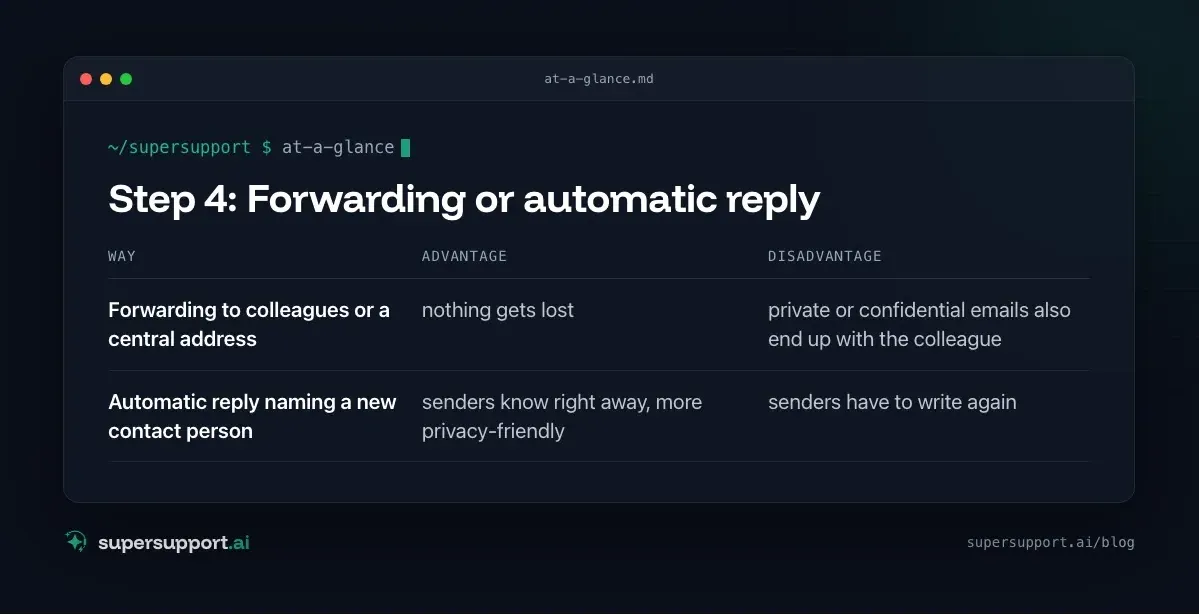
Two ways to keep emails from going nowhere:
- Way: Forwarding to colleagues or a central address – Advantage: nothing gets lost; Disadvantage: private or confidential emails also end up with the colleague
- Way: Automatic reply naming a new contact person – Advantage: senders know right away, more privacy-friendly; Disadvantage: senders have to write again
The combination often makes sense: an automatic reply for everyone, plus time-limited forwarding of business emails to a central address.
Set up forwarding:
Set-Mailbox -Identity "[email protected]" -ForwardingAddress "[email protected]" -DeliverToMailboxAndForward $trueWith -DeliverToMailboxAndForward $true, a copy stays in the mailbox, so everything remains traceable.

14 days free
IT support that fixes itself.
SuperSupport fixes IT problems right on the device, before they turn into tickets. Try it free for 14 days.
Start free trialImportant: Exchange has no built-in expiry date for forwarding. Set a fixed date, in the ticket system or calendar, on which the forwarding is removed. In the real-world case, exactly that was done.
Automatic reply with a time period:
Set-MailboxAutoReplyConfiguration -Identity "[email protected]" -AutoReplyState Scheduled `
  -StartTime "2026-10-01" -EndTime "2026-12-31" `
  -ExternalMessage "Mr. … is no longer with the company. Please contact [email protected]." `
  -InternalMessage "No longer with the company. Please contact [email protected]."
Step 5: Hide from the address book and remove the license
Set-Mailbox -Identity "[email protected]" -HiddenFromAddressListsEnabled $trueThen, in the admin center under Licenses and apps, remove the license, only after the conversion, otherwise the mailbox is deleted when the grace period expires. What happens when licenses drop away unplanned is described in Outlook hangs on “Loading Profile”.
Exceptions: Mailboxes over 50 GB, with an archive or with a retention policy (such as a litigation hold) still need a suitable license.
What about OneDrive and the files?
OneDrive data is part of this too. When the license is removed or the account is deleted, OneDrive is only kept for a limited time. Beforehand:
- Give the manager or successor access to the OneDrive (offered in the admin center when deleting the user) or move the files to a Teams or SharePoint location.
- Check sharing: files the employee shared with external partners.
What does data protection say?
The mailbox can also contain private or confidential emails. Therefore:
- Set the rules in advance, ideally in an IT policy that every employee knows (whether private use is allowed or not, what happens when someone leaves).
- Limit access to the people who need it for business.
- Put a time limit on forwarding.
- Observe retention periods before the mailbox is permanently deleted. Business correspondence is often subject to statutory periods.
If in doubt, coordinate with the data protection officer.
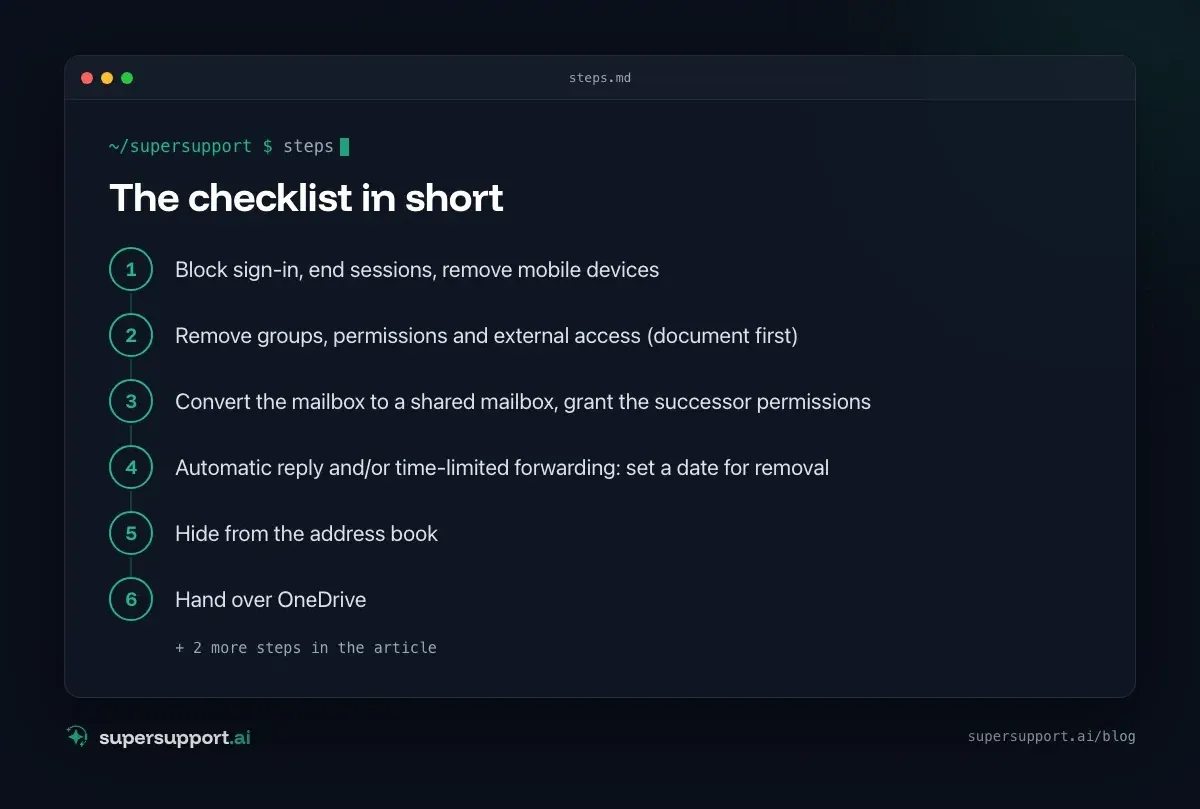
The checklist in short
- Block sign-in, end sessions, remove mobile devices
- Remove groups, permissions and external access (document first)
- Convert the mailbox to a shared mailbox, grant the successor permissions
- Automatic reply and/or time-limited forwarding: set a date for removal
- Hide from the address book
- Hand over OneDrive
- Remove the license
- After the periods expire: delete permanently
The reverse direction, a new employee taking over the workstation, is covered in the IT checklist for new employees.
How does SuperSupport help when employees leave?
Requests like "Please forward Mr. …'s emails" rarely contain everything IT needs to know. The SuperSupport agent asks in the conversation about the cutoff date, the forwarding target, the duration, access to files and the successor, and hands IT a complete case. The implementation in Microsoft 365 stays with IT. What this looks like for internal IT teams and MSPs is explained on the respective pages.
Frequently asked questions
What do I do with the mailbox of a former employee?
In Microsoft 365, it is usually converted into a shared mailbox. That way the emails are kept, colleagues can access them if needed, and the license can be removed. In addition, sign-in is blocked and the mailbox is hidden from the address book.
Does a shared mailbox need a license?
Not up to 50 GB. Larger mailboxes, archives or retention policies such as a litigation hold still need a suitable license.
Can I forward the emails to a colleague?
Business emails, as a rule yes, for a limited time and with a clear purpose. Because a mailbox can also contain private or confidential messages, an automatic reply naming a new contact person is often the more privacy-friendly solution. The company's rules should be set beforehand.
How long should the forwarding run?
Until customers and partners know the new contact person, usually a few weeks to a few months. Exchange has no built-in expiry date for forwarding, so plan a fixed date to remove it.
Can the mailbox be deleted later?
Yes, if no retention obligations stand in the way. Beforehand, check whether business emails, such as invoices or contracts, are archived elsewhere, and observe the statutory retention periods.
14 days free
IT support that fixes itself.
SuperSupport fixes IT problems right on the device, before they turn into tickets. Try it free for 14 days.
Start free trialNico Haslberger is Co-Founder & CEO of SuperSupport.ai. With years of experience as an IT technician, he knows the problems in IT support first-hand: from overloaded help desks to recurring tickets that slow teams down. That knowledge is built into every feature of the platform today. He makes sure SuperSupport.ai solves exactly the problems he experienced himself for years.
This article was created with AI assistance and editorially reviewed.
Related Articles

Recover a Deleted File: All the Ways at Work
File deleted, overwritten or unsaved? Recover it via Recycle Bin, OneDrive and SharePoint, version history, AutoRecover, Previous Versions or Time Machine.


Find Your BitLocker Recovery Key: All the Ways
Windows asks for the BitLocker recovery key? Where to find the 48-digit key (Microsoft account, Entra ID, Intune, AD) and why it is requested.

Windows Server Shuts Down Every Hour? Check the License
Server shuts itself down after about an hour – taking VMs and printers with it? Usually the evaluation license has expired. How to spot and fix it.