;}.cls-2{fill:url(%23Unbenannter_Verlauf_5-2);}.cls-3{fill:url(%23Unbenannter_Verlauf_5-5);}.cls-4{fill:url(%23Unbenannter_Verlauf_5-6);}.cls-5{fill:url(%23Unbenannter_Verlauf_5-3);}.cls-6{fill:url(%23Unbenannter_Verlauf_5-4);}%3c/style%3e%3clinearGradient%20id='Unbenannter_Verlauf_5'%20x1='1075.02'%20y1='943.06'%20x2='1201.78'%20y2='943.06'%20gradientUnits='userSpaceOnUse'%3e%3cstop%20offset='0'%20stop-color='%2322b88a'/%3e%3cstop%20offset='1'%20stop-color='%231a9e78'/%3e%3c/linearGradient%3e%3clinearGradient%20id='Unbenannter_Verlauf_5-2'%20x1='234.11'%20y1='663.43'%20x2='1058.29'%20y2='663.43'%20xlink:href='%23Unbenannter_Verlauf_5'/%3e%3clinearGradient%20id='Unbenannter_Verlauf_5-3'%20x1='843.79'%20y1='1064.84'%20x2='1096.04'%20y2='1064.84'%20xlink:href='%23Unbenannter_Verlauf_5'/%3e%3clinearGradient%20id='Unbenannter_Verlauf_5-4'%20x1='1120.37'%20y1='662.1'%20x2='1253'%20y2='662.1'%20xlink:href='%23Unbenannter_Verlauf_5'/%3e%3clinearGradient%20id='Unbenannter_Verlauf_5-5'%20x1='97.45'%20y1='265.53'%20x2='385.89'%20y2='265.53'%20xlink:href='%23Unbenannter_Verlauf_5'/%3e%3clinearGradient%20id='Unbenannter_Verlauf_5-6'%20x1='295.45'%20y1='255.64'%20x2='1213.95'%20y2='255.64'%20xlink:href='%23Unbenannter_Verlauf_5'/%3e%3c/defs%3e%3cpath%20class='cls-1'%20d='M1201.78,871c-.61,1.55-1.23,3.1-1.86,4.66-20.33,50.18-47.14,96.85-80.02,139.45-7.56-13.82-21.78-22.31-37.69-22.31h-7.19c29.82-37.26,54.46-78.02,73.61-121.8h53.15Z'/%3e%3cpath%20class='cls-2'%20d='M665.24,264.59l69.02,186.52c21.3,57.57,66.69,102.96,124.26,124.26l186.52,69.02c17.67,6.54,17.67,31.54,0,38.08l-186.52,69.02c-57.57,21.3-102.96,66.69-124.26,124.26l-69.02,186.52c-6.54,17.67-31.54,17.67-38.08,0l-69.02-186.52c-21.3-57.57-66.69-102.96-124.26-124.26l-186.52-69.02c-17.67-6.54-17.67-31.54,0-38.08l186.52-69.02c57.57-21.3,102.96-66.69,124.26-124.26l69.02-186.52c6.54-17.67,31.54-17.67,38.08,0Z'/%3e%3cpath%20class='cls-5'%20d='M1082.21,1021.98h-79.13c-1.7,0-2.97-1.56-2.62-3.23l22.72-109.35c2.94-14.16-15.11-22.74-24.23-11.51l-152.04,187.31c-7.32,9.02-.9,22.5,10.72,22.5h79.13c1.7,0,2.97,1.56,2.62,3.23l-22.72,109.35c-2.94,14.16,15.11,22.74,24.23,11.51l152.04-187.31c7.32-9.02.9-22.5-10.72-22.5Z'/%3e%3crect%20class='cls-6'%20x='1120.37'%20y='486.36'%20width='132.63'%20height='351.48'%20rx='19.58'%20ry='19.58'/%3e%3cpath%20class='cls-3'%20d='M250.58,128.27l13.88,55.81c7.19,28.91,29.76,51.47,58.66,58.66l55.81,13.88c9.29,2.31,9.29,15.51,0,17.82l-55.81,13.88c-28.91,7.19-51.47,29.76-58.66,58.66l-13.88,55.81c-2.31,9.29-15.51,9.29-17.82,0l-13.88-55.81c-7.19-28.91-29.76-51.47-58.66-58.66l-55.81-13.88c-9.29-2.31-9.29-15.51,0-17.82l55.81-13.88c28.91-7.19,51.47-29.76,58.66-58.66l13.88-55.81c2.31-9.29,15.51-9.29,17.82,0Z'/%3e%3cpath%20class='cls-4'%20d='M1213.95,453.21h-67.62c-1.23,0-2.47.04-3.67.12-27.03-63.89-65.84-121.36-115.42-170.94-51.54-51.54-111.61-91.44-178.55-118.59-64.67-26.22-133.03-39.52-203.16-39.52s-138.48,13.3-203.16,39.52c-33.73,13.67-65.72,30.61-95.75,50.63l-.19-.05c-23.62-5.88-42.51-22.85-51-45.24,37.87-26.86,78.65-49.21,122.01-66.79,72.63-29.44,149.37-44.38,228.08-44.38s155.45,14.93,228.08,44.38c75.2,30.51,142.67,75.31,200.53,133.15,57.84,57.85,102.65,125.33,133.15,200.53,2.31,5.7,4.54,11.43,6.66,17.19Z'/%3e%3c/svg%3e)
Printer Offline on Windows: How to Get It Back
Windows shows your network printer as “Offline” even though it is on? Common causes (changed IP, WSD port, SNMP status) and how to fix them.


For a printer, “Offline” rarely means that it is off.
“The printer is offline.” It is standing in the hallway switched on, and colleagues are printing, but only your own PC shows it grayed out as “Offline”. This is one of the most common printer requests of all and usually has one of a few causes. If no printers are left at all, not even “Microsoft Print to PDF”, the problem is the print service instead, see Printer not printing: fix the Print Spooler.
Step 1: Is the printer actually reachable?
- Printer on, no error on the display? A paper jam, empty toner, or power-saving mode can make it seem “offline”.
- Are colleagues able to print? Then the problem is probably your own PC.
- Check reachability (PowerShell, insert the printer's IP):
Test-NetConnection 192.168.1.50 -Port 9100TcpTestSucceeded : True means: the printer is on the network and accepts print jobs. With False: check the network, IP, or printer. If the PC is on the guest Wi-Fi, it does not see the printer, see Setting up Wi-Fi in the office.
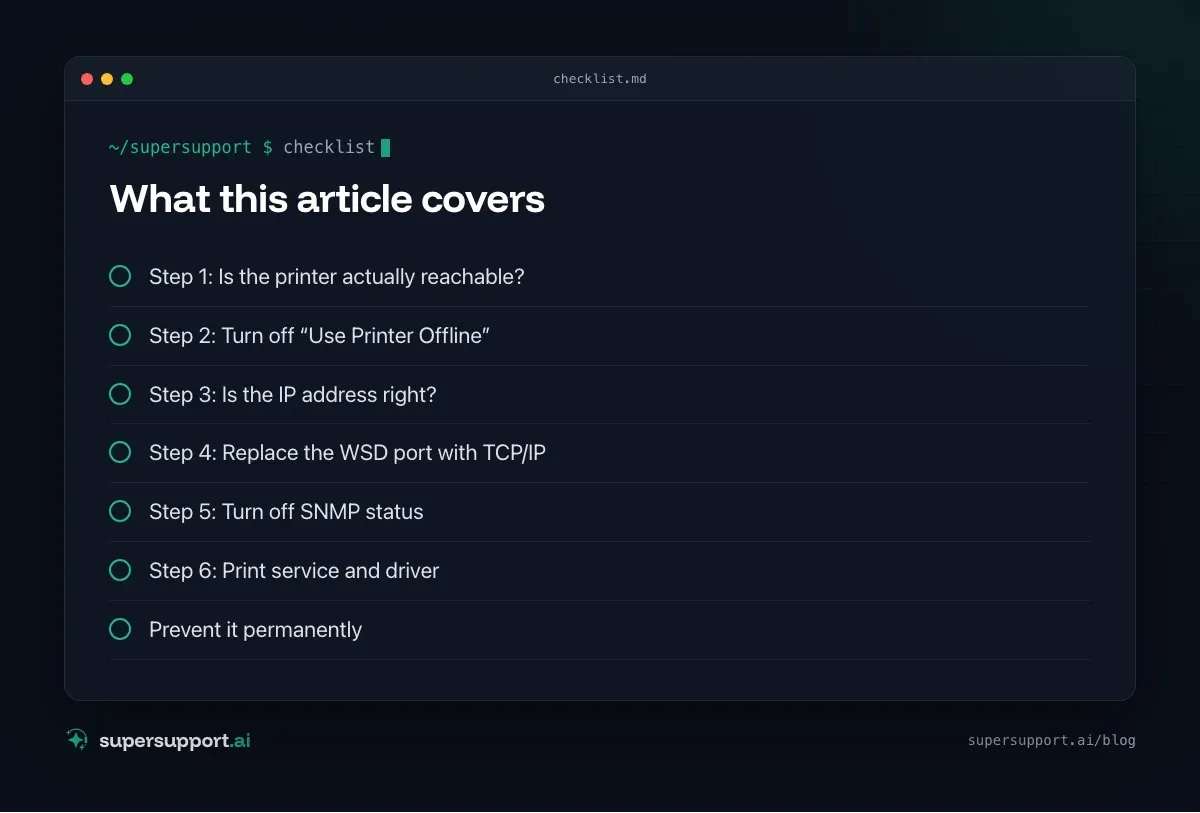
Step 2: Turn off “Use Printer Offline”
Settings › Bluetooth & devices › Printers & scanners › printer › Open print queue › Printer menu: clear the checkmark for Use Printer Offline.
Step 3: Is the IP address right?
If the printer got a new IP, the port on the PC still points to the old one.
Check the port:
Get-Printer | Select-Object Name, PrinterStatus, PortName
Get-PrinterPort | Select-Object Name, PrinterHostAddress
If the address does not match the printer's current IP: adjust the port (Step 4) and give the printer a fixed IP or DHCP reservation so that it does not happen again.
Step 4: Replace the WSD port with TCP/IP
If the port is called WSD-…, it is tied to automatic discovery and loses the printer more easily.
- Printers & scanners › printer › Printer properties › Ports tab.
- Add Port › Standard TCP/IP Port › enter the printer's IP address.
- Select the new port, Apply.
With PowerShell (as administrator):
Add-PrinterPort -Name "IP_192.168.1.50" -PrinterHostAddress "192.168.1.50"
Set-Printer -Name "Büro A4" -PortName "IP_192.168.1.50"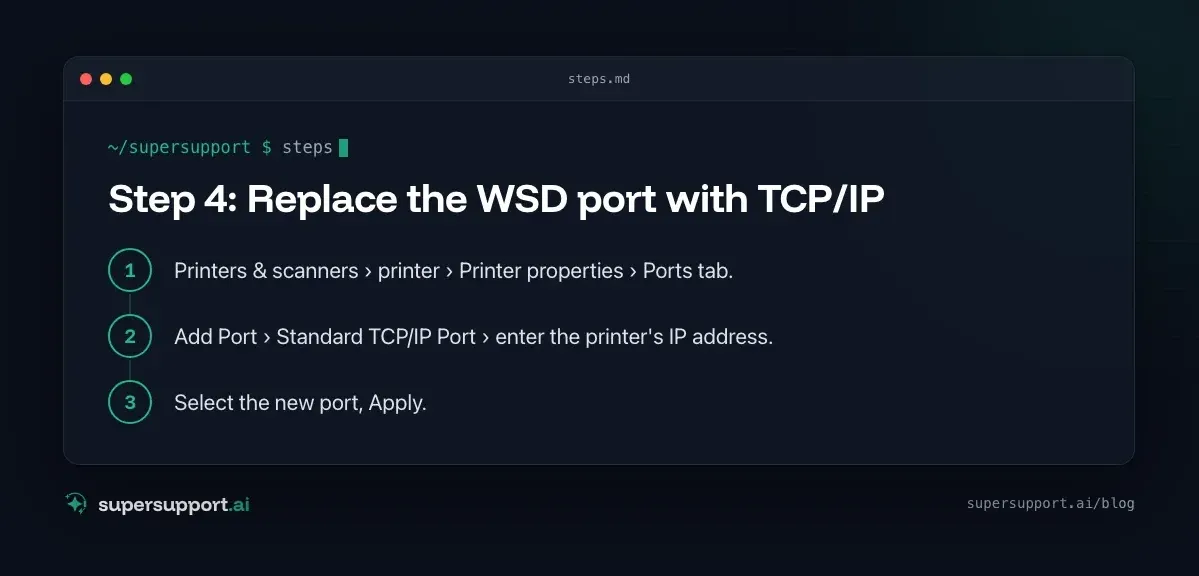

Beta
IT support that fixes itself.
supersupport.ai handles your 1st-level support fully automatically. Secure your spot on the waitlist now.
Join the WaitlistStep 5: Turn off SNMP status
Windows asks the printer for its state via SNMP. If it does not respond properly, Windows shows “Offline”, even though printing would be possible.
Printer properties › Ports › select the port › Configure Port › clear the checkmark for SNMP Status Enabled.
Step 6: Print service and driver
- Restart the Print Spooler: see Print Spooler won't restart.
- Remove the printer and add it again, with a universal or manufacturer driver, see HP Universal Print Driver.
- Is the print server reachable? For printers through a server: is the server there? See Windows Server shuts down every hour.
Prevent it permanently
- Fixed IP for all printers.
- TCP/IP ports instead of WSD.
- Deploy centrally via Intune, Group Policy, or script, see Setting up printers with PowerShell and Printer management in SMBs.
- Set the power-saving mode on the printer so that it stays reachable on the network.
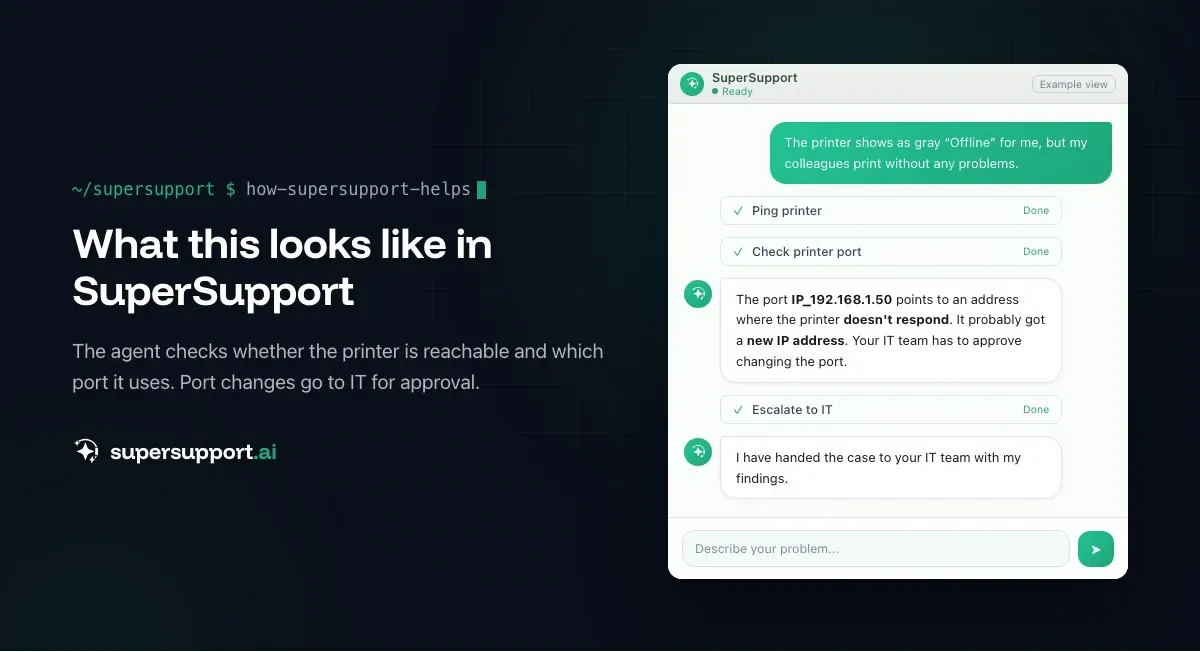
How does SuperSupport help with “printer offline”?
The SuperSupport agent checks directly on the Windows device whether the printer is reachable, which port and which IP Windows uses, whether “Use Offline” or SNMP status are active, and how the print queue is doing. It handles harmless things like the offline setting itself, and it submits changes to ports and drivers to IT for approval. What that looks like for internal IT teams and MSPs is described on the respective pages.
Frequently asked questions
Why does Windows show my printer as offline?
Common causes are a changed IP address of the printer, an unreliable WSD port, a faulty SNMP status query, the “Use Printer Offline” option being enabled, a power-saving mode on the printer, or simply a network problem between the PC and the printer.
How do I find my printer's IP address?
On the printer's display under network or device information, via a configuration printout (often with a key combination on the device), or in the overview of the router or DHCP server. On Windows, Get-PrinterPort in PowerShell shows which address the port uses.
What is a WSD port and why does it cause problems?
WSD (Web Services for Devices) is a method Windows uses to find and set up printers automatically. The port depends on automatic discovery instead of a fixed address and loses the printer more easily, for example after restarts or in larger networks. A standard TCP/IP port with a fixed IP is more reliable.
What does “SNMP Status Enabled” mean on a printer port?
Windows asks the printer for its status via SNMP. If the printer does not respond or responds with different settings, Windows reports it as offline even though it prints. Clearing the checkmark for SNMP Status Enabled in the port settings often fixes this.
How do I keep the printer from going offline again and again?
Give the printer a fixed IP address or DHCP reservation, set it up with a standard TCP/IP port instead of WSD, check the printer's power-saving mode, and deploy printers centrally so that all workstations have the same configuration.
Beta
IT support that fixes itself.
supersupport.ai handles your 1st-level support fully automatically. Secure your spot on the waitlist now.
Join the WaitlistNico Haslberger is Co-Founder & CEO of SuperSupport.ai. With years of experience as an IT technician, he knows the problems in IT support first-hand: from overloaded help desks to recurring tickets that slow teams down. That knowledge is built into every feature of the platform today. He makes sure SuperSupport.ai solves exactly the problems he experienced himself for years.
This article was created with AI assistance and editorially reviewed.
Related Articles

Program Not Responding: How to Close It Properly
“Not responding” and nothing works? Here's how to close frozen programs cleanly on Windows – even if the process has another name or runs several times.


Outlook Keeps Crashing: Find the Cause and Fix It for Good
Outlook keeps crashing, but the event log shows nothing? Here's how to find the trigger – from add-ins and the cache to a corrupted profile.

Printer Not Printing: Fix the Print Spooler
No printers visible anymore or jobs stuck? Often the Windows Print Spooler is stopped or disabled. Here is how to check and repair it.